

/home) for changes in plain words, and Agent Settings in the sidebar for the settings drawer.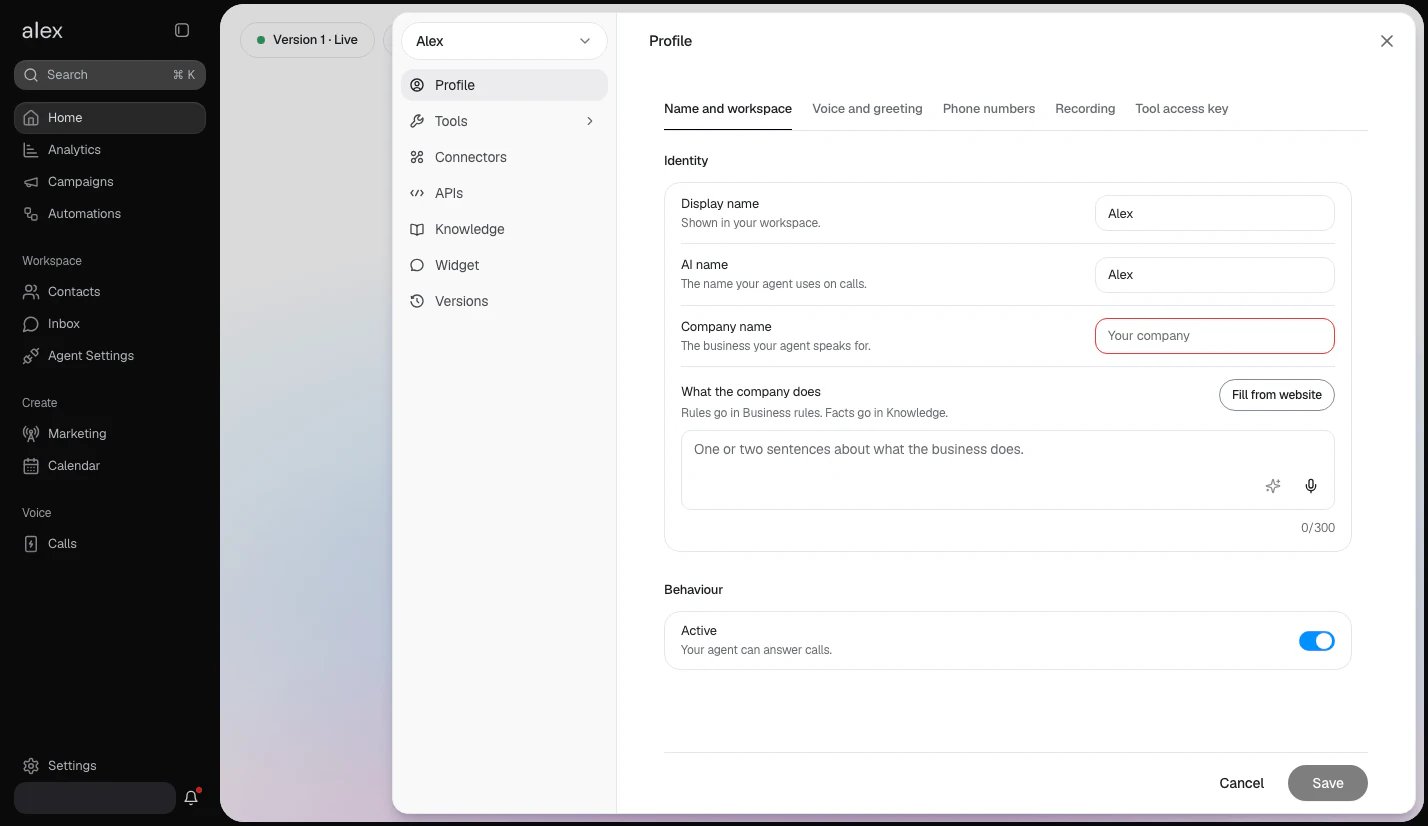
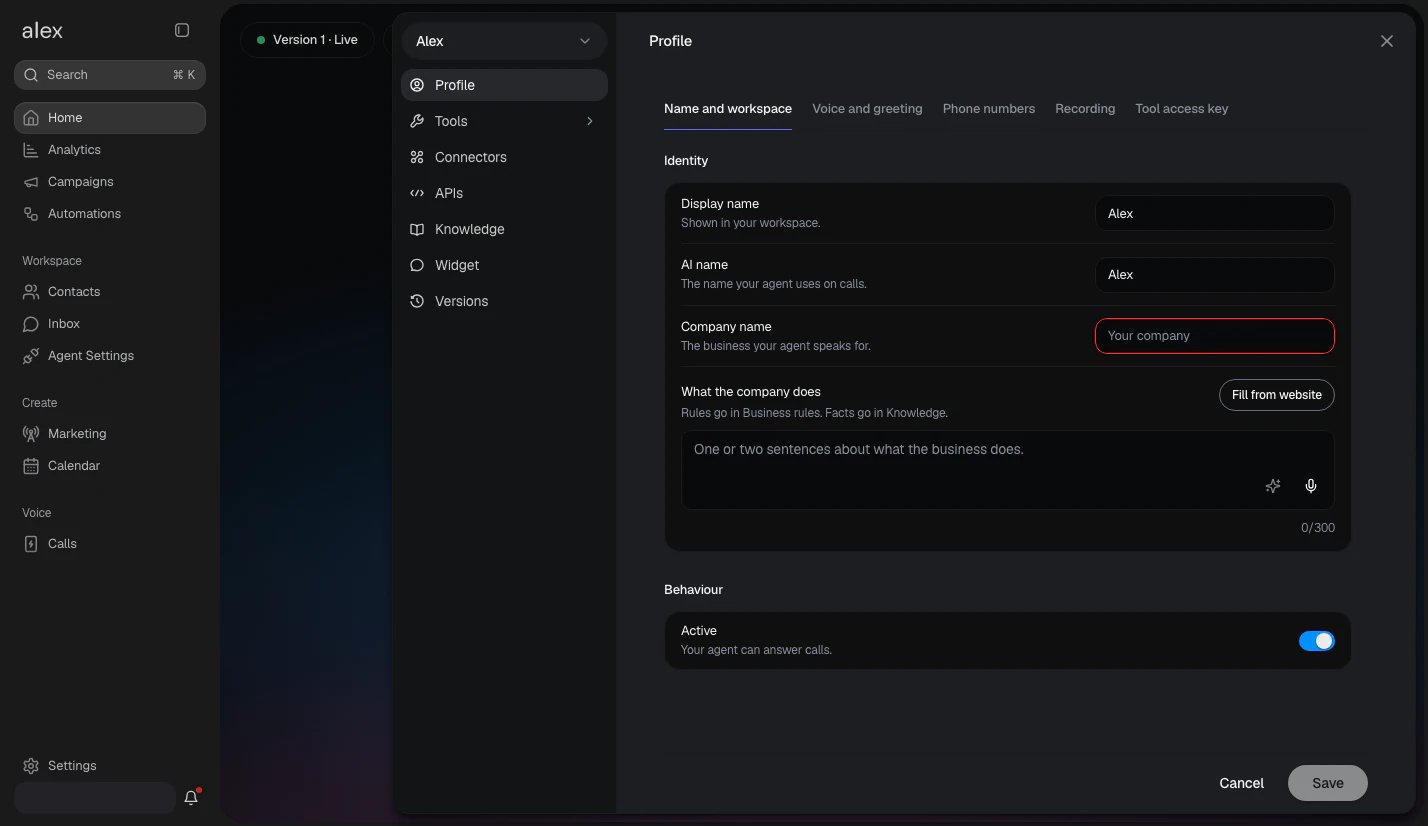
Agent Settings holds your agent's profile, tools, connectors and versions
Create and manage agents
How do I set up my first agent from scratch?
How do I set up my first agent from scratch?
/home), click the agent name beside the message box, choose New agent, then Start from scratch. Give your website, or describe the business if you have none, and finish the three steps: Your business, Your agent and Review. Your agent is ready in a few seconds, and you can talk to it in your browser straight away.See Create an agent. First time: Set up your first voice agent.Do I need to get the agent right first time?
Do I need to get the agent right first time?
Can I copy an agent for another branch or department?
Can I copy an agent for another branch or department?
How many agents can I have, and what does an extra one cost?
How many agents can I have, and what does an extra one cost?
How do I rename an agent?
How do I rename an agent?
How do I delete an agent?
How do I delete an agent?
Can I change the agent's goal later?
Can I change the agent's goal later?
Instructions and drafts
How do I change what the agent says?
How do I change what the agent says?
Where do I edit the agent's rules and instructions directly?
Where do I edit the agent's rules and instructions directly?
What parts of the instructions does the agent actually read?
What parts of the instructions does the agent actually read?
Can the agent offer a document, a link or a call to action on every call?
Can the agent offer a document, a link or a call to action on every call?
Can the agent talk as one of our team, with “we” and “our”?
Can the agent talk as one of our team, with “we” and “our”?
How do I set guardrails?
How do I set guardrails?
Why did the agent's greeting change?
Why did the agent's greeting change?
Does the agent say it is an AI?
Does the agent say it is an AI?
I pressed Apply and the change did not go live. What do I check?
I pressed Apply and the change did not go live. What do I check?
My settings say they are locked while a draft is open. Where do I publish or discard it?
My settings say they are locked while a draft is open. Where do I publish or discard it?
- Open Home and choose the agent.
- Find the amber Draft bar.
- Click Publish, or Discard.
- Confirm in the box that opens.
What does Publish do, and can I name the version?
What does Publish do, and can I name the version?
Why do I need approval before I can publish?
Why do I need approval before I can publish?
How do I go back to an earlier version of the instructions?
How do I go back to an earlier version of the instructions?
How do I train or teach my agent, and is the chat with Alex the right place?
How do I train or teach my agent, and is the chat with Alex the right place?
Which guardrails does my agent have, and how do I test that they work?
Which guardrails does my agent have, and how do I test that they work?
/call-logs).See Instructions and guardrails.How do I reset an agent and start again from scratch?
How do I reset an agent and start again from scratch?
Does the agent learn from past calls?
Does the agent learn from past calls?
/call-logs), then tell Alex what to change.See Change your agent.Your North Star
What is my North Star?
What is my North Star?
How do I see what my North Star is set to right now?
How do I see what my North Star is set to right now?
/home), choose the agent, press + beside the message box and choose Edit instructions. Open Objective, and the Goal box holds your North Star. You can also ask Alex “What is my North Star?” in the chat on Home.See Change your agent.How do I change my North Star, for example to a support agent?
How do I change my North Star, for example to a support agent?
Can my messaging agent and my voice agent have different North Stars?
Can my messaging agent and my voice agent have different North Stars?
Does a change I am asking for go against my North Star?
Does a change I am asking for go against my North Star?
Voice, accent and language
Where do I choose the voice, accent and language?
Where do I choose the voice, accent and language?
/home?settings=profile). Voice, Accent and Language are the first three rows under Speaking voice. You can also tap Change voice in the + menu on Home.See Voices and languages. First time: Change your agent’s voice.Which voices are available, and can I hear them first?
Which voices are available, and can I hear them first?
Why does my agent sound American when I set a South African accent?
Why does my agent sound American when I set a South African accent?
I changed the accent or language and nothing happened. Why?
I changed the accent or language and nothing happened. Why?
The accent drifts or the voice changes partway through a call. What can I do?
The accent drifts or the voice changes partway through a call. What can I do?
/call-logs).See Voices and languages.Is there a Voice character box?
Is there a Voice character box?
What languages can the agent speak?
What languages can the agent speak?
Can the agent speak Afrikaans or another South African language?
Can the agent speak Afrikaans or another South African language?
Can I pick the voice, accent and language on the Free plan?
Can I pick the voice, accent and language on the Free plan?
How do I make the agent pronounce or spell our name correctly?
How do I make the agent pronounce or spell our name correctly?
The agent read out an email address badly. Can it spell it out?
The agent read out an email address badly. Can it spell it out?
The voice, accent and language rows are greyed out. Why?
The voice, accent and language rows are greyed out. Why?
How do I make the agent speak faster, sound more natural, or be more or less formal?
How do I make the agent speak faster, sound more natural, or be more or less formal?
How do I make the agent say a currency word instead of its symbol?
How do I make the agent say a currency word instead of its symbol?
How do I change how a word is said while keeping how it is written?
How do I change how a word is said while keeping how it is written?
Can I train or clone my own voice?
Can I train or clone my own voice?
/home?settings=profile) and play a sample before you choose.See Voices and languages.Greeting and calls
How do I change the greeting or opening line?
How do I change the greeting or opening line?
Can the agent transfer a call to a person?
Can the agent transfer a call to a person?
How does the agent handle voicemail?
How does the agent handle voicemail?
Am I charged when the agent reaches voicemail?
Am I charged when the agent reaches voicemail?
/call-logs) marks each one Voicemail. People allowed to see costs also see its charge, so they can check what each cost.Most calls cost $0.07 to $0.12 a minute, and $0.08 on average, for the AI and the phone line together. Only the seconds after a call is answered are charged. Every rate by country is on Pricing.See Call logs.Can the agent tell a call screener from voicemail?
Can the agent tell a call screener from voicemail?
Why did the agent go silent or cut a caller off?
Why did the agent go silent or cut a caller off?
/call-logs) and read the transcript and recording to see where it happened. The agent can pause while a tool such as a calendar or CRM lookup runs. On a website call, the agent checks in when the visitor goes quiet and ends the call if they stay silent. If a phone call ended on its own, send our support team the call.See Call logs.What is the longest a call can be?
What is the longest a call can be?
The agent talks over people or stops when they cough. Can I tune it?
The agent talks over people or stops when they cough. Can I tune it?
/call-logs) and send it to our support team. They can check how the agent is handling it. You can also write turn-taking guidance in Business rules, such as “Keep answers to two sentences so callers can speak”.See Call logs.Does the agent remember repeat callers?
Does the agent remember repeat callers?
What happens if the caller says nothing?
What happens if the caller says nothing?
How fast does the agent respond?
How fast does the agent respond?
Can the greeting be longer than 300 characters?
Can the greeting be longer than 300 characters?
Can the agent give callers instructions straight after the greeting?
Can the agent give callers instructions straight after the greeting?
Knowledge
How does the agent answer questions about my business?
How does the agent answer questions about my business?
/home?settings=knowledge), or choose + → Add knowledge on Home.See Knowledge base. First time: Teach your agent: files, websites and documents.How do I update the agent's knowledge when something changes?
How do I update the agent's knowledge when something changes?
My website sync shows “1 update failure”. What do I do?
My website sync shows “1 update failure”. What do I do?
Can the agent send a payment link or any saved link during a call?
Can the agent send a payment link or any saved link during a call?
A document the agent sent opened corrupted. Why?
A document the agent sent opened corrupted. Why?
Where do I upload a file, such as a PDF from my laptop?
Where do I upload a file, such as a PDF from my laptop?
/home?settings=knowledge), go to Library and click Upload files. Choose up to 10 files at a time, 20 MB each, as PDF, Word, text or CSV. The agent uses a file once it shows Ready.See Knowledge base.How do I change or add the website the agent reads?
How do I change or add the website the agent reads?
Does a new upload replace the old one?
Does a new upload replace the old one?
Can I give the agent lots of articles at once, and will it find them?
Can I give the agent lots of articles at once, and will it find them?
I added knowledge but the agent never uses it, or says something wrong. Why?
I added knowledge but the agent never uses it, or says something wrong. Why?
Do I need to connect a knowledge base myself?
Do I need to connect a knowledge base myself?
The agent texted a document link and it would not open. Is extra setup needed?
The agent texted a document link and it would not open. Is extra setup needed?
Can the agent learn from recordings of our best calls?
Can the agent learn from recordings of our best calls?
/call-logs) and copy its transcript. Save the useful parts as a document with Write document. You can also turn what worked into Sample phrases or Business rules.See Teach your agent: files, websites and documents.How do I fill gaps in my agent's knowledge?
How do I fill gaps in my agent's knowledge?
/call-logs), which is a good list to start from.See Knowledge base. First time: Teach your agent: files, websites and documents.Website widget
I published a change and the widget still shows the old agent. Why?
I published a change and the widget still shows the old agent. Why?
The widget chat works but voice does not. Why?
The widget chat works but voice does not. Why?
Why does the widget not appear on my site?
Why does the widget not appear on my site?
<head>. If you listed Allowed websites, check your address is on that list. Changes can take up to five minutes to show.See Installing the widget. First time: Put the SmartAlex widget on your website.Can I lock the widget to my own website?
Can I lock the widget to my own website?
yourcompany.com, under Allowed websites in Sidebar → Agent Settings → Widget → Customise → Behaviour. Chat and calls then stop working on any other site, and one address also covers its subdomains. Leave the list empty to allow any site.See Widgets. First time: Put the SmartAlex widget on your website.How is the website widget billed, and can I cap it?
How is the website widget billed, and can I cap it?
Can visitors chat as well as talk?
Can visitors chat as well as talk?
How do I put my agent on my website?
How do I put my agent on my website?
- Open Sidebar → Agent Settings → Widget for the agent you want.
- On Style, pick one, such as Widget v2.
- Switch on Show widget on my website and confirm Before your widget goes live.
- On Install, copy the Install code, or click Send to developer.
- Paste it in your page’s
<head>and publish your site.
What greeting does the widget use, and where do I change it?
What greeting does the widget use, and where do I change it?
Do my changes work on the widget's voice calls too?
Do my changes work on the widget's voice calls too?
How do I set a daily limit or switch the widget off?
How do I set a daily limit or switch the widget off?
How do I stop people misusing my agent and the widget?
How do I stop people misusing my agent and the widget?
- Allowed websites under Customise → Behaviour, so it only works on your own site.
- Daily limits under the same heading.
- A monthly spend cap in Sidebar → Settings → Billing → Balance preferences.
- Guardrails in + → Edit instructions, for what the agent must never say.
Where do I see what the widget costs, and can I cap it?
Where do I see what the widget costs, and can I cap it?
/account?tab=billing), and each widget chat or call charge is listed under Statement. Widget use takes your free credits first, then your wallet. To cap it, set a Monthly spend cap under Balance preferences.The widget has no separate fee. It uses your free credits first, then your wallet.Agent Settings
What is in the Agent Settings panels?
What is in the Agent Settings panels?
/home?settings=tools) opens a drawer with Profile, Tools, Connectors, APIs, Knowledge, Widget and Versions. Profile holds the name, voice and greeting, phone numbers and recording. Tools switches abilities on and off, Connectors links your apps, and APIs holds your own API actions.See Change your agent.Where do I see what a minute costs for my agent?
Where do I see what a minute costs for my agent?
Tools and scoring
What do Capture Lead and Schedule Callback save?
What do Capture Lead and Schedule Callback save?
/callbacks) with the contact’s name and number. It needs a number to call out from. Switch each one on under Sidebar → Agent Settings → Tools.See Agent tools and connectors.How do I set up call scoring or call criteria?
How do I set up call scoring or call criteria?
/call-logs), click the Call scoring tab and press Set up criteria. Choose the areas your calls are scored on and the risks to flag. Only owners and admins can set them. Calls are scored a little while after they end, and the scoring charge shows as Call scoring in your wallet history.See Call logs.