

In the app: the Version N · Live and New draft buttons at the top of Home (/home), and Agent Settings → Versions (/home?settings=versions).
How a draft works
This diagram shows how a draft moves from your changes to a published version.Drafts
1
Start a draft
On Home, click New draft, then Start draft. “Change your agent without touching real calls. Callers keep hearing version N until you publish.”
2
Make your changes
Ask Alex, or edit directly. The voice, opening line, goal and instructions go into the draft. The amber Draft bar shows what changed: “Callers still hear version N.”
3
Test it
Your browser and phone tests use the draft. See Test your agent.
4
Publish or discard
Click Publish, add a name if you like (Name this version (optional), up to 80 characters, such as “Friendlier greeting”), and confirm. Or click Discard, then Discard draft, and the agent stays as it was.
What is locked while a draft is open
Some settings change the live agent straight away, so they wait while a draft is open.
Locked sections show a yellow note: “These settings change the live agent straight away, so they are locked while a draft is open. Publish or discard the draft to change them.” The note carries its own Publish and Discard buttons, so you do not have to go back to Home.
Versions
Open Agent Settings → Versions. Every saved change to the agent appears here, newest first.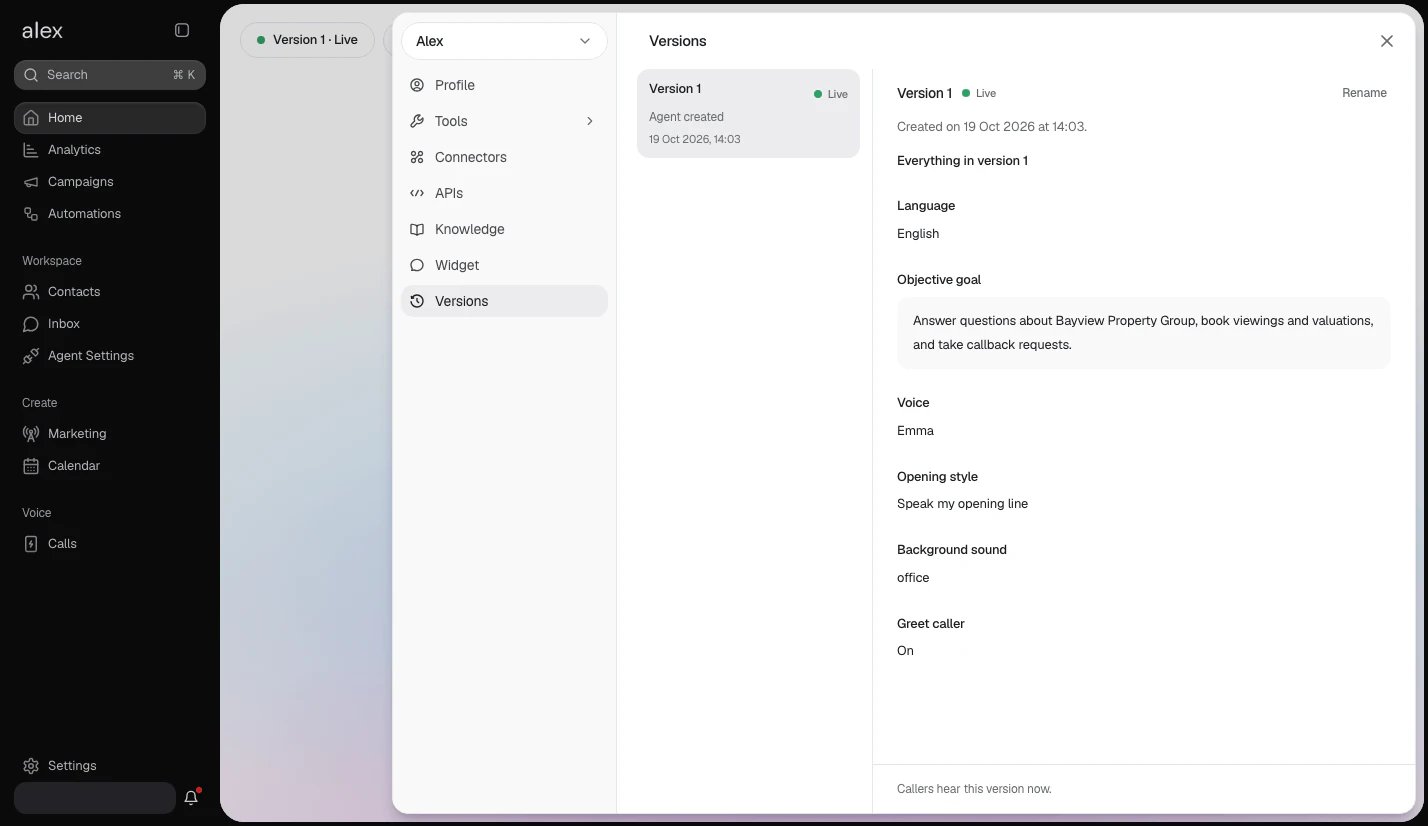
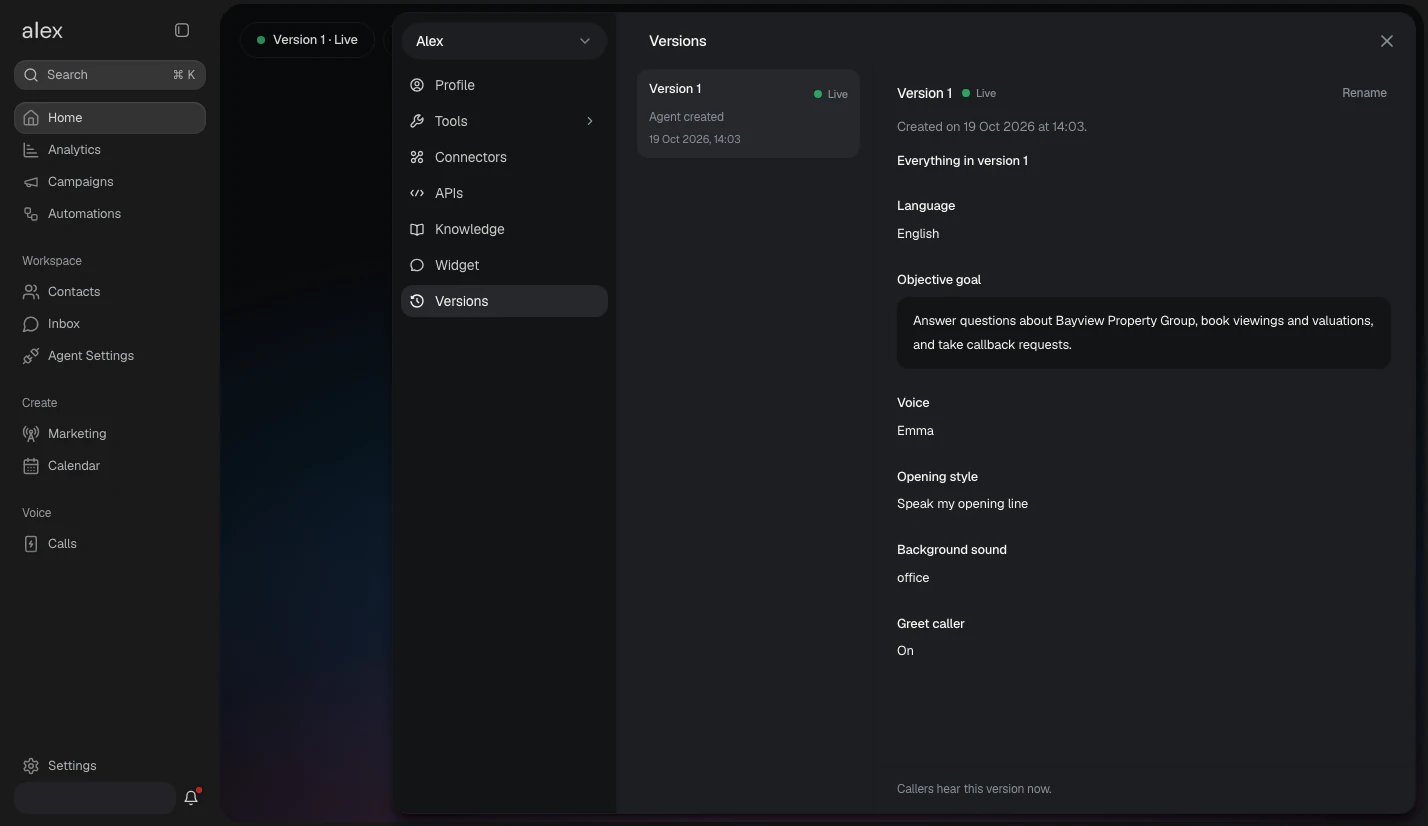
Every version, with what changed
Open it at Sidebar → Agent Settings → Versions (/home?settings=versions), or click Version N · Live on Home. These are the settings, in the order you see them.
Go back to an earlier version
1
Pick the version
In Versions, click the version you want.
2
Test this version
Click Test this version. It opens as a draft: “Version N is in your draft. Test it, then publish.”
3
Publish it
Test it, then click Publish on the draft bar. It goes live as a new version, and the version you replaced stays in the list.
Approval
An owner can require a second person to approve every agent change.- Go to Settings → General → Security and access (/account) and switch on Approve agent changes. Only an owner can, and the workspace needs at least two owners or admins.
- From then on, changes wait in a draft, and the person who made them clicks Ask for approval.
- An owner or admin who did not make the change clicks Approve, then the draft can be published. Any later change needs approving again.
Questions people ask
My settings are locked by an open draft. Where do I publish or discard it?
My settings are locked by an open draft. Where do I publish or discard it?
On Home, in the amber Draft bar at the top. The yellow note on each locked settings section has the same Publish and Discard buttons. You need edit access to agents to see them; otherwise ask an owner or admin.
My greeting changed and I didn't change it
My greeting changed and I didn't change it
Open Agent Settings → Versions and look at the latest versions: each one shows what changed, when, and who saved it. To go back, click Test this version on the earlier one and publish it.
Do I have to use drafts?
Do I have to use drafts?
No. Without a draft, applied changes reach the live agent from its next call. Drafts are there when you want to test first. The one exception is the Objective: it always saves to a draft, and callers only get it when you click Publish. Publishing is always your choice.
Why is Publish missing?
Why is Publish missing?
Publish appears once the draft has at least one change, and in an approval workspace it waits until someone else approves.
Related
Change your agent
Ask Alex for the change.
Agent Settings
Every section of the agent’s settings.
Start free
Build an agent and talk to it in your browser in about a minute. No card needed.
Visit getsmartalex.com
See what SmartAlex does for your business, hear real agents and compare plans.