

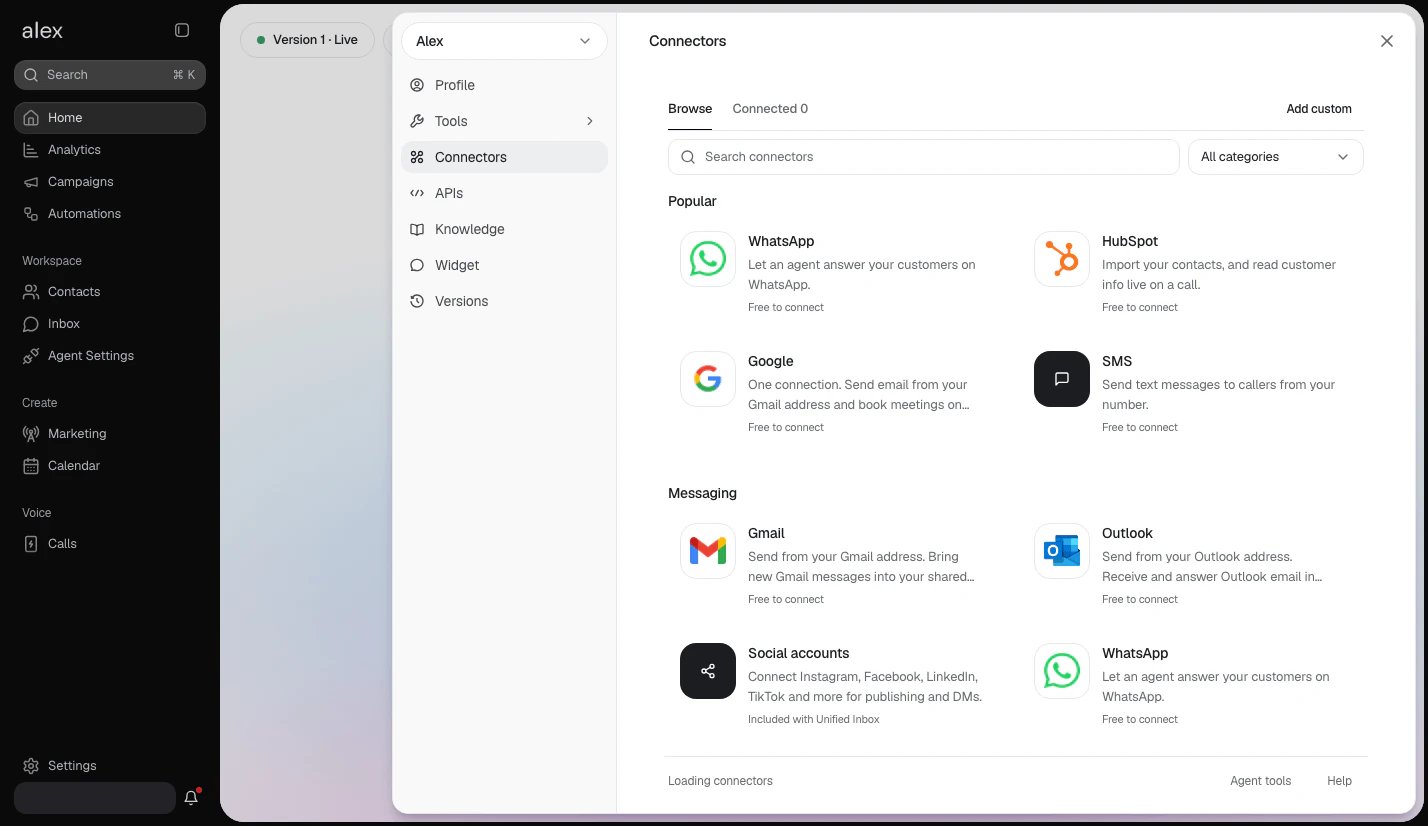
Integrations let your agent use your other tools during a call or chat. It can book into your calendar, look up and update your CRM, open a help desk ticket or call your own systems. You connect them per agent under Sidebar → Agent Settings → Connectors, then switch on the tools the agent may use.
In the app: Agent Settings → Connectors (opens from the sidebar on Home).
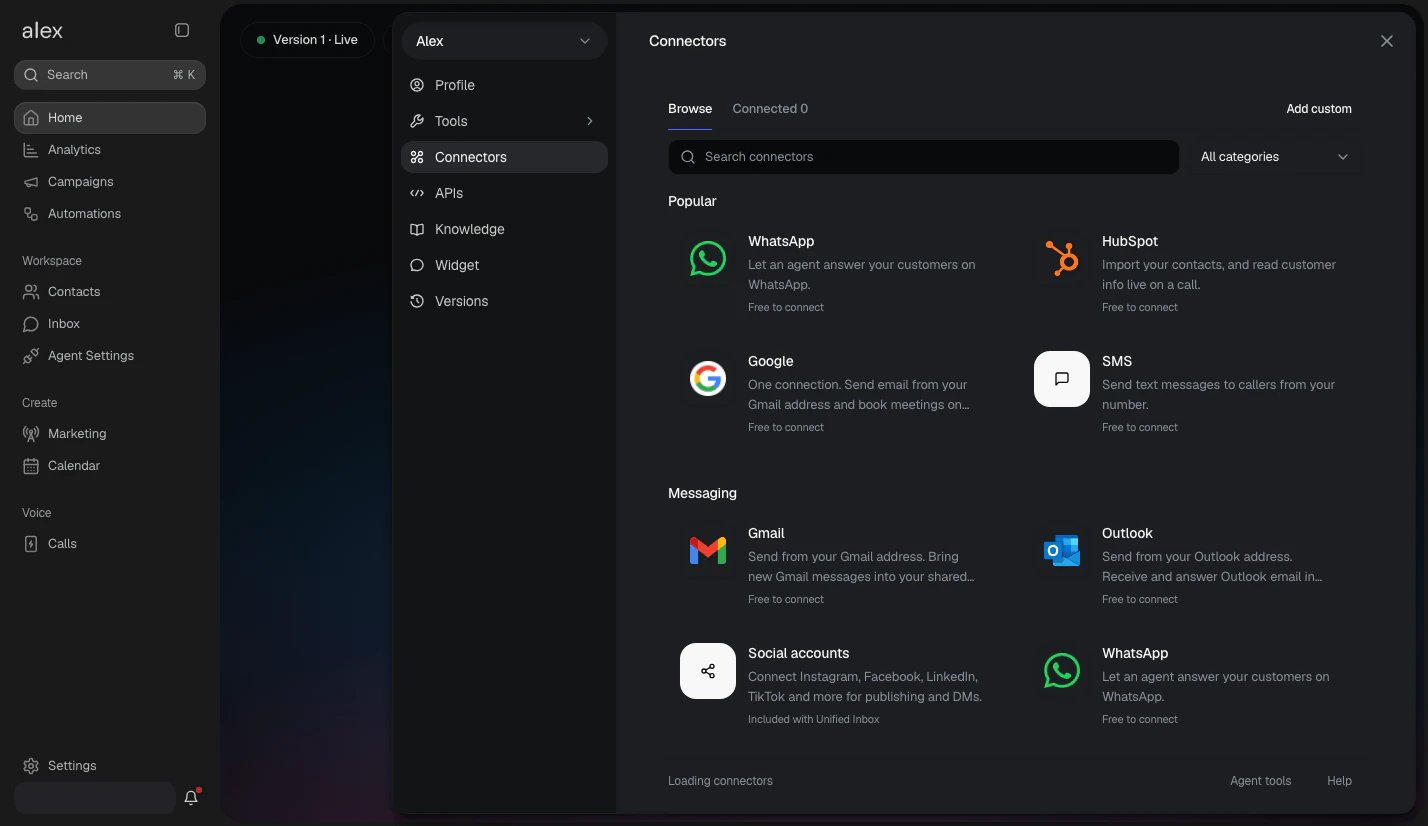
Connectors panel showing app cardsConnectors panel showing app cards

Connect your apps in Agent Settings, Connectors

The diagram shows where connectors live and what they let your agent do.

Connectors in general

You can connect calendars (Google, Outlook, Calendly, an iCal feed, Nightsbridge) and email (Gmail and Outlook). For CRMs there are HubSpot, Pipedrive, Zoho CRM, and Rex on real estate plans. You can also add a help desk (Freshdesk), messaging (WhatsApp, SMS, Telegram, social accounts), payments (Stripe, Yoco), Shopify, and your own tools. Open Sidebar → Agent Settings → Connectors (/home?settings=connectors) and use Browse to see everything, or Connected to see what is linked.See Integrations. First time: Connect your first app to your agent.
Open Sidebar → Agent Settings → Connectors, find the app under Browse, click it, then Install connector and follow the sign-in. Connecting links the app to your workspace but does not change any agent. Switch on the tools you want for each agent, either on the connector’s own page or under Sidebar → Agent Settings → Tools, and save. Changes apply from the next call.See Agent tools and connectors. First time: Connect your first app to your agent.
Click Help at the bottom of Sidebar → Agent Settings → Connectors and choose Request a connector. Tell us the app and what you want your agent to do with it. If you run the app yourself, you can also add it as your own MCP server or as an API action.See Integrations.
Connecting an app does not change your plan, but some connectors need an add-on, and the connector page says which. Texts and WhatsApp messages the agent sends are charged per message. A very long list of tools can raise the price per minute for that agent. You can check it under Call price in the + menu on Home.Paying yearly costs ten months. On Enterprise, the SmartAlex team switches the add-ons on for you. What you use with an add-on, such as campaign calls or meeting hours, is paid from your wallet. See Pricing.See Add-ons.
No. There is no charge per request for an API action. Setting up API actions needs the Power Tools add-on.Paying yearly costs ten months. On Enterprise, the SmartAlex team switches the add-ons on for you. What you use with an add-on, such as campaign calls or meeting hours, is paid from your wallet. See Pricing.See Pricing.

Calendars

Open Sidebar → Agent Settings → Connectors, choose Google, Outlook Calendar or Calendly under Calendars and bookings, click Install connector and sign in. Then open Sidebar → Agent Settings → Tools and switch on Check Calendar Availability and Schedule Meeting for the agent. The connection belongs to your whole workspace.See Calendar. First time: Let your agent book meetings into your calendar.
Connect Google under Sidebar → Agent Settings → Connectors. Switch on Google Calendar under Choose Google apps to connect, and sign in on the Google page. Then switch on Book meetings on your calendar for the agent. One Google connection covers Google Calendar and Gmail.See Google Calendar.
Open Sidebar → Agent Settings → Connectors, choose Outlook Calendar, click Install connector and then Connect, and sign in to Microsoft. Then open Sidebar → Agent Settings → Tools and switch on Check Calendar Availability and Schedule Meeting. This works with Microsoft 365.See Outlook Calendar.
Yes for the windows. Set your hours under Sidebar → Settings → Profile → Business hours and switch on Only allow meeting bookings during business hours. The agent then offers the next open time instead of booking outside them. It also will not book over a meeting already in your calendar. For named services, write them in Business rules, for example “Offer only the 30 minute consultation”.See Google Calendar.
An event made in SmartAlex goes to Outlook and Google and shows only once. Open the Calendar page (/calendar), click the Calendar settings gear and open that connection’s own settings. Check its sync switch is on and Sync direction says Two-way sync, then click Sync now. If events still do not match, tell our support team.See Calendar. First time: Connect Outlook Calendar.
An event made in SmartAlex goes to Outlook and Google and shows only once. Open the Calendar page (/calendar), click the Calendar settings gear and click Sync now on each connection to refresh it. If a repeat is still there, tell our support team.See Calendar.
Connect again under Sidebar → Agent Settings → Connectors → Calendly, click Install connector and sign in. Calendly shares your booking link and reads your scheduled events. If it still does not connect, tell our support team the message you see.See Calendar. First time: Connect Calendly.
Yes. If you use Nightsbridge, connect it under Sidebar → Agent Settings → Connectors → Nightsbridge with your booking page ID. The agent then reads free rooms and their rates during the call. If you list on Airbnb, Booking.com or a Google Calendar, add each unit’s iCal feed under iCal feed instead. Both need the Power Tools add-on, and you then switch on Check Unit Availability under Sidebar → Agent Settings → Tools.Paying yearly costs ten months. On Enterprise, the SmartAlex team switches the add-ons on for you. What you use with an add-on, such as campaign calls or meeting hours, is paid from your wallet. See Pricing.See Nightsbridge.
It saves the meeting in SmartAlex. It then sends it to each connected Google or Outlook calendar that has sync on and is set to Two-way sync or Export only. It offers times inside the agent’s own calling hours. Without those, it uses your business hours from Sidebar → Settings → Profile → Business hours, otherwise 09:00 to 17:00. It will not book over a timed event already in your calendar, and all-day events do not block a time.See Outlook Calendar settings. Google users: Google Calendar. First time: Let your agent book meetings into your calendar.
The agent books into your Outlook calendar. Connect Outlook Calendar under Sidebar → Agent Settings → Connectors (/home?settings=connectors) and set its Sync direction to Two-way sync. Every meeting the agent books on a call then lands in that calendar.See Connect and sync calendars. First time: Connect Outlook Calendar.

Email and messaging

Open Sidebar → Agent Settings → Connectors, choose Google and switch on Gmail, or connect Outlook for a Microsoft account, and sign in. Then switch on Send Email for the agent under Sidebar → Agent Settings → Tools. The agent reads the address back to the caller and sends only after they confirm it.See Gmail.
No. The Google connection can only send email as you. It cannot read or delete Gmail messages, change labels, create drafts or open your Drive. To bring customer emails into the shared Inbox, set up forwarding from your mailbox.See Email inbox. First time: Connect Gmail.
On a Microsoft work account, an administrator must approve the SmartAlex email app once for the whole organisation. On the Connect with Outlook card, click Work account needs admin approval?. Then click Copy link or Copy message for your administrator and send it to them. When they have approved it, press Connect with Outlook again.See Answer customer email from your Inbox. First time: Connect Outlook.

CRMs and help desks

Yes. With HubSpot it can find a contact, company, deal or ticket by name, email or phone, and update a record. With Pipedrive it can find a person, organisation or deal, and add a note or log an activity. Zoho CRM imports your leads into Contacts and is read only. Tools marked Changes data write to your CRM, so leave them off unless you want that.See Integrations.
Open Sidebar → Agent Settings → Connectors → HubSpot and next to Use during calls, click Set up. Choose View-only when HubSpot asks what SmartAlex can access. HubSpot then shows a warning for apps outside its public marketplace and asks you to type “I accept the risk”, which is normal. Check the redirect domain reads api.getsmartalex.com, then finish and pick the tools the agent may use.See HubSpot.
Pipedrive connects with your personal API token. In Pipedrive, open your profile menu, then Personal preferences, then API, and copy the token. In SmartAlex, open Sidebar → Agent Settings → Connectors → Pipedrive, click Install connector, Continue, paste the token into API key and click Connect. SmartAlex checks the token before it saves it.See Pipedrive.
Open Sidebar → Agent Settings → Connectors → Zoho CRM, click Install connector, Continue, then Connect Zoho and sign in. Choose Leads to import and the Phone number country, then click Import leads. Imported leads appear in Contacts, ready for a campaign, and nothing in your Zoho account is changed.See Zoho CRM.
You need a paid Freshdesk plan, because Freshdesk gives no API keys on its Free plan. Open Sidebar → Agent Settings → Connectors → Freshdesk, click Install connector, Continue, type your Freshdesk subdomain and paste your API key, then click Connect. Then switch on the ticket tools you want for each agent.See Freshdesk.
Yes. Nightsbridge connects with just your booking page ID, and an iCal feed covers Airbnb, Booking.com and Google Calendar. The agent checks free rooms on the caller’s dates, and with Nightsbridge it reads the nightly rates and texts a booking link. Both need the Power Tools add-on.See Nightsbridge.
Yes, through a payment link. Connect Stripe or Yoco, then switch on Send Payment Link for the agent. It sends the caller a link to pay on the provider’s own page, so no card number is spoken or stored. Sending payment links needs the Power Tools add-on.Paying yearly costs ten months. On Enterprise, the SmartAlex team switches the add-ons on for you. What you use with an add-on, such as campaign calls or meeting hours, is paid from your wallet. See Pricing.See Take payments on a call.

Your own tools

Yes. Open Sidebar → Agent Settings → Connectors, click Add custom and name it. Paste the public https:// address of your MCP server and choose how it signs in: API key, Sign in or None. Click Add connector, then switch on the tools this agent may use and save. An agent can have up to 20 tools switched on, counting connector tools, built-in tools and API actions together.See Your own MCP server.
Yes. Choose Sign in as the authentication, then fill in Client ID, Client secret and Scopes under Optional sign-in settings. The callback address to register with your provider is https://api.getsmartalex.com/functions/v1/mcp-oauth-callback. A connector you added before 19 October 2026 may use its older address. If your provider rejects the one above, remove it and add it again.See Your own MCP server.
Yes, with an API action. Open Sidebar → Agent Settings → APIs, click Add API action. The agent then calls your HTTPS endpoint when it decides it is the right move, and uses your answer in its reply. API actions need the Power Tools add-on and cost nothing per request.Paying yearly costs ten months. On Enterprise, the SmartAlex team switches the add-ons on for you. What you use with an add-on, such as campaign calls or meeting hours, is paid from your wallet. See Pricing.See HTTP tools overview. First time: Create your first API tool.
Click Add custom on Sidebar → Agent Settings → Connectors (/home?settings=connectors). Type a Name and the public https:// MCP server URL, and set Authentication to API key. Paste the key, and if your server expects it in a header other than Authorization, type that name under Header name (optional), such as X-API-Key. Click Add connector, then switch on the tools this agent may use. SmartAlex also has a ready-made Pipedrive connector that needs only your personal API token.See Your own MCP server. Ready-made option: Pipedrive.
They are called API actions now. Open Sidebar → Agent Settings → APIs (/home?settings=http_tools) and click Add API action, then give it your HTTPS address. The agent calls it when it decides it is the right move and uses your answer in its reply. API actions need the Power Tools add-on.See HTTP tools overview. First time: Create your first API tool.

Integrations

Every tool SmartAlex connects to.

Google Calendar

Let the agent book into Google Calendar.

Custom HTTP tools

Call your own systems during a call.

Custom MCP server

Connect your own MCP server to the agent.
Last modified on November 27, 2026