

SmartAlex gives your business an AI agent that answers and makes phone calls, chats on your website and replies on WhatsApp, Instagram and Facebook. You can sign up free and build the agent by chatting to it on Home. Test it in your browser before you add a card or a phone number.
In the app: Sidebar → Home (/home). The chat box on Home is where you build and change your agent.
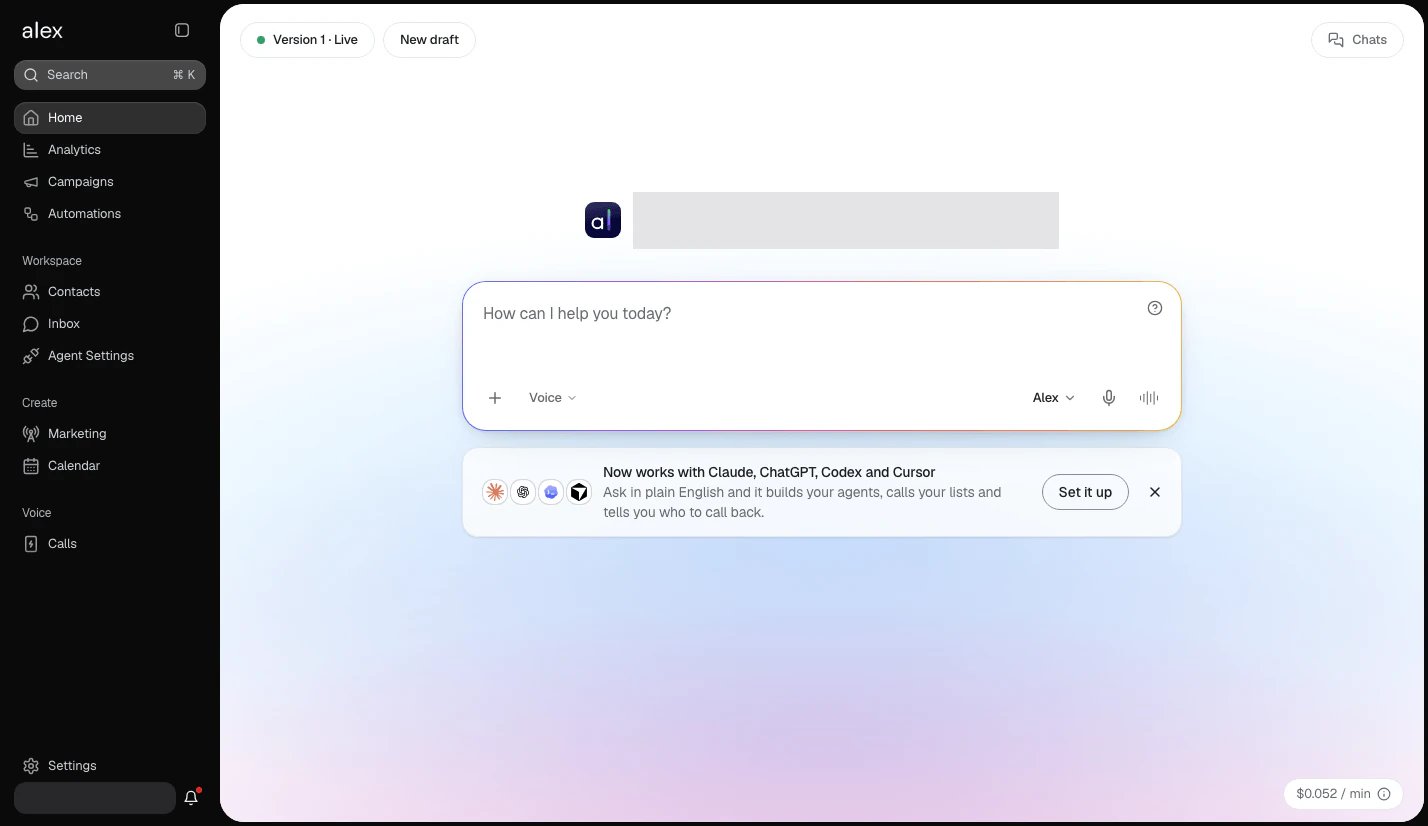
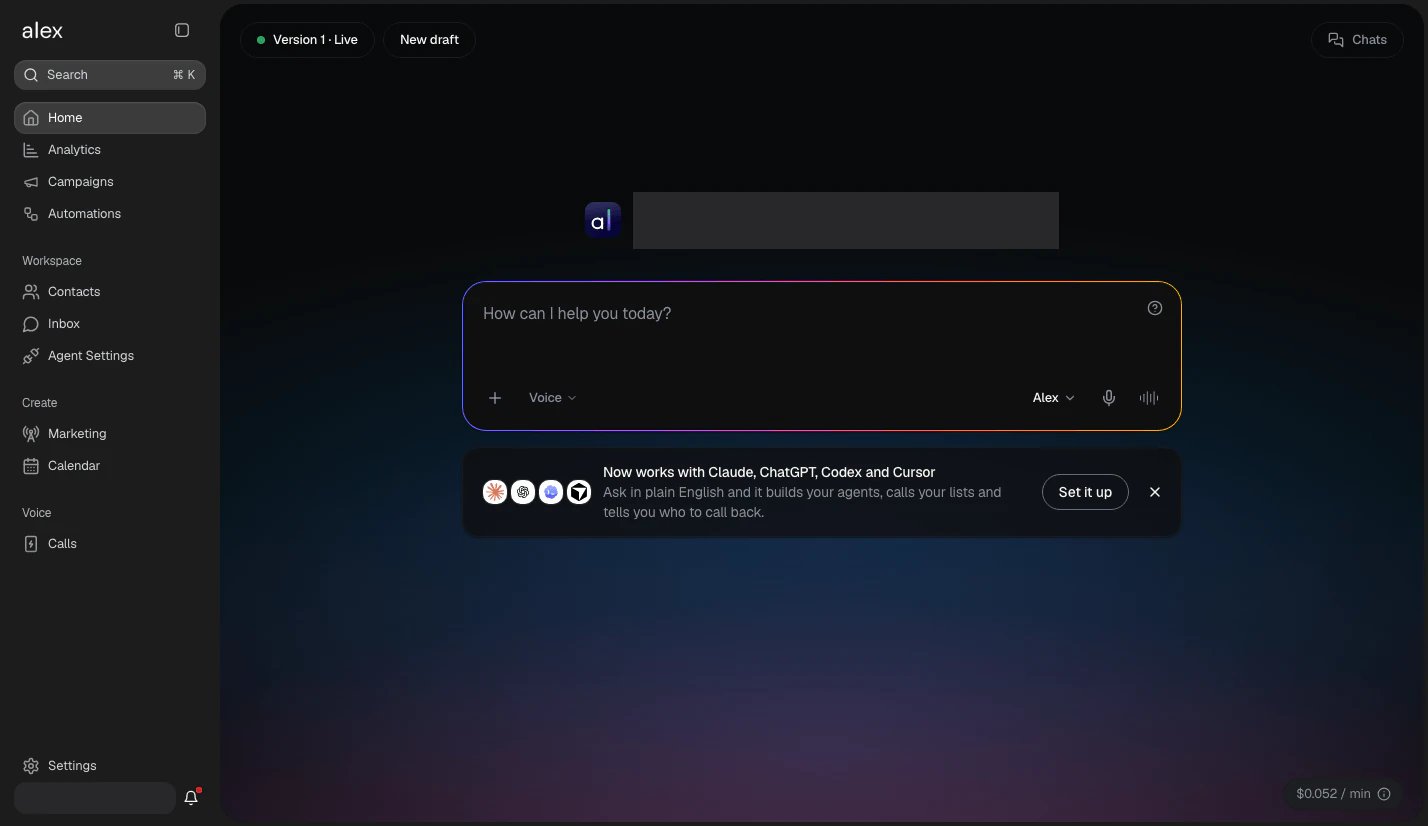
Home screen with the chat to Alex and the agent pickerHome screen with the chat to Alex and the agent picker

Build and change your agent by chatting on Home

The diagram shows the usual path from sign-up to a live agent.

About SmartAlex

SmartAlex is an AI phone team for your business. Its voice agents answer your calls day and night. They ring the people on your own lists, book appointments, qualify leads and hand over to your team when needed. You run it from the SmartAlex web app, or from ChatGPT, Claude, Codex or Cursor.See SmartAlex at a glance.
Yes. It suits businesses of every size, from one person to many locations. Common uses are dental and healthcare practices, real estate, home services, legal, insurance, recruiting, hospitality, retail and car dealers. The agent answers from your own business information, so it adapts to your trade.See AI Voice Assistant for Small Business.
No. It takes the overflow, the after-hours calls and the repeat questions, then hands the rest to your people with the details. You set the rules for when it transfers a call to a person, takes a message or books a callback.See Call routing and transfers.
Usually, yes. SmartAlex answers every call 24/7 for a monthly plan plus usage by the minute. Compare that with the full cost of a person for the hours you need covered.Professional is $99 a month, or $990 a year, with one agent and 15,000 free call credits per agent, once. Phone numbers cost from $1.38 a month each. Calls cost $0.07 to $0.12 a minute, $0.08 on average, for the AI and the phone line together, paid from your prepaid wallet. Every price is on Pricing.See Pricing.
Yes, if they ask. Every agent is told it is an AI assistant and never a person, and it says so truthfully whenever someone asks. To have it say so at the start of every call, an owner or admin switches on Say it’s an AI. It is under Sidebar → Settings → Workspace → General (/account). The same page has Say it’s an AI in messages for texts, WhatsApp, Instagram, Facebook and email replies.See Responsible AI.
It follows the rules you give it, and it flags these callers for a person. After each call, SmartAlex checks the caller’s own words for a complaint, distress or signs they may be vulnerable. If it finds one, it emails your owners and admins “A caller needs a person” with part of the transcript. SmartAlex is not an emergency service and must not be relied on to reach one. Give the agent a number to transfer urgent calls to.See Trust & Security.
Yes, with extra safeguards. Tick Debt collection campaign on the campaign, which is only for collecting money owed, and read the notice that appears. SmartAlex needs your debt collector registration number and its expiry date saved under Sidebar → Settings → Workspace → General before the campaign can start. You are responsible for making sure the calls are lawful where each person lives, including calling days and hours.See Campaigns.
Those are consumer assistants. SmartAlex is built for business. It handles real phone calls, answers from your own business information, connects to your calendar and CRM, and runs outbound campaigns.See SmartAlex at a glance.
SmartAlex runs its own voice engine from end to end instead of reselling someone else’s, so quality and your data stay under one roof. You set it up in minutes by chatting with Alex, the assistant inside the app. It answers from your own business knowledge.See How SmartAlex compares.
Yes, through the partner programme. Approved partners sign customers up with an activation code or a referral link, and each customer gets its own workspace. Partners follow their customers from Partner Portal in the sidebar.See Use the partner portal.
No. A case study shows call usage only. The plan, any phone numbers and tax come on top.Professional is $99 a month, or $990 a year, with one agent and 15,000 free call credits per agent, once. Phone numbers cost from $1.38 a month each. Calls cost $0.07 to $0.12 a minute, $0.08 on average, for the AI and the phone line together, paid from your prepaid wallet. Every price is on Pricing.See Pricing.
Yes, for the phone screening part. Upload the job description under Sidebar → Agent Settings → Knowledge, and write your must-have questions into the agent’s Objective or Business rules. The agent asks them on each call, saves the answers, and can book an interview in your calendar. Keep CVs out of Knowledge, because the agent answers every caller from it. Put what it should know about each candidate in columns of your call list instead, and it reads them as notes on the call.See AI voice agents for recruiting.

Sign up and try it

Most businesses are live in minutes, with no code. You give Alex your website, name the agent and its goal, talk to it in your browser, then connect a phone number.See Quickstart. First time: Set up your first voice agent.
No. The Free plan needs no card. A card is only needed to start the 7-day phone-call trial. Paid billing starts when the 7 days end, and cancelling before then avoids a charge.See Pricing.
You can build one agent and talk to it in your browser. You build it by chatting with Alex on Sidebar → Home (/home). You get one chat and a once-off allowance of about 15 minutes of browser testing. Phone numbers, phone tests, extra agents and campaigns need a paid plan or the trial.See Home. First time: Start your SmartAlex free trial.
The trial lets your agent take real phone calls. It needs a card, and it starts from the offer in the chat on Home or from Sidebar → Settings → Billing. Your trial minutes are separate from the paid plan’s own included minutes, and if you use them early, calls pause until your paid plan starts.See Pricing. First time: Start your SmartAlex free trial.

Your first steps

There are five. Each one has its own guide.
  1. Sign up at getsmartalex.com/instant.
  2. On Home, enter your business website, name the agent and give it a main goal.
  3. Click Talk to your agent and test it.
  4. On a paid plan, buy or bring a phone number under Sidebar → Calls → Numbers (/phone-numbers), then choose it under Agent Settings.
  5. Call the number. Later changes wait in a draft until you click Publish.
See Quickstart. First time: Set up your first voice agent.
In the message box on Home, click Talk to your agent to talk to it in your browser. To hear it on a real line, switch to Test, choose Phone test and click Call my phone. This needs a paid plan and a phone number. When a test ends you get a summary, a score out of 100 and the changes most worth making.See Create an agent. First time: Test your agent before customers call.
No. You can buy a SmartAlex number, forward your existing number to it, or connect the phone system you already have. You do not need new hardware.See Use your own number.
You need a list of people to call, with each person’s name and phone number including the country code. You can upload a CSV or an Excel file of up to 5,000 rows, and match the name and phone columns. Any other column you keep, such as an account number, becomes a note the agent reads before it calls that person. Also decide what each call should end in, who to transfer to, and the days and hours to call.See Campaigns. First time: Before you call your list.
You can build and test the agent yourself in minutes by chatting with Alex. To talk it through with a person, book a call with the team at getsmartalex.com/book. On a trial or paid plan, you can also invite a colleague as an Admin under Sidebar → Settings → Team. They can then set things up with you.See Set up your first voice agent.
Yes. Open Sidebar → Campaigns (/campaigns) and click New campaign. Or ask Alex on Home to get one ready, for example “call everyone on my March leads list”. You check every part before a single call goes out. A step-by-step guide covers it from the list to the results.See Run a calling campaign.

Finding your way

Home (/home) is the first screen you see after you sign in. It is one chat where you build and improve your agents by talking to Alex, the assistant inside SmartAlex. Alex shows you each change on a card, and nothing goes into your agent until you approve it. The same screen holds the message box for testing, the agent picker, and the draft bar with Publish.See Home.
The sidebar is your menu. It holds Home, then Analytics, Campaigns, Contacts, Inbox, Agent Settings, Calendar, Calls and Insights. Calls opens Numbers, Callbacks, Call Logs, Blocked Callers, Meetings and more. Settings and your workspace name sit at the bottom. Items you do not have permission for, or that your plan does not include, are hidden.See Home.
Click your workspace name at the bottom of the sidebar and choose Help. It opens a chat where you can ask how to do something, report a problem or suggest an idea. You can raise a request with our support team from there. Our documentation at docs.getsmartalex.com is one click away.See Account Settings.
Studio is Home: open Sidebar → Home (/home). It is the first screen after you sign in, and it is where you build and test agents by chatting with Alex. An older Studio address now sends you to Home.See Home.

Quickstart

Your first agent, step by step.

Create your first voice agent

Build, test and launch an agent.

Trial and billing answers

What the trial includes and when billing starts.

Agents answers

Change what your agent says and how it sounds.
Last modified on November 27, 2026