

In the app: Agent Settings → Profile (/home?settings=profile).
The tabs
Name and workspace
“How the agent introduces itself on calls and shows up across the dashboard.” Open it at Sidebar → Agent Settings → Profile → Name and workspace (/home?settings=profile).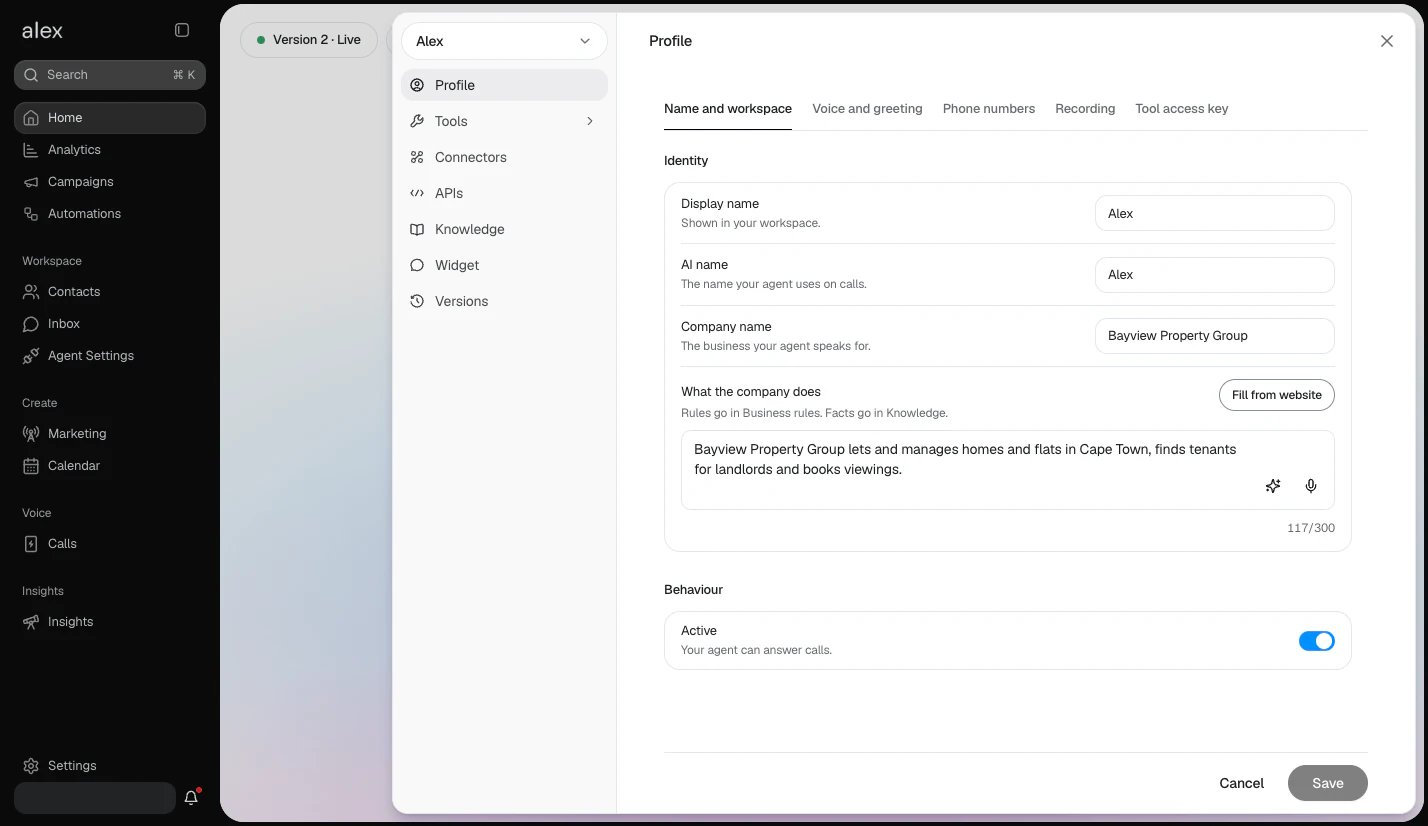
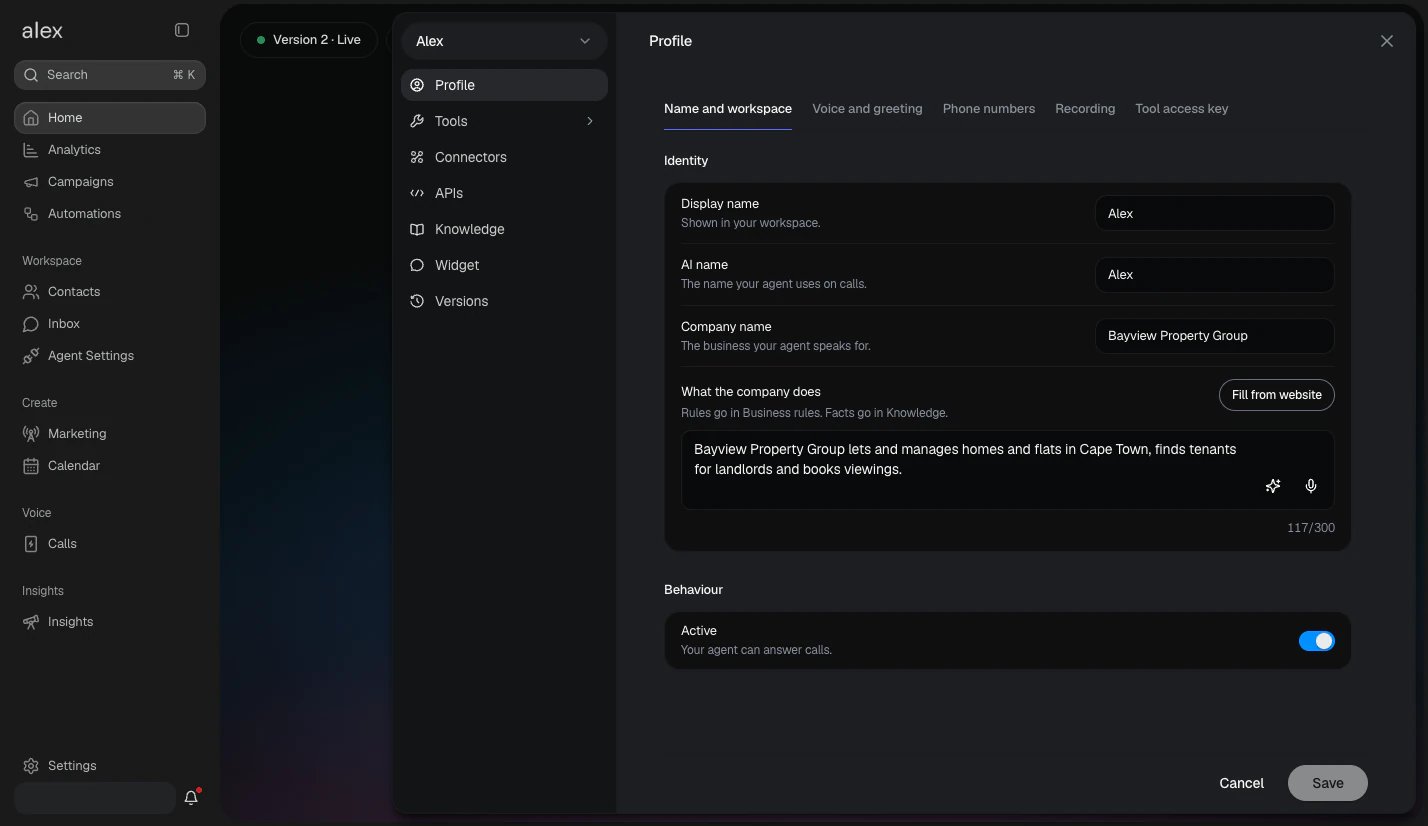
Name and workspace
Two helpers write the description for you:
- Fill from website: type your site and click Read to fill the description, and the company name if that is empty.
- Improve with AI (the sparkle in the box): rewrites what you typed into one or two clear sentences. Nothing saves until you click Save.
Do not describe an accent here: set it in Voice and greeting. If you do, SmartAlex refuses that wording and offers Save without it.
Voice and greeting
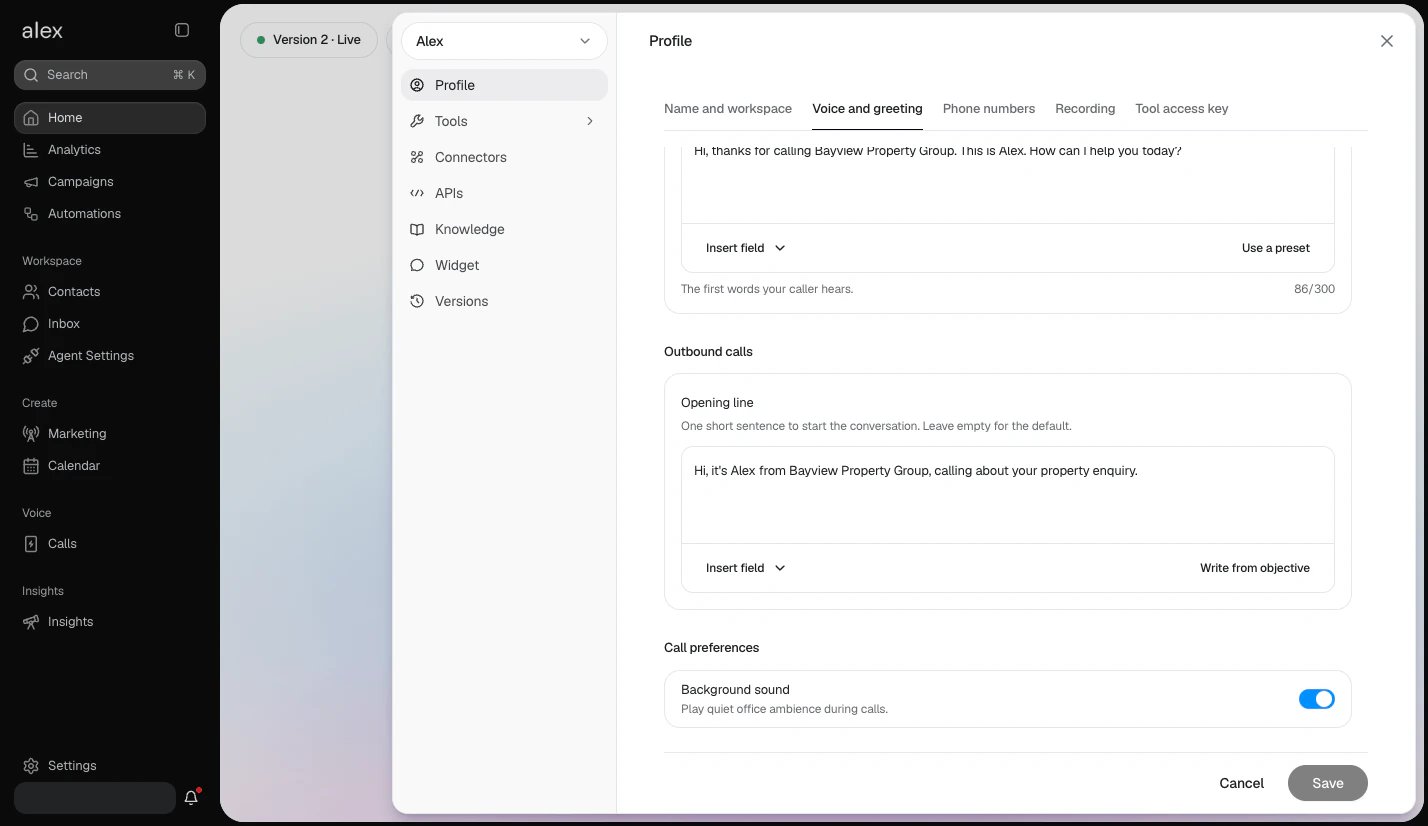
“How this agent sounds and opens calls.” Open it at Sidebar → Agent Settings → Profile → Voice and greeting, or + → Change voice on Home. It has four panels, in this order.Speaking voice
Greeting
Outbound calls
Call preferences
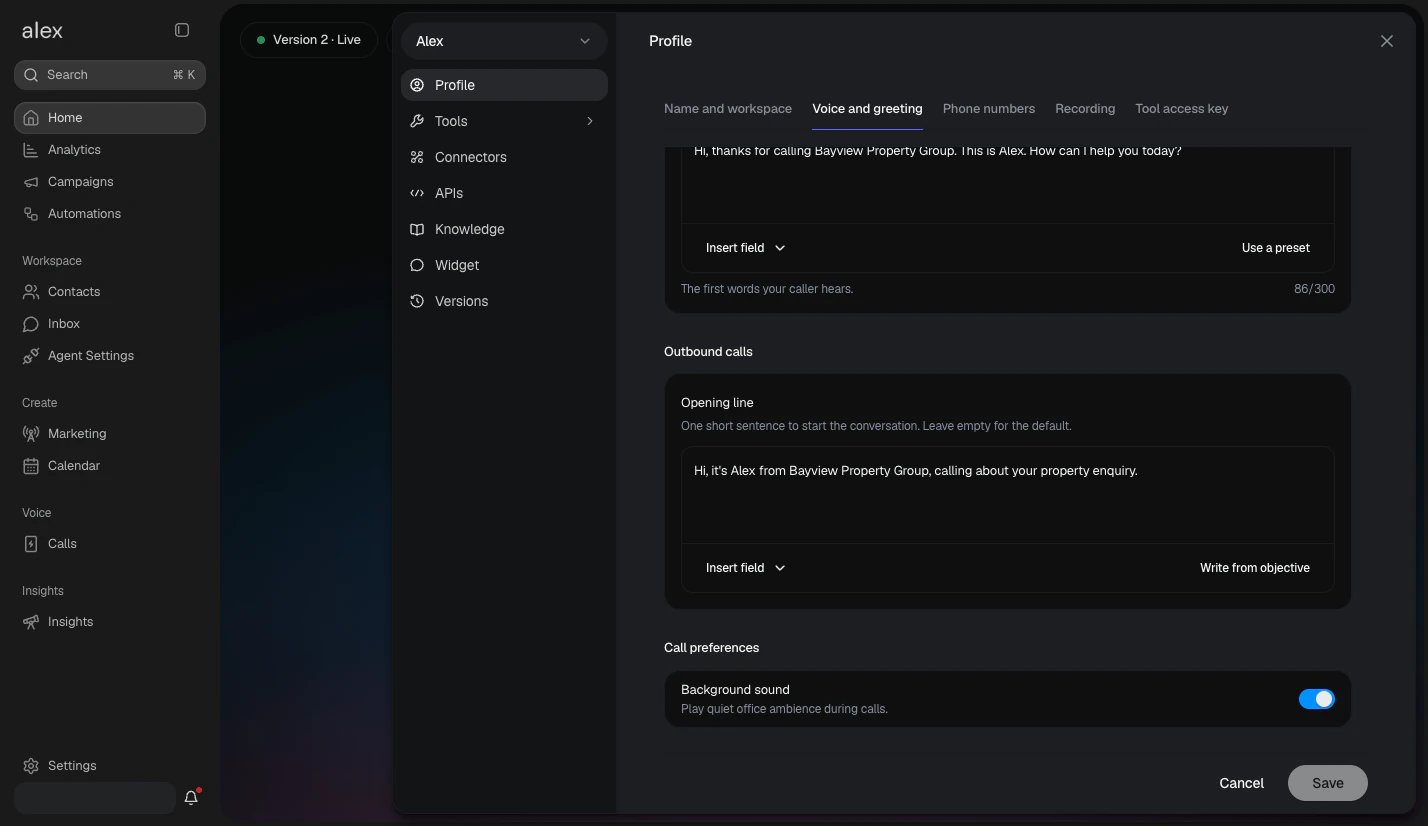
Call preferences
Phone numbers
“The number this agent answers and the caller ID it shows when dialling out.” Open it at Sidebar → Agent Settings → Profile → Phone numbers. Paid plans only.
No numbers yet? Click Buy a number. See Buy a phone number. You can also assign agents from Sidebar → Calls → Numbers.
Recording
This tab shows when your workspace lets you choose, and only owners and admins can change it.
Each row is Same as the workspace, On or Off. Turning recording off asks Stop recording these calls?: new calls are not recorded and callers no longer hear that the call is recorded. Opt-outs, corrections and consent requests are still recorded. In a regulated workspace the rows read Always on.
See Recordings and transcripts.
Tool access key
Each agent has its own key for its tools and knowledge, and most people never need this tab.Questions people ask
How do I switch an agent off without deleting it?
How do I switch an agent off without deleting it?
Switch off Active in Name and workspace and save. The switch then reads “Calls to this agent are rejected.” until you switch it back on. Home shows a note that the agent is paused.
Why does the agent now say 'this call is recorded'?
Why does the agent now say 'this call is recorded'?
Recording is on for its calls, so callers are told. An owner or admin can change it on the Recording tab, or on the phone number or campaign.
Why can't I change the phone number?
Why can't I change the phone number?
Phone numbers need a paid plan, and they are locked while a draft is open or while Approve agent changes is on.
Why is the description field refusing to clear?
Why is the description field refusing to clear?
A saved description cannot be emptied, so write a new one, or use Fill from website.
Where are business hours?
Where are business hours?
In Settings → Profile → Business hours, shared by the whole workspace, and the same hours show on the Hours tab of Transfer Call. See Inbound calls and hours.
Related
Voices and languages
30 voices, 88 accents and 26 languages.
Greeting and opening line
The first words callers hear.
Start free
Build an agent and talk to it in your browser in about a minute. No card needed.
Visit getsmartalex.com
See what SmartAlex does for your business, hear real agents and compare plans.