

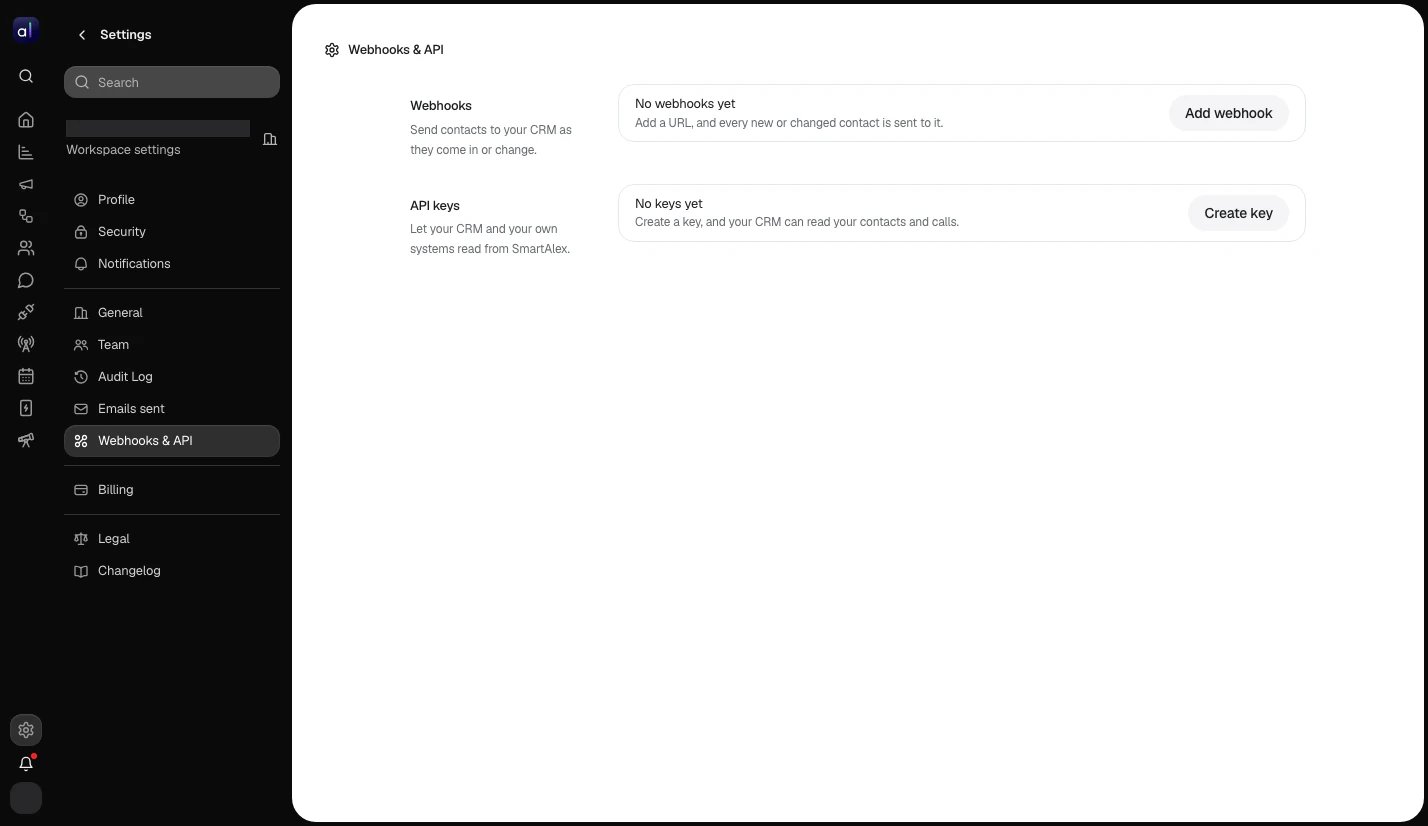
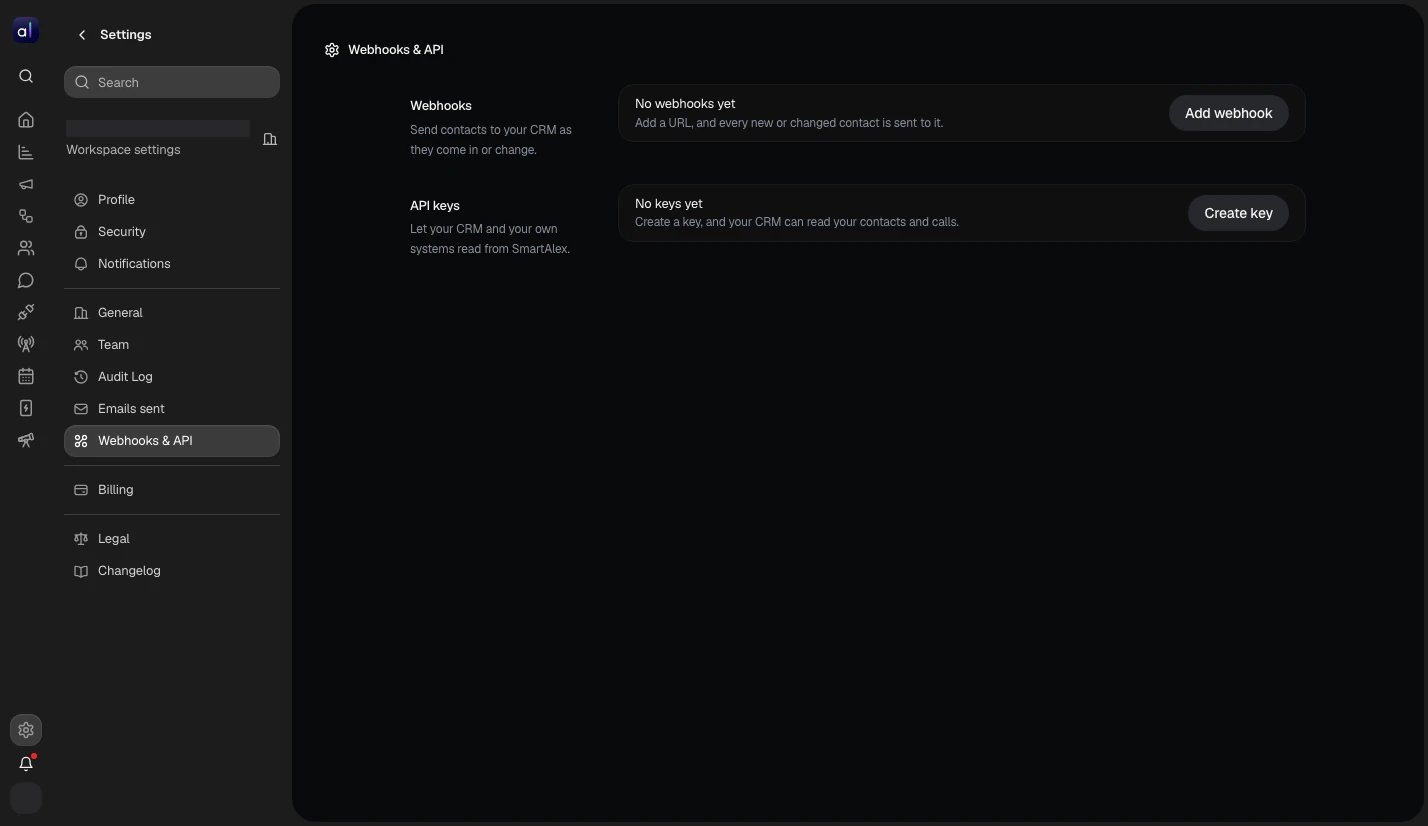
API keys and webhooks live in Settings
Connect an AI app
What is the SmartAlex MCP server?
What is the SmartAlex MCP server?
Which AI apps can I connect, and on which plans?
Which AI apps can I connect, and on which plans?
What address do I add to my AI app?
What address do I add to my AI app?
https://mcp.getsmartalex.com, then sign in to SmartAlex in your browser and press Approve. You do not need an API key. If you pay by the token, use https://mcp.getsmartalex.com/lean instead. It starts each chat with far fewer tools and looks up the rest as it needs them.See Getting started.How do I connect Claude?
How do I connect Claude?
- Open Plugins in Claude (older menus say Customize).
- On Pro, Max or Ultra, add the marketplace
The-RCS-Group/smartalex-pluginand install SmartAlex. On the Free plan, add a custom connector with the addresshttps://mcp.getsmartalex.com. - Click Connect.
- Sign in to SmartAlex if it asks, and click Approve.
- Start a new chat and ask “How many contacts, campaigns and calls do I have in SmartAlex?”
How do I connect Claude on a Team or Enterprise plan?
How do I connect Claude on a Team or Enterprise plan?
How do I connect ChatGPT?
How do I connect ChatGPT?
SmartAlex, paste https://mcp.getsmartalex.com under Connection, pick OAuth, and click Approve on the SmartAlex page. On Business, Enterprise and Edu your admin sets it up first and shares it, then each member connects.See Install in ChatGPT.How do I connect Claude Code, Codex or Cursor?
How do I connect Claude Code, Codex or Cursor?
claude "..." in your terminal. When a SmartAlex page opens in your browser, click Approve. No API key is stored in any file, and each app also has a connection-only route if plugins are blocked.See Install in Claude Code.What does the Claude plugin add?
What does the Claude plugin add?
What is the npm package, and do I need it?
What is the npm package, and do I need it?
npx @smartalex/mcp-server, that signs in with an API key in the SMARTALEX_API_KEY setting. Most people do not need it: connect to https://mcp.getsmartalex.com by signing in instead. The package needs Node.js 18 or later and a key from Sidebar → Settings → Webhooks & API.See npm package.What an AI app can do
Can an AI assistant build agents and campaigns for me through MCP?
Can an AI assistant build agents and campaigns for me through MCP?
What will the AI app ask me before it acts?
What will the AI app ask me before it acts?
Can I switch workspaces through the assistant?
Can I switch workspaces through the assistant?
How do I disconnect an AI app?
How do I disconnect an AI app?
What are the limits and common errors?
What are the limits and common errors?
429 with a Retry-After header and backs off. An expired sign-in says so, and you sign in again from the app. A tool refused because of your role needs a workspace owner or admin.See Error reference.REST API and keys
Is there an API?
Is there an API?
https://api.getsmartalex.com/functions/v1/rest-api, as well as the MCP server. Owners and admins create API keys under Sidebar → Settings → Webhooks & API, which needs the Power Tools add-on.How do I create an API key?
How do I create an API key?
/developers), choose the API keys tab and click the button above the list to create a key. Give it a name, choose live or test and tick what it can read. Then choose when it stops working: Never, In 30 days, In 90 days or In a year. Click Create key, then copy it straight away, because it is shown only once.See Authentication.Who can create a key, and can a key change data?
Who can create a key, and can a key change data?
What happens when a key stops working?
What happens when a key stops working?
429, and a key allows 60 requests a minute unless set otherwise. Create a new key and update your system.See Integrations.Webhooks and triggers
Is there a way to get results by webhook when a call finishes?
Is there a way to get results by webhook when a call finishes?
How do I verify a webhook really came from SmartAlex?
How do I verify a webhook really came from SmartAlex?
X-SmartAlex-Signature header holding the hex HMAC-SHA256 of the raw body, made with that secret, so compute it yourself and compare. The body has an id that stays the same on every retry, so you can ignore repeats.See Integrations.What happens if my webhook address is down?
What happens if my webhook address is down?
X-SmartAlex-Attempt header tells you which try it is. A webhook that has delivered nothing for a day after repeated failures is switched off, so check its status on the Webhooks tab.See Integrations.Can I start calls from my own system, one person at a time or in a batch?
Can I start calls from my own system, one person at a time or in a batch?
What can I send to the trigger address, and how far ahead can a call be set?
What can I send to the trigger address, and how far ahead can a call be set?
call_at time to schedule the call, up to 90 days ahead. Send the secret as Authorization: Bearer and the campaign must be running. Do-not-call, the cooldown and the daily cap still decide each person.See Tools reference.Custom tools for your agent
Can I write custom tools the agent calls during a call?
Can I write custom tools the agent calls during a call?
How do I verify that an API action request came from SmartAlex?
How do I verify that an API action request came from SmartAlex?
X-SmartAlex-Signature header in the form t=<time>,v1=<signature>. Compute HMAC-SHA256(secret, time + "." + rawBody) on the raw body bytes, compare it in constant time, and refuse anything older than 5 minutes. The signing secret starts with shs_ and is shown once, in Signing secret and limits on the API action.See Signature verification. First time: Create your first API tool.What limits apply to API actions?
What limits apply to API actions?
Why did my API action fail?
Why did my API action fail?
https:// or a signing check that rejects the request. Others are no answer within 10 seconds and the limits above. Test it from the action before you rely on it.See Troubleshooting. First time: Create your first API tool.