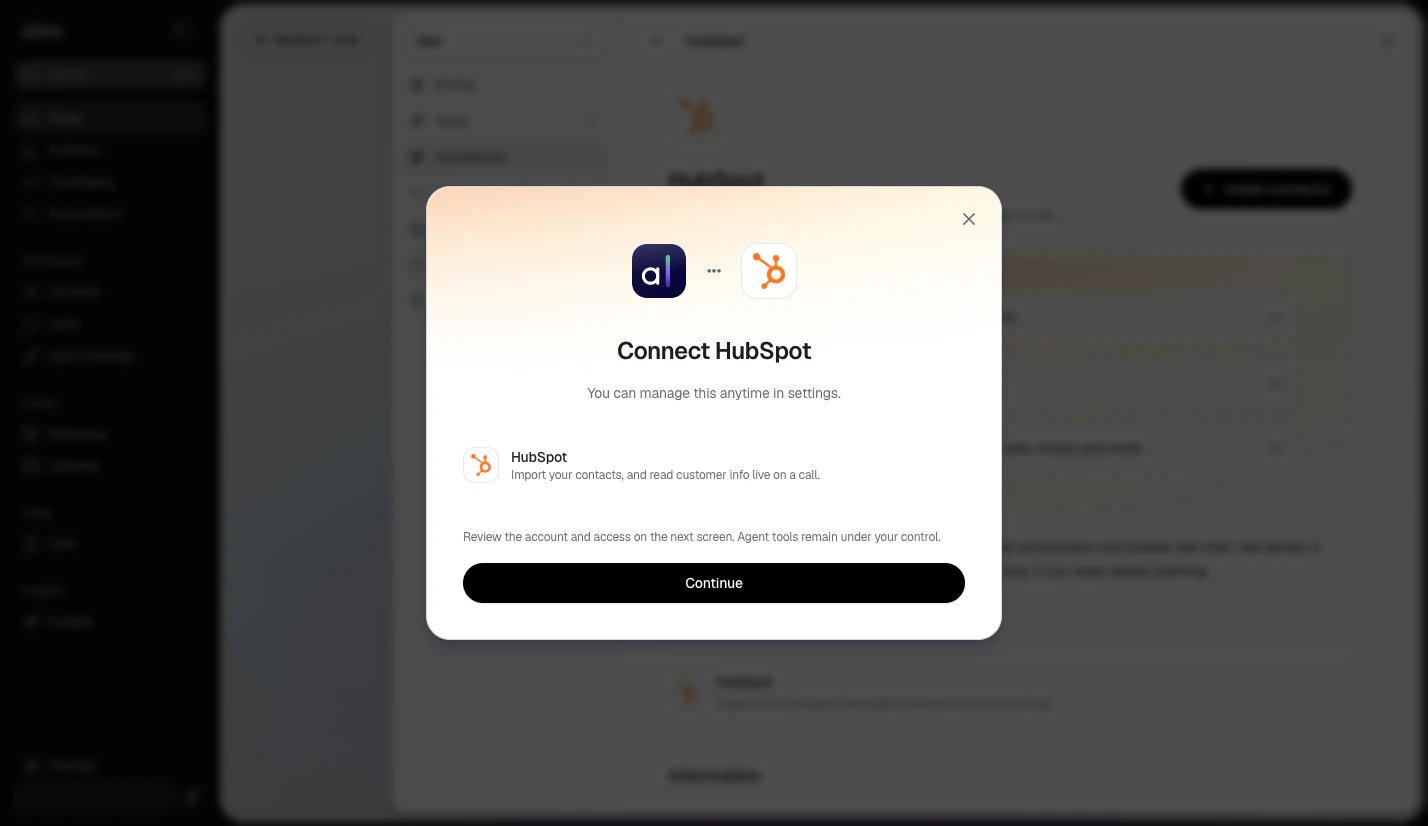
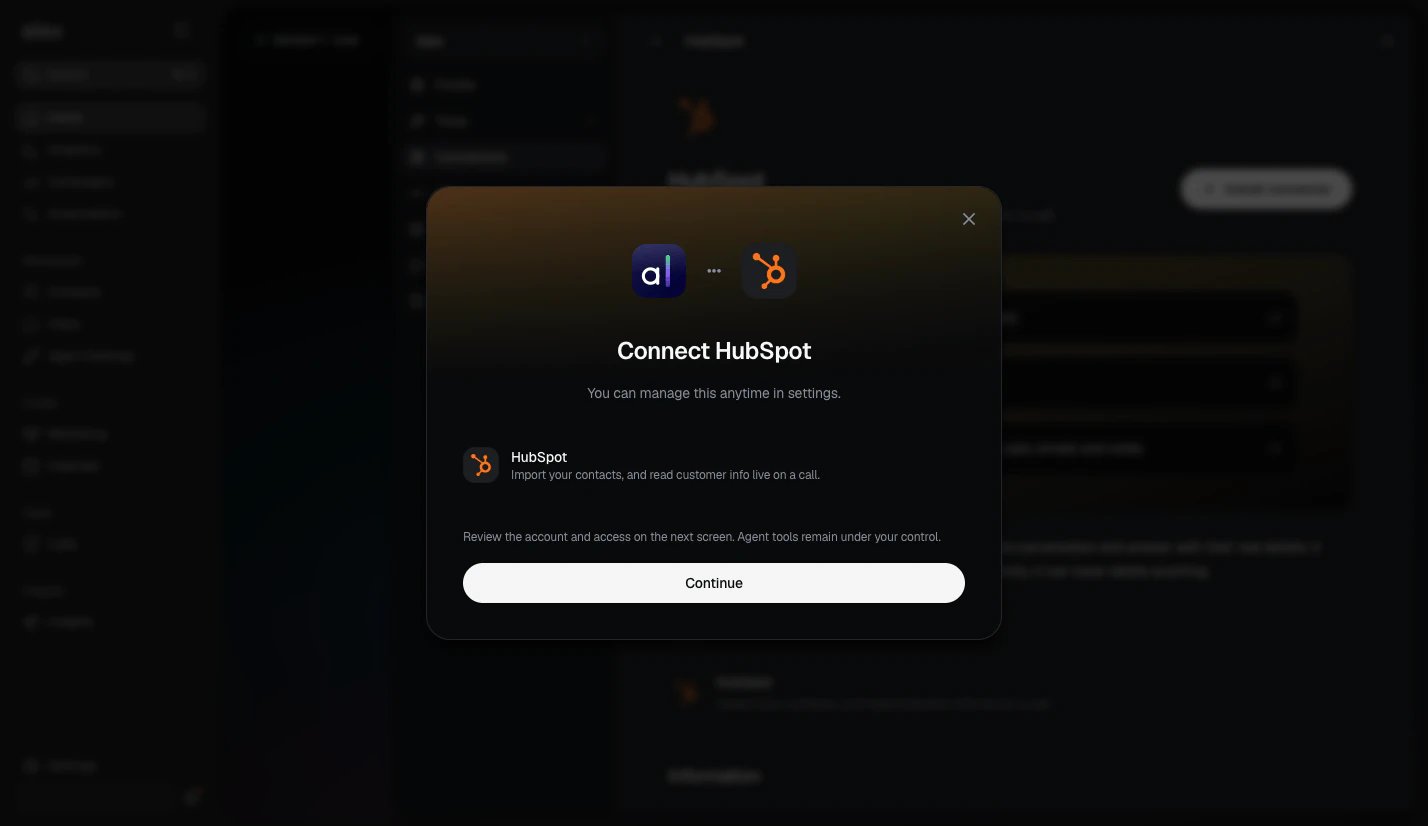
To connect HubSpot, open Sidebar → Agent Settings → Connectors, choose HubSpot, and sign in to HubSpot from there. HubSpot connects in two ways, and you can use either or both. Use during calls lets your agent find the caller in HubSpot and answer with their real details. Import contacts brings your HubSpot contacts into SmartAlex for campaigns.
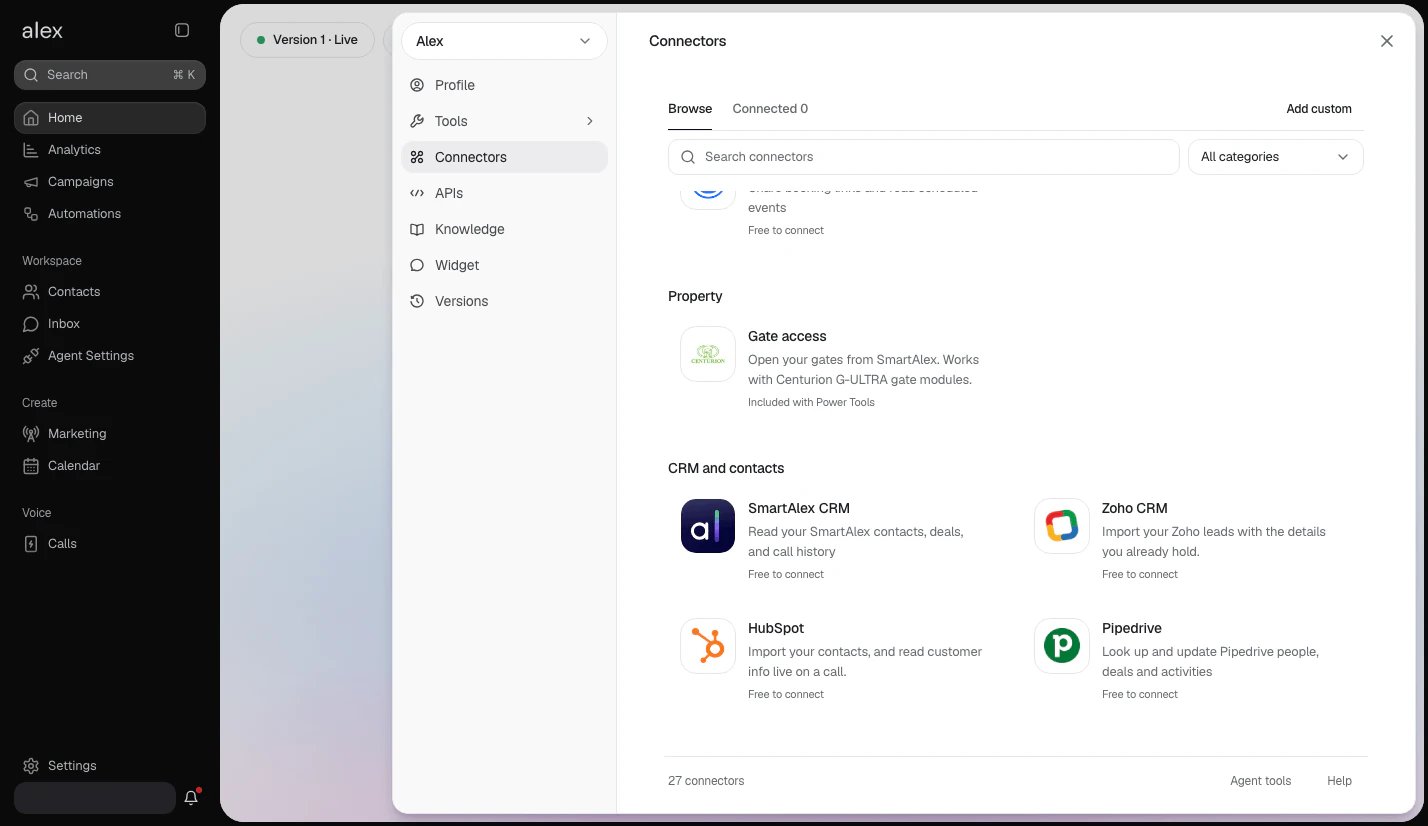
In the app: Sidebar → Agent Settings → Connectors (/home?settings=connectors), then HubSpot under CRM and contacts.

What does HubSpot give my agent?

HubSpot connects through two separate options on one card, and this diagram shows where each one leads.

How do I connect HubSpot for use during calls?

1

Open Connectors

In the sidebar, click Agent Settings. The agent settings drawer opens. In its left rail, click Connectors.
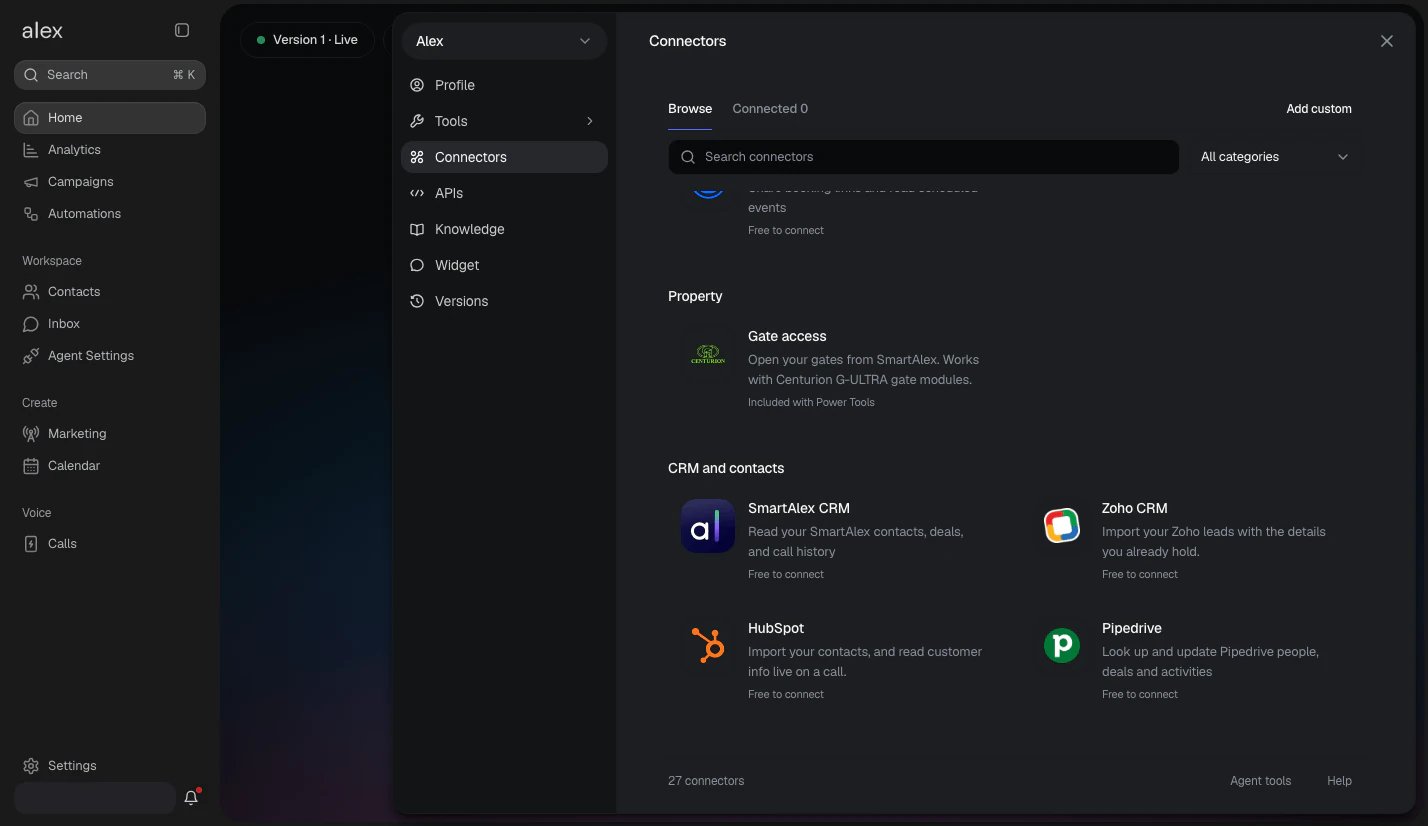
CRM and contacts section of Connectors with the HubSpot cardCRM and contacts section of Connectors with the HubSpot card

HubSpot sits under CRM and contacts

2

Open the HubSpot card

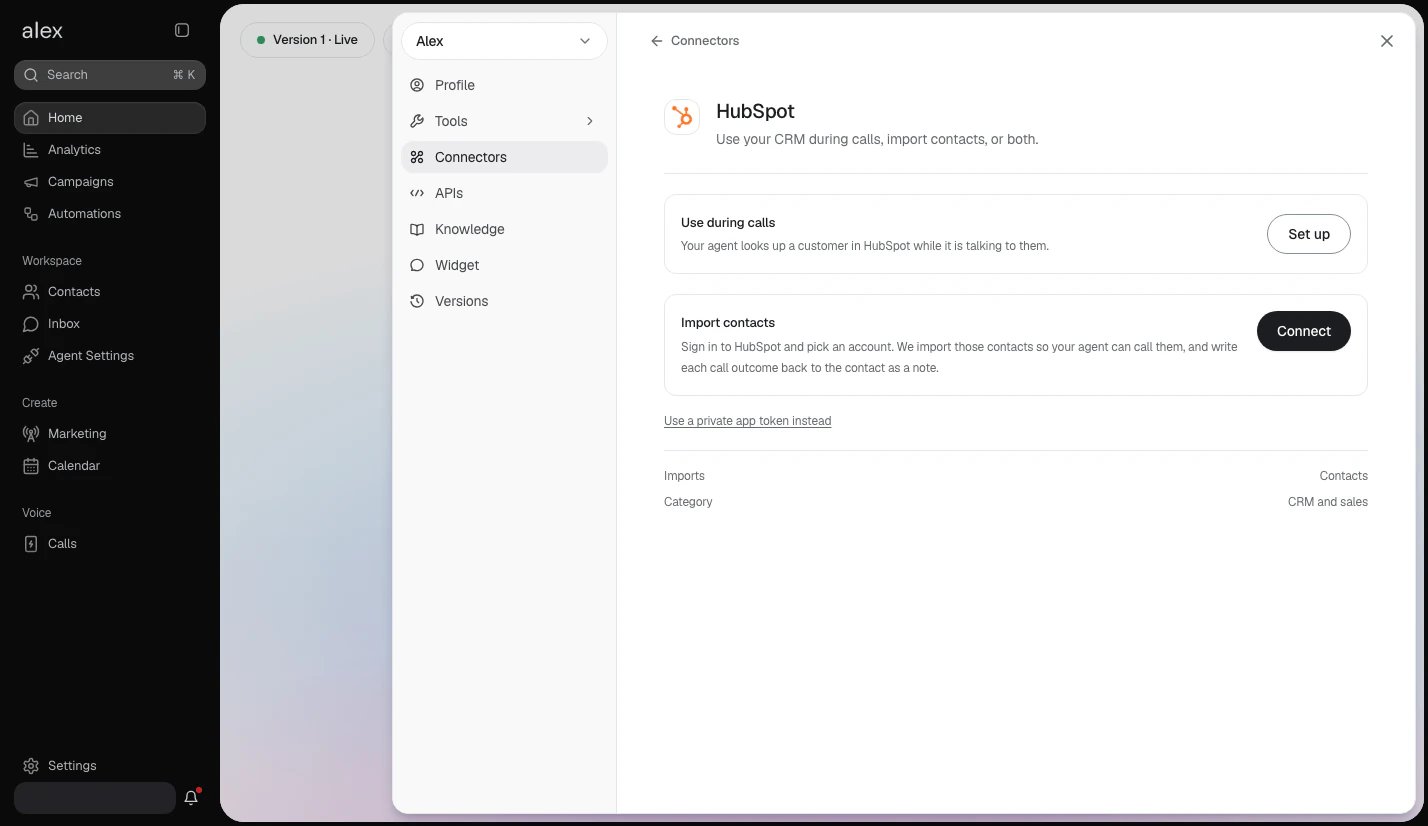
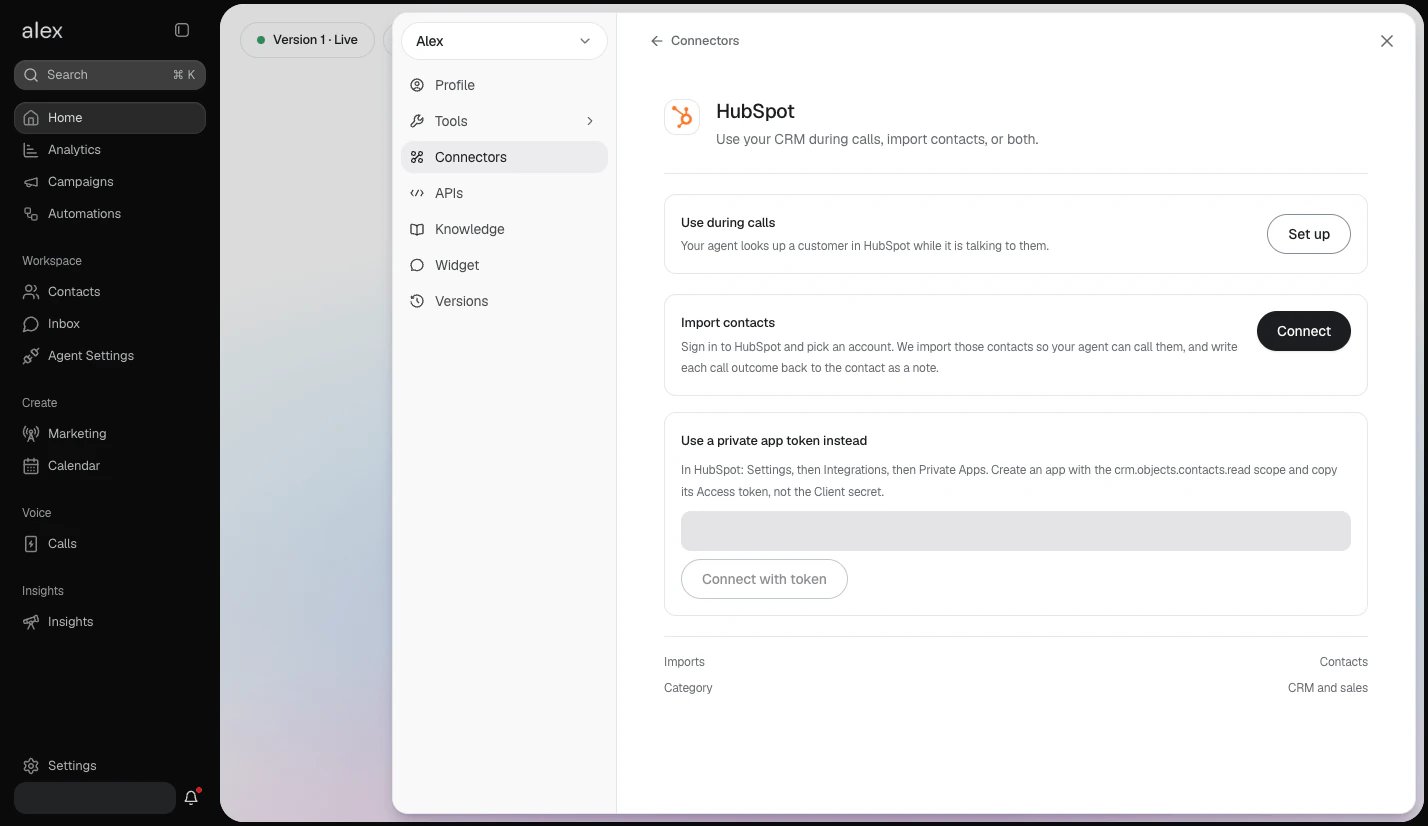
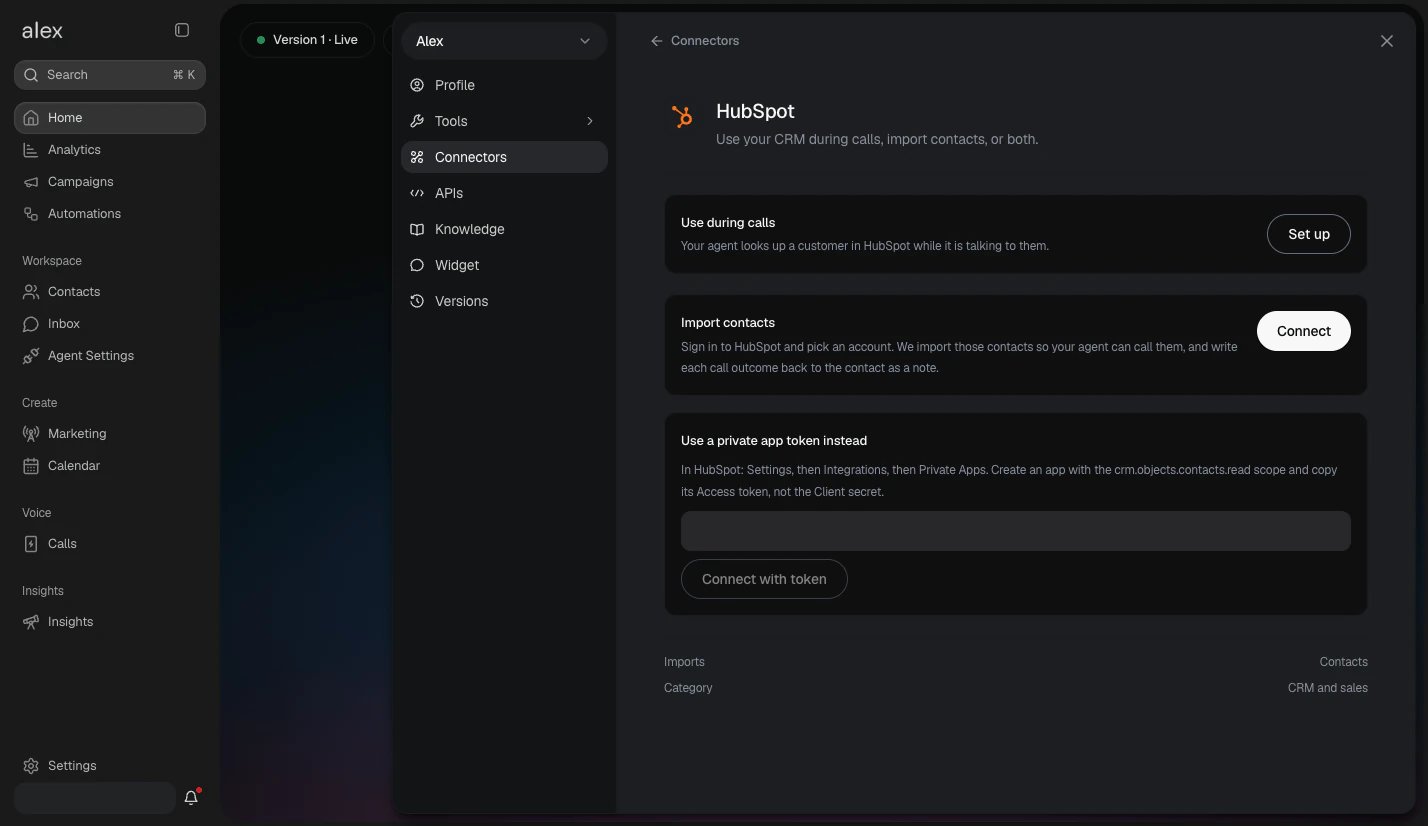
On Browse, under CRM and contacts, click HubSpot (“Import your contacts, and read customer info live on a call.”). The HubSpot page opens with “Use your CRM during calls, import contacts, or both.” and two options.
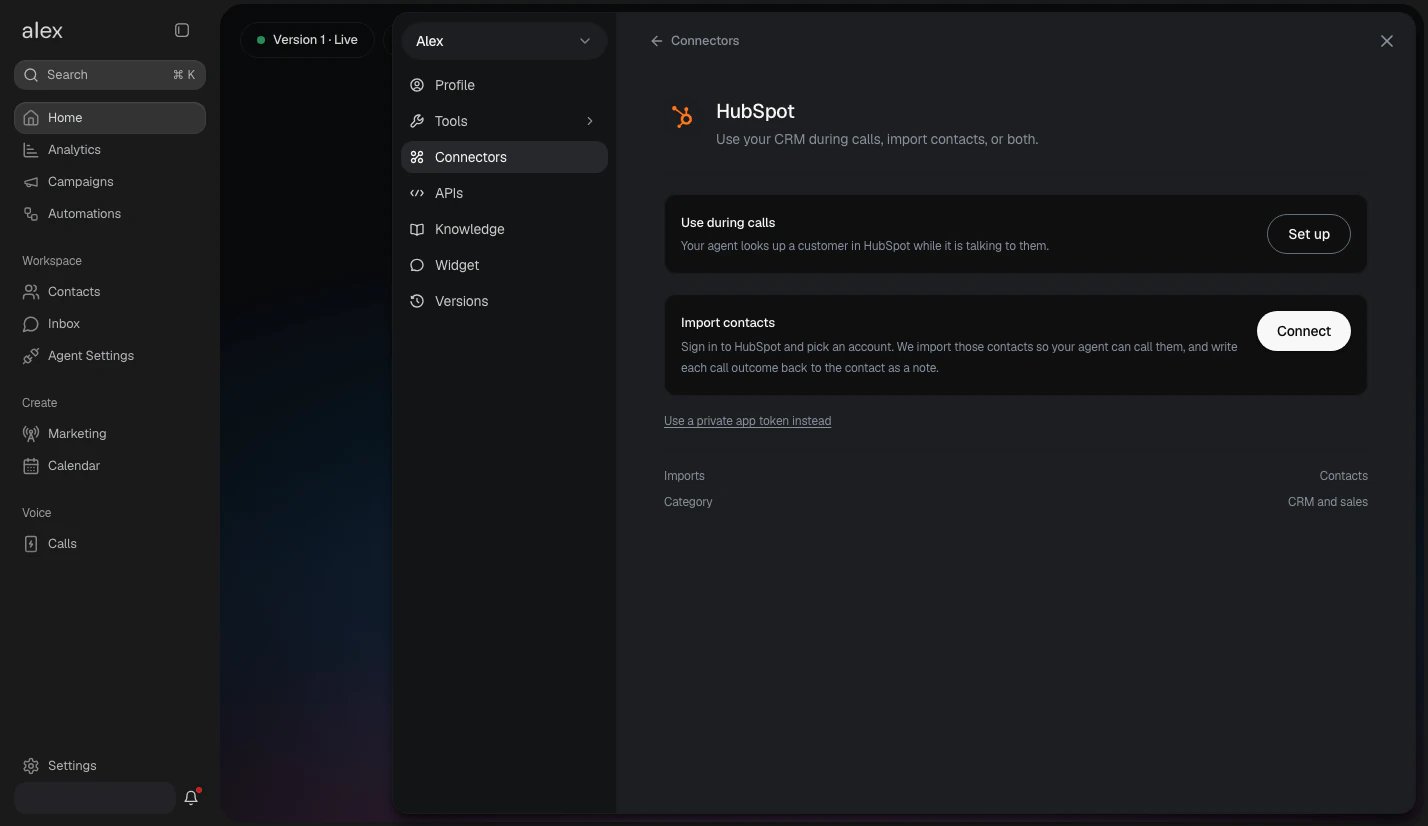
HubSpot connector page with two options, Use during calls and Import contactsHubSpot connector page with two options, Use during calls and Import contacts

Choose Use during calls, Import contacts, or both

3

Click Set up

Next to Use during calls, click Set up. A Before you connect box lists the three HubSpot screens you are about to see. Click Connect. A HubSpot window opens.
Before you connect box describing the HubSpot sign-in screensBefore you connect box describing the HubSpot sign-in screens

SmartAlex tells you what HubSpot will show before you go

4

In HubSpot: sign in and choose the account

Sign in to HubSpot, then pick the HubSpot account you want to connect.
5

In HubSpot: choose View-only

HubSpot lists what SmartAlex can access. Click View-only at the top right: everything the agent needs to read your CRM, and nothing more. Choose full access only if you want the agent to update records.
6

In HubSpot: type I accept the risk

HubSpot shows “This app could put your data at risk” and asks you to type I accept the risk. Check the redirect domain reads api.getsmartalex.com, type the words and continue. HubSpot shows this for every app that is not on its public marketplace. The window closes.
7

Pick the tools

Back in SmartAlex, the HubSpot tool list appears. Click a Recommended set, or tick tools one by one.
8

Save the tools

Click Save tools. You see the tools are saved and “Applies on the next call.”

How do I import my HubSpot contacts?

1

Click Connect next to Import contacts

On the HubSpot page, next to Import contacts, click Connect. A HubSpot window opens.
2

In HubSpot: sign in and allow access

Sign in, pick the account, and allow the permissions HubSpot lists: read and write contacts, and optionally read your contact fields. The window closes and you see “HubSpot connected”.
3

Click Import contacts

The card now reads Import contacts with “Not imported yet.”. Click Import contacts. You see “Importing your HubSpot contacts…” and how many are done so far.
4

Find the contacts

When it finishes, the page shows when they were Last imported. The contacts are in Sidebar → Contacts, ready for a campaign.

Use a private app token instead of signing in

1

In HubSpot: create a private app

In HubSpot, go to Settings → Integrations → Private Apps and create an app with the crm.objects.contacts.read scope.
2

In HubSpot: copy the Access token

Copy the app’s Access token. It begins with pat-. Do not copy the Client secret.
3

Paste it in SmartAlex

On the HubSpot page, click Use a private app token instead, paste the token and click Connect with token. SmartAlex shows “Checking token”, then “HubSpot connected”. Click Import contacts to start the import.
HubSpot private app token box with a Connect with token buttonHubSpot private app token box with a Connect with token button

Paste the access token that begins with pat-

Settings

HubSpot page

HubSpot tools (Use during calls)

Every tool counts towards the agent’s 20 live tools. Update a record also goes through the safety steps for tools that change data.

What permissions does HubSpot ask for?

Check it worked

  • The HubSpot card shows Connected on Browse and on the Connected tab.
  • Call your agent from a number saved on a HubSpot contact and ask “What do you have on file for me?”. The agent answers with details from HubSpot.
  • For the import, open Sidebar → Contacts and find a few of your HubSpot contacts.

Disconnect HubSpot

At the top of the HubSpot page, click Disconnect. You see “HubSpot disconnected”. Its tools come off every agent from the next call. To stop one agent using HubSpot on calls, switch its HubSpot tools off and click Save tools.

If it does not work

Questions people ask

HubSpot shows that warning for every app that is not listed on its public marketplace. It does not mean anything is wrong. Check the redirect domain reads api.getsmartalex.com, then type “I accept the risk”.
No. The HubSpot connector has no delete tool. The agent can only create or update records, and only if you switch on Update a record.
No. Use Use during calls for inbound calls where the agent should know the caller. Use Import contacts when you want to call your HubSpot contacts in a campaign. You can use both.
No, contacts only. The agent can still read companies, deals and tickets live on a call through Use during calls.
No. The connection is shared by the workspace, but you switch the tools on for each agent separately.

Next

Connect Pipedrive

The same live lookups for Pipedrive.

How connectors work

Tools per agent, limits and safety steps.

Contacts

Where imported contacts land.

Run a calling campaign

Call your imported contacts.
Last modified on November 29, 2026