

In the app: Home in the sidebar (/home). This screen used to be called Studio or Agent Studio, and old
/studio links open Home.What is on the screen
This diagram shows how the parts of the Home screen fit together.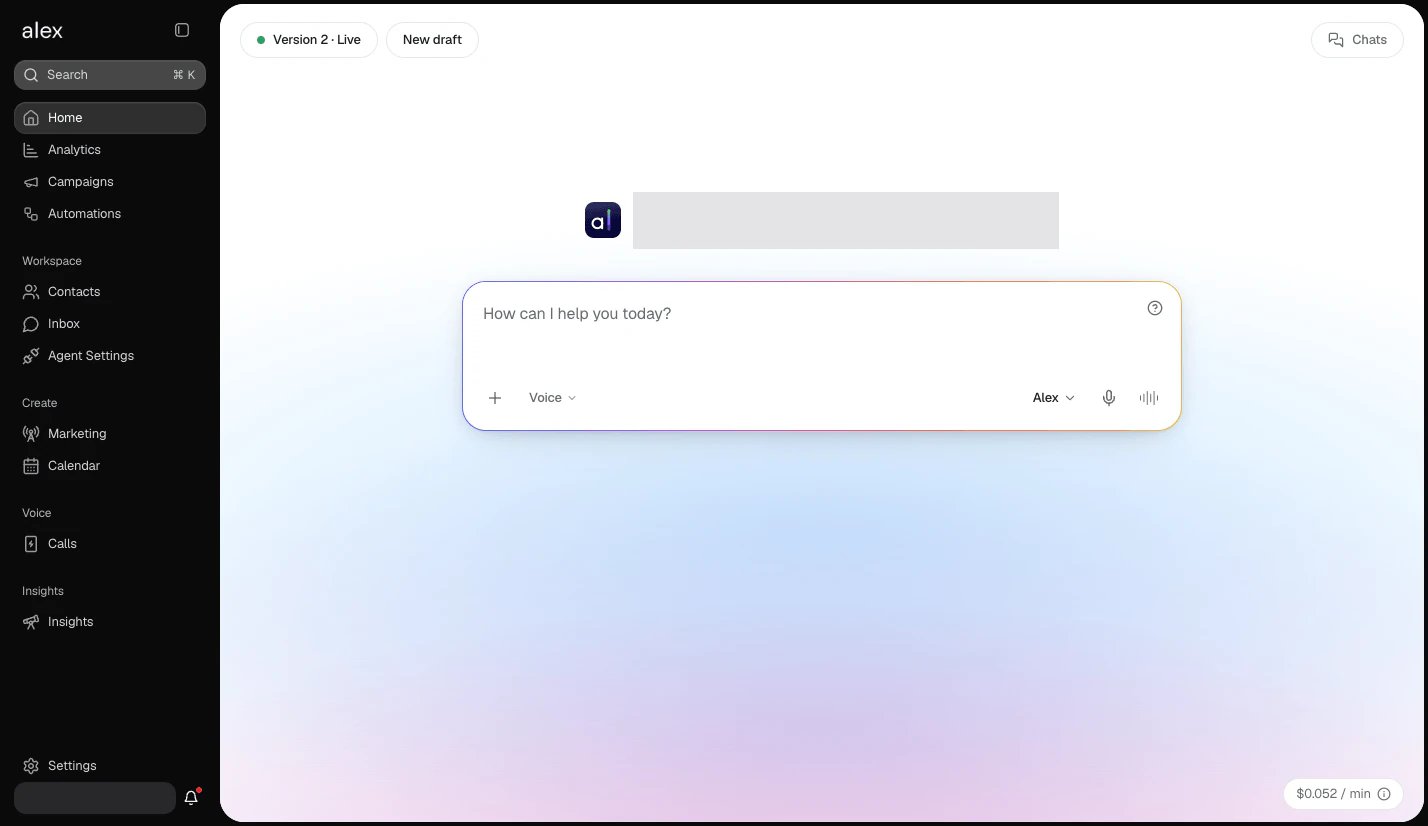
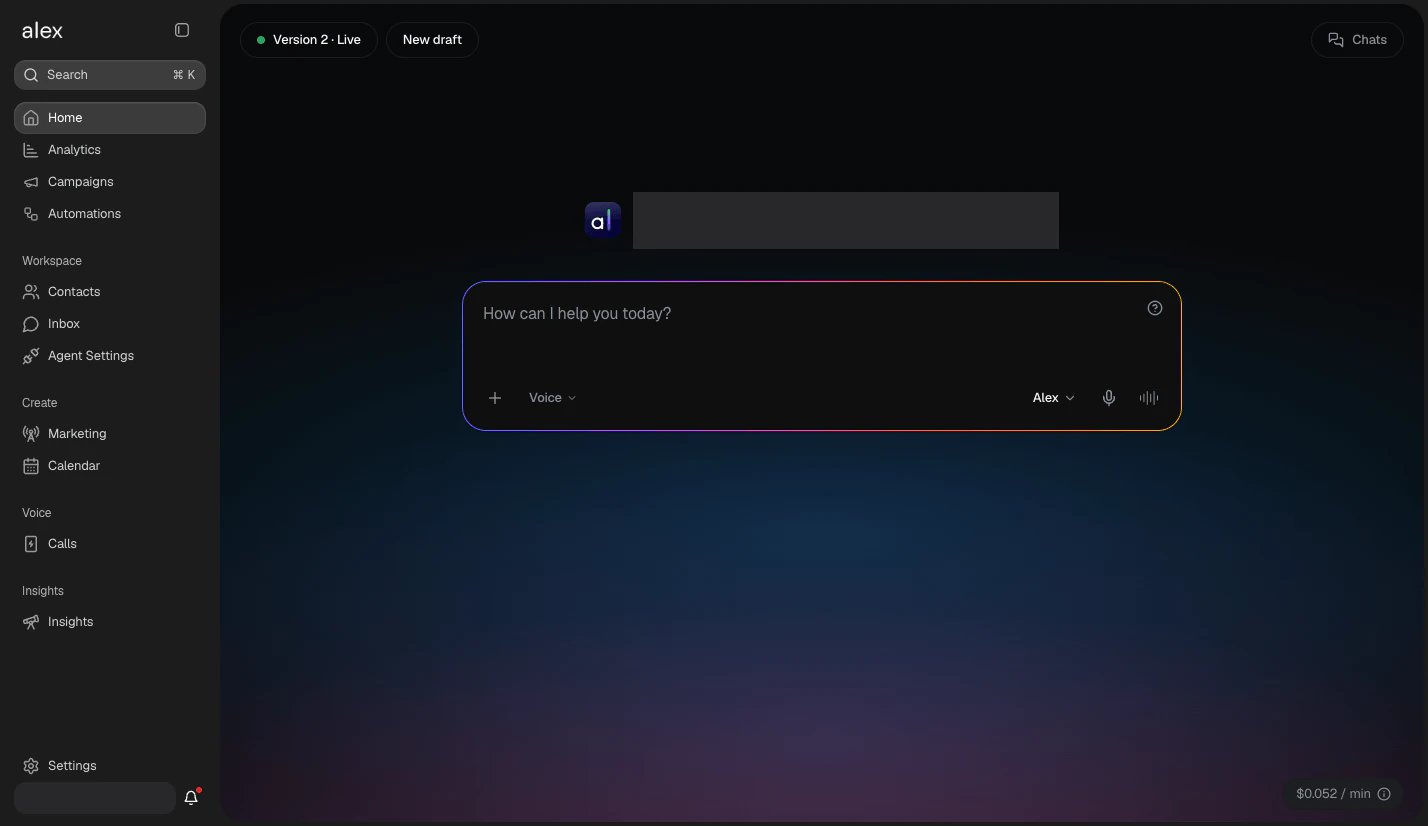
Build your agent by chatting with Alex on Home
The message box
The box at the bottom says How can I help you today? Type what you want and press Enter, or click the arrow.The + menu
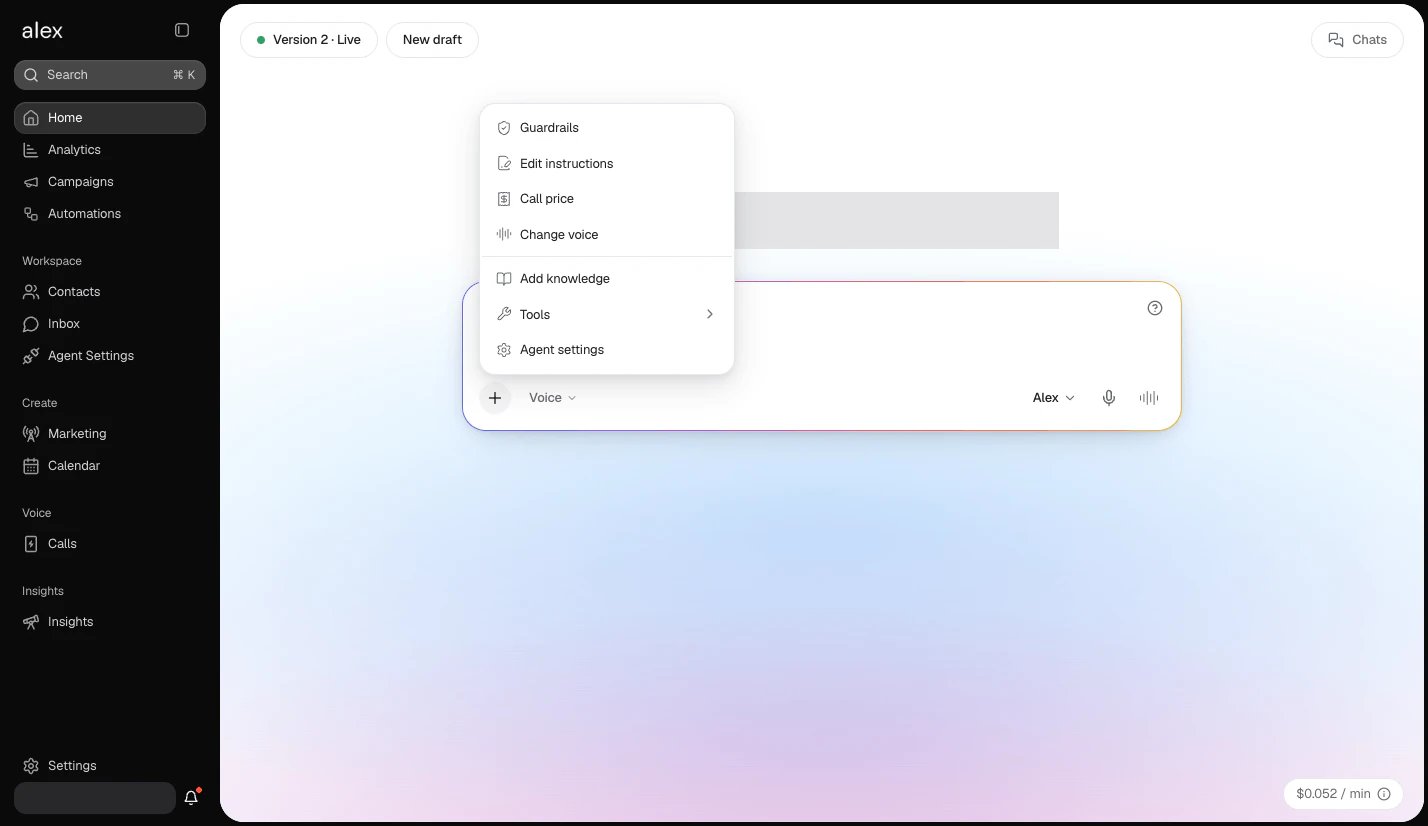
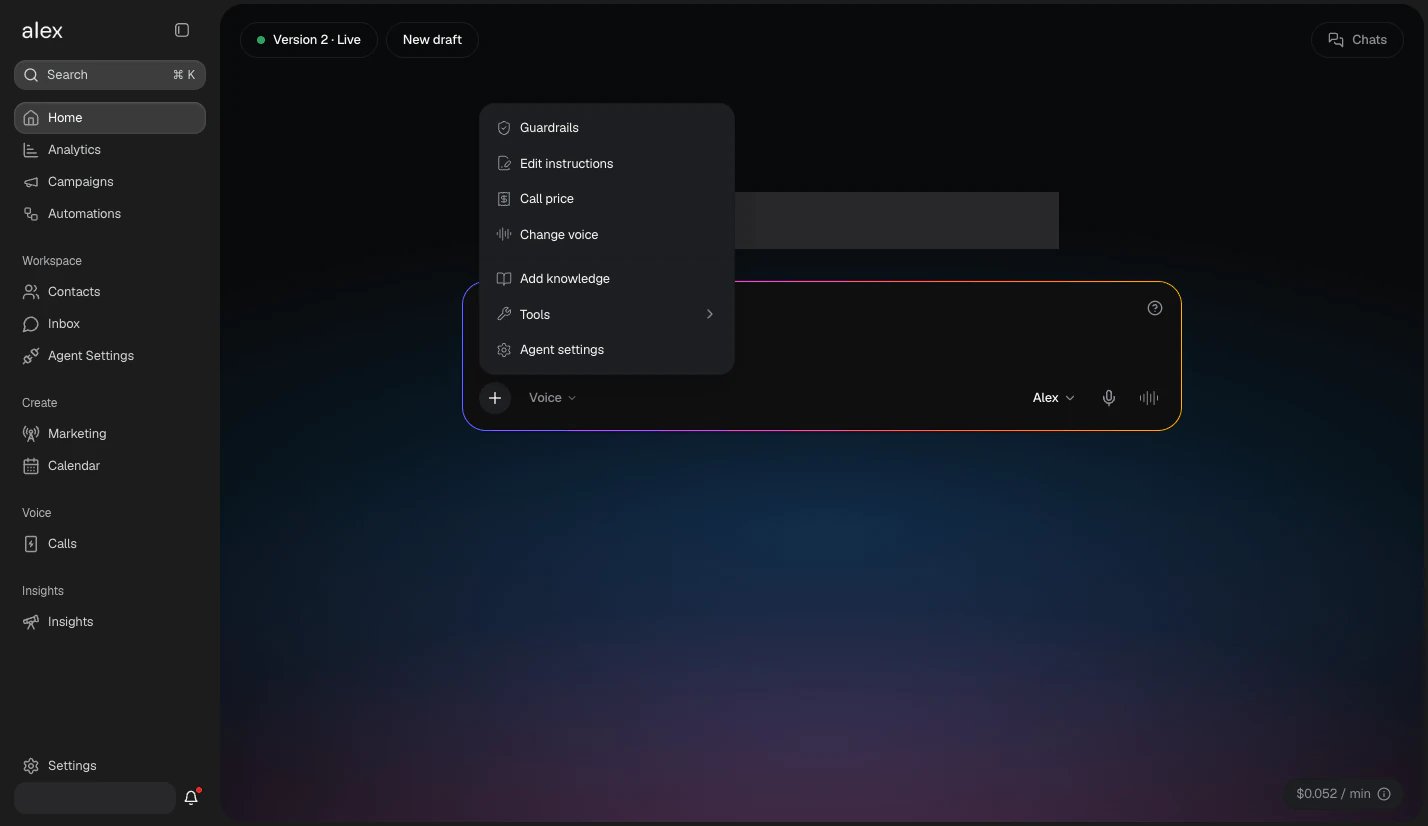
The + menu in the message box
On a phone, the same items sit in the menu under the agent’s name.
How Alex makes a change
This diagram shows the path from your request to a change callers hear. Every change arrives on a review card that says what Alex understood and shows the exact change.
After you apply an instruction change you see “Applied. Your agent uses the update on its next call.” Each changed section has Undo until the next change.
Anything that cannot be undone or that costs money asks you to type confirm first. That includes deleting an agent and adding a paid agent slot.
What you can ask Alex
Create an agent
“Create me a new agent.” Alex opens the Create a new agent card.
Change what it says
“Always greet people by their title and surname.”
Switch tools on
“Turn on call transfer.” “Stop sending texts after calls.”
Teach it your business
“Read our website.” “Add our refund policy.”
Test it
“Let me talk to it.” “Check you can answer questions about parking.”
Plan a campaign
“Call everyone on my March leads list.”
Call price
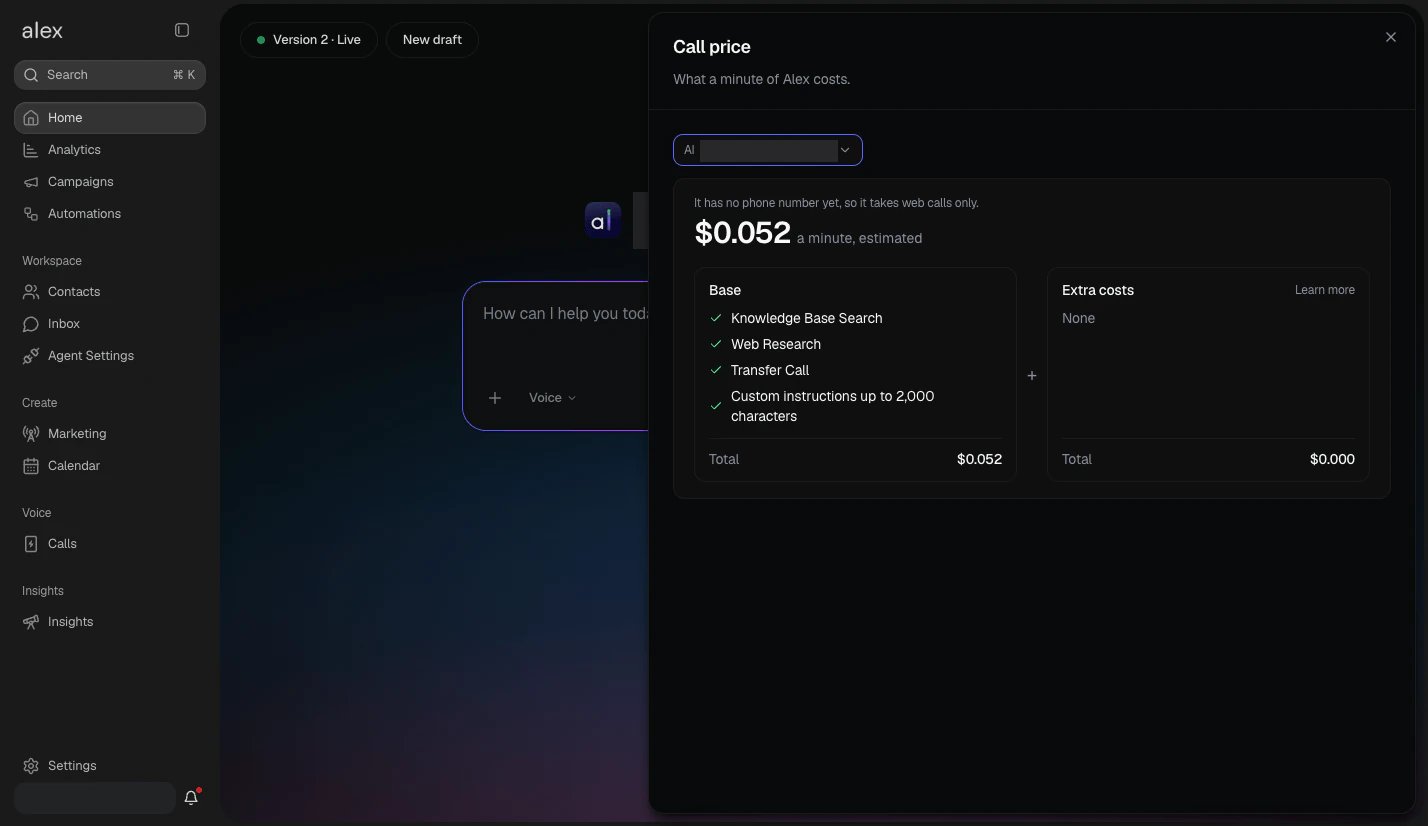
+ → Call price opens a side panel, “What a minute of your agent costs.” It shows the price a minute for web and incoming calls and for outgoing calls, split into Base and Extra costs.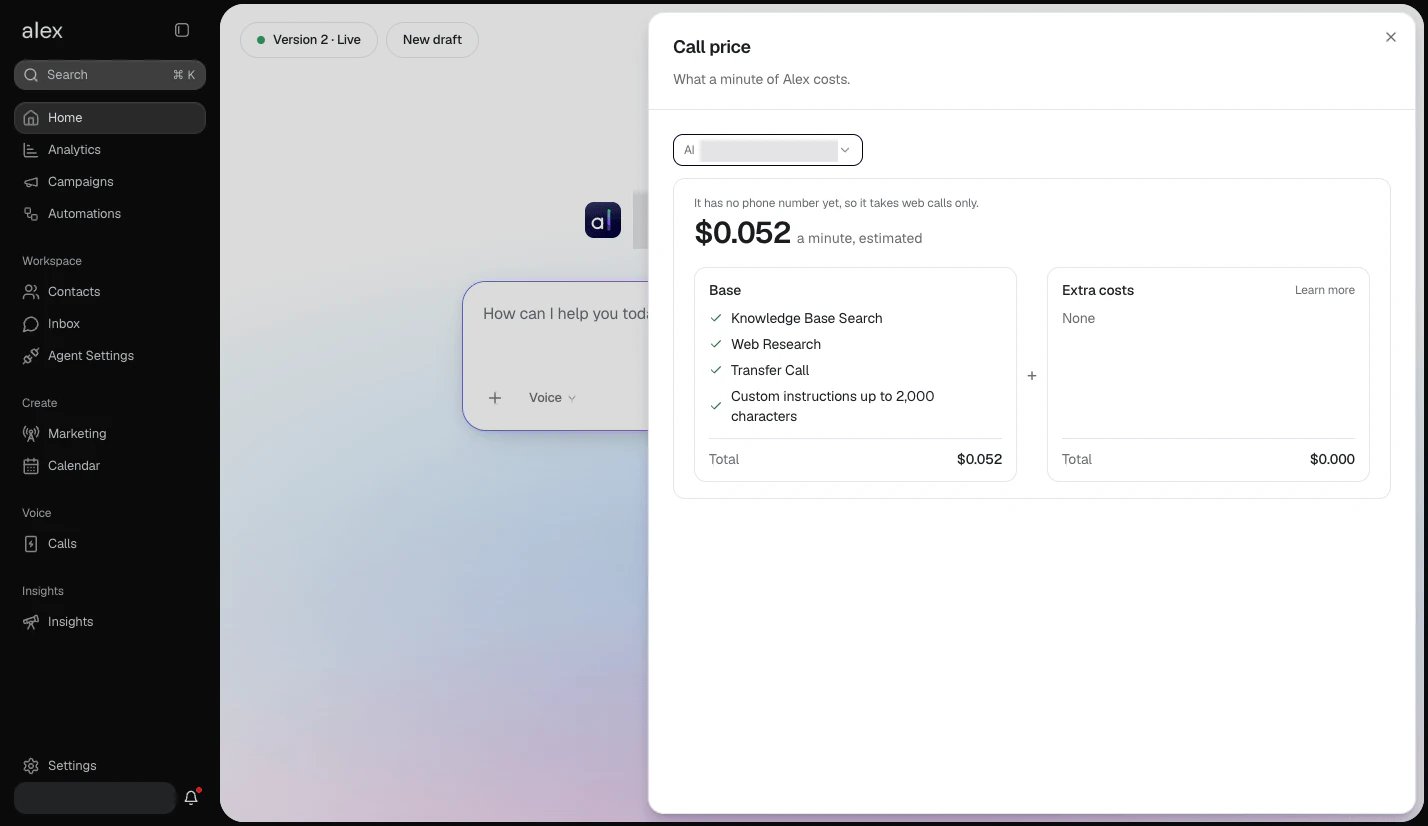
What each part of your agent adds to the price
- Base covers the AI, the voice and your instructions up to 2,000 characters.
- Extra costs lists anything that adds to it, such as instructions over 2,000 characters or extra tools. Click Shorten on the instructions row and Alex drafts a shorter version for you to check.
- A small price chip on Home shows the same figure. Click it to open Call price. In Edit instructions, the character count at the foot turns red once the instructions go over 2,000 characters.
Free and paid plans
Free plan
Free plan
One agent and one chat with Alex. You create the agent by chatting, and test it in your browser for up to 15 minutes in total, an allowance that does not reset. Phone tests, phone numbers, saved chats and extra agents come with a paid plan.
Paid plans
Paid plans
Saved chats (Chats and New chat), phone tests, phone numbers and the New agent button. Every plan includes one agent; extra agents are a monthly charge. See Pricing.
Questions people ask
Where did Agent Studio go?
Where did Agent Studio go?
It is now Home. You build and change agents by chatting with Alex on Home, and edit fields directly in Agent Settings. Old
/studio links open Home.I don't see the Build, Test and Guardrails switch
I don't see the Build, Test and Guardrails switch
Once an agent is selected, Home shows Voice and Messaging instead. Test from the waveform or phone icon, and open guardrails from + → Guardrails. The Build, Test and Guardrails switch only shows on a brand new account before the first agent, and in the phone menu.
Can I talk to Alex instead of typing?
Can I talk to Alex instead of typing?
Yes. Click Dictate and speak. Your words are typed into the box for you to check and send.
Can I use Alex from Claude or ChatGPT?
Can I use Alex from Claude or ChatGPT?
Yes. Connect the SmartAlex MCP server and ask in plain English from Claude, ChatGPT, Codex or Cursor.
What can SmartAlex do, and who am I talking to?
What can SmartAlex do, and who am I talking to?
You are talking to Alex, the assistant built into SmartAlex, who builds, changes and tests your agents when you ask in plain words. Your agent is separate. It answers and makes calls, replies on WhatsApp and talks to visitors on your website, and it can also book, transfer and take messages. See Voice agents.
How do I start an agent again, or delete it?
How do I start an agent again, or delete it?
To start again, delete the agent and create a new one, or on a paid plan click New agent first. To delete one, click the agent’s name in the message box, click the bin on its row, type confirm and click Delete agent. It is “deleted along with its instructions, tools and knowledge”, any campaigns it runs are paused first, and this cannot be undone. To stop it taking calls without deleting it, switch off Active in Profile.
Related
Create an agent
From your website to a tested agent in a few minutes.
Change your agent
Edit, test and publish from the chat.
Start free
Build an agent and talk to it in your browser in about a minute. No card needed.
Visit getsmartalex.com
See what SmartAlex does for your business, hear real agents and compare plans.