

In the app: Sidebar → Campaigns (
/campaigns), then click a campaign (/campaigns/<campaign id>). On the Real Estate plan: Sidebar → Pipeline → Campaigns.The campaigns list
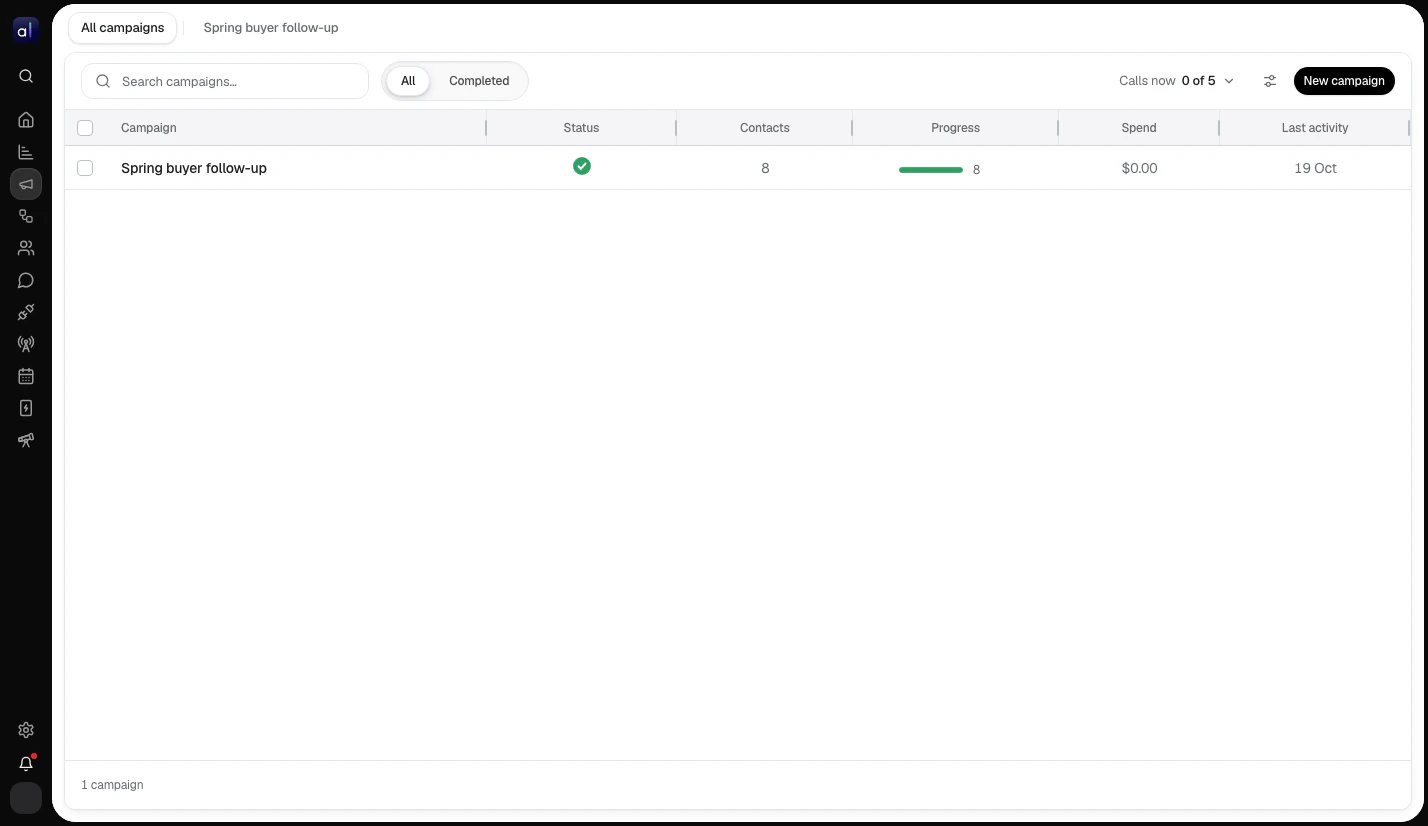
Every campaign, how far it has got and what it cost
Columns you can show: Campaign, Status, Contacts, Progress, Reached, Voicemail, Spend, Last activity, Agent, Calling from, Objective and Created. Progress reads “N of N called” and turns green at half way. Reached counts calls whose outcome was not voicemail, failed, no answer or busy. A Triggered badge marks campaigns started by Shopify, Rex or a web address.
Tick campaigns to Duplicate one or Delete them. “This permanently deletes the selected campaigns and their contact lists. Call history is kept but no longer linked to these campaigns. This cannot be undone.”
Calls now
Calls now shows “N of N lines in use” and “Calls you make: N of N. The other lines are kept for incoming calls.” Each running campaign lists its calls against its own limit. “Running campaigns take turns, so a large one never holds up the others.” Set a campaign’s own limit in Campaign settings → Calling speed.The campaign page
Contacts
Every person in the campaign, with their Status. Search with Search contacts… and filter by Status.- Columns in View options adds Called from, Calls, Connected, Last called, Duration, Sentiment, Summary, Tags, Timezone, Source list, Notes and more. Name, Status and Phone show to start with.
- Export CSV downloads the rows. On a long list it reads Export all N rows, so you get everyone, not just those loaded.
- Callbacks lists the people with a callback booked.
- Tick people waiting for a call and click Remove to take them out.
- Tick people on a running or paused campaign and click Put back in the sequence to call them again at their next step.
- The play button plays a call.
Insights
Insights turns calls into a follow-up list. Tabs: To do, Promised, Disputed, Call back, Other and Done. Each row shows the Contact, the Result, What they said and when it is Due, plus amounts on collections campaigns. On a large screen a side panel adds totals, the Best time to call, Answered, nothing heard and Numbers to fix. Insights needs Next steps switched on for the workspace. Until then it shows a preview, and an owner or admin can click Turn on.Add people, copy or run again
Across all campaigns
Sidebar → Analytics → Campaigns (/analytics) compares campaigns: Who spoke, Cost per conversation, and a table of Called, Spoke to, Promised, To do and Spend. See Analytics and reports.
Questions people ask
How do I call the same people again?
How do I call the same people again?
On a completed or cancelled campaign, click Run again. Pick who to bring across, such as Never picked up or Went to voicemail, and SmartAlex makes a new campaign named with “run 2”. No answer, voicemail, busy, queued and cancelled are ticked for you.
Can I add people to a campaign that is already running?
Can I add people to a campaign that is already running?
Yes. Open Campaign settings, then Add contacts, and pick from your contacts, type them in or upload a file. They are called in the campaign’s next calling window.
How many calls can run at once?
How many calls can run at once?
Calls now on the campaigns list shows how many lines are in use out of your account’s total. A quarter of the lines, at least one, are kept for people calling in. Running campaigns take turns, so a large one never holds up the others.
How do I rename or edit a campaign?
How do I rename or edit a campaign?
Open the campaign and click the gear Campaign settings, then Edit campaign. Change the Name, Goal, Opening line, voicemail or texts there. Calling times, the number and the agent have their own sections in the same window. You can edit a campaign while it runs.
How do I change who is in a campaign?
How do I change who is in a campaign?
To add people, open Campaign settings → Add contacts. To take someone out before they are called, tick them in the campaign’s Contacts and click Remove. To call people again, tick them and click Put back in the sequence.
Related
Read your campaign results
A tutorial for the numbers.
Pause or stop a campaign
Pause, resume, terminate or delete.
Statuses
What each status means.
Campaign settings
Every setting explained.
Start free
Build an agent and talk to it in your browser in about a minute. No card needed.
Visit getsmartalex.com
See what SmartAlex does for your business, hear real agents and compare plans.