

In the app: Sidebar → Campaigns, click a campaign, then the gear Campaign settings at the top (
/campaigns/<campaign id>). On the Real Estate plan: Sidebar → Pipeline → Campaigns. On a computer the Agent row sits at the bottom of the left-hand list.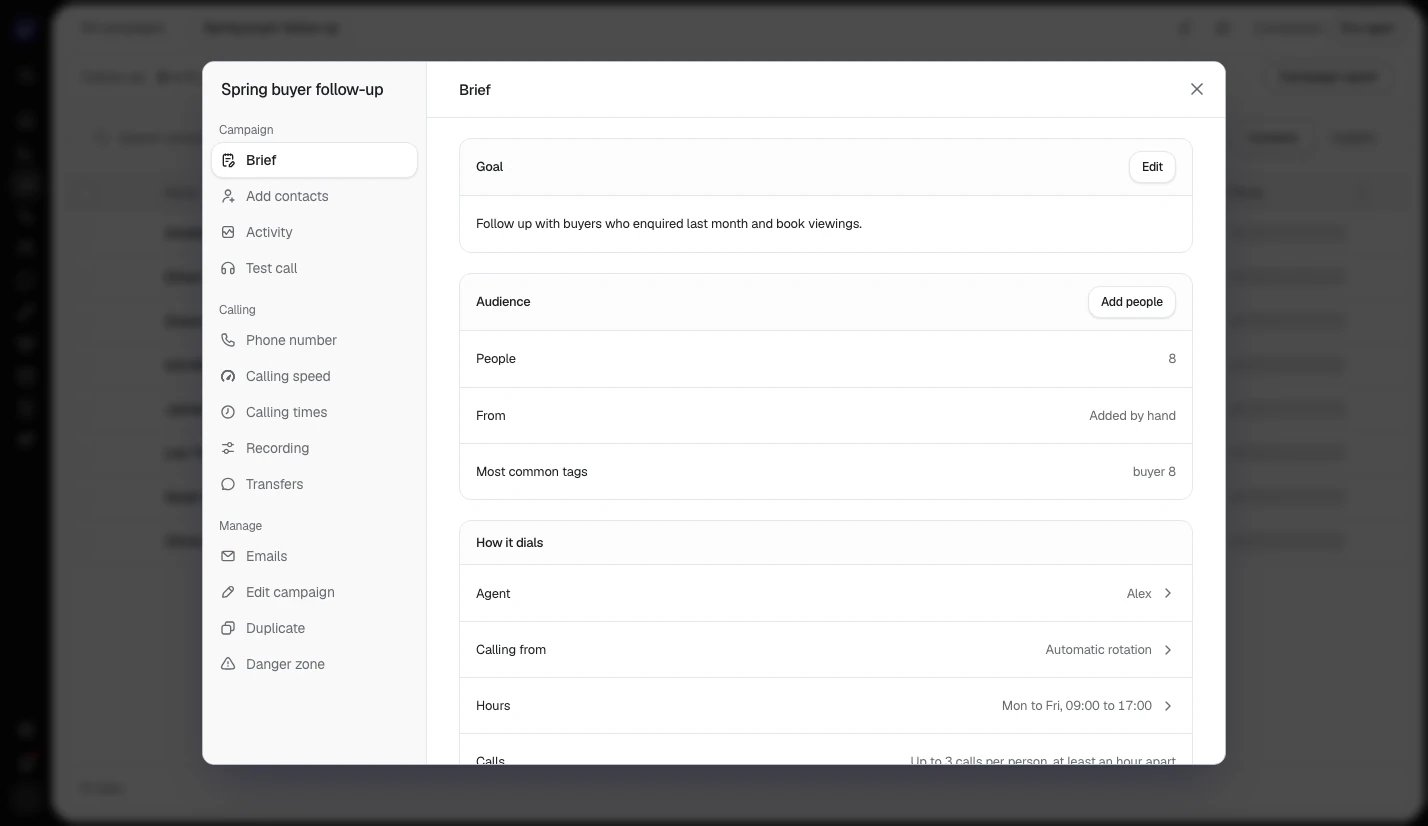
Every setting for one campaign
Which sections will I see?
Campaign
Brief
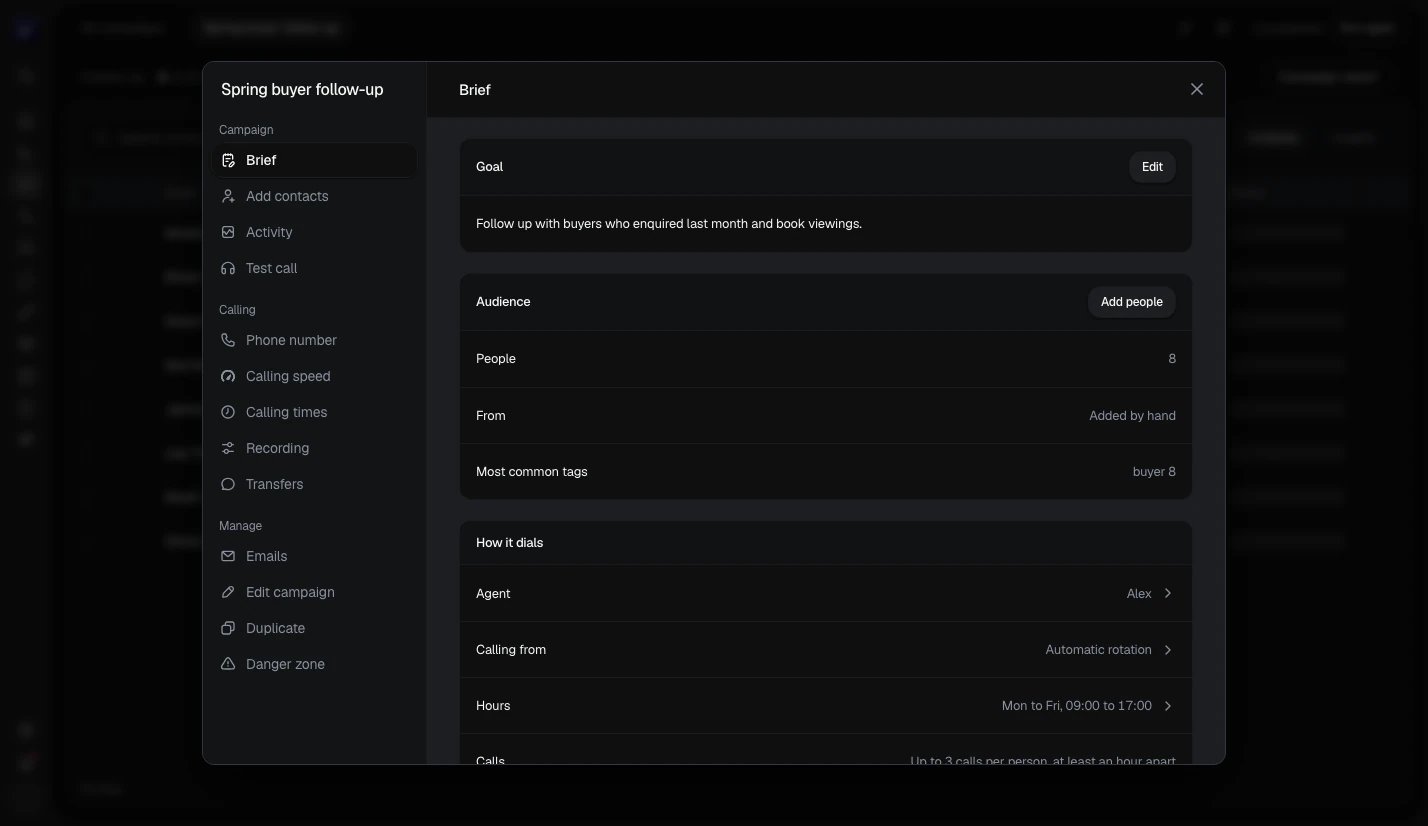
A read-only summary of the campaign. It shows the Goal and Opening line, each with an edit button that opens Edit campaign. It also shows the Audience (People, Adds people, From, Most common tags) and what the agent knows about your Company and Product. How it dials lists Calling from, Hours, Time zone, Calls at once and Agent, and Call reports comes last.Add contacts
Adds people to this campaign. A cancelled campaign cannot take new people.Activity
How the calls are going. Overview counts Calls made, Conversations, Voicemail, No answer or busy and Did not connect. By day and By time of day show the calls and Answer rate for each. Latest calls lists the newest calls with When, Number, Result and Length. See Read your campaign results.Trigger
Shows What it listens for (a Shopify event, Rex listings or a campaign web address) and Recent people it added. Editors can change what it listens for; you see “Trigger saved”. See Campaigns from other systems.Sequence
The steps each person goes through and how many people are at each one, with Call outcomes for the calls so far.Test call
Try the campaign before real people hear it. On the In your browser tab, click Start call to talk to the agent through your computer. On the On your phone tab, type Your number and click Call me now. The panel shows the Agent, the Goal, what it Opens with, and the Transcript as the call runs. Test calls are free.Calling
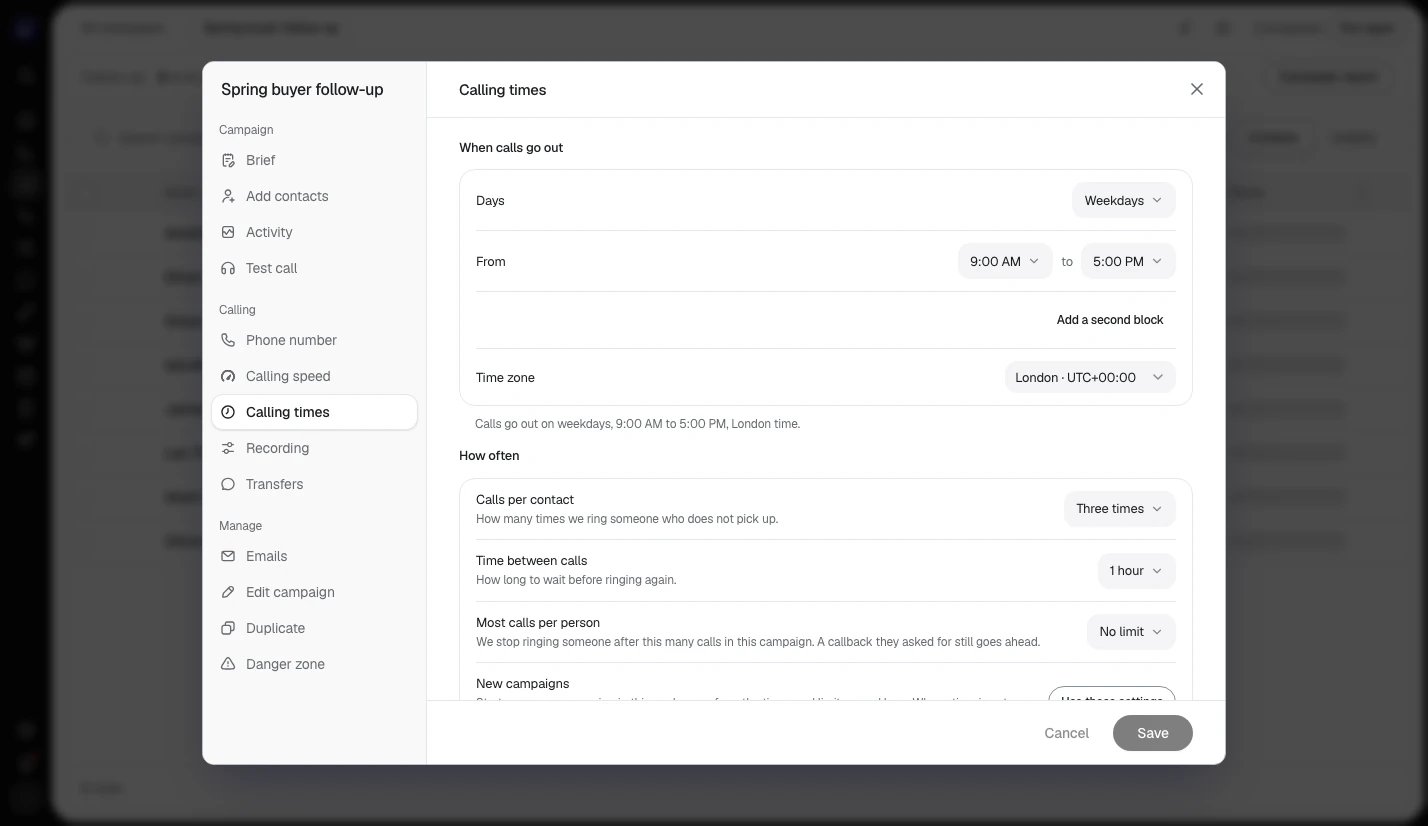
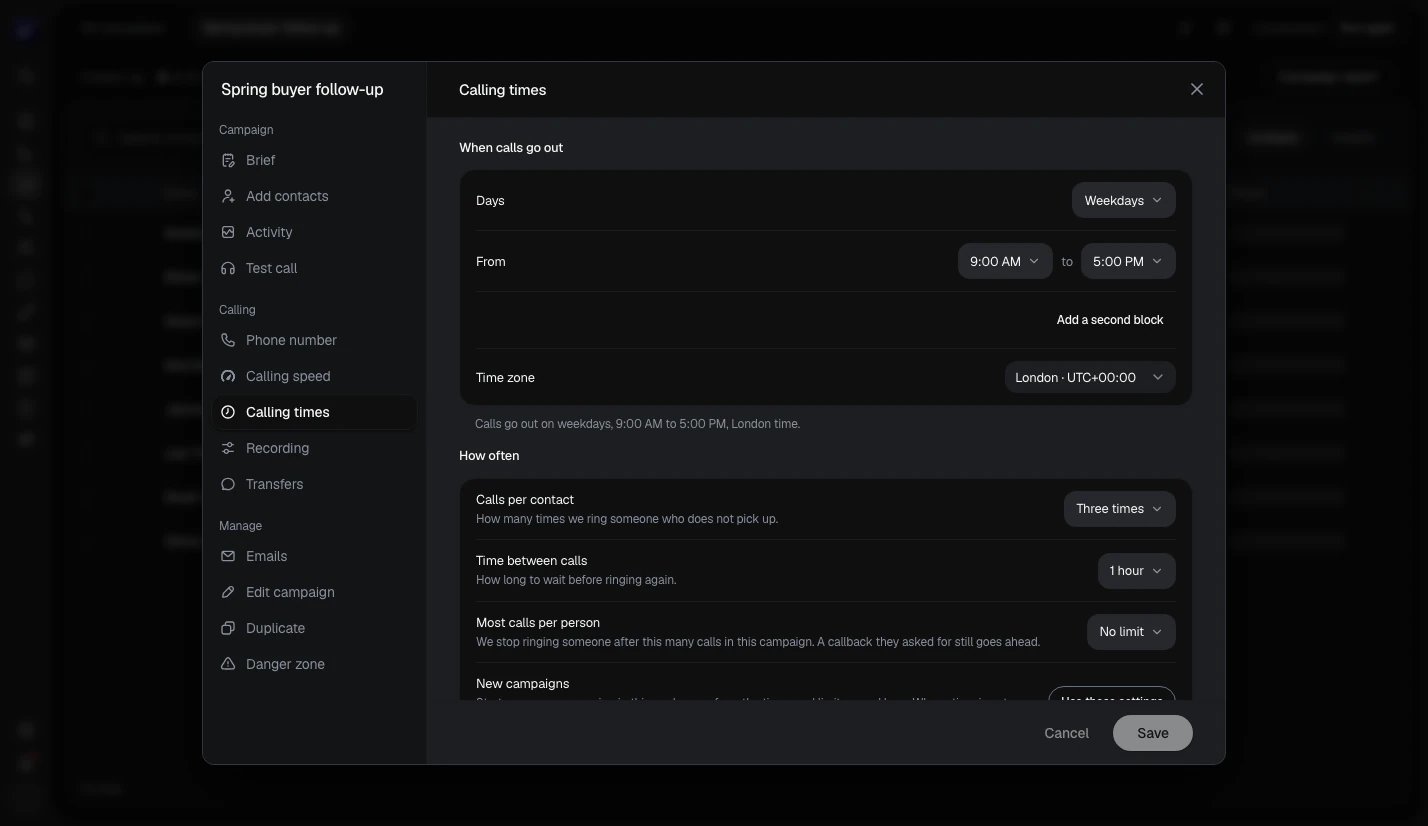
When and how often a campaign calls
Calling times also shows Call everyone now when people are waiting for their next try: “All N start now, inside your calling times.” Click Call now to bring their next call forward. See Calling hours and schedule.
Manage
Emails
Who hears about the campaign by email.
“Only an owner or admin can change who gets these emails and what they show.” See Follow-up texts and emails.
Edit campaign
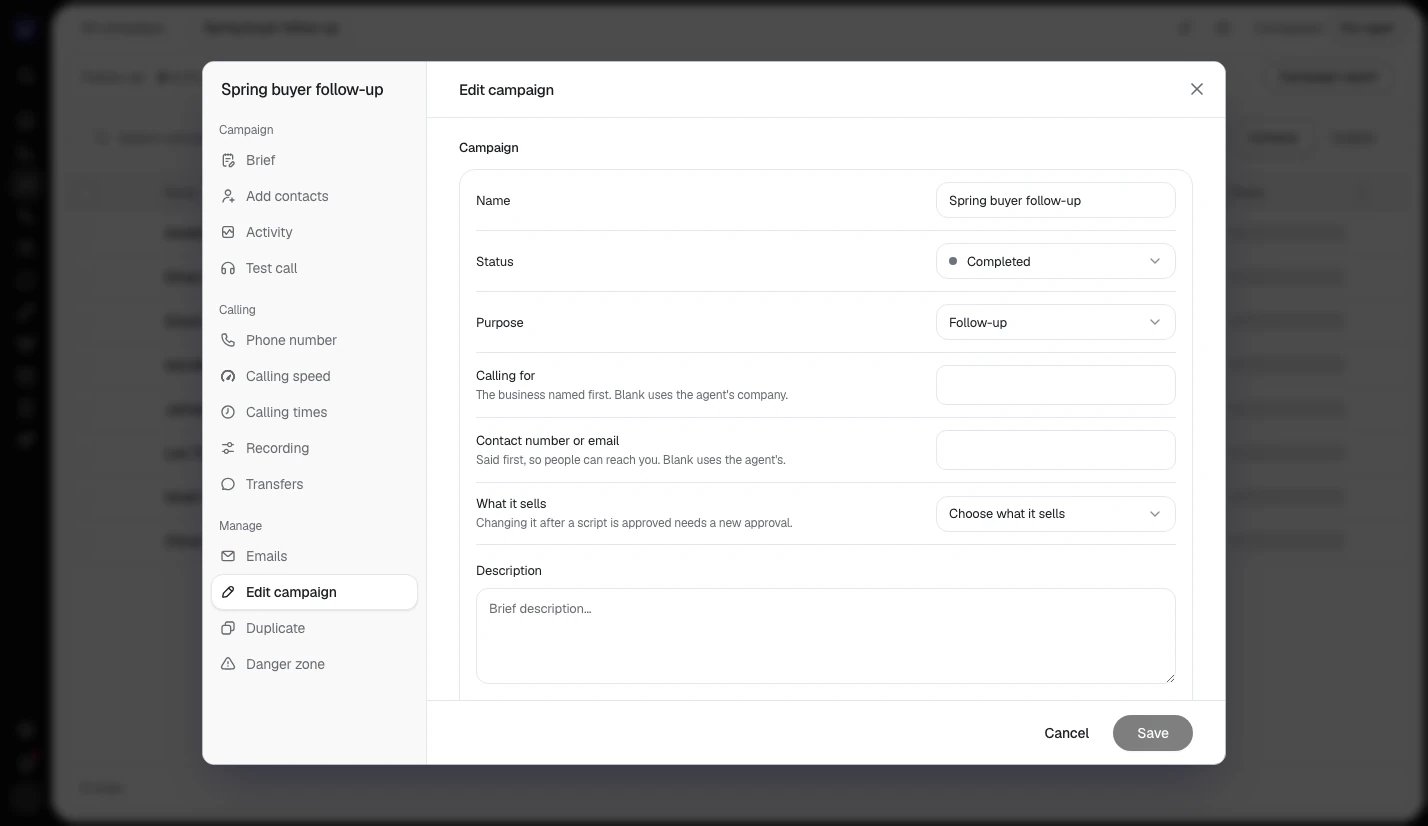
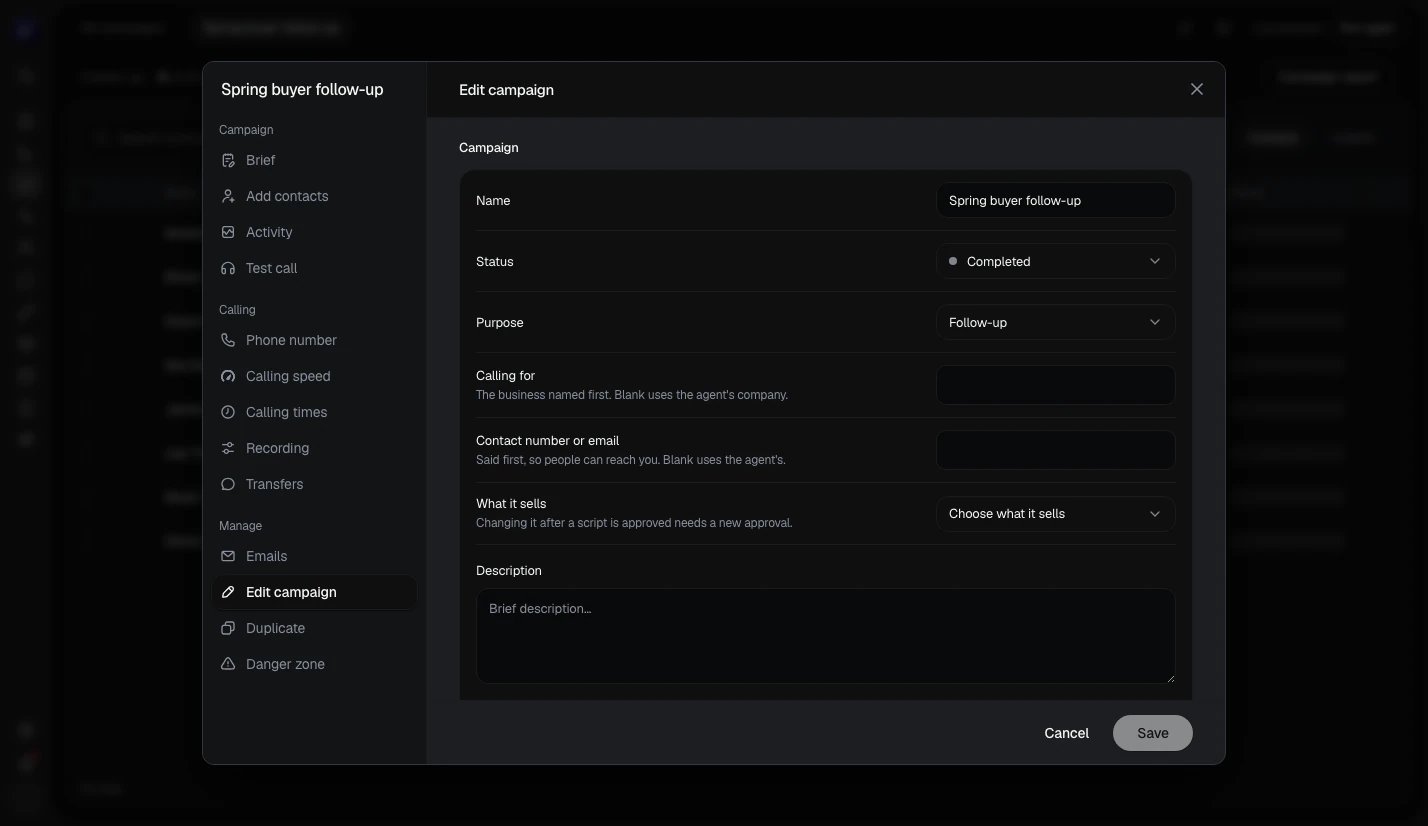
Change what the campaign says and does
Duplicate
Makes a draft copy named “Copy of” and the campaign’s name. Choose Bring the same people across or Start with nobody; you see “Draft created”. The copy keeps the agent, number, purpose, goal, opening line, product, hours, retries, call limit, calling speed and texts. It does not keep the call counts and dates, the script approval, a web address trigger, or a debt collection acceptance, which you accept again. Report emails are copied only when you are an admin.Danger zone
See Pause or stop a campaign.
Questions people ask
Why can't I see some sections?
Why can't I see some sections?
Sections depend on your role and on the campaign. Add contacts, Test call, Agent, Phone number, Calling speed, Calling times, Emails and Edit campaign need permission to edit campaigns. Trigger shows only on a campaign started by a connection, and Sequence only on a campaign with a call sequence. Do Not Call shows only when the campaign has US numbers.
How do I copy a campaign's settings to a new one?
How do I copy a campaign's settings to a new one?
Open Campaign settings, then Duplicate. The copy is a draft named “Copy of” and the campaign’s name, with the same agent, number, goal, opening line, hours and retries. Choose Bring the same people across or Start with nobody.
How do I make every new campaign start with these calling hours?
How do I make every new campaign start with these calling hours?
Open Calling times and, under New campaigns, click Use these settings. New campaigns in the workspace then start from these days, hours, time zone, retries and call limit. Owners and admins only.
Related
Calling hours and schedule
Days, hours, time zones and start times.
Retries and voicemail
How often missed calls are tried again.
Manage a running campaign
The campaign page, its contacts and insights.
Outbound calling rules
What SmartAlex checks before it dials.
Start free
Build an agent and talk to it in your browser in about a minute. No card needed.
Visit getsmartalex.com
See what SmartAlex does for your business, hear real agents and compare plans.