PBX Extensions: connect your phone system to SmartAlex
Connect your PBX or SIP carrier so your AI agent answers an extension or the calls your system forwards. Works with 3CX, Yeastar, Teams, FreePBX and more.
PBX Extensions connects SmartAlex to the phone system your business already runs, so your agent can answer calls without a new number. Your PBX can forward calls to SmartAlex over a SIP trunk. Or SmartAlex signs in to your PBX as an extension that staff dial or transfer to. You set it up once on Calls → PBX Extensions, then link the connection to an agent.
In the app: Calls → PBX Extensions (/settings/pbx), titled PBX extensions: “Manage call routes and team extensions.” Connect a PBX opens Add connection (/phone/connect). It needs the free trial or a paid plan.
Works with
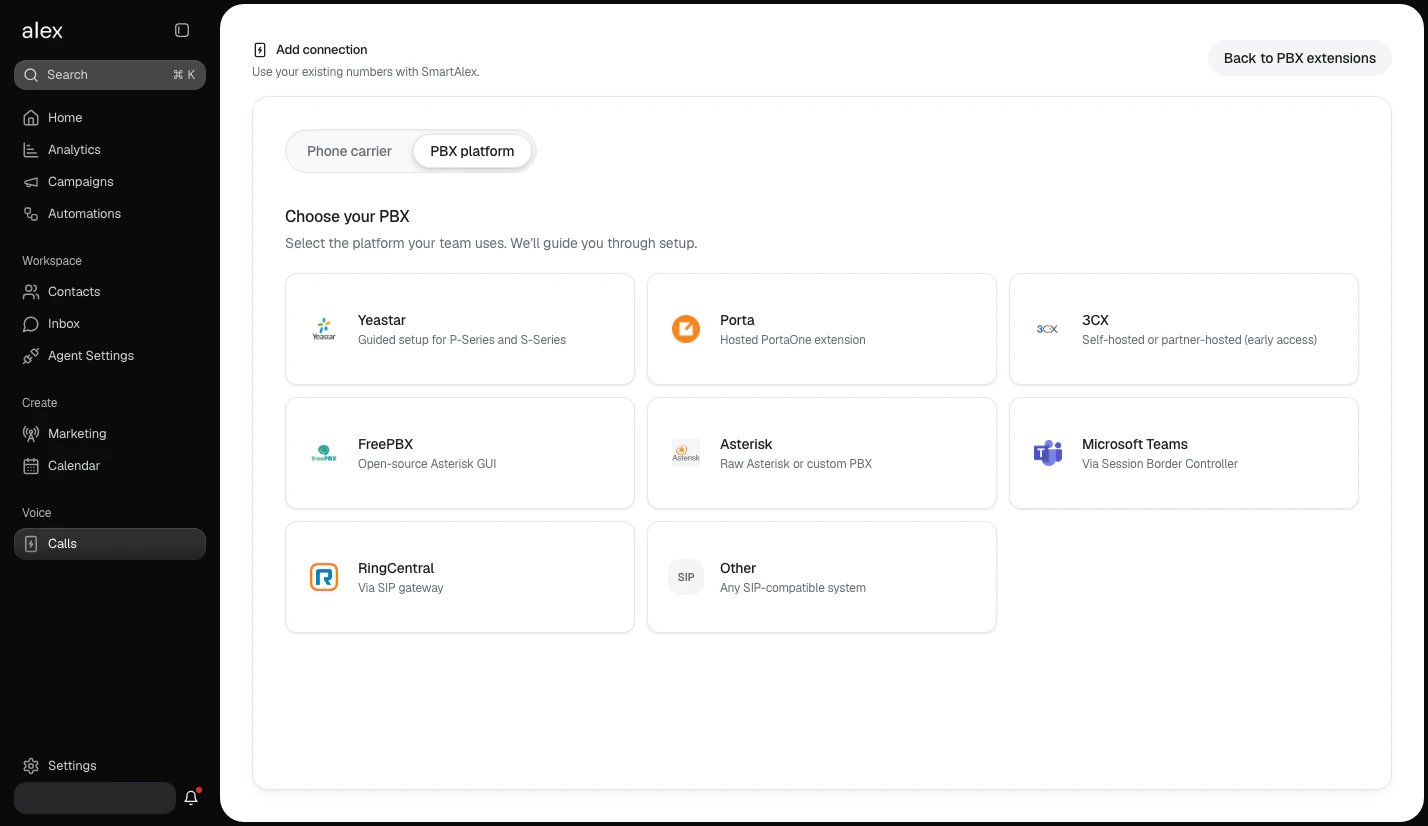
Yeastar
P-Series and S-Series, guided
3CX
Self-hosted or partner-hosted
Microsoft Teams
Through a session border controller
RingCentral
Through a SIP gateway
FreePBX
The open-source Asterisk GUI
Asterisk
Raw Asterisk or a custom PBX
Porta
A hosted PortaOne extension
Other
Any SIP-compatible system
Two ways to connect
Forward calls
Use as PBX extension
What happens
”Your PBX sends incoming calls to SmartAlex. Best for dedicated AI phone numbers."
"Dial or transfer calls to this extension to reach your AI agent.”
Good for
A number that the agent answers every time
A receptionist or a menu that passes some calls to the agent
You give SmartAlex
Your PBX’s SIP domain and IP addresses
The extension’s number, username and password on your PBX
SmartAlex gives you
SIP server, port, transport and sign-in details to put on your PBX
Two SmartAlex addresses to allow on your PBX firewall
Connect your PBX
1
Open Add connection
In the sidebar, click Calls, then PBX Extensions (/settings/pbx), and click Connect a PBX. Choose PBX platform.
Connect your own phone system
2
Choose your platform
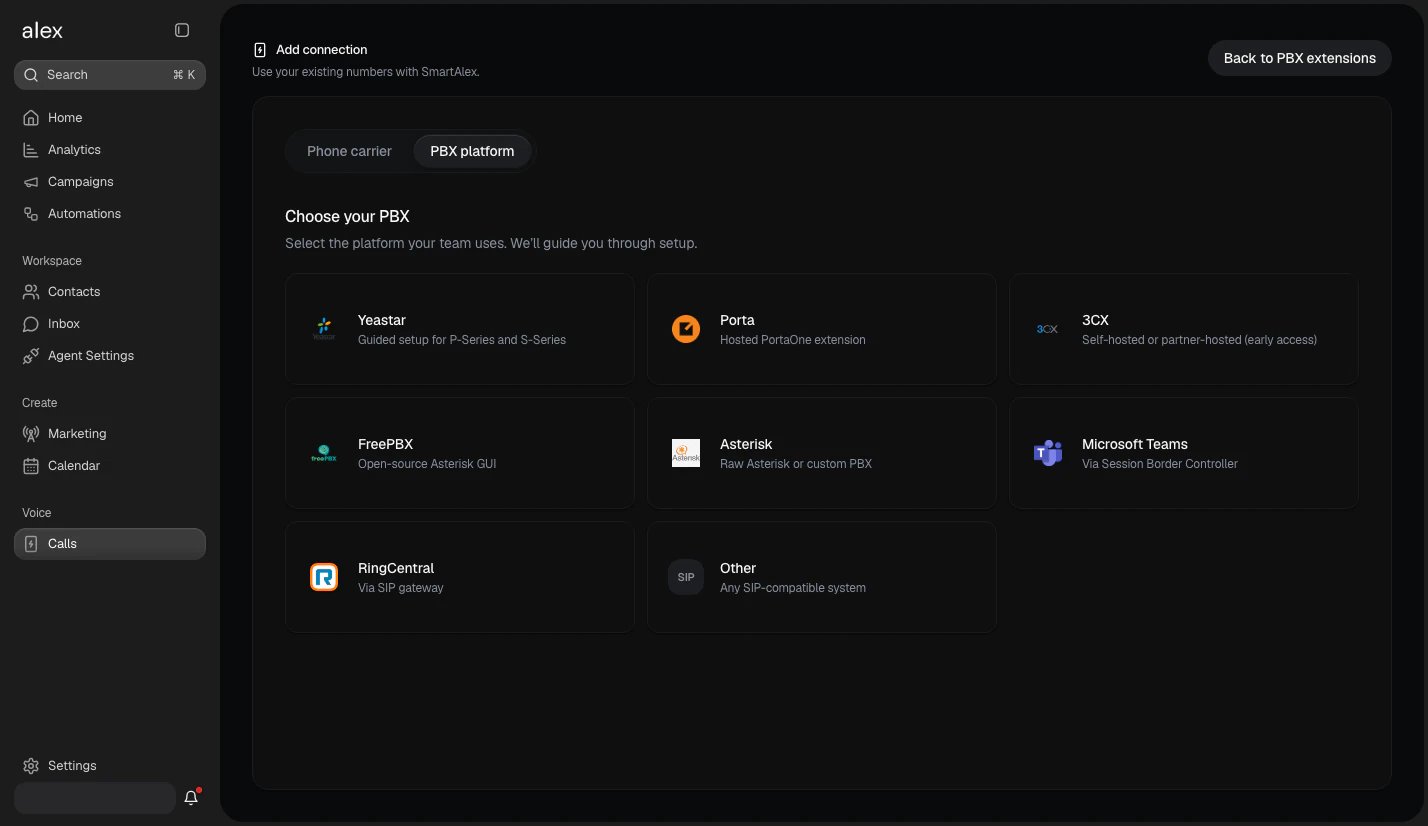
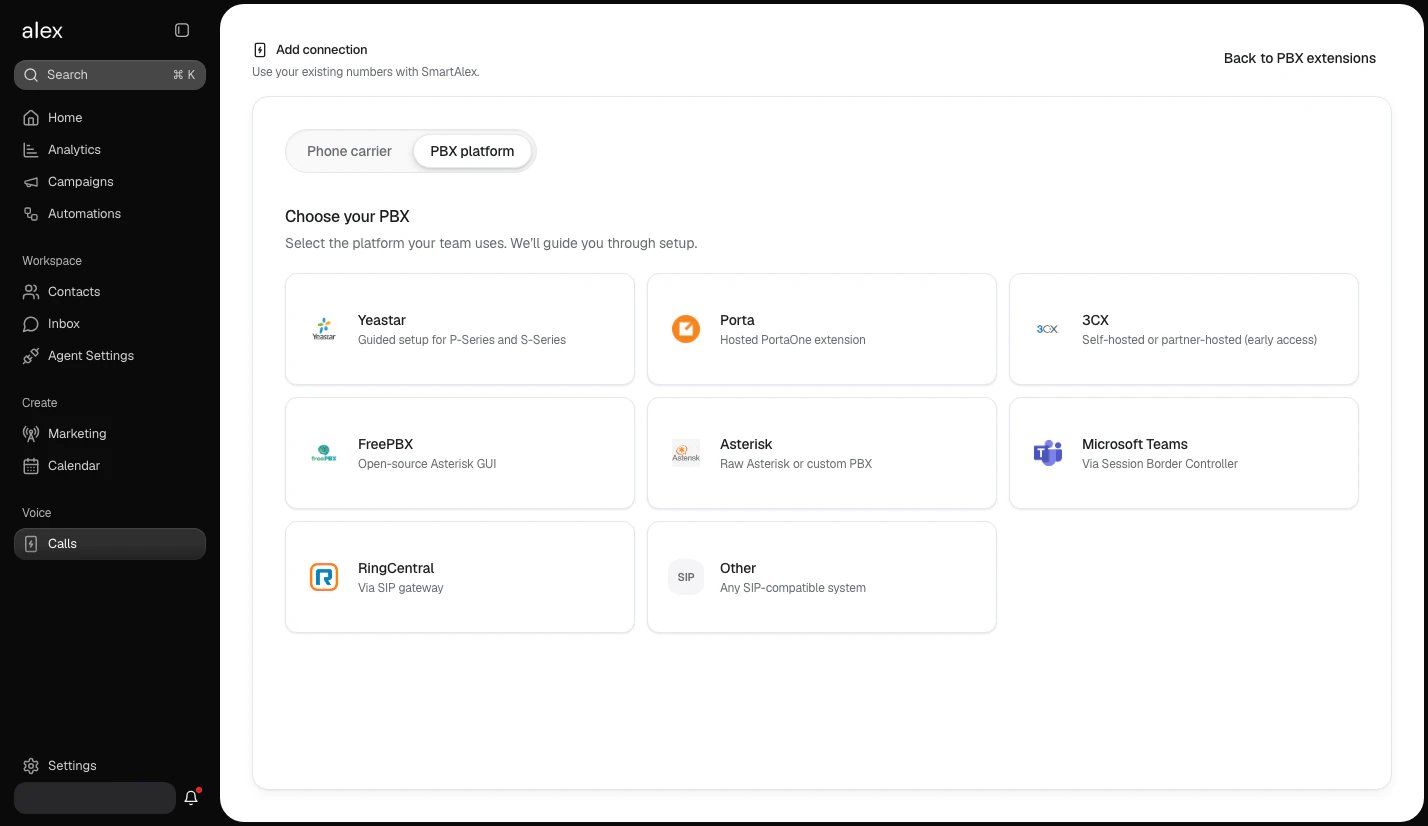
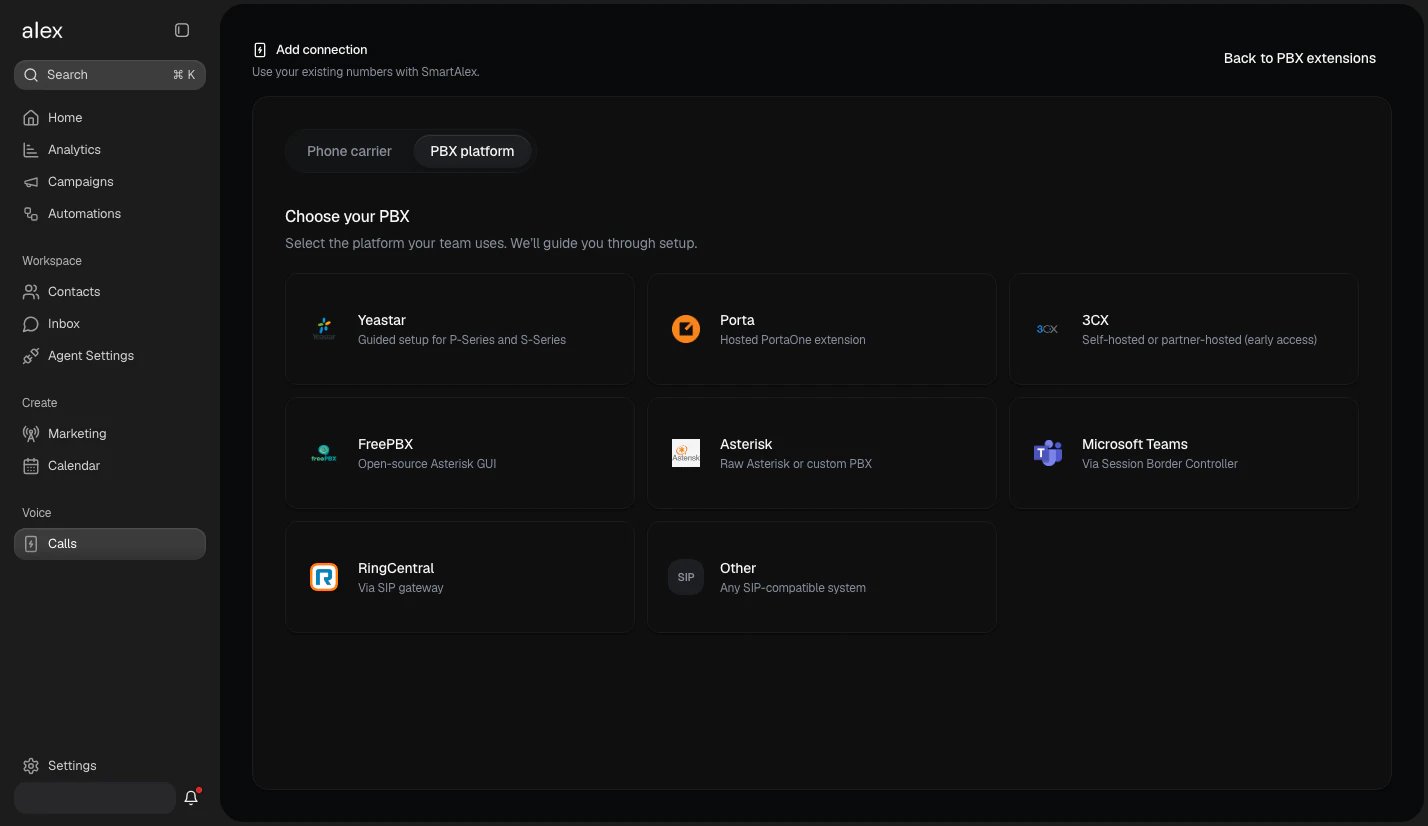
Pick Yeastar, Porta, 3CX, FreePBX, Asterisk, Microsoft Teams, RingCentral or Other.
Pick the phone system you use
3
Choose the connection type
Pick Forward calls or Use as PBX extension.
4
Fill in the details
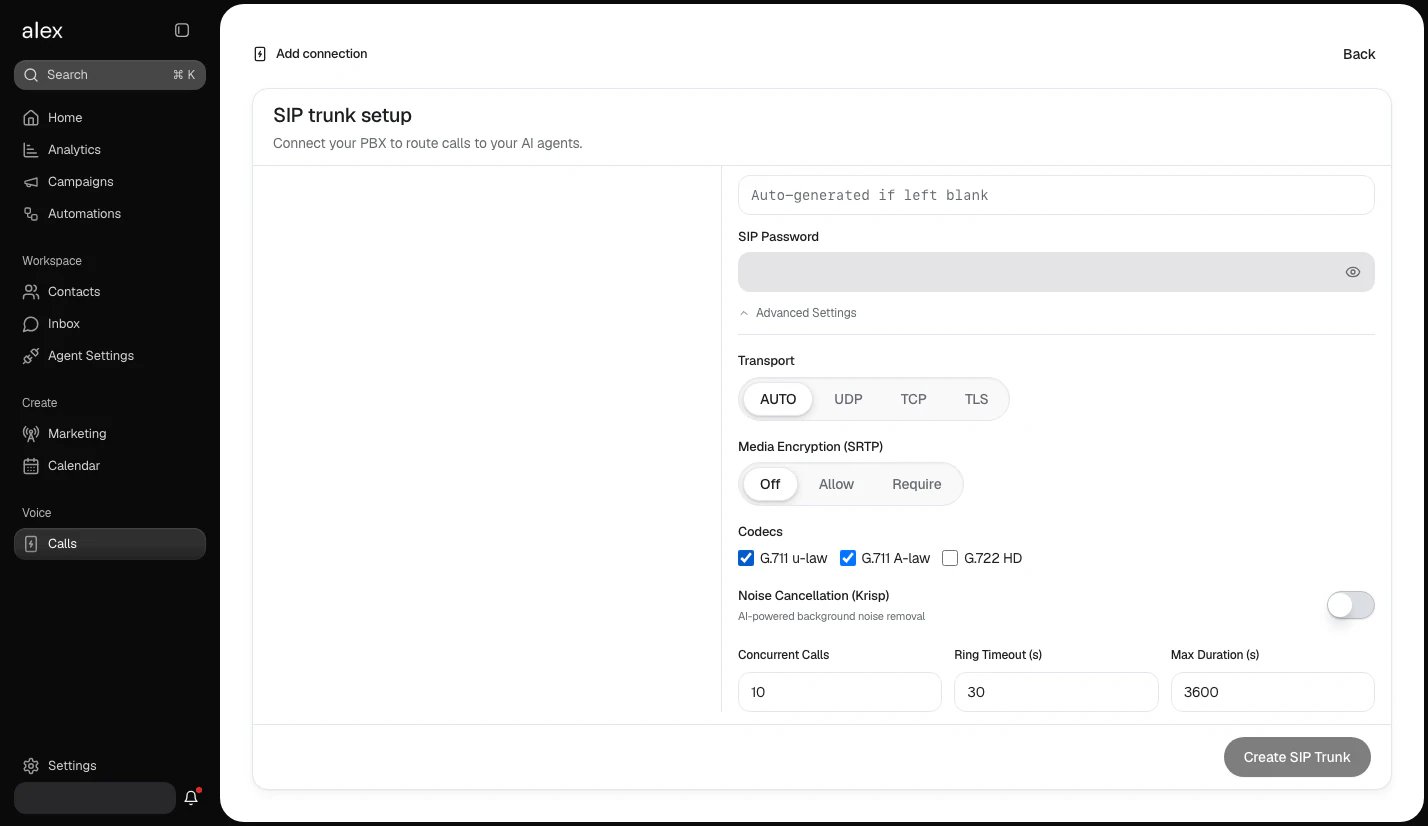
For Forward calls: a Trunk Name, your PBX SIP Domain, the Authentication Method (Credentials, IP Whitelist or Both) and your PBX IP Address(es). SIP Username and SIP Password are made for you if you leave them blank.For Use as PBX extension: your PBX’s SIP domain, the extension number for SmartAlex, and the username and password your PBX gave that extension. On Yeastar, add the API Client ID and Client Secret from Integrations > API on your PBX and pick the extension from the list instead.
5
Create it
Click Create SIP Trunk (forward calls) or Connect to PBX (extension). For a trunk you see “SIP trunk created. Configure your PBX with these details.” and Your SIP connection details. Give them to whoever runs your phone system.
6
Link it to an agent
Under Finish the connection, answer Which agent answers? and click Link agent, then Which number rings it? and Set up the inbound route. The agent can then transfer callers to your team and look up people on your PBX.
Each system has its own step-by-step guide in Telephony, with the exact menus on your PBX.
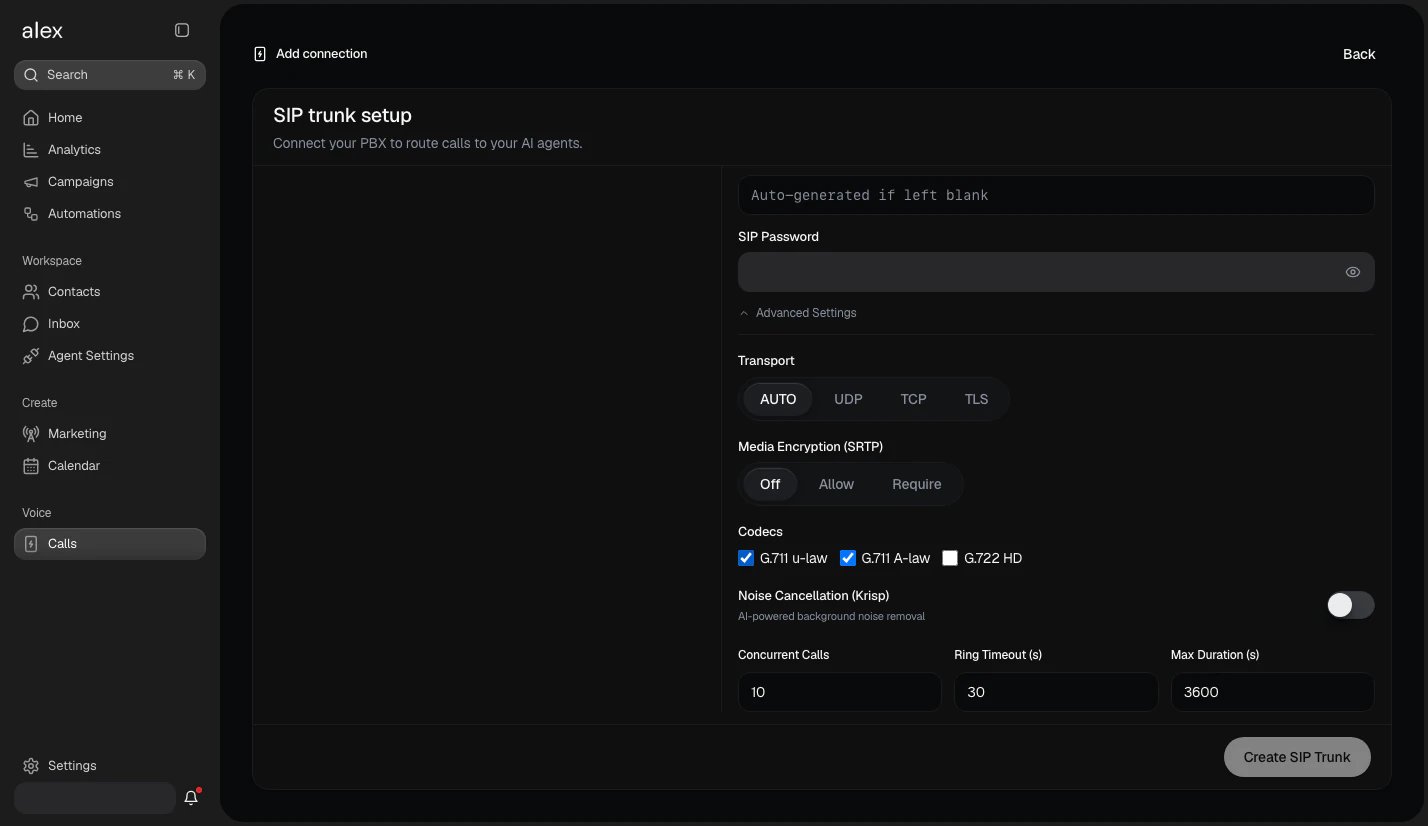
Advanced settings for a trunk
Advanced settings, for when your PBX needs them
Setting
What it does
Default
When to change it
Transport
How the connection talks to your PBX: auto, UDP, TCP or TLS
Set by the PBX you chose: UDP for Yeastar, Porta, 3CX, FreePBX and Asterisk; TLS for Microsoft Teams and RingCentral; auto for Other
Only if your PBX needs TCP or TLS
Port
The port your PBX listens on
5060. TLS usually uses 5061
When your PBX uses another port
Media Encryption (SRTP)
Encrypts the call audio: Off, Allow or Require
Off for most PBXes; Require for Microsoft Teams; Allow for RingCentral
Require when your PBX only accepts encrypted audio
Codecs
The audio formats offered: G.711 u-law, G.711 A-law and G.722 HD
G.711 u-law and A-law. Microsoft Teams also gets G.722 HD
Add G.722 HD if your PBX supports it, for clearer audio
Noise cancellation
Removes background noise from the caller’s side
Off
Switch on when callers are often somewhere noisy
Concurrent Calls
How many calls the trunk carries at once
10
Raise it if your lines are busy
Ring Timeout (s)
How long a call rings before it stops
30
Raise it if your team needs longer to answer
Max Duration (s)
The longest one call can last
3600, one hour
Raise it if your calls run longer
Connect a carrier instead
On Add connection, choose Phone carrier to keep your carrier account and its numbers. One carrier you set up yourself on the page. The others show Set up with our team: email support@getsmartalex.com and the team switches it on for your account.
Manage a connection
The PBX Extensions page shows each connection with a status badge and its Connection activity: Last attempt, Last success and Last error. With more than one, pick it from the PBX connection list.
Action
What it does
Route to agent
Links an extension on this connection to an agent and the number callers dial
Force re-register
Signs in to your PBX again now, instead of waiting for the next automatic retry. Also re-syncs call routing. It will not fix wrong credentials or a firewall block
Edit connection
Changes the name, extension, username, domain, port or transport
Rotate password
Sets a new SIP password
Show diagnostics
Shows exactly what SmartAlex sends and what your PBX answered, and Copy support report for your PBX support team
Delete
Removes the connection
What the status means
Status
What it means
What to do
Connected or Connected as ext …
Signed in and ready
Nothing
Active
The trunk is set up
Nothing
Connecting… or Awaiting status
SmartAlex is signing in
Wait about 30 seconds
Not answering calls yet
Connected, but no agent or number is linked
Use Route to agent
Registered: routing not linked
Signed in, but routing is out of step
Force re-register
Auth failed
Your PBX refused the username or password
Check the extension’s SIP username and password, and that it allows remote registration
Sign-in paused
Your PBX refused the sign-in, so SmartAlex stopped trying to keep the address from being blocked
Fix the credentials, then Force re-register
Unreachable
No reply from your PBX
Allow SmartAlex’s addresses on your PBX firewall, then Force re-register
Password missing or Misconfigured
A required field is empty
Edit connection or Rotate password
Not registered or Failed
The last sign-in did not work
Force re-register, then Show diagnostics
Voice platform link down
The link inside SmartAlex dropped
Force re-register
Suspended
The connection is paused
Contact our support team
If a connection is not working
1
Read the badge
Use the table above for the first fix.
2
Open Show diagnostics
It shows the Connection target, Our IP - allowlist this, the SIP response code and SIP reason. Click Run diagnostics to test again.
3
Send the report
Click Copy support report and paste it into a ticket with whoever runs your PBX. It says what SmartAlex sent, from which address, and what to check on your side.
No. Your PBX sends calls to SmartAlex over the trunk, or staff transfer them to the AI extension. Your existing numbers stay on your PBX.
Can the agent transfer a caller back to my team?
Yes. Once the connection is linked to an agent, it can transfer callers to people on your PBX and look them up by name.
Which firewall addresses do I allow?
The page shows SmartAlex’s two addresses when you connect, and Show diagnostics shows them again under Our IP - allowlist this. Allow both, or calls cannot get through.
Why does my PBX keep blocking SmartAlex?
Many PBXes block an address after a few failed sign-ins. Fix the username and password first, remove SmartAlex’s address from the PBX’s block list, then click Force re-register.
Is 3CX supported?
Yes, a 3CX you run yourself or one a partner hosts. It is marked early access on the page.
Can I connect more than one PBX?
Yes. Each connection appears in the PBX connection list on the page.
Related
Telephony overview
Guides for every phone system.
Use your own number
All three ways to keep your number.
Inbound calls and business hours
Transfers and what callers hear.
Number health
Check a connected number.
Last modified on November 27, 2026
{"docsConfig":{"theme":"sequoia","$schema":"https://mintlify.com/docs.json","name":"SmartAlex Documentation","description":"Documentation for SmartAlex, the AI voice assistant platform for businesses. Build voice agents, run outbound campaigns, manage contacts and call analytics, and connect your own systems through the MCP server.","colors":{"primary":"#010033","light":"#8B93E6","dark":"#5E6AD2"},"logo":{"light":"https://mintcdn.com/smartalex/qlHSvs0nyK6c2s5R/logo/light.png?fit=max\u0026auto=format\u0026n=qlHSvs0nyK6c2s5R\u0026q=85\u0026s=f2b8d4b820c7af262103f73350d3cc4e","dark":"https://mintcdn.com/smartalex/qlHSvs0nyK6c2s5R/logo/dark.png?fit=max\u0026auto=format\u0026n=qlHSvs0nyK6c2s5R\u0026q=85\u0026s=a98ea864686586154e8b6398c073d378"},"favicon":"https://mintcdn.com/smartalex/aHrSp8SKq40Ip2qH/favicon.png?fit=max\u0026auto=format\u0026n=aHrSp8SKq40Ip2qH\u0026q=85\u0026s=00fe0a5429a5be6c7a7d76dfef957afa","background":{"color":{"light":"#FFFFFF","dark":"#08090A"}},"navbar":{"links":[{"href":"/pricing","label":"Pricing"},{"href":"/faq","label":"Help"},{"href":"https://getsmartalex.com","label":"Website"},{"href":"https://getsmartalex.com/login","label":"Sign in"}],"primary":{"type":"button","label":"Start free","href":"https://getsmartalex.com/instant"}},"footer":{"socials":{"x":"https://x.com/smartalexhq","linkedin":"https://www.linkedin.com/company/smartalexhq","instagram":"https://www.instagram.com/smartalexhq","youtube":"https://www.youtube.com/@smartalexhq"},"links":[{"header":"Product","items":[{"label":"Pricing","href":"/pricing"},{"label":"Price list","href":"https://getsmartalex.com/legal/smartalex-usage-pricing-schedule"},{"label":"Integrations","href":"/integrations"},{"label":"Telephony","href":"/telephony/overview"},{"label":"MCP server","href":"/mcp/overview"}]},{"header":"Help","items":[{"label":"Quickstart","href":"/quickstart"},{"label":"FAQ","href":"/faq"},{"label":"Help centre","href":"https://getsmartalex.com/help"},{"label":"Email support","href":"mailto:support@getsmartalex.com"},{"label":"System status","href":"https://status.getsmartalex.com"}]},{"header":"Legal","items":[{"label":"Security","href":"/security"},{"label":"Trust and compliance","href":"/trust/compliance"},{"label":"Terms of Service","href":"https://getsmartalex.com/legal/smartalex-terms-of-services"},{"label":"Privacy Policy","href":"https://getsmartalex.com/legal/smartalex-privacy-policy"},{"label":"All legal documents","href":"https://getsmartalex.com/legal"}]},{"header":"Company","items":[{"label":"Website","href":"https://getsmartalex.com"},{"label":"Start free","href":"https://getsmartalex.com/instant"},{"label":"Sign in","href":"https://getsmartalex.com/login"},{"label":"Compare","href":"/comparisons/overview"}]}]},"seo":{"organization":{"id":"https://getsmartalex.com/#organization","name":"SmartAlex","url":"https://getsmartalex.com"},"indexing":"all"},"fonts":{"family":"Geist"},"errors":{"404":{"redirect":false,"title":"We could not find that page","description":"The link may be old, or the page has moved. Search with the bar at the top, or start from [Home](/), the [Quickstart](/quickstart) or [Help](/faq). Still stuck? Email [support@getsmartalex.com](mailto:support@getsmartalex.com)."}},"contextual":{"options":["assistant","copy","view","chatgpt","claude","perplexity","aistudio","mcp","add-mcp","cursor","vscode"],"display":"header"},"metadata":{"timestamp":true},"markdown":{"instructions":["For short, quotable answers about SmartAlex (what it is, who it is for, what it costs, where it runs, how it keeps data safe, which apps it connects to), read the facts page at /ai/facts on this site first, then the page it links to. Its last table maps every section of these docs.","For how to do something, use the step-by-step pages: /learn for whole paths, and each section's first-time pages such as /calls/buy-your-first-number, /agents/create-an-agent or /campaigns/import-your-first-contacts. Give the click path exactly as written there, for example Calls, then Numbers, then Buy number, with the bold button labels unchanged.","Prices come from the Pricing page at /pricing and the pages under /pricing. Quote a price exactly as written there, with its currency and unit.","Short answers to common questions are under /help, grouped by section. Legal documents are summarised under /legal; each summary links to the binding text, which prevails over the summary.","If a feature or screen is not described in these docs, say that you could not find it rather than guessing.","Pages under /comparisons describe other companies' products as of the date on each page. For SmartAlex's own features and prices, use the product pages.","The MCP server at /mcp on this site only searches this documentation. To work inside your own SmartAlex workspace (agents, calls, campaigns, contacts), use the SmartAlex MCP server described at /mcp/overview."]},"styling":{"latex":false},"navigation":{"global":{"anchors":[{"anchor":"Dashboard","icon":"gauge","href":"https://app.getsmartalex.com"}]},"pages":[]}},"deployment":{"deploymentMetadataValue":{"subdomain":"smartalex","hasAudioNarration":false,"actualSubdomain":"smartalex","customDomains":["docs.getsmartalex.com"],"gitSource":{"type":"github","owner":"the-rcs-group","repo":"docs","deployBranch":"main","contentDirectory":"","isPrivate":true,"mountPath":"","label":""},"feedback":{"agentFeedback":true},"entitlements":{},"buildId":"6b0beea7d4f92785796ee5a7","clientVersion":"0.0.4344","searchFilterCounts":[{"language":"default","tag":"Product","count":204},{"language":"default","tag":"Developers","count":128},{"language":"default","tag":"REST API","count":99},{"language":"default","tag":"Endpoints","count":95},{"language":"default","tag":"Start here","count":81},{"language":"default","tag":"Trust","count":63},{"language":"default","tag":"Agents","count":51},{"language":"default","tag":"Legal","count":49},{"language":"default","tag":"Learn","count":46},{"language":"default","tag":"Telephony","count":42}]},"assistantConfig":{"enableAskAiButton":false,"enableStarterQuestions":false,"enableAskAiSearchBar":true},"basePath":"","hasChatPermissions":false,"hasWebMcpPermissions":false,"toggles":[{"name":"kill-isr","enabled":true,"variant":{"name":"disabled","enabled":false,"feature_enabled":true},"impressionData":false},{"name":"custom-rbac-roles","enabled":true,"variant":{"name":"disabled","enabled":false,"feature_enabled":true},"impressionData":false},{"name":"agent-mintlify-slack","enabled":true,"variant":{"name":"disabled","enabled":false,"feature_enabled":true},"impressionData":false},{"name":"agent-integrations-settings","enabled":true,"variant":{"name":"disabled","enabled":false,"feature_enabled":true},"impressionData":false},{"name":"rbac-expansion","enabled":true,"variant":{"name":"disabled","enabled":false,"feature_enabled":true},"impressionData":false},{"name":"automations-pr-grouping","enabled":true,"variant":{"name":"disabled","enabled":false,"feature_enabled":true},"impressionData":false},{"name":"custom-prefix","enabled":true,"variant":{"name":"disabled","enabled":false,"feature_enabled":true},"impressionData":false},{"name":"analytics-v7","enabled":true,"variant":{"name":"disabled","enabled":false,"feature_enabled":true},"impressionData":false},{"name":"user-flows-analytics","enabled":true,"variant":{"name":"disabled","enabled":false,"feature_enabled":true},"impressionData":false},{"name":"no-publish-flow","enabled":true,"variant":{"name":"disabled","enabled":false,"feature_enabled":true},"impressionData":false},{"name":"snapshot-serving-live","enabled":true,"variant":{"name":"disabled","enabled":false,"feature_enabled":true},"impressionData":false},{"name":"stripTemperatureMiddleware","enabled":true,"variant":{"name":"disabled","enabled":false,"feature_enabled":true},"impressionData":false},{"name":"support-platform-pylon-zendesk","enabled":true,"variant":{"name":"disabled","enabled":false,"feature_enabled":true},"impressionData":false},{"name":"snapshot-serving","enabled":true,"variant":{"name":"disabled","enabled":false,"feature_enabled":true},"impressionData":false},{"name":"instant-rollback","enabled":true,"variant":{"name":"disabled","enabled":false,"feature_enabled":true},"impressionData":false},{"name":"granular-notifications-server","enabled":true,"variant":{"name":"disabled","enabled":false,"feature_enabled":true},"impressionData":false},{"name":"granular-notifications","enabled":true,"variant":{"name":"disabled","enabled":false,"feature_enabled":true},"impressionData":false},{"name":"automations-fable","enabled":true,"variant":{"name":"disabled","enabled":false,"feature_enabled":true},"impressionData":false},{"name":"fixed-ai-action-pricing","enabled":true,"variant":{"name":"disabled","enabled":false,"feature_enabled":true},"impressionData":false},{"name":"site-roles","enabled":true,"variant":{"name":"disabled","enabled":false,"feature_enabled":true},"impressionData":false},{"name":"automation-resolve-merge-conflict","enabled":true,"variant":{"name":"disabled","enabled":false,"feature_enabled":true},"impressionData":false},{"name":"scoped-publishing","enabled":true,"variant":{"name":"disabled","enabled":false,"feature_enabled":true},"impressionData":false},{"name":"mintql","enabled":true,"variant":{"name":"disabled","enabled":false,"feature_enabled":true},"impressionData":false},{"name":"page-level-analytics","enabled":true,"variant":{"name":"disabled","enabled":false,"feature_enabled":true},"impressionData":false},{"name":"editor-version-history-v2","enabled":true,"variant":{"name":"disabled","enabled":false,"feature_enabled":true},"impressionData":false},{"name":"billing-page-v2","enabled":true,"variant":{"name":"disabled","enabled":false,"feature_enabled":true},"impressionData":false},{"name":"full-page-search","enabled":true,"variant":{"name":"disabled","enabled":false,"feature_enabled":true},"impressionData":false},{"name":"workspace-projects","enabled":true,"variant":{"name":"disabled","enabled":false,"feature_enabled":true},"impressionData":false},{"name":"fork-pr-previews","enabled":true,"variant":{"name":"disabled","enabled":false,"feature_enabled":true},"impressionData":false},{"name":"revalidation-jwt","enabled":true,"variant":{"name":"disabled","enabled":false,"feature_enabled":true},"impressionData":false},{"name":"hobby-abuse-scan","enabled":true,"variant":{"name":"disabled","enabled":false,"feature_enabled":true},"impressionData":false},{"name":"dashboard-inbox","enabled":true,"variant":{"name":"disabled","enabled":false,"feature_enabled":true},"impressionData":false},{"name":"turbopuffer-dual-write","enabled":true,"variant":{"name":"disabled","enabled":false,"feature_enabled":true},"impressionData":false},{"name":"approve-review-flow","enabled":true,"variant":{"name":"disabled","enabled":false,"feature_enabled":true},"impressionData":false},{"name":"editor-metadata","enabled":true,"variant":{"name":"disabled","enabled":false,"feature_enabled":true},"impressionData":false},{"name":"turbopuffer-serve","enabled":true,"variant":{"name":"disabled","enabled":false,"feature_enabled":true},"impressionData":false},{"name":"live-agents","enabled":true,"variant":{"name":"disabled","enabled":false,"feature_enabled":true},"impressionData":false},{"name":"starter-pricing","enabled":true,"variant":{"name":"treatment","enabled":true,"payload":{"type":"string","value":"treatment"},"feature_enabled":true},"impressionData":false},{"name":"llms-txt-v2","enabled":true,"variant":{"name":"disabled","enabled":false,"feature_enabled":true},"impressionData":false},{"name":"wildcard-email-auth","enabled":true,"variant":{"name":"disabled","enabled":false,"feature_enabled":true},"impressionData":false}],"starterQuestions":[],"googleFontsInlined":true},"customCss":[{"filePath":"style.css","content":":root{--sa-radius: 12px;--sa-radius-sm: 10px;--sa-ease: cubic-bezier(0.2, 0, 0, 1);--sa-fast: 150ms;--sa-hairline: rgb(var(--gray-950) / 0.08);--sa-hairline-strong: rgb(var(--gray-950) / 0.14);--sa-well: rgb(var(--gray-50))}html.dark{--sa-hairline: rgb(255 255 255 / 0.08);--sa-hairline-strong: rgb(255 255 255 / 0.16);--sa-well: rgb(255 255 255 / 0.03)}h1{font-weight:400!important;letter-spacing:-0.025em!important;line-height:1.15!important}h2{font-weight:500!important;letter-spacing:-0.02em!important;line-height:1.25!important;margin-top:2.75rem!important}h3{font-weight:500!important;letter-spacing:-0.015em!important}.mdx-content p,.mdx-content li{line-height:1.7}button[class*=\"Button\"],button[class*=\"button\"],a[role=\"button\"],a[class*=\"Button\"],a[class*=\"button\"],[class*=\"btn\"],#navbar a[class*=\"bg-primary\"]{border-radius:9999px!important}#navbar a[class*=\"bg-primary\"]{padding-left:1rem!important;padding-right:1rem!important;box-shadow:none!important}input[type=\"search\"]{border-radius:9999px!important}#navbar img.nav-logo{height:40px!important}@media (max-width: 1023px){#navbar img.nav-logo,#mobile-nav img.nav-logo{height:34px!important;max-width:none!important}}#navbar:has(a[href*=\"getsmartalex\"]) img.nav-logo[class*=\"dark:hidden\"]{display:none!important}#navbar:has(a[href*=\"getsmartalex\"]) img.nav-logo[class*=\"dark:block\"]{display:block!important}#navbar:has(a[href*=\"getsmartalex\"]) img.nav-logo{aspect-ratio:2520 / 624}#navbar:has(a[href*=\"getsmartalex\"]){--sa-bar-fg: rgb(255 255 255 / 0.72);--sa-bar-dim: rgb(255 255 255 / 0.5);--sa-bar-line: rgb(255 255 255 / 0.12);--sa-bar-field: rgb(255 255 255 / 0.07);color-scheme:dark}#navbar:has(a[href*=\"getsmartalex\"])>div.absolute.inset-0,#navbar:has(a[href*=\"getsmartalex\"]) div[class*=\"bg-gray-50\"]{background:#000!important}#navbar:has(a[href*=\"getsmartalex\"])>div.absolute[class*=\"border-b\"]{border-color:var(--sa-bar-line)!important}#navbar:has(a[href*=\"getsmartalex\"]) div[class*=\"bg-gray-50\"]{border-top:1px solid var(--sa-bar-line)}#navbar:has(a[href*=\"getsmartalex\"]) div[class*=\"bg-gray-50\"] span,#navbar:has(a[href*=\"getsmartalex\"]) div[class*=\"bg-gray-50\"] button{color:var(--sa-bar-fg)!important}#navbar:has(a[href*=\"getsmartalex\"]) div[class*=\"bg-gray-50\"] [class*=\"text-gray-900\"]{color:#fff!important}#navbar:has(a[href*=\"getsmartalex\"]) div[class*=\"bg-gray-50\"] svg[class*=\"fill-gray\"]{fill:var(--sa-bar-dim)!important}#navbar:has(a[href*=\"getsmartalex\"]) a.font-medium:not([class*=\"bg-primary\"]),#navbar:has(a[href*=\"getsmartalex\"]) .nav-tabs-item{color:var(--sa-bar-fg)!important;transition:color var(--sa-fast) var(--sa-ease)}#navbar:has(a[href*=\"getsmartalex\"]) a.font-medium:not([class*=\"bg-primary\"]):hover,#navbar:has(a[href*=\"getsmartalex\"]) .nav-tabs-item:hover,#navbar:has(a[href*=\"getsmartalex\"]) .nav-tabs-item[class*=\"text-shadow\"]{color:#fff!important}#navbar:has(a[href*=\"getsmartalex\"]) .nav-tabs-item>div[class*=\"bg-primary\"]{background:#fff!important}#navbar:has(a[href*=\"getsmartalex\"]) .nav-tabs-item:hover>div:not([class*=\"bg-primary\"]){background:rgb(255 255 255 / 0.3)!important}#navbar:has(a[href*=\"getsmartalex\"]) #search-bar-entry{background:var(--sa-bar-field)!important;border-color:var(--sa-bar-line)!important;color:var(--sa-bar-dim)!important;border-radius:9999px!important;padding-left:0.75rem!important}#navbar:has(a[href*=\"getsmartalex\"]) #search-bar-entry:hover{background:rgb(255 255 255 / 0.11)!important}#navbar:has(a[href*=\"getsmartalex\"]) #search-bar-entry *{color:var(--sa-bar-dim)!important}#navbar:has(a[href*=\"getsmartalex\"]) #search-bar-entry svg[class*=\"bg-gray\"]{background-color:var(--sa-bar-dim)!important}#navbar:has(a[href*=\"getsmartalex\"]) #search-bar-entry span[class*=\"bg-white\"]{background:rgb(255 255 255 / 0.1)!important;border-radius:9999px!important}#navbar:has(a[href*=\"getsmartalex\"]) button svg{color:var(--sa-bar-fg)!important}#navbar:has(a[href*=\"getsmartalex\"]) a[class*=\"bg-primary\"]{background:#fff!important;color:#000!important}#navbar:has(a[href*=\"getsmartalex\"]) a[class*=\"bg-primary\"]:hover{opacity:0.88!important}#navbar:has(a[href*=\"getsmartalex\"]) a:focus-visible,#navbar:has(a[href*=\"getsmartalex\"]) button:focus-visible{outline:2px solid #fff!important;outline-offset:2px}.card{border-radius:var(--sa-radius)!important;border:1px solid var(--sa-hairline-strong)!important;box-shadow:none!important;transition:border-color var(--sa-fast) var(--sa-ease),\n background-color var(--sa-fast) var(--sa-ease)!important}.card:hover{transform:none!important;box-shadow:none!important}a.card:hover,.card[href]:hover,.card:has(>a):hover,.card.cursor-pointer:hover{border-color:rgb(var(--primary) / 0.45)!important;background-color:var(--sa-well)!important}html.dark a.card:hover,html.dark .card[href]:hover,html.dark .card:has(>a):hover,html.dark .card.cursor-pointer:hover{border-color:rgb(var(--primary-light) / 0.5)!important}.card [data-component-part=\"card-icon\"]{color:rgb(var(--primary))!important;fill:rgb(var(--primary))!important}html.dark .card [data-component-part=\"card-icon\"]{color:rgb(var(--primary-light))!important;fill:rgb(var(--primary-light))!important}.card [data-component-part=\"card-title\"]{font-weight:500!important;letter-spacing:-0.01em}.card ul{margin-top:0.5rem;margin-bottom:0;padding-left:1.1rem}.card li{margin:0.2rem 0}.callout{border-radius:var(--sa-radius)!important}.accordion-group{border-radius:var(--sa-radius)!important;border-color:var(--sa-hairline-strong)!important}.accordion-group summary{transition:background-color var(--sa-fast) var(--sa-ease)}.accordion-group summary:hover{background-color:var(--sa-well)}.mdx-content table{font-size:0.925rem;border-collapse:separate;border-spacing:0;width:100%}.mdx-content thead th{font-size:0.75rem;font-weight:500;letter-spacing:0.02em;color:rgb(var(--gray-500));border-bottom:1px solid var(--sa-hairline-strong)!important;background:transparent;white-space:nowrap}html.dark .mdx-content thead th{color:rgb(var(--gray-400))}.mdx-content tbody td{border-bottom:1px solid var(--sa-hairline)!important;vertical-align:top}.mdx-content tbody tr:last-child td{border-bottom:0!important}.mdx-content table{display:block;overflow-x:auto;-webkit-overflow-scrolling:touch}@media (min-width: 768px){.mdx-content table{display:table;overflow-x:visible}}code,pre,kbd{font-family:\"Geist Mono\", ui-monospace, SFMono-Regular, \"SF Mono\", Menlo, monospace;font-feature-settings:\"liga\" 0}pre,.code-block,div[class*=\"codeblock\"],div[class*=\"code-block\"]{border-radius:var(--sa-radius-sm)!important}.code-block,div[class*=\"code-block\"]{border:1px solid var(--sa-hairline-strong)!important;box-shadow:none!important}.mdx-content :not(pre)>code{padding:0.12em 0.4em;border-radius:6px;background:var(--sa-well);font-size:0.875em}.mermaid{display:flex;justify-content:center;margin:1.5rem 0;padding:1rem;border:1px solid var(--sa-hairline);border-radius:var(--sa-radius);overflow-x:auto;-webkit-overflow-scrolling:touch}.mermaid svg{height:auto;font-family:inherit!important}@media (max-width: 767px){.mermaid{justify-content:flex-start}.mermaid svg{min-width:560px}}.mermaid .node rect,.mermaid .node polygon,.mermaid .node circle,.mermaid .node path.basic,.mermaid .node .label-container>path{fill:rgb(var(--background-light))!important;stroke:rgb(var(--primary) / 0.35)!important;stroke-width:1px!important}.mermaid .node rect{rx:8px;ry:8px}.mermaid .node.core rect,.mermaid .node.core polygon,.mermaid .node.core .label-container>path{fill:rgb(var(--primary) / 0.06)!important;stroke:rgb(var(--primary))!important;stroke-width:1.5px!important}html.dark .mermaid .node.core rect,html.dark .mermaid .node.core polygon,html.dark .mermaid .node.core .label-container>path{fill:rgb(var(--primary-light) / 0.12)!important;stroke:rgb(var(--primary-light))!important}.mermaid .cluster rect{fill:rgb(var(--gray-50))!important;stroke:rgb(var(--gray-200))!important;stroke-width:1px!important;rx:12px;ry:12px}.mermaid .nodeLabel,.mermaid .cluster-label,.mermaid .cluster-label span,.mermaid .label,.mermaid text{color:rgb(var(--gray-900))!important;fill:rgb(var(--gray-900))!important}.mermaid .cluster-label .nodeLabel,.mermaid .cluster-label span{color:rgb(var(--gray-500))!important;font-weight:500;font-size:0.85em}.mermaid .flowchart-link,.mermaid .edgePath path,.mermaid .messageLine0,.mermaid .messageLine1,.mermaid .actor-line,.mermaid .loopLine{stroke:rgb(var(--gray-400))!important}.mermaid .arrowMarkerPath,.mermaid marker path,.mermaid #arrowhead path,.mermaid .arrowheadPath{fill:rgb(var(--gray-400))!important;stroke:rgb(var(--gray-400))!important}.mermaid .edgeLabel,.mermaid .edgeLabel rect,.mermaid .labelBkg{background-color:rgb(var(--background-light))!important;fill:rgb(var(--background-light))!important}.mermaid rect.actor,.mermaid .actor-box{fill:rgb(var(--background-light))!important;stroke:rgb(var(--primary) / 0.35)!important}.mermaid .actor-man circle,.mermaid .actor-man line{fill:rgb(var(--background-light))!important;stroke:rgb(var(--primary) / 0.6)!important}.mermaid .messageText,.mermaid text.actor,.mermaid text.actor>tspan{fill:rgb(var(--gray-900))!important}.mermaid .note{fill:rgb(var(--gray-50))!important;stroke:rgb(var(--gray-200))!important}html.dark .mermaid .node rect,html.dark .mermaid .node polygon,html.dark .mermaid .node circle,html.dark .mermaid .node path.basic,html.dark .mermaid .node .label-container>path,html.dark .mermaid rect.actor,html.dark .mermaid .actor-box,html.dark .mermaid .actor-man circle{fill:rgb(var(--background-dark))!important;stroke:rgb(var(--primary-light) / 0.45)!important}html.dark .mermaid .cluster rect,html.dark .mermaid .note{fill:rgb(255 255 255 / 0.03)!important;stroke:rgb(255 255 255 / 0.1)!important}html.dark .mermaid .nodeLabel,html.dark .mermaid .label,html.dark .mermaid text,html.dark .mermaid .messageText,html.dark .mermaid text.actor,html.dark .mermaid text.actor>tspan{color:rgb(var(--gray-100))!important;fill:rgb(var(--gray-100))!important}html.dark .mermaid .cluster-label .nodeLabel,html.dark .mermaid .cluster-label span{color:rgb(var(--gray-400))!important}html.dark .mermaid .flowchart-link,html.dark .mermaid .edgePath path,html.dark .mermaid .messageLine0,html.dark .mermaid .messageLine1,html.dark .mermaid .actor-line,html.dark .mermaid .loopLine{stroke:rgb(var(--gray-500))!important}html.dark .mermaid .arrowMarkerPath,html.dark .mermaid marker path,html.dark .mermaid #arrowhead path,html.dark .mermaid .arrowheadPath{fill:rgb(var(--gray-500))!important;stroke:rgb(var(--gray-500))!important}html.dark .mermaid .edgeLabel,html.dark .mermaid .edgeLabel rect,html.dark .mermaid .labelBkg{background-color:rgb(var(--background-dark))!important;fill:rgb(var(--background-dark))!important}html.dark .mermaid .actor-man line{stroke:rgb(var(--primary-light) / 0.6)!important}@media (min-width: 1024px){html[data-page-mode=\"wide\"] #content-area{max-width:1040px!important}}a:focus-visible,button:focus-visible,summary:focus-visible,.card:focus-visible{outline:2px solid rgb(var(--primary))!important;outline-offset:2px}html.dark a:focus-visible,html.dark button:focus-visible,html.dark summary:focus-visible,html.dark .card:focus-visible{outline-color:rgb(var(--primary-light))!important}@media (prefers-reduced-motion: reduce){*,*::before,*::after{transition-duration:0ms!important;animation-duration:0ms!important}}.mdx-content[data-page-title=\"Integrations\"] [data-component-part=\"card-icon\"]{display:flex;align-items:center;justify-content:center;box-sizing:border-box;width:fit-content;min-width:48px;height:48px;padding:8px;background:#fff;border:1px solid rgb(var(--gray-950) / 0.1);border-radius:12px;color:rgb(var(--gray-800))!important;fill:rgb(var(--gray-800))!important}html.dark .mdx-content[data-page-title=\"Integrations\"] [data-component-part=\"card-icon\"]{border-color:rgb(255 255 255 / 0.14)}.mdx-content[data-page-title=\"Integrations\"] [data-component-part=\"card-icon\"]>img{width:auto;height:32px;max-width:96px;object-fit:contain}.mdx-content[data-page-title=\"Integrations\"] [data-component-part=\"card-icon\"]>svg{width:22px;height:22px;opacity:1}@media (min-width: 768px){#footer div[class*=\"sm:grid\"]{grid-template-columns:repeat(2, max-content)!important;column-gap:3rem!important;justify-content:end}#footer div[class*=\"sm:grid\"]>div{align-items:flex-start!important}}@media (min-width: 1280px){#footer div[class*=\"sm:grid\"]{grid-template-columns:none!important;grid-auto-flow:column;grid-auto-columns:max-content;column-gap:2.5rem!important}}"}]}
{"page":{"pagePath":"calls/pbx-extensions","slug":"/calls/pbx-extensions","pageMetadata":{"title":"PBX Extensions: connect your phone system to SmartAlex","sidebarTitle":"PBX Extensions","description":"Connect your PBX or SIP carrier so your AI agent answers an extension or the calls your system forwards. Works with 3CX, Yeastar, Teams, FreePBX and more.","keywords":["connect pbx to ai agent","ai agent as pbx extension","sip trunk ai receptionist","3cx ai agent","yeastar ai agent","microsoft teams ai receptionist","freepbx ai","pbx registration failed"],"icon":"server","structuredData":{"@type":"FAQPage","mainEntity":[{"@type":"Question","name":"Do I need a SmartAlex number if I connect my PBX?","acceptedAnswer":{"@type":"Answer","text":"No. Your PBX sends calls to SmartAlex over the trunk, or staff transfer them to the AI extension. Your existing numbers stay on your PBX."}},{"@type":"Question","name":"Can the agent transfer a caller back to my team?","acceptedAnswer":{"@type":"Answer","text":"Yes. Once the connection is linked to an agent, it can transfer callers to people on your PBX and look them up by name."}},{"@type":"Question","name":"Which firewall addresses do I allow?","acceptedAnswer":{"@type":"Answer","text":"The page shows SmartAlex's two addresses when you connect, and Show diagnostics shows them again under Our IP - allowlist this. Allow both, or calls cannot get through."}},{"@type":"Question","name":"Why does my PBX keep blocking SmartAlex?","acceptedAnswer":{"@type":"Answer","text":"Many PBXes block an address after a few failed sign-ins. Fix the username and password first, remove SmartAlex's address from the PBX's block list, then click Force re-register."}},{"@type":"Question","name":"Is 3CX supported?","acceptedAnswer":{"@type":"Answer","text":"Yes, a 3CX you run yourself or one a partner hosts. It is marked early access on the page."}},{"@type":"Question","name":"Can I connect more than one PBX?","acceptedAnswer":{"@type":"Answer","text":"Yes. Each connection appears in the PBX connection list on the page."}}]},"href":"/calls/pbx-extensions"},"description":{"compiledSource":"\"use strict\";\nconst {jsx: _jsx} = arguments[0];\nconst {useMDXComponents: _provideComponents} = arguments[0];\nfunction _createMdxContent(props) {\n const _components = {\n p: \"p\",\n ..._provideComponents(),\n ...props.components\n };\n return _jsx(_components.p, {\n children: \"Connect your PBX or SIP carrier so your AI agent answers an extension or the calls your system forwards. Works with 3CX, Yeastar, Teams, FreePBX and more.\"\n });\n}\nfunction MDXContent(props = {}) {\n const {wrapper: MDXLayout} = {\n ..._provideComponents(),\n ...props.components\n };\n return MDXLayout ? _jsx(MDXLayout, {\n ...props,\n children: _jsx(_createMdxContent, {\n ...props\n })\n }) : _createMdxContent(props);\n}\nreturn {\n default: MDXContent\n};\n","frontmatter":{},"scope":{}},"pageType":"default","mdx":{"mdxSource":{"compiledSource":"\"use strict\";const{Fragment:_Fragment,jsx:_jsx,jsxs:_jsxs}=arguments[0];const{useMDXComponents:_provideComponents}=arguments[0];function _createMdxContent(props){const _components={a:`a`,code:`code`,p:`p`,strong:`strong`,tbody:`tbody`,td:`td`,th:`th`,thead:`thead`,tr:`tr`,..._provideComponents(),...props.components},{Accordion,AccordionGroup,Card,CardGroup,Frame,Heading,Info,Mermaid,OptimizedImage,Step,Steps,Table}=_components;if(!Accordion)_missingMdxReference(`Accordion`,true);if(!AccordionGroup)_missingMdxReference(`AccordionGroup`,true);if(!Card)_missingMdxReference(`Card`,true);if(!CardGroup)_missingMdxReference(`CardGroup`,true);if(!Frame)_missingMdxReference(`Frame`,true);if(!Heading)_missingMdxReference(`Heading`,true);if(!Info)_missingMdxReference(`Info`,true);if(!Mermaid)_missingMdxReference(`Mermaid`,true);if(!OptimizedImage)_missingMdxReference(`OptimizedImage`,true);if(!Step)_missingMdxReference(`Step`,true);if(!Steps)_missingMdxReference(`Steps`,true);if(!Table)_missingMdxReference(`Table`,true);return _jsxs(_Fragment,{children:[_jsxs(_components.p,{children:[_jsx(_components.strong,{children:`PBX Extensions`}),` connects SmartAlex to the phone system your business already runs, so your agent can answer calls without a new number. Your PBX can forward calls to SmartAlex over a SIP trunk. Or SmartAlex signs in to your PBX as an extension that staff dial or transfer to. You set it up once on `,_jsx(_components.strong,{children:`Calls → PBX Extensions`}),`, then link the connection to an agent.`]}),`\n`,_jsx(Info,{children:_jsxs(_components.p,{children:[`In the app: `,_jsx(_components.strong,{children:`Calls → PBX Extensions`}),` (`,_jsx(_components.code,{children:`/settings/pbx`}),`), titled `,_jsx(_components.strong,{children:`PBX extensions`}),`: “Manage call routes and team extensions.” `,_jsx(_components.strong,{children:`Connect a PBX`}),` opens `,_jsx(_components.strong,{children:`Add connection`}),` (`,_jsx(_components.code,{children:`/phone/connect`}),`). It needs the free trial or a paid plan.`]})}),`\n`,_jsx(Heading,{level:`2`,id:`works-with`,children:`Works with`}),`\n`,_jsxs(CardGroup,{cols:4,children:[_jsx(Card,{title:`Yeastar`,icon:`https://mintcdn.com/smartalex/YCP_ObWr24L0lCPg/images/integrations/yeastar.webp?fit=max\u0026auto=format\u0026n=YCP_ObWr24L0lCPg\u0026q=85\u0026s=9d7575737129ae1c5fd03abdcee470cf`,href:`/telephony/yeastar`,\"data-og-width\":`549`,width:`549`,\"data-og-height\":`455`,height:`455`,\"data-path\":`images/integrations/yeastar.webp`,\"data-optimize\":`true`,\"data-opv\":`3`,srcset:`https://mintcdn.com/smartalex/YCP_ObWr24L0lCPg/images/integrations/yeastar.webp?w=280\u0026fit=max\u0026auto=format\u0026n=YCP_ObWr24L0lCPg\u0026q=85\u0026s=cfd3243a28041c10fc69142fba5fb2ec 280w, https://mintcdn.com/smartalex/YCP_ObWr24L0lCPg/images/integrations/yeastar.webp?w=560\u0026fit=max\u0026auto=format\u0026n=YCP_ObWr24L0lCPg\u0026q=85\u0026s=4044f77ff2b6e017b26793e42bba0ec6 560w, https://mintcdn.com/smartalex/YCP_ObWr24L0lCPg/images/integrations/yeastar.webp?w=840\u0026fit=max\u0026auto=format\u0026n=YCP_ObWr24L0lCPg\u0026q=85\u0026s=2682f50af94572872f75df3316fe71f4 840w, https://mintcdn.com/smartalex/YCP_ObWr24L0lCPg/images/integrations/yeastar.webp?w=1100\u0026fit=max\u0026auto=format\u0026n=YCP_ObWr24L0lCPg\u0026q=85\u0026s=764306d0ba9445d400a46d0a12b2ec07 1100w, https://mintcdn.com/smartalex/YCP_ObWr24L0lCPg/images/integrations/yeastar.webp?w=1650\u0026fit=max\u0026auto=format\u0026n=YCP_ObWr24L0lCPg\u0026q=85\u0026s=5c640b008123e5eede96efa1a323404d 1650w, https://mintcdn.com/smartalex/YCP_ObWr24L0lCPg/images/integrations/yeastar.webp?w=2500\u0026fit=max\u0026auto=format\u0026n=YCP_ObWr24L0lCPg\u0026q=85\u0026s=5390be0e54481222ed092805561c984c 2500w`,children:_jsx(_components.p,{children:`P-Series and S-Series, guided`})}),_jsx(Card,{title:`3CX`,icon:`https://mintcdn.com/smartalex/YCP_ObWr24L0lCPg/images/integrations/3cx.png?fit=max\u0026auto=format\u0026n=YCP_ObWr24L0lCPg\u0026q=85\u0026s=ec9f73265df7f674226e81c5a097e5cf`,href:`/telephony/3cx`,\"data-og-width\":`300`,width:`300`,\"data-og-height\":`200`,height:`200`,\"data-path\":`images/integrations/3cx.png`,\"data-optimize\":`true`,\"data-opv\":`3`,srcset:`https://mintcdn.com/smartalex/YCP_ObWr24L0lCPg/images/integrations/3cx.png?w=280\u0026fit=max\u0026auto=format\u0026n=YCP_ObWr24L0lCPg\u0026q=85\u0026s=c94f1b959d7fd9f82b4aacd182f31979 280w, https://mintcdn.com/smartalex/YCP_ObWr24L0lCPg/images/integrations/3cx.png?w=560\u0026fit=max\u0026auto=format\u0026n=YCP_ObWr24L0lCPg\u0026q=85\u0026s=b8a7e31ee4a6caa678d760d0a68f8ce6 560w, https://mintcdn.com/smartalex/YCP_ObWr24L0lCPg/images/integrations/3cx.png?w=840\u0026fit=max\u0026auto=format\u0026n=YCP_ObWr24L0lCPg\u0026q=85\u0026s=ec41ab8740205bc7fe248118269635c6 840w, https://mintcdn.com/smartalex/YCP_ObWr24L0lCPg/images/integrations/3cx.png?w=1100\u0026fit=max\u0026auto=format\u0026n=YCP_ObWr24L0lCPg\u0026q=85\u0026s=9711313a9df5e969b86eaf5613b17d8d 1100w, https://mintcdn.com/smartalex/YCP_ObWr24L0lCPg/images/integrations/3cx.png?w=1650\u0026fit=max\u0026auto=format\u0026n=YCP_ObWr24L0lCPg\u0026q=85\u0026s=b27d6b844b713d45bc6a9225e79c4ab1 1650w, https://mintcdn.com/smartalex/YCP_ObWr24L0lCPg/images/integrations/3cx.png?w=2500\u0026fit=max\u0026auto=format\u0026n=YCP_ObWr24L0lCPg\u0026q=85\u0026s=970099ed1906737274a950d81db768c0 2500w`,children:_jsx(_components.p,{children:`Self-hosted or partner-hosted`})}),_jsx(Card,{title:`Microsoft Teams`,icon:`https://mintcdn.com/smartalex/YCP_ObWr24L0lCPg/images/integrations/microsoft-teams.svg?fit=max\u0026auto=format\u0026n=YCP_ObWr24L0lCPg\u0026q=85\u0026s=bd3139560a5a5b623f741d73c4dc69dd`,href:`/telephony/microsoft-teams`,\"data-og-width\":`256`,width:`256`,\"data-og-height\":`239`,height:`239`,\"data-path\":`images/integrations/microsoft-teams.svg`,\"data-optimize\":`true`,\"data-opv\":`3`,srcset:`https://mintcdn.com/smartalex/YCP_ObWr24L0lCPg/images/integrations/microsoft-teams.svg?w=280\u0026fit=max\u0026auto=format\u0026n=YCP_ObWr24L0lCPg\u0026q=85\u0026s=23a2907f8e888b1972285665cbdb5b6b 280w, https://mintcdn.com/smartalex/YCP_ObWr24L0lCPg/images/integrations/microsoft-teams.svg?w=560\u0026fit=max\u0026auto=format\u0026n=YCP_ObWr24L0lCPg\u0026q=85\u0026s=614dbfaf680d67838829937ee23926a2 560w, https://mintcdn.com/smartalex/YCP_ObWr24L0lCPg/images/integrations/microsoft-teams.svg?w=840\u0026fit=max\u0026auto=format\u0026n=YCP_ObWr24L0lCPg\u0026q=85\u0026s=0fe17e3642638a954c52b0f99d6ce8d6 840w, https://mintcdn.com/smartalex/YCP_ObWr24L0lCPg/images/integrations/microsoft-teams.svg?w=1100\u0026fit=max\u0026auto=format\u0026n=YCP_ObWr24L0lCPg\u0026q=85\u0026s=3bbf9faa777d91152899ee658ffbbceb 1100w, https://mintcdn.com/smartalex/YCP_ObWr24L0lCPg/images/integrations/microsoft-teams.svg?w=1650\u0026fit=max\u0026auto=format\u0026n=YCP_ObWr24L0lCPg\u0026q=85\u0026s=e331ade47bd5b0f442faf42cd7742d6c 1650w, https://mintcdn.com/smartalex/YCP_ObWr24L0lCPg/images/integrations/microsoft-teams.svg?w=2500\u0026fit=max\u0026auto=format\u0026n=YCP_ObWr24L0lCPg\u0026q=85\u0026s=bffdd4bf79258dda860b0ccd8ae0da9b 2500w`,children:_jsx(_components.p,{children:`Through a session border controller`})}),_jsx(Card,{title:`RingCentral`,icon:`https://mintcdn.com/smartalex/YCP_ObWr24L0lCPg/images/integrations/ringcentral.png?fit=max\u0026auto=format\u0026n=YCP_ObWr24L0lCPg\u0026q=85\u0026s=98f0e06b043763e263d8ae0b2aeb5416`,href:`/telephony/ringcentral`,\"data-og-width\":`200`,width:`200`,\"data-og-height\":`200`,height:`200`,\"data-path\":`images/integrations/ringcentral.png`,\"data-optimize\":`true`,\"data-opv\":`3`,srcset:`https://mintcdn.com/smartalex/YCP_ObWr24L0lCPg/images/integrations/ringcentral.png?w=280\u0026fit=max\u0026auto=format\u0026n=YCP_ObWr24L0lCPg\u0026q=85\u0026s=75eea5d9218375be4ebac930cf60acb4 280w, https://mintcdn.com/smartalex/YCP_ObWr24L0lCPg/images/integrations/ringcentral.png?w=560\u0026fit=max\u0026auto=format\u0026n=YCP_ObWr24L0lCPg\u0026q=85\u0026s=ca915fa082950dc91aed774962d7f041 560w, https://mintcdn.com/smartalex/YCP_ObWr24L0lCPg/images/integrations/ringcentral.png?w=840\u0026fit=max\u0026auto=format\u0026n=YCP_ObWr24L0lCPg\u0026q=85\u0026s=45679672f4b961e88d10f3fce2251ebf 840w, https://mintcdn.com/smartalex/YCP_ObWr24L0lCPg/images/integrations/ringcentral.png?w=1100\u0026fit=max\u0026auto=format\u0026n=YCP_ObWr24L0lCPg\u0026q=85\u0026s=1a6d5386ae4b84dd4ad2e2d72450f867 1100w, https://mintcdn.com/smartalex/YCP_ObWr24L0lCPg/images/integrations/ringcentral.png?w=1650\u0026fit=max\u0026auto=format\u0026n=YCP_ObWr24L0lCPg\u0026q=85\u0026s=d5885d1704c60dbddd665a86194ff35a 1650w, https://mintcdn.com/smartalex/YCP_ObWr24L0lCPg/images/integrations/ringcentral.png?w=2500\u0026fit=max\u0026auto=format\u0026n=YCP_ObWr24L0lCPg\u0026q=85\u0026s=00d71da3f1e1d3a586f0415dbe5dce57 2500w`,children:_jsx(_components.p,{children:`Through a SIP gateway`})}),_jsx(Card,{title:`FreePBX`,icon:`https://mintcdn.com/smartalex/YCP_ObWr24L0lCPg/images/integrations/freepbx.png?fit=max\u0026auto=format\u0026n=YCP_ObWr24L0lCPg\u0026q=85\u0026s=f8bf7eb419304b1a09b841b3b07b073b`,href:`/telephony/freepbx`,\"data-og-width\":`300`,width:`300`,\"data-og-height\":`203`,height:`203`,\"data-path\":`images/integrations/freepbx.png`,\"data-optimize\":`true`,\"data-opv\":`3`,srcset:`https://mintcdn.com/smartalex/YCP_ObWr24L0lCPg/images/integrations/freepbx.png?w=280\u0026fit=max\u0026auto=format\u0026n=YCP_ObWr24L0lCPg\u0026q=85\u0026s=82dc92b02d6a3fe20b8bd408f019c992 280w, https://mintcdn.com/smartalex/YCP_ObWr24L0lCPg/images/integrations/freepbx.png?w=560\u0026fit=max\u0026auto=format\u0026n=YCP_ObWr24L0lCPg\u0026q=85\u0026s=6d185f8a4feb4f39eaf99dc913d2dc6f 560w, https://mintcdn.com/smartalex/YCP_ObWr24L0lCPg/images/integrations/freepbx.png?w=840\u0026fit=max\u0026auto=format\u0026n=YCP_ObWr24L0lCPg\u0026q=85\u0026s=91aad51ef9f4ae40a6026bd2cfc37bf8 840w, https://mintcdn.com/smartalex/YCP_ObWr24L0lCPg/images/integrations/freepbx.png?w=1100\u0026fit=max\u0026auto=format\u0026n=YCP_ObWr24L0lCPg\u0026q=85\u0026s=f77bacd3d24e7c9b043b403a88d5a19f 1100w, https://mintcdn.com/smartalex/YCP_ObWr24L0lCPg/images/integrations/freepbx.png?w=1650\u0026fit=max\u0026auto=format\u0026n=YCP_ObWr24L0lCPg\u0026q=85\u0026s=92ec3e6da85957c941b29045a5925f74 1650w, https://mintcdn.com/smartalex/YCP_ObWr24L0lCPg/images/integrations/freepbx.png?w=2500\u0026fit=max\u0026auto=format\u0026n=YCP_ObWr24L0lCPg\u0026q=85\u0026s=9ef5d311454fca7eb5aefce5f7dec3ea 2500w`,children:_jsx(_components.p,{children:`The open-source Asterisk GUI`})}),_jsx(Card,{title:`Asterisk`,icon:`https://mintcdn.com/smartalex/aHrSp8SKq40Ip2qH/images/logos/asterisk.png?fit=max\u0026auto=format\u0026n=aHrSp8SKq40Ip2qH\u0026q=85\u0026s=823d5c1e05f203accc306ef25b30c14b`,href:`/telephony/asterisk`,\"data-og-width\":`128`,width:`128`,\"data-og-height\":`128`,height:`128`,\"data-path\":`images/logos/asterisk.png`,\"data-optimize\":`true`,\"data-opv\":`3`,srcset:`https://mintcdn.com/smartalex/aHrSp8SKq40Ip2qH/images/logos/asterisk.png?w=280\u0026fit=max\u0026auto=format\u0026n=aHrSp8SKq40Ip2qH\u0026q=85\u0026s=b84415c0f5f8e68463f2cad387b5c37f 280w, https://mintcdn.com/smartalex/aHrSp8SKq40Ip2qH/images/logos/asterisk.png?w=560\u0026fit=max\u0026auto=format\u0026n=aHrSp8SKq40Ip2qH\u0026q=85\u0026s=5402f08bc2079c536ce4c4c4c58a1d2d 560w, https://mintcdn.com/smartalex/aHrSp8SKq40Ip2qH/images/logos/asterisk.png?w=840\u0026fit=max\u0026auto=format\u0026n=aHrSp8SKq40Ip2qH\u0026q=85\u0026s=ab881f15f0b975f6deb5c5552677d90b 840w, https://mintcdn.com/smartalex/aHrSp8SKq40Ip2qH/images/logos/asterisk.png?w=1100\u0026fit=max\u0026auto=format\u0026n=aHrSp8SKq40Ip2qH\u0026q=85\u0026s=f7ebccf5d3a5426aff49a4fc9afad1c6 1100w, https://mintcdn.com/smartalex/aHrSp8SKq40Ip2qH/images/logos/asterisk.png?w=1650\u0026fit=max\u0026auto=format\u0026n=aHrSp8SKq40Ip2qH\u0026q=85\u0026s=dc8b462d418e782a653eedcf16cb852b 1650w, https://mintcdn.com/smartalex/aHrSp8SKq40Ip2qH/images/logos/asterisk.png?w=2500\u0026fit=max\u0026auto=format\u0026n=aHrSp8SKq40Ip2qH\u0026q=85\u0026s=d2edcb489e75a7f9e36f0b217f867c17 2500w`,children:_jsx(_components.p,{children:`Raw Asterisk or a custom PBX`})}),_jsx(Card,{title:`Porta`,icon:`https://mintcdn.com/smartalex/aHrSp8SKq40Ip2qH/images/logos/portaone.png?fit=max\u0026auto=format\u0026n=aHrSp8SKq40Ip2qH\u0026q=85\u0026s=b51bf6791c375df0e4e2352e9961a0dd`,href:`/telephony/generic-sip`,\"data-og-width\":`128`,width:`128`,\"data-og-height\":`128`,height:`128`,\"data-path\":`images/logos/portaone.png`,\"data-optimize\":`true`,\"data-opv\":`3`,srcset:`https://mintcdn.com/smartalex/aHrSp8SKq40Ip2qH/images/logos/portaone.png?w=280\u0026fit=max\u0026auto=format\u0026n=aHrSp8SKq40Ip2qH\u0026q=85\u0026s=69e8f2bde5feedafac34afa00d0a8c5a 280w, https://mintcdn.com/smartalex/aHrSp8SKq40Ip2qH/images/logos/portaone.png?w=560\u0026fit=max\u0026auto=format\u0026n=aHrSp8SKq40Ip2qH\u0026q=85\u0026s=22d893cd24f8c2bf1b5dec949f62837f 560w, https://mintcdn.com/smartalex/aHrSp8SKq40Ip2qH/images/logos/portaone.png?w=840\u0026fit=max\u0026auto=format\u0026n=aHrSp8SKq40Ip2qH\u0026q=85\u0026s=7b2f30cf15665099c4ee6fc0af0ee47a 840w, https://mintcdn.com/smartalex/aHrSp8SKq40Ip2qH/images/logos/portaone.png?w=1100\u0026fit=max\u0026auto=format\u0026n=aHrSp8SKq40Ip2qH\u0026q=85\u0026s=a6ff38085b9d59ac4c8dae98683b9f4c 1100w, https://mintcdn.com/smartalex/aHrSp8SKq40Ip2qH/images/logos/portaone.png?w=1650\u0026fit=max\u0026auto=format\u0026n=aHrSp8SKq40Ip2qH\u0026q=85\u0026s=98edf560a889e411f4072ada5d7a0488 1650w, https://mintcdn.com/smartalex/aHrSp8SKq40Ip2qH/images/logos/portaone.png?w=2500\u0026fit=max\u0026auto=format\u0026n=aHrSp8SKq40Ip2qH\u0026q=85\u0026s=18b2f2251c14b7c109cbb6eb38c3d72c 2500w`,children:_jsx(_components.p,{children:`A hosted PortaOne extension`})}),_jsx(Card,{title:`Other`,icon:`phone`,href:`/telephony/generic-sip`,children:_jsx(_components.p,{children:`Any SIP-compatible system`})})]}),`\n`,_jsx(Heading,{level:`2`,id:`two-ways-to-connect`,children:`Two ways to connect`}),`\n`,_jsxs(Table,{children:[_jsx(_components.thead,{children:_jsxs(_components.tr,{children:[_jsx(_components.th,{}),_jsx(_components.th,{children:_jsx(_components.strong,{children:`Forward calls`})}),_jsx(_components.th,{children:_jsx(_components.strong,{children:`Use as PBX extension`})})]})}),_jsxs(_components.tbody,{children:[_jsxs(_components.tr,{children:[_jsx(_components.td,{children:`What happens`}),_jsx(_components.td,{children:`”Your PBX sends incoming calls to SmartAlex. Best for dedicated AI phone numbers.\"`}),_jsx(_components.td,{children:`\"Dial or transfer calls to this extension to reach your AI agent.”`})]}),_jsxs(_components.tr,{children:[_jsx(_components.td,{children:`Good for`}),_jsx(_components.td,{children:`A number that the agent answers every time`}),_jsx(_components.td,{children:`A receptionist or a menu that passes some calls to the agent`})]}),_jsxs(_components.tr,{children:[_jsx(_components.td,{children:`You give SmartAlex`}),_jsx(_components.td,{children:`Your PBX’s SIP domain and IP addresses`}),_jsx(_components.td,{children:`The extension’s number, username and password on your PBX`})]}),_jsxs(_components.tr,{children:[_jsx(_components.td,{children:`SmartAlex gives you`}),_jsx(_components.td,{children:`SIP server, port, transport and sign-in details to put on your PBX`}),_jsx(_components.td,{children:`Two SmartAlex addresses to allow on your PBX firewall`})]})]})]}),`\n`,_jsx(Mermaid,{chart:`sequenceDiagram\n participant C as Caller\n participant P as Your PBX\n participant S as SmartAlex\n participant A as Your agent\n participant T as Your team\n C->>P: Calls your main number\n P->>S: Forwards the call, or a person transfers it to the AI extension\n S->>A: The agent answers\n A-->>C: Helps the caller\n A->>T: Transfers to a person on your PBX when needed`}),`\n`,_jsx(Heading,{level:`2`,id:`connect-your-pbx`,children:`Connect your PBX`}),`\n`,_jsxs(Steps,{children:[_jsxs(Step,{title:`Open Add connection`,children:[_jsxs(_components.p,{children:[`In the sidebar, click `,_jsx(_components.strong,{children:`Calls`}),`, then `,_jsx(_components.strong,{children:`PBX Extensions`}),` (`,_jsx(_components.code,{children:`/settings/pbx`}),`), and click `,_jsx(_components.strong,{children:`Connect a PBX`}),`. Choose `,_jsx(_components.strong,{children:`PBX platform`}),`.`]}),_jsxs(Frame,{caption:`Connect your own phone system`,children:[_jsx(OptimizedImage,{className:`mint-block dark:mint-hidden`,src:`https://mintcdn.com/smartalex/W83SmqMCqKwQyJ4e/images/screens/calls-numbers/pbx-add-connection.webp?fit=max\u0026auto=format\u0026n=W83SmqMCqKwQyJ4e\u0026q=85\u0026s=397ac17db486cf35bafccd6666e47fc0`,alt:`Add connection page with PBX platform choices`,\"data-og-width\":`1428`,width:`1428`,\"data-og-height\":`826`,height:`826`,\"data-path\":`images/screens/calls-numbers/pbx-add-connection.webp`,\"data-optimize\":`true`,\"data-opv\":`3`,srcset:`https://mintcdn.com/smartalex/W83SmqMCqKwQyJ4e/images/screens/calls-numbers/pbx-add-connection.webp?w=280\u0026fit=max\u0026auto=format\u0026n=W83SmqMCqKwQyJ4e\u0026q=85\u0026s=a4b022896ab491f06b4094b28715168b 280w, https://mintcdn.com/smartalex/W83SmqMCqKwQyJ4e/images/screens/calls-numbers/pbx-add-connection.webp?w=560\u0026fit=max\u0026auto=format\u0026n=W83SmqMCqKwQyJ4e\u0026q=85\u0026s=e96d27b0808712c0eaab715e7a58effe 560w, https://mintcdn.com/smartalex/W83SmqMCqKwQyJ4e/images/screens/calls-numbers/pbx-add-connection.webp?w=840\u0026fit=max\u0026auto=format\u0026n=W83SmqMCqKwQyJ4e\u0026q=85\u0026s=4dc39656dc76743348d73842d1998926 840w, https://mintcdn.com/smartalex/W83SmqMCqKwQyJ4e/images/screens/calls-numbers/pbx-add-connection.webp?w=1100\u0026fit=max\u0026auto=format\u0026n=W83SmqMCqKwQyJ4e\u0026q=85\u0026s=6c68fc4adfeb0f704b5ffa02a75537e7 1100w, https://mintcdn.com/smartalex/W83SmqMCqKwQyJ4e/images/screens/calls-numbers/pbx-add-connection.webp?w=1650\u0026fit=max\u0026auto=format\u0026n=W83SmqMCqKwQyJ4e\u0026q=85\u0026s=9d0793e1c8c5a0412881af88dc658ff8 1650w, https://mintcdn.com/smartalex/W83SmqMCqKwQyJ4e/images/screens/calls-numbers/pbx-add-connection.webp?w=2500\u0026fit=max\u0026auto=format\u0026n=W83SmqMCqKwQyJ4e\u0026q=85\u0026s=a3c391d1478955a80ec12d123cc97eaa 2500w`}),_jsx(OptimizedImage,{className:`mint-hidden dark:mint-block`,src:`https://mintcdn.com/smartalex/W83SmqMCqKwQyJ4e/images/screens/calls-numbers/pbx-add-connection.dark.webp?fit=max\u0026auto=format\u0026n=W83SmqMCqKwQyJ4e\u0026q=85\u0026s=db4e880cbef9dff70d98864536893463`,alt:`Add connection page with PBX platform choices`,\"data-og-width\":`1428`,width:`1428`,\"data-og-height\":`826`,height:`826`,\"data-path\":`images/screens/calls-numbers/pbx-add-connection.dark.webp`,\"data-optimize\":`true`,\"data-opv\":`3`,srcset:`https://mintcdn.com/smartalex/W83SmqMCqKwQyJ4e/images/screens/calls-numbers/pbx-add-connection.dark.webp?w=280\u0026fit=max\u0026auto=format\u0026n=W83SmqMCqKwQyJ4e\u0026q=85\u0026s=7b8b2f1e8f9b0954ce60959f9ca4435d 280w, https://mintcdn.com/smartalex/W83SmqMCqKwQyJ4e/images/screens/calls-numbers/pbx-add-connection.dark.webp?w=560\u0026fit=max\u0026auto=format\u0026n=W83SmqMCqKwQyJ4e\u0026q=85\u0026s=ebe44a9d89190fae2742e9328c7333e7 560w, https://mintcdn.com/smartalex/W83SmqMCqKwQyJ4e/images/screens/calls-numbers/pbx-add-connection.dark.webp?w=840\u0026fit=max\u0026auto=format\u0026n=W83SmqMCqKwQyJ4e\u0026q=85\u0026s=dc3ac1562b891473ae25c2cf8a0d01ff 840w, https://mintcdn.com/smartalex/W83SmqMCqKwQyJ4e/images/screens/calls-numbers/pbx-add-connection.dark.webp?w=1100\u0026fit=max\u0026auto=format\u0026n=W83SmqMCqKwQyJ4e\u0026q=85\u0026s=8d54a4971b47cea3efdde445b5b09142 1100w, https://mintcdn.com/smartalex/W83SmqMCqKwQyJ4e/images/screens/calls-numbers/pbx-add-connection.dark.webp?w=1650\u0026fit=max\u0026auto=format\u0026n=W83SmqMCqKwQyJ4e\u0026q=85\u0026s=a43887073348be99bf8bf3840a13a31e 1650w, https://mintcdn.com/smartalex/W83SmqMCqKwQyJ4e/images/screens/calls-numbers/pbx-add-connection.dark.webp?w=2500\u0026fit=max\u0026auto=format\u0026n=W83SmqMCqKwQyJ4e\u0026q=85\u0026s=dbf5ea608360157de8293ac3d25f3b18 2500w`})]})]}),_jsxs(Step,{title:`Choose your platform`,children:[_jsxs(_components.p,{children:[`Pick Yeastar, Porta, 3CX, FreePBX, Asterisk, Microsoft Teams, RingCentral or `,_jsx(_components.strong,{children:`Other`}),`.`]}),_jsxs(Frame,{caption:`Pick the phone system you use`,children:[_jsx(OptimizedImage,{className:`mint-block dark:mint-hidden`,src:`https://mintcdn.com/smartalex/W83SmqMCqKwQyJ4e/images/screens/calls-numbers/pbx-platform.webp?fit=max\u0026auto=format\u0026n=W83SmqMCqKwQyJ4e\u0026q=85\u0026s=a1563b7f117e00b5cef053c3be314444`,alt:`PBX platform choices with logos`,\"data-og-width\":`1428`,width:`1428`,\"data-og-height\":`826`,height:`826`,\"data-path\":`images/screens/calls-numbers/pbx-platform.webp`,\"data-optimize\":`true`,\"data-opv\":`3`,srcset:`https://mintcdn.com/smartalex/W83SmqMCqKwQyJ4e/images/screens/calls-numbers/pbx-platform.webp?w=280\u0026fit=max\u0026auto=format\u0026n=W83SmqMCqKwQyJ4e\u0026q=85\u0026s=1f409e3900af8d0d09694ceb52c49da3 280w, https://mintcdn.com/smartalex/W83SmqMCqKwQyJ4e/images/screens/calls-numbers/pbx-platform.webp?w=560\u0026fit=max\u0026auto=format\u0026n=W83SmqMCqKwQyJ4e\u0026q=85\u0026s=4d1148ae5fdbd8bfa490461e3ecbd802 560w, https://mintcdn.com/smartalex/W83SmqMCqKwQyJ4e/images/screens/calls-numbers/pbx-platform.webp?w=840\u0026fit=max\u0026auto=format\u0026n=W83SmqMCqKwQyJ4e\u0026q=85\u0026s=2f9f97356ba59794df3f677474b53a00 840w, https://mintcdn.com/smartalex/W83SmqMCqKwQyJ4e/images/screens/calls-numbers/pbx-platform.webp?w=1100\u0026fit=max\u0026auto=format\u0026n=W83SmqMCqKwQyJ4e\u0026q=85\u0026s=32e71a06b2df82499709b0a5dbd2993d 1100w, https://mintcdn.com/smartalex/W83SmqMCqKwQyJ4e/images/screens/calls-numbers/pbx-platform.webp?w=1650\u0026fit=max\u0026auto=format\u0026n=W83SmqMCqKwQyJ4e\u0026q=85\u0026s=244693033f12988ea78cf411ce7b85aa 1650w, https://mintcdn.com/smartalex/W83SmqMCqKwQyJ4e/images/screens/calls-numbers/pbx-platform.webp?w=2500\u0026fit=max\u0026auto=format\u0026n=W83SmqMCqKwQyJ4e\u0026q=85\u0026s=a5efde1abb6d4dd048de6210c65d061d 2500w`}),_jsx(OptimizedImage,{className:`mint-hidden dark:mint-block`,src:`https://mintcdn.com/smartalex/W83SmqMCqKwQyJ4e/images/screens/calls-numbers/pbx-platform.dark.webp?fit=max\u0026auto=format\u0026n=W83SmqMCqKwQyJ4e\u0026q=85\u0026s=74b45b474aaaea83c608558607964091`,alt:`PBX platform choices with logos`,\"data-og-width\":`1428`,width:`1428`,\"data-og-height\":`826`,height:`826`,\"data-path\":`images/screens/calls-numbers/pbx-platform.dark.webp`,\"data-optimize\":`true`,\"data-opv\":`3`,srcset:`https://mintcdn.com/smartalex/W83SmqMCqKwQyJ4e/images/screens/calls-numbers/pbx-platform.dark.webp?w=280\u0026fit=max\u0026auto=format\u0026n=W83SmqMCqKwQyJ4e\u0026q=85\u0026s=5db613e0431005005fcef450f614f0de 280w, https://mintcdn.com/smartalex/W83SmqMCqKwQyJ4e/images/screens/calls-numbers/pbx-platform.dark.webp?w=560\u0026fit=max\u0026auto=format\u0026n=W83SmqMCqKwQyJ4e\u0026q=85\u0026s=fbc2fbed37ae8f7cf427577f60456123 560w, https://mintcdn.com/smartalex/W83SmqMCqKwQyJ4e/images/screens/calls-numbers/pbx-platform.dark.webp?w=840\u0026fit=max\u0026auto=format\u0026n=W83SmqMCqKwQyJ4e\u0026q=85\u0026s=800dac8375eb7edc597f149baca638ba 840w, https://mintcdn.com/smartalex/W83SmqMCqKwQyJ4e/images/screens/calls-numbers/pbx-platform.dark.webp?w=1100\u0026fit=max\u0026auto=format\u0026n=W83SmqMCqKwQyJ4e\u0026q=85\u0026s=6604d225be109da849fbe3c8c22bb9ac 1100w, https://mintcdn.com/smartalex/W83SmqMCqKwQyJ4e/images/screens/calls-numbers/pbx-platform.dark.webp?w=1650\u0026fit=max\u0026auto=format\u0026n=W83SmqMCqKwQyJ4e\u0026q=85\u0026s=4be57f592d49b2e029e6212aae9faf97 1650w, https://mintcdn.com/smartalex/W83SmqMCqKwQyJ4e/images/screens/calls-numbers/pbx-platform.dark.webp?w=2500\u0026fit=max\u0026auto=format\u0026n=W83SmqMCqKwQyJ4e\u0026q=85\u0026s=1ba3ba38302fe41094bed3a057190916 2500w`})]})]}),_jsx(Step,{title:`Choose the connection type`,children:_jsxs(_components.p,{children:[`Pick `,_jsx(_components.strong,{children:`Forward calls`}),` or `,_jsx(_components.strong,{children:`Use as PBX extension`}),`.`]})}),_jsxs(Step,{title:`Fill in the details`,children:[_jsxs(_components.p,{children:[`For `,_jsx(_components.strong,{children:`Forward calls`}),`: a `,_jsx(_components.strong,{children:`Trunk Name`}),`, your `,_jsx(_components.strong,{children:`PBX SIP Domain`}),`, the `,_jsx(_components.strong,{children:`Authentication Method`}),` (`,_jsx(_components.strong,{children:`Credentials`}),`, `,_jsx(_components.strong,{children:`IP Whitelist`}),` or `,_jsx(_components.strong,{children:`Both`}),`) and your `,_jsx(_components.strong,{children:`PBX IP Address(es)`}),`. `,_jsx(_components.strong,{children:`SIP Username`}),` and `,_jsx(_components.strong,{children:`SIP Password`}),` are made for you if you leave them blank.`]}),_jsxs(_components.p,{children:[`For `,_jsx(_components.strong,{children:`Use as PBX extension`}),`: your PBX’s SIP domain, the extension number for SmartAlex, and the username and password your PBX gave that extension. On Yeastar, add the API `,_jsx(_components.strong,{children:`Client ID`}),` and `,_jsx(_components.strong,{children:`Client Secret`}),` from `,_jsx(_components.strong,{children:`Integrations > API`}),` on your PBX and pick the extension from the list instead.`]})]}),_jsx(Step,{title:`Create it`,children:_jsxs(_components.p,{children:[`Click `,_jsx(_components.strong,{children:`Create SIP Trunk`}),` (forward calls) or `,_jsx(_components.strong,{children:`Connect to PBX`}),` (extension). For a trunk you see “SIP trunk created. Configure your PBX with these details.” and `,_jsx(_components.strong,{children:`Your SIP connection details`}),`. Give them to whoever runs your phone system.`]})}),_jsx(Step,{title:`Link it to an agent`,children:_jsxs(_components.p,{children:[`Under `,_jsx(_components.strong,{children:`Finish the connection`}),`, answer `,_jsx(_components.strong,{children:`Which agent answers?`}),` and click `,_jsx(_components.strong,{children:`Link agent`}),`, then `,_jsx(_components.strong,{children:`Which number rings it?`}),` and `,_jsx(_components.strong,{children:`Set up the inbound route`}),`. The agent can then transfer callers to your team and look up people on your PBX.`]})})]}),`\n`,_jsxs(_components.p,{children:[`Each system has its own step-by-step guide in `,_jsx(_components.a,{href:`/telephony/overview`,children:`Telephony`}),`, with the exact menus on your PBX.`]}),`\n`,_jsx(Heading,{level:`3`,id:`advanced-settings-for-a-trunk`,children:`Advanced settings for a trunk`}),`\n`,_jsxs(Frame,{caption:`Advanced settings, for when your PBX needs them`,children:[_jsx(OptimizedImage,{className:`mint-block dark:mint-hidden`,src:`https://mintcdn.com/smartalex/W83SmqMCqKwQyJ4e/images/screens/calls-numbers/pbx-advanced.webp?fit=max\u0026auto=format\u0026n=W83SmqMCqKwQyJ4e\u0026q=85\u0026s=73aaf2b3995200b88dd6a4b66bbf0154`,alt:`Advanced settings for a SIP trunk`,\"data-og-width\":`1428`,width:`1428`,\"data-og-height\":`826`,height:`826`,\"data-path\":`images/screens/calls-numbers/pbx-advanced.webp`,\"data-optimize\":`true`,\"data-opv\":`3`,srcset:`https://mintcdn.com/smartalex/W83SmqMCqKwQyJ4e/images/screens/calls-numbers/pbx-advanced.webp?w=280\u0026fit=max\u0026auto=format\u0026n=W83SmqMCqKwQyJ4e\u0026q=85\u0026s=1f8e01e16aa4bb5447ce076f8af6dbeb 280w, https://mintcdn.com/smartalex/W83SmqMCqKwQyJ4e/images/screens/calls-numbers/pbx-advanced.webp?w=560\u0026fit=max\u0026auto=format\u0026n=W83SmqMCqKwQyJ4e\u0026q=85\u0026s=48ce33266216de2c41f272e7909cbfd2 560w, https://mintcdn.com/smartalex/W83SmqMCqKwQyJ4e/images/screens/calls-numbers/pbx-advanced.webp?w=840\u0026fit=max\u0026auto=format\u0026n=W83SmqMCqKwQyJ4e\u0026q=85\u0026s=0710abe7443983dd1581dc646d6a5044 840w, https://mintcdn.com/smartalex/W83SmqMCqKwQyJ4e/images/screens/calls-numbers/pbx-advanced.webp?w=1100\u0026fit=max\u0026auto=format\u0026n=W83SmqMCqKwQyJ4e\u0026q=85\u0026s=dad94b48269009ca25dd5a658c538ab6 1100w, https://mintcdn.com/smartalex/W83SmqMCqKwQyJ4e/images/screens/calls-numbers/pbx-advanced.webp?w=1650\u0026fit=max\u0026auto=format\u0026n=W83SmqMCqKwQyJ4e\u0026q=85\u0026s=68a3d49a42ffea483f36fb293034a222 1650w, https://mintcdn.com/smartalex/W83SmqMCqKwQyJ4e/images/screens/calls-numbers/pbx-advanced.webp?w=2500\u0026fit=max\u0026auto=format\u0026n=W83SmqMCqKwQyJ4e\u0026q=85\u0026s=6f8a8cb510dc46f441e7112059408661 2500w`}),_jsx(OptimizedImage,{className:`mint-hidden dark:mint-block`,src:`https://mintcdn.com/smartalex/W83SmqMCqKwQyJ4e/images/screens/calls-numbers/pbx-advanced.dark.webp?fit=max\u0026auto=format\u0026n=W83SmqMCqKwQyJ4e\u0026q=85\u0026s=7fca6a76adcf3da5ef54394bcaa0f46e`,alt:`Advanced settings for a SIP trunk`,\"data-og-width\":`1428`,width:`1428`,\"data-og-height\":`826`,height:`826`,\"data-path\":`images/screens/calls-numbers/pbx-advanced.dark.webp`,\"data-optimize\":`true`,\"data-opv\":`3`,srcset:`https://mintcdn.com/smartalex/W83SmqMCqKwQyJ4e/images/screens/calls-numbers/pbx-advanced.dark.webp?w=280\u0026fit=max\u0026auto=format\u0026n=W83SmqMCqKwQyJ4e\u0026q=85\u0026s=5ce896b4b43fddf6f14dd2946424a8ae 280w, https://mintcdn.com/smartalex/W83SmqMCqKwQyJ4e/images/screens/calls-numbers/pbx-advanced.dark.webp?w=560\u0026fit=max\u0026auto=format\u0026n=W83SmqMCqKwQyJ4e\u0026q=85\u0026s=a7f62615a25d754fe7d4a36a48967d52 560w, https://mintcdn.com/smartalex/W83SmqMCqKwQyJ4e/images/screens/calls-numbers/pbx-advanced.dark.webp?w=840\u0026fit=max\u0026auto=format\u0026n=W83SmqMCqKwQyJ4e\u0026q=85\u0026s=85add1b4899b632bdeef52e9613e34b3 840w, https://mintcdn.com/smartalex/W83SmqMCqKwQyJ4e/images/screens/calls-numbers/pbx-advanced.dark.webp?w=1100\u0026fit=max\u0026auto=format\u0026n=W83SmqMCqKwQyJ4e\u0026q=85\u0026s=2a7bc33efdc3f6d71569b1611c37dd84 1100w, https://mintcdn.com/smartalex/W83SmqMCqKwQyJ4e/images/screens/calls-numbers/pbx-advanced.dark.webp?w=1650\u0026fit=max\u0026auto=format\u0026n=W83SmqMCqKwQyJ4e\u0026q=85\u0026s=b00ba5985348baa924c705671538e802 1650w, https://mintcdn.com/smartalex/W83SmqMCqKwQyJ4e/images/screens/calls-numbers/pbx-advanced.dark.webp?w=2500\u0026fit=max\u0026auto=format\u0026n=W83SmqMCqKwQyJ4e\u0026q=85\u0026s=68a72581265969320be87dd6b294f0e0 2500w`})]}),`\n`,_jsxs(Table,{children:[_jsx(_components.thead,{children:_jsxs(_components.tr,{children:[_jsx(_components.th,{children:`Setting`}),_jsx(_components.th,{children:`What it does`}),_jsx(_components.th,{children:`Default`}),_jsx(_components.th,{children:`When to change it`})]})}),_jsxs(_components.tbody,{children:[_jsxs(_components.tr,{children:[_jsx(_components.td,{children:_jsx(_components.strong,{children:`Transport`})}),_jsx(_components.td,{children:`How the connection talks to your PBX: auto, UDP, TCP or TLS`}),_jsx(_components.td,{children:`Set by the PBX you chose: UDP for Yeastar, Porta, 3CX, FreePBX and Asterisk; TLS for Microsoft Teams and RingCentral; auto for Other`}),_jsx(_components.td,{children:`Only if your PBX needs TCP or TLS`})]}),_jsxs(_components.tr,{children:[_jsx(_components.td,{children:_jsx(_components.strong,{children:`Port`})}),_jsx(_components.td,{children:`The port your PBX listens on`}),_jsx(_components.td,{children:`5060. TLS usually uses 5061`}),_jsx(_components.td,{children:`When your PBX uses another port`})]}),_jsxs(_components.tr,{children:[_jsx(_components.td,{children:_jsx(_components.strong,{children:`Media Encryption (SRTP)`})}),_jsxs(_components.td,{children:[`Encrypts the call audio: `,_jsx(_components.strong,{children:`Off`}),`, `,_jsx(_components.strong,{children:`Allow`}),` or `,_jsx(_components.strong,{children:`Require`})]}),_jsx(_components.td,{children:`Off for most PBXes; Require for Microsoft Teams; Allow for RingCentral`}),_jsx(_components.td,{children:`Require when your PBX only accepts encrypted audio`})]}),_jsxs(_components.tr,{children:[_jsx(_components.td,{children:_jsx(_components.strong,{children:`Codecs`})}),_jsx(_components.td,{children:`The audio formats offered: G.711 u-law, G.711 A-law and G.722 HD`}),_jsx(_components.td,{children:`G.711 u-law and A-law. Microsoft Teams also gets G.722 HD`}),_jsx(_components.td,{children:`Add G.722 HD if your PBX supports it, for clearer audio`})]}),_jsxs(_components.tr,{children:[_jsx(_components.td,{children:_jsx(_components.strong,{children:`Noise cancellation`})}),_jsx(_components.td,{children:`Removes background noise from the caller’s side`}),_jsx(_components.td,{children:`Off`}),_jsx(_components.td,{children:`Switch on when callers are often somewhere noisy`})]}),_jsxs(_components.tr,{children:[_jsx(_components.td,{children:_jsx(_components.strong,{children:`Concurrent Calls`})}),_jsx(_components.td,{children:`How many calls the trunk carries at once`}),_jsx(_components.td,{\"data-numeric\":`true`,children:`10`}),_jsx(_components.td,{children:`Raise it if your lines are busy`})]}),_jsxs(_components.tr,{children:[_jsx(_components.td,{children:_jsx(_components.strong,{children:`Ring Timeout (s)`})}),_jsx(_components.td,{children:`How long a call rings before it stops`}),_jsx(_components.td,{\"data-numeric\":`true`,children:`30`}),_jsx(_components.td,{children:`Raise it if your team needs longer to answer`})]}),_jsxs(_components.tr,{children:[_jsx(_components.td,{children:_jsx(_components.strong,{children:`Max Duration (s)`})}),_jsx(_components.td,{children:`The longest one call can last`}),_jsx(_components.td,{children:`3600, one hour`}),_jsx(_components.td,{children:`Raise it if your calls run longer`})]})]})]}),`\n`,_jsx(Heading,{level:`2`,id:`connect-a-carrier-instead`,children:`Connect a carrier instead`}),`\n`,_jsxs(_components.p,{children:[`On `,_jsx(_components.strong,{children:`Add connection`}),`, choose `,_jsx(_components.strong,{children:`Phone carrier`}),` to keep your carrier account and its numbers. One carrier you set up yourself on the page. The others show `,_jsx(_components.strong,{children:`Set up with our team`}),`: email `,_jsx(_components.a,{href:`mailto:support@getsmartalex.com`,children:`support@getsmartalex.com`}),` and the team switches it on for your account.`]}),`\n`,_jsx(Heading,{level:`2`,id:`manage-a-connection`,children:`Manage a connection`}),`\n`,_jsxs(_components.p,{children:[`The PBX Extensions page shows each connection with a status badge and its `,_jsx(_components.strong,{children:`Connection activity`}),`: `,_jsx(_components.strong,{children:`Last attempt`}),`, `,_jsx(_components.strong,{children:`Last success`}),` and `,_jsx(_components.strong,{children:`Last error`}),`. With more than one, pick it from the `,_jsx(_components.strong,{children:`PBX connection`}),` list.`]}),`\n`,_jsxs(Table,{children:[_jsx(_components.thead,{children:_jsxs(_components.tr,{children:[_jsx(_components.th,{children:`Action`}),_jsx(_components.th,{children:`What it does`})]})}),_jsxs(_components.tbody,{children:[_jsxs(_components.tr,{children:[_jsx(_components.td,{children:_jsx(_components.strong,{children:`Route to agent`})}),_jsx(_components.td,{children:`Links an extension on this connection to an agent and the number callers dial`})]}),_jsxs(_components.tr,{children:[_jsx(_components.td,{children:_jsx(_components.strong,{children:`Force re-register`})}),_jsx(_components.td,{children:`Signs in to your PBX again now, instead of waiting for the next automatic retry. Also re-syncs call routing. It will not fix wrong credentials or a firewall block`})]}),_jsxs(_components.tr,{children:[_jsx(_components.td,{children:_jsx(_components.strong,{children:`Edit connection`})}),_jsx(_components.td,{children:`Changes the name, extension, username, domain, port or transport`})]}),_jsxs(_components.tr,{children:[_jsx(_components.td,{children:_jsx(_components.strong,{children:`Rotate password`})}),_jsx(_components.td,{children:`Sets a new SIP password`})]}),_jsxs(_components.tr,{children:[_jsx(_components.td,{children:_jsx(_components.strong,{children:`Show diagnostics`})}),_jsxs(_components.td,{children:[`Shows exactly what SmartAlex sends and what your PBX answered, and `,_jsx(_components.strong,{children:`Copy support report`}),` for your PBX support team`]})]}),_jsxs(_components.tr,{children:[_jsx(_components.td,{children:_jsx(_components.strong,{children:`Delete`})}),_jsx(_components.td,{children:`Removes the connection`})]})]})]}),`\n`,_jsx(Heading,{level:`2`,id:`what-the-status-means`,children:`What the status means`}),`\n`,_jsxs(Table,{children:[_jsx(_components.thead,{children:_jsxs(_components.tr,{children:[_jsx(_components.th,{children:`Status`}),_jsx(_components.th,{children:`What it means`}),_jsx(_components.th,{children:`What to do`})]})}),_jsxs(_components.tbody,{children:[_jsxs(_components.tr,{children:[_jsxs(_components.td,{children:[_jsx(_components.strong,{children:`Connected`}),` or `,_jsx(_components.strong,{children:`Connected as ext …`})]}),_jsx(_components.td,{children:`Signed in and ready`}),_jsx(_components.td,{children:`Nothing`})]}),_jsxs(_components.tr,{children:[_jsx(_components.td,{children:_jsx(_components.strong,{children:`Active`})}),_jsx(_components.td,{children:`The trunk is set up`}),_jsx(_components.td,{children:`Nothing`})]}),_jsxs(_components.tr,{children:[_jsxs(_components.td,{children:[_jsx(_components.strong,{children:`Connecting…`}),` or `,_jsx(_components.strong,{children:`Awaiting status`})]}),_jsx(_components.td,{children:`SmartAlex is signing in`}),_jsx(_components.td,{children:`Wait about 30 seconds`})]}),_jsxs(_components.tr,{children:[_jsx(_components.td,{children:_jsx(_components.strong,{children:`Not answering calls yet`})}),_jsx(_components.td,{children:`Connected, but no agent or number is linked`}),_jsxs(_components.td,{children:[`Use `,_jsx(_components.strong,{children:`Route to agent`})]})]}),_jsxs(_components.tr,{children:[_jsx(_components.td,{children:_jsx(_components.strong,{children:`Registered: routing not linked`})}),_jsx(_components.td,{children:`Signed in, but routing is out of step`}),_jsx(_components.td,{children:_jsx(_components.strong,{children:`Force re-register`})})]}),_jsxs(_components.tr,{children:[_jsx(_components.td,{children:_jsx(_components.strong,{children:`Auth failed`})}),_jsx(_components.td,{children:`Your PBX refused the username or password`}),_jsx(_components.td,{children:`Check the extension’s SIP username and password, and that it allows remote registration`})]}),_jsxs(_components.tr,{children:[_jsx(_components.td,{children:_jsx(_components.strong,{children:`Sign-in paused`})}),_jsx(_components.td,{children:`Your PBX refused the sign-in, so SmartAlex stopped trying to keep the address from being blocked`}),_jsxs(_components.td,{children:[`Fix the credentials, then `,_jsx(_components.strong,{children:`Force re-register`})]})]}),_jsxs(_components.tr,{children:[_jsx(_components.td,{children:_jsx(_components.strong,{children:`Unreachable`})}),_jsx(_components.td,{children:`No reply from your PBX`}),_jsxs(_components.td,{children:[`Allow SmartAlex’s addresses on your PBX firewall, then `,_jsx(_components.strong,{children:`Force re-register`})]})]}),_jsxs(_components.tr,{children:[_jsxs(_components.td,{children:[_jsx(_components.strong,{children:`Password missing`}),` or `,_jsx(_components.strong,{children:`Misconfigured`})]}),_jsx(_components.td,{children:`A required field is empty`}),_jsxs(_components.td,{children:[_jsx(_components.strong,{children:`Edit connection`}),` or `,_jsx(_components.strong,{children:`Rotate password`})]})]}),_jsxs(_components.tr,{children:[_jsxs(_components.td,{children:[_jsx(_components.strong,{children:`Not registered`}),` or `,_jsx(_components.strong,{children:`Failed`})]}),_jsx(_components.td,{children:`The last sign-in did not work`}),_jsxs(_components.td,{children:[_jsx(_components.strong,{children:`Force re-register`}),`, then `,_jsx(_components.strong,{children:`Show diagnostics`})]})]}),_jsxs(_components.tr,{children:[_jsx(_components.td,{children:_jsx(_components.strong,{children:`Voice platform link down`})}),_jsx(_components.td,{children:`The link inside SmartAlex dropped`}),_jsx(_components.td,{children:_jsx(_components.strong,{children:`Force re-register`})})]}),_jsxs(_components.tr,{children:[_jsx(_components.td,{children:_jsx(_components.strong,{children:`Suspended`})}),_jsx(_components.td,{children:`The connection is paused`}),_jsx(_components.td,{children:`Contact our support team`})]})]})]}),`\n`,_jsx(Heading,{level:`2`,id:`if-a-connection-is-not-working`,children:`If a connection is not working`}),`\n`,_jsxs(Steps,{children:[_jsx(Step,{title:`Read the badge`,children:_jsx(_components.p,{children:`Use the table above for the first fix.`})}),_jsx(Step,{title:`Open Show diagnostics`,children:_jsxs(_components.p,{children:[`It shows the `,_jsx(_components.strong,{children:`Connection target`}),`, `,_jsx(_components.strong,{children:`Our IP - allowlist this`}),`, the `,_jsx(_components.strong,{children:`SIP response code`}),` and `,_jsx(_components.strong,{children:`SIP reason`}),`. Click `,_jsx(_components.strong,{children:`Run diagnostics`}),` to test again.`]})}),_jsx(Step,{title:`Send the report`,children:_jsxs(_components.p,{children:[`Click `,_jsx(_components.strong,{children:`Copy support report`}),` and paste it into a ticket with whoever runs your PBX. It says what SmartAlex sent, from which address, and what to check on your side.`]})})]}),`\n`,_jsxs(_components.p,{children:[`More fixes are in `,_jsx(_components.a,{href:`/telephony/troubleshooting`,children:`Telephony troubleshooting`}),`.`]}),`\n`,_jsx(Heading,{level:`2`,id:`questions-people-ask`,children:`Questions people ask`}),`\n`,_jsxs(AccordionGroup,{children:[_jsx(Accordion,{title:`Do I need a SmartAlex number if I connect my PBX?`,id:`do-i-need-a-smartalex-number-if-i-connect-my-pbx`,children:_jsx(_components.p,{children:`No. Your PBX sends calls to SmartAlex over the trunk, or staff transfer them to the AI extension. Your existing numbers stay on your PBX.`})}),_jsx(Accordion,{title:`Can the agent transfer a caller back to my team?`,id:`can-the-agent-transfer-a-caller-back-to-my-team`,children:_jsx(_components.p,{children:`Yes. Once the connection is linked to an agent, it can transfer callers to people on your PBX and look them up by name.`})}),_jsx(Accordion,{title:`Which firewall addresses do I allow?`,id:`which-firewall-addresses-do-i-allow`,children:_jsxs(_components.p,{children:[`The page shows SmartAlex’s two addresses when you connect, and `,_jsx(_components.strong,{children:`Show diagnostics`}),` shows them again under `,_jsx(_components.strong,{children:`Our IP - allowlist this`}),`. Allow both, or calls cannot get through.`]})}),_jsx(Accordion,{title:`Why does my PBX keep blocking SmartAlex?`,id:`why-does-my-pbx-keep-blocking-smartalex`,children:_jsxs(_components.p,{children:[`Many PBXes block an address after a few failed sign-ins. Fix the username and password first, remove SmartAlex’s address from the PBX’s block list, then click `,_jsx(_components.strong,{children:`Force re-register`}),`.`]})}),_jsx(Accordion,{title:`Is 3CX supported?`,id:`is-3cx-supported`,children:_jsx(_components.p,{children:`Yes, a 3CX you run yourself or one a partner hosts. It is marked early access on the page.`})}),_jsx(Accordion,{title:`Can I connect more than one PBX?`,id:`can-i-connect-more-than-one-pbx`,children:_jsxs(_components.p,{children:[`Yes. Each connection appears in the `,_jsx(_components.strong,{children:`PBX connection`}),` list on the page.`]})})]}),`\n`,_jsx(Heading,{level:`2`,id:`related`,children:`Related`}),`\n`,_jsxs(CardGroup,{cols:2,children:[_jsx(Card,{title:`Telephony overview`,icon:`book`,href:`/telephony/overview`,children:_jsx(_components.p,{children:`Guides for every phone system.`})}),_jsx(Card,{title:`Use your own number`,icon:`arrow-right-arrow-left`,href:`/how-to/use-your-own-number`,children:_jsx(_components.p,{children:`All three ways to keep your number.`})}),_jsx(Card,{title:`Inbound calls and business hours`,icon:`phone-volume`,href:`/how-to/inbound-calls-and-business-hours`,children:_jsx(_components.p,{children:`Transfers and what callers hear.`})}),_jsx(Card,{title:`Number health`,icon:`heart-pulse`,href:`/how-to/number-health-and-caller-id`,children:_jsx(_components.p,{children:`Check a connected number.`})})]})]})}function MDXContent(props={}){const{wrapper:MDXLayout}={..._provideComponents(),...props.components};return MDXLayout?_jsx(MDXLayout,{...props,children:_jsx(_createMdxContent,{...props})}):_createMdxContent(props)}return{default:MDXContent};function _missingMdxReference(id,component){throw new Error(`Expected `+(component?`component`:`object`)+\" `\"+id+\"` to be defined: you likely forgot to import, pass, or provide it.\")}","frontmatter":{},"scope":{"config":{},"pageMetadata":{"title":"PBX Extensions: connect your phone system to SmartAlex","sidebarTitle":"PBX Extensions","description":"Connect your PBX or SIP carrier so your AI agent answers an extension or the calls your system forwards. Works with 3CX, Yeastar, Teams, FreePBX and more.","keywords":["connect pbx to ai agent","ai agent as pbx extension","sip trunk ai receptionist","3cx ai agent","yeastar ai agent","microsoft teams ai receptionist","freepbx ai","pbx registration failed"],"icon":"server","structuredData":{"@type":"FAQPage","mainEntity":[{"@type":"Question","name":"Do I need a SmartAlex number if I connect my PBX?","acceptedAnswer":{"@type":"Answer","text":"No. Your PBX sends calls to SmartAlex over the trunk, or staff transfer them to the AI extension. Your existing numbers stay on your PBX."}},{"@type":"Question","name":"Can the agent transfer a caller back to my team?","acceptedAnswer":{"@type":"Answer","text":"Yes. Once the connection is linked to an agent, it can transfer callers to people on your PBX and look them up by name."}},{"@type":"Question","name":"Which firewall addresses do I allow?","acceptedAnswer":{"@type":"Answer","text":"The page shows SmartAlex's two addresses when you connect, and Show diagnostics shows them again under Our IP - allowlist this. Allow both, or calls cannot get through."}},{"@type":"Question","name":"Why does my PBX keep blocking SmartAlex?","acceptedAnswer":{"@type":"Answer","text":"Many PBXes block an address after a few failed sign-ins. Fix the username and password first, remove SmartAlex's address from the PBX's block list, then click Force re-register."}},{"@type":"Question","name":"Is 3CX supported?","acceptedAnswer":{"@type":"Answer","text":"Yes, a 3CX you run yourself or one a partner hosts. It is marked early access on the page."}},{"@type":"Question","name":"Can I connect more than one PBX?","acceptedAnswer":{"@type":"Answer","text":"Yes. Each connection appears in the PBX connection list on the page."}}]},"href":"/calls/pbx-extensions"}}},"mdxSourceWithNoJs":null},"mdxExtracts":{"tableOfContents":[{"title":"Works with","slug":"works-with","depth":2,"children":[]},{"title":"Two ways to connect","slug":"two-ways-to-connect","depth":2,"children":[]},{"title":"Connect your PBX","slug":"connect-your-pbx","depth":2,"children":[{"title":"Advanced settings for a trunk","slug":"advanced-settings-for-a-trunk","depth":3,"children":[]}]},{"title":"Connect a carrier instead","slug":"connect-a-carrier-instead","depth":2,"children":[]},{"title":"Manage a connection","slug":"manage-a-connection","depth":2,"children":[]},{"title":"What the status means","slug":"what-the-status-means","depth":2,"children":[]},{"title":"If a connection is not working","slug":"if-a-connection-is-not-working","depth":2,"children":[]},{"title":"Questions people ask","slug":"questions-people-ask","depth":2,"children":[]},{"title":"Related","slug":"related","depth":2,"children":[]}],"codeExamples":{}},"jsLinks":[],"dynamicCss":".mint-block {\n display: block\n}\n.mint-hidden {\n display: none\n}\n.dark\\:mint-block:is(.dark *) {\n display: block\n}\n.dark\\:mint-hidden:is(.dark *) {\n display: none\n}","subdomain":"smartalex","siteName":"SmartAlex Documentation","title":"PBX Extensions: connect your phone system to SmartAlex - SmartAlex Documentation","contextualStarterQuestions":[],"navMaps":{"firstHrefInVersion":{},"firstHrefInLanguage":{}},"lastModified":"2026-11-27T04:05:46.132Z","gitLastModified":"2026-11-27T04:05:19.000Z","originalFileLocation":"calls/pbx-extensions.mdx"},"headHtml":"\u003cscript data-mint-head>(function(){var d=document.documentElement,p=null;if(!p){try{p=localStorage.getItem(\"isDarkMode\")}catch(e){}if(p==='true')p='dark';else if(p==='false')p='light';if(p!=='light'\u0026\u0026p!=='dark'\u0026\u0026p!=='system')p=\"system\"}var r=p==='system'?(matchMedia(\"(prefers-color-scheme: dark)\").matches?'dark':'light'):p;d.classList.remove(r==='dark'?'light':'dark');d.classList.add(r);d.setAttribute(\"data-theme-preference\",p)})();\u003c/script>\u003cmeta data-mint-head name=\"description\" content=\"Connect your PBX or SIP carrier so your AI agent answers an extension or the calls your system forwards. Works with 3CX, Yeastar, Teams, FreePBX and more.\">\u003cmeta data-mint-head name=\"application-name\" content=\"SmartAlex Documentation\">\u003cmeta data-mint-head name=\"generator\" content=\"Mintlify\">\u003clink data-mint-head rel=\"icon\" type=\"image/png\" sizes=\"192x192\" href=\"/mintlify-assets/_mintlify/favicons/smartalex/NBkkhKCoVcXXvqQT/_generated/favicon/android-chrome-192x192.png\" media=\"(prefers-color-scheme: light)\">\u003clink data-mint-head rel=\"apple-touch-icon\" type=\"image/png\" sizes=\"180x180\" href=\"/mintlify-assets/_mintlify/favicons/smartalex/NBkkhKCoVcXXvqQT/_generated/favicon/apple-touch-icon.png\">\u003clink data-mint-head rel=\"icon\" type=\"image/png\" sizes=\"16x16\" href=\"/mintlify-assets/_mintlify/favicons/smartalex/NBkkhKCoVcXXvqQT/_generated/favicon/favicon-16x16.png\" media=\"(prefers-color-scheme: light)\">\u003clink data-mint-head rel=\"icon\" type=\"image/png\" sizes=\"32x32\" href=\"/mintlify-assets/_mintlify/favicons/smartalex/NBkkhKCoVcXXvqQT/_generated/favicon/favicon-32x32.png\" media=\"(prefers-color-scheme: light)\">\u003clink data-mint-head rel=\"shortcut icon\" type=\"image/x-icon\" href=\"/mintlify-assets/_mintlify/favicons/smartalex/NBkkhKCoVcXXvqQT/_generated/favicon/favicon.ico\" media=\"(prefers-color-scheme: light)\">\u003clink data-mint-head rel=\"icon\" type=\"image/png\" sizes=\"192x192\" href=\"/mintlify-assets/_mintlify/favicons/smartalex/NBkkhKCoVcXXvqQT/_generated/favicon-dark/android-chrome-192x192.png\" media=\"(prefers-color-scheme: dark)\">\u003clink data-mint-head rel=\"icon\" type=\"image/png\" sizes=\"16x16\" href=\"/mintlify-assets/_mintlify/favicons/smartalex/NBkkhKCoVcXXvqQT/_generated/favicon-dark/favicon-16x16.png\" media=\"(prefers-color-scheme: dark)\">\u003clink data-mint-head rel=\"icon\" type=\"image/png\" sizes=\"32x32\" href=\"/mintlify-assets/_mintlify/favicons/smartalex/NBkkhKCoVcXXvqQT/_generated/favicon-dark/favicon-32x32.png\" media=\"(prefers-color-scheme: dark)\">\u003clink data-mint-head rel=\"shortcut icon\" type=\"image/x-icon\" href=\"/mintlify-assets/_mintlify/favicons/smartalex/NBkkhKCoVcXXvqQT/_generated/favicon-dark/favicon.ico\" media=\"(prefers-color-scheme: dark)\">\u003cmeta data-mint-head property=\"og:title\" content=\"PBX Extensions: connect your phone system to SmartAlex - SmartAlex Documentation\">\u003cmeta data-mint-head property=\"og:description\" content=\"Connect your PBX or SIP carrier so your AI agent answers an extension or the calls your system forwards. Works with 3CX, Yeastar, Teams, FreePBX and more.\">\u003cmeta data-mint-head property=\"og:site_name\" content=\"SmartAlex Documentation\">\u003cmeta data-mint-head property=\"og:url\" content=\"https://docs.getsmartalex.com/calls/pbx-extensions\">\u003cmeta data-mint-head property=\"og:type\" content=\"website\">\u003cmeta data-mint-head property=\"og:image\" content=\"https://smartalex.mintlify.site/_mintlify/api/og/v2?division=Calls\u0026amp;title=PBX+Extensions%3A+connect+your+phone+system+to+SmartAlex\u0026amp;description=Connect+your+PBX+or+SIP+carrier+so+your+AI+agent+answers+an+extension+or+the+calls+your+system+forwards.+Works+with+3CX%2C+Yeastar%2C+Teams%2C+FreePBX+and+more.\u0026amp;theme=179d14681dde27b354098b2e\u0026amp;signature=17c9d242908b51ecb2d22c7af59354196ade688041ec154cfbf38852c537a2d6\">\u003cmeta data-mint-head property=\"og:image:width\" content=\"1200\">\u003cmeta data-mint-head property=\"og:image:height\" content=\"630\">\u003cmeta data-mint-head name=\"twitter:card\" content=\"summary_large_image\">\u003cmeta data-mint-head name=\"twitter:title\" content=\"PBX Extensions: connect your phone system to SmartAlex - SmartAlex Documentation\">\u003cmeta data-mint-head name=\"twitter:description\" content=\"Connect your PBX or SIP carrier so your AI agent answers an extension or the calls your system forwards. Works with 3CX, Yeastar, Teams, FreePBX and more.\">\u003cmeta data-mint-head name=\"twitter:image\" content=\"https://smartalex.mintlify.site/_mintlify/api/og/v2?division=Calls\u0026amp;title=PBX+Extensions%3A+connect+your+phone+system+to+SmartAlex\u0026amp;description=Connect+your+PBX+or+SIP+carrier+so+your+AI+agent+answers+an+extension+or+the+calls+your+system+forwards.+Works+with+3CX%2C+Yeastar%2C+Teams%2C+FreePBX+and+more.\u0026amp;theme=179d14681dde27b354098b2e\u0026amp;signature=17c9d242908b51ecb2d22c7af59354196ade688041ec154cfbf38852c537a2d6\">\u003cmeta data-mint-head name=\"twitter:image:width\" content=\"1200\">\u003cmeta data-mint-head name=\"twitter:image:height\" content=\"630\">\u003cmeta data-mint-head name=\"msapplication-config\" content=\"/mintlify-assets/_mintlify/favicons/smartalex/NBkkhKCoVcXXvqQT/_generated/favicon/browserconfig.xml\">\u003cmeta data-mint-head name=\"apple-mobile-web-app-title\" content=\"SmartAlex Documentation\">\u003cmeta data-mint-head name=\"msapplication-TileColor\" content=\"#010033\">\u003clink data-mint-head rel=\"canonical\" href=\"https://docs.getsmartalex.com/calls/pbx-extensions\">\u003clink data-mint-head rel=\"alternate\" type=\"application/xml\" href=\"/sitemap.xml\">\u003clink data-mint-head rel=\"alternate\" type=\"text/markdown\" href=\"/calls/pbx-extensions.md\">\u003cscript data-mint-head type=\"application/ld+json\">{\"@context\":\"https://schema.org\",\"@graph\":[{\"@type\":\"Organization\",\"@id\":\"https://getsmartalex.com/#organization\",\"name\":\"SmartAlex\",\"url\":\"https://getsmartalex.com\",\"logo\":{\"@type\":\"ImageObject\",\"url\":\"https://mintcdn.com/smartalex/qlHSvs0nyK6c2s5R/logo/light.png?fit=max\u0026auto=format\u0026n=qlHSvs0nyK6c2s5R\u0026q=85\u0026s=f2b8d4b820c7af262103f73350d3cc4e\"}},{\"@type\":\"WebSite\",\"@id\":\"https://docs.getsmartalex.com#website\",\"name\":\"SmartAlex Documentation\",\"url\":\"https://docs.getsmartalex.com\",\"publisher\":{\"@id\":\"https://getsmartalex.com/#organization\"}},{\"@type\":\"WebPage\",\"@id\":\"https://docs.getsmartalex.com/calls/pbx-extensions#webpage\",\"url\":\"https://docs.getsmartalex.com/calls/pbx-extensions\",\"name\":\"PBX Extensions: connect your phone system to SmartAlex\",\"description\":\"Connect your PBX or SIP carrier so your AI agent answers an extension or the calls your system forwards. Works with 3CX, Yeastar, Teams, FreePBX and more.\",\"dateModified\":\"2026-11-27T04:05:19.000Z\",\"isPartOf\":{\"@id\":\"https://docs.getsmartalex.com#website\"},\"breadcrumb\":{\"@id\":\"https://docs.getsmartalex.com/calls/pbx-extensions#breadcrumb\"}},{\"@type\":\"BreadcrumbList\",\"@id\":\"https://docs.getsmartalex.com/calls/pbx-extensions#breadcrumb\",\"itemListElement\":[{\"@type\":\"ListItem\",\"position\":1,\"name\":\"Calls\",\"item\":\"https://docs.getsmartalex.com/calls/buy-your-first-number\"},{\"@type\":\"ListItem\",\"position\":2,\"name\":\"PBX Extensions: connect your phone system to SmartAlex\",\"item\":\"https://docs.getsmartalex.com/calls/pbx-extensions\"}]},{\"@type\":[\"Article\",\"TechArticle\"],\"@id\":\"https://docs.getsmartalex.com/calls/pbx-extensions#article\",\"headline\":\"PBX Extensions: connect your phone system to SmartAlex\",\"name\":\"PBX Extensions: connect your phone system to SmartAlex\",\"description\":\"Connect your PBX or SIP carrier so your AI agent answers an extension or the calls your system forwards. Works with 3CX, Yeastar, Teams, FreePBX and more.\",\"url\":\"https://docs.getsmartalex.com/calls/pbx-extensions\",\"mainEntityOfPage\":{\"@id\":\"https://docs.getsmartalex.com/calls/pbx-extensions#webpage\"},\"dateModified\":\"2026-11-27T04:05:19.000Z\",\"keywords\":\"connect pbx to ai agent, ai agent as pbx extension, sip trunk ai receptionist, 3cx ai agent, yeastar ai agent, microsoft teams ai receptionist, freepbx ai, pbx registration failed\",\"publisher\":{\"@id\":\"https://getsmartalex.com/#organization\"},\"isPartOf\":{\"@id\":\"https://docs.getsmartalex.com#website\"}},{\"@type\":\"FAQPage\",\"mainEntity\":[{\"@type\":\"Question\",\"name\":\"Do I need a SmartAlex number if I connect my PBX?\",\"acceptedAnswer\":{\"@type\":\"Answer\",\"text\":\"No. Your PBX sends calls to SmartAlex over the trunk, or staff transfer them to the AI extension. Your existing numbers stay on your PBX.\"}},{\"@type\":\"Question\",\"name\":\"Can the agent transfer a caller back to my team?\",\"acceptedAnswer\":{\"@type\":\"Answer\",\"text\":\"Yes. Once the connection is linked to an agent, it can transfer callers to people on your PBX and look them up by name.\"}},{\"@type\":\"Question\",\"name\":\"Which firewall addresses do I allow?\",\"acceptedAnswer\":{\"@type\":\"Answer\",\"text\":\"The page shows SmartAlex's two addresses when you connect, and Show diagnostics shows them again under Our IP - allowlist this. Allow both, or calls cannot get through.\"}},{\"@type\":\"Question\",\"name\":\"Why does my PBX keep blocking SmartAlex?\",\"acceptedAnswer\":{\"@type\":\"Answer\",\"text\":\"Many PBXes block an address after a few failed sign-ins. Fix the username and password first, remove SmartAlex's address from the PBX's block list, then click Force re-register.\"}},{\"@type\":\"Question\",\"name\":\"Is 3CX supported?\",\"acceptedAnswer\":{\"@type\":\"Answer\",\"text\":\"Yes, a 3CX you run yourself or one a partner hosts. It is marked early access on the page.\"}},{\"@type\":\"Question\",\"name\":\"Can I connect more than one PBX?\",\"acceptedAnswer\":{\"@type\":\"Answer\",\"text\":\"Yes. Each connection appears in the PBX connection list on the page.\"}}]}]}\u003c/script>\u003cscript data-mint-head type=\"application/ld+json\">{\"@context\":\"https://schema.org\",\"@type\":\"WebSite\",\"name\":\"SmartAlex Documentation\",\"publisher\":{\"@type\":\"Organization\",\"name\":\"SmartAlex\"},\"provider\":{\"@type\":\"Organization\",\"name\":\"Mintlify\",\"url\":\"https://mintlify.com\"}}\u003c/script>","agentPointerHref":"/calls/pbx-extensions.md","siteName":"SmartAlex Documentation","nav":{"global":{"anchors":[{"anchor":"Dashboard","icon":"gauge","href":"https://app.getsmartalex.com"}]},"tabs":[{"tab":"Product","icon":"cube","groups":[{"group":"Getting started","icon":"rocket","pages":[{"title":"Welcome to SmartAlex","sidebarTitle":"Welcome","icon":"house","mode":"wide","href":""},{"title":"SmartAlex at a glance","sidebarTitle":"At a glance","icon":"eye","href":"/smartalex-at-a-glance"},{"title":"Quickstart","icon":"rocket","href":"/quickstart"},{"title":"Find your way around SmartAlex","sidebarTitle":"Find your way around","icon":"compass","href":"/get-started/find-your-way-around"}]},{"group":"Agents","icon":"robot","pages":[{"group":"Start here","icon":"flag-checkered","pages":[{"title":"Create your first agent","sidebarTitle":"Create your first agent","icon":"rocket","href":"/how-to/first-voice-agent"},{"title":"Change your agent's voice","sidebarTitle":"Change the voice","icon":"waveform-lines","href":"/agents/change-your-agents-voice"},{"title":"Change what your agent says first","sidebarTitle":"Change the greeting","icon":"hand-wave","href":"/agents/change-your-greeting"},{"title":"Teach your agent about your business","sidebarTitle":"Teach your agent","icon":"graduation-cap","href":"/how-to/agent-knowledge"},{"title":"Give your agent a tool","sidebarTitle":"Give it a tool","icon":"toolbox","href":"/agents/give-your-agent-a-tool"},{"title":"Test your agent","icon":"flask","href":"/agents/test-your-agent"},{"title":"Change your agent","sidebarTitle":"Change your agent","icon":"comments","href":"/agents/change-your-agent"},{"title":"Put your agent on your website","sidebarTitle":"Put it on your website","icon":"list-check","href":"/how-to/website-widget"}]},{"group":"Agents","icon":"headset","pages":[{"title":"Voice agents","icon":"headset","href":"/essentials/agents"},{"title":"Home: build your agent by chat","sidebarTitle":"Home","icon":"house","href":"/agents/home"},{"title":"Create an agent","icon":"wand-magic-sparkles","href":"/agents/create-an-agent"},{"title":"Versions, drafts and publishing","sidebarTitle":"Versions and drafts","icon":"clock-rotate-left","href":"/agents/versions"},{"title":"How a call flows through your agent","sidebarTitle":"How a call works","icon":"diagram-project","href":"/agents/how-a-call-works"}]},{"group":"Agent Settings","icon":"sliders","pages":[{"title":"Agent Settings","icon":"sliders","href":"/agents/settings"},{"title":"Agent Settings: Profile","sidebarTitle":"Profile","icon":"id-card","href":"/agents/profile"},{"title":"Voices, accents and languages","sidebarTitle":"Voices and languages","icon":"microphone-lines","href":"/agents/voices-and-languages"},{"title":"Instructions and guardrails","icon":"pen-to-square","href":"/agents/instructions-and-guardrails"},{"title":"Agent tools","icon":"toolbox","href":"/essentials/agent-tools"},{"title":"Knowledge base","icon":"book","href":"/essentials/knowledge-base"},{"title":"Approved content","icon":"shield-check","href":"/agents/approved-content"}]},{"group":"Call behaviour","icon":"phone-volume","pages":[{"title":"Greeting and opening line","icon":"hand-wave","href":"/agents/greeting-and-opening-line"},{"title":"Transfer calls to a person","sidebarTitle":"Transfer calls","icon":"right-left","href":"/agents/transfer-calls"},{"title":"Voicemail and ring-backs","sidebarTitle":"Voicemail and ring-backs","icon":"voicemail","href":"/agents/voicemail"},{"title":"How your agent ends a call","sidebarTitle":"Ending a call","icon":"phone-hangup","href":"/agents/ending-a-call"}]},{"group":"Website widget","icon":"message-bot","pages":[{"title":"Website widget","icon":"message-bot","href":"/essentials/widgets"},{"title":"Install the website widget","sidebarTitle":"Install the widget","icon":"code","href":"/essentials/widget-install"}]},{"group":"Launchpad","icon":"rocket","pages":[{"title":"Set up your first development in Launchpad","sidebarTitle":"Set up your first development","icon":"building","href":"/agents/launchpad-first-development"},{"title":"Add units to your development","sidebarTitle":"Add units","icon":"table-cells","href":"/agents/launchpad-add-units"},{"title":"Launch your development","sidebarTitle":"Launch your development","icon":"flag","href":"/agents/launchpad-launch"},{"title":"Open your buyer portal and take reservations","sidebarTitle":"Buyer portal and reservations","icon":"users","href":"/agents/launchpad-buyer-portal"},{"title":"Book and run viewings in Launchpad","sidebarTitle":"Book and run viewings","icon":"calendar-check","href":"/agents/launchpad-viewings"},{"title":"Launchpad","icon":"rocket","href":"/agents/launchpad"},{"title":"Squads","icon":"users","href":"/essentials/squads"}]}]},{"group":"Calls","icon":"phone","pages":[{"group":"Start here","icon":"flag-checkered","pages":[{"title":"Buy your first phone number","sidebarTitle":"Buy your first number","icon":"cart-shopping","href":"/calls/buy-your-first-number"},{"title":"Use your own number","sidebarTitle":"Use your own number","icon":"arrow-right-arrow-left","href":"/calls/import-your-number"},{"title":"Forward your number","sidebarTitle":"Forward your number","icon":"share","href":"/calls/forward-your-number"},{"title":"Verify your number","sidebarTitle":"Verify your number","icon":"id-card","href":"/calls/verify-your-number"},{"title":"Set your business hours","sidebarTitle":"Set your business hours","icon":"clock","href":"/calls/set-your-business-hours"},{"title":"Transfer callers to your team","sidebarTitle":"Transfer callers to your team","icon":"headset","href":"/calls/transfer-calls-to-your-team"},{"title":"Find a call and its recording","sidebarTitle":"Find a call and its recording","icon":"file-audio","href":"/calls/find-a-call-recording"},{"title":"Block a caller","sidebarTitle":"Block a caller","icon":"ban","href":"/calls/block-a-caller"},{"title":"Record your first meeting","sidebarTitle":"Record your first meeting","icon":"video","href":"/calls/record-your-first-meeting"}]},{"title":"Calls in SmartAlex: numbers, call logs, callbacks and more","sidebarTitle":"Calls overview","icon":"phone","href":"/calls/overview"},{"group":"Numbers","icon":"hashtag","pages":[{"title":"Phone Numbers","sidebarTitle":"Numbers","icon":"hashtag","href":"/essentials/phone-numbers"},{"title":"Buy a phone number","sidebarTitle":"Buy a phone number","icon":"cart-shopping","href":"/how-to/buy-a-phone-number"},{"title":"Countries and number types you can buy","sidebarTitle":"Countries available","icon":"earth-americas","href":"/calls/countries-and-number-types"},{"title":"Ways to keep your number: forward, import or connect","sidebarTitle":"Ways to keep your number","icon":"arrow-right-arrow-left","href":"/how-to/use-your-own-number"},{"title":"Port your number to SmartAlex, or keep it where it is","sidebarTitle":"Port your number","icon":"truck-arrow-right","href":"/calls/port-your-number"},{"title":"Number health: caller ID, rotation and diagnostics","sidebarTitle":"Number health and caller ID","icon":"heart-pulse","href":"/how-to/number-health-and-caller-id"}]},{"group":"Verification","icon":"id-card","pages":[{"title":"Number verification: the documents and how long it takes","sidebarTitle":"Verification","icon":"id-card","href":"/calls/verification"},{"title":"The business check before your first outbound call","sidebarTitle":"Business check","description":"SmartAlex checks each new business once before its first outbound call. Send your registration details and a document. It usually takes one business day.","icon":"building-circle-check","href":"/calls/business-check"}]},{"title":"PBX Extensions: connect your phone system to SmartAlex","sidebarTitle":"PBX Extensions","icon":"server","href":"/calls/pbx-extensions"},{"title":"Answer incoming calls: routing, transfers and business hours","sidebarTitle":"Inbound calls and hours","description":"The agent on a number answers every call, day or night. Choose which agent answers, when it transfers to your team, and what your business hours change.","icon":"phone-volume","href":"/how-to/inbound-calls-and-business-hours"},{"title":"Callbacks","icon":"clock-rotate-left","href":"/essentials/callbacks"},{"title":"Approvals: a person approves before the agent sends a link","sidebarTitle":"Approvals","icon":"user-check","href":"/calls/approvals"},{"group":"Call Logs","icon":"list","pages":[{"title":"Call Logs","icon":"list","href":"/essentials/call-logs"},{"title":"Call summaries, insights and outcomes","sidebarTitle":"Summaries and outcomes","icon":"file-lines","href":"/calls/call-summaries"},{"title":"Find, download and keep call recordings and transcripts","sidebarTitle":"Recordings and transcripts","icon":"file-audio","href":"/how-to/recordings-and-transcripts"},{"title":"Export your calls to Excel or CSV","sidebarTitle":"Export calls","icon":"file-export","href":"/calls/export-calls"},{"title":"Listen to a live call","sidebarTitle":"Listen live","icon":"headphones","href":"/calls/listen-live"}]},{"title":"Blocked Callers: stop a number reaching your agents","sidebarTitle":"Blocked Callers","icon":"ban","href":"/calls/blocked-callers"},{"title":"Meeting Assistant","sidebarTitle":"Meetings","icon":"video","href":"/essentials/meetings"}]},{"group":"Contacts and campaigns","icon":"bullhorn","pages":[{"group":"Start here","icon":"play","pages":[{"title":"Import your first contacts","sidebarTitle":"Import your first contacts","icon":"play","href":"/campaigns/import-your-first-contacts"},{"title":"Start your first campaign","sidebarTitle":"Start your first campaign","icon":"play","href":"/how-to/run-a-campaign"},{"title":"Schedule a campaign to start later","sidebarTitle":"Schedule a campaign","icon":"calendar-days","href":"/campaigns/schedule-a-campaign"},{"title":"Change your campaign's settings","sidebarTitle":"Change campaign settings","icon":"sliders","href":"/campaigns/change-your-campaign-settings"},{"title":"Pause, resume or stop a campaign","sidebarTitle":"Pause or stop a campaign","icon":"circle-pause","href":"/campaigns/pause-or-stop-a-campaign"},{"title":"Read your campaign results","sidebarTitle":"Read your campaign results","icon":"chart-column","href":"/how-to/campaign-results"},{"title":"Set up your first automation","sidebarTitle":"Set up an automation","icon":"play","href":"/campaigns/set-up-an-automation"}]},{"group":"Contacts","icon":"address-book","pages":[{"title":"Contacts: everyone your agents call and talk to","sidebarTitle":"Contacts","icon":"address-book","href":"/essentials/contacts"},{"title":"Import contacts from a CSV, TSV or Excel file","sidebarTitle":"Import contacts","icon":"file-arrow-up","href":"/campaigns/import-contacts"},{"title":"Lists, tags and custom fields","sidebarTitle":"Lists and tags","icon":"tags","href":"/how-to/contacts-and-lists"},{"title":"A contact's record: details, calls and actions","sidebarTitle":"A contact's record","icon":"id-card","href":"/campaigns/contact-record"},{"title":"Do Not Call: stop calls, texts and emails to someone","sidebarTitle":"Do Not Call","icon":"ban","href":"/campaigns/do-not-call"},{"title":"Export contacts and handle privacy requests","sidebarTitle":"Export and privacy","icon":"user-shield","href":"/campaigns/export-and-privacy"}]},{"group":"Campaigns","icon":"bullhorn","pages":[{"title":"Campaigns: your AI agent calls a list for you","sidebarTitle":"Campaigns overview","icon":"bullhorn","href":"/essentials/campaigns"},{"title":"Create a campaign: every step of the builder","sidebarTitle":"Create a campaign","icon":"wand-magic-sparkles","href":"/campaigns/create-a-campaign"},{"title":"What the agent says on a campaign call","sidebarTitle":"What the agent says","icon":"comment-dots","href":"/campaigns/what-the-agent-says"},{"title":"Choose who a campaign calls","sidebarTitle":"Choose who to call","icon":"users","href":"/campaigns/choose-who-to-call"},{"title":"Calling hours: when a campaign calls people","sidebarTitle":"Calling hours and schedule","icon":"clock","href":"/campaigns/calling-hours"},{"title":"Retries and voicemail: what happens when nobody answers","sidebarTitle":"Retries and voicemail","icon":"rotate","href":"/campaigns/retries-and-voicemail"},{"title":"Follow-up texts and emails for a campaign","sidebarTitle":"Follow-up texts and emails","icon":"message-sms","href":"/campaigns/follow-up-texts-and-emails"},{"title":"Start a campaign: the checks before calls go out","sidebarTitle":"Start a campaign","icon":"rocket","href":"/campaigns/start-a-campaign"},{"title":"Manage a running campaign: the campaigns list and page","sidebarTitle":"Manage a campaign","icon":"gauge","href":"/campaigns/manage-a-campaign"},{"title":"Campaign settings: every setting explained","sidebarTitle":"Campaign settings","icon":"sliders","href":"/campaigns/campaign-settings"},{"title":"Start campaign calls from Shopify, Rex, your CRM or the API","sidebarTitle":"Campaigns from other systems","icon":"bolt","href":"/campaigns/triggered-campaigns"},{"title":"Campaign and contact statuses explained","sidebarTitle":"Statuses","icon":"list-check","href":"/campaigns/statuses"},{"title":"Outbound calling rules for SmartAlex campaigns","sidebarTitle":"Outbound calling rules","icon":"scale-balanced","href":"/campaigns/outbound-calling-rules"},{"title":"Campaign troubleshooting: won't start, not calling","sidebarTitle":"Troubleshooting","icon":"wrench","href":"/campaigns/troubleshooting"}]},{"group":"Automations","icon":"diagram-project","pages":[{"title":"Automations: messages, emails and calls that run themselves","sidebarTitle":"Automations","icon":"diagram-project","href":"/campaigns/automations"}]},{"group":"Pipeline (Real Estate)","icon":"house","pages":[{"title":"Prospects: buyers matched to your listings","sidebarTitle":"Prospects","icon":"user-magnifying-glass","href":"/campaigns/prospects"},{"title":"Properties: your listings on the Real Estate plan","sidebarTitle":"Properties","icon":"house","href":"/campaigns/properties"}]}]},{"group":"Inbox and email","icon":"inbox","pages":[{"group":"Start here","icon":"flag-checkered","pages":[{"title":"Reply to a message in your Inbox","sidebarTitle":"Reply to a message","icon":"reply","href":"/inbox/first-reply"},{"title":"Set your availability for agent bookings","sidebarTitle":"Set your availability","icon":"clock","href":"/inbox/set-availability"},{"title":"Let your agent book meetings into your calendar","sidebarTitle":"Book your first meeting","icon":"calendar-plus","href":"/inbox/first-booking"},{"title":"See bookings your agent made","sidebarTitle":"See your agent's bookings","icon":"calendar-days","href":"/inbox/see-bookings"}]},{"group":"Inbox","icon":"inbox","pages":[{"title":"Inbox","icon":"inbox","href":"/essentials/inbox"},{"title":"Find conversations in the Inbox","sidebarTitle":"Find conversations","icon":"magnifying-glass","href":"/inbox/find-conversations"},{"title":"Reply to a conversation in the Inbox","sidebarTitle":"Reply","icon":"reply","href":"/inbox/reply"},{"title":"How your agent's replies appear in the Inbox","sidebarTitle":"Agent replies","icon":"robot","href":"/inbox/agent-replies"},{"title":"Website chats in the Inbox: take over and hand back","sidebarTitle":"Website chats","icon":"comments","href":"/inbox/website-chats"},{"title":"Assign and organise Inbox conversations","sidebarTitle":"Assign and organise","icon":"user-check","href":"/inbox/assign-and-organise"},{"title":"Answer comments and reviews from the Inbox","sidebarTitle":"Comments and reviews","icon":"comment-dots","href":"/inbox/comments-and-reviews"},{"title":"Answer customer email from your Inbox","sidebarTitle":"Email in the Inbox","icon":"envelope","href":"/how-to/email-inbox"}]},{"group":"Calendar","icon":"calendar","pages":[{"title":"Calendar","icon":"calendar","href":"/essentials/calendar"},{"title":"Connect and sync your calendars","sidebarTitle":"Connect and sync calendars","icon":"arrows-rotate","href":"/inbox/calendar-sync"},{"title":"How your agent books a slot in your calendar","sidebarTitle":"How your agent books","icon":"calendar-check","href":"/inbox/agent-bookings"},{"title":"Availability and business hours for bookings","sidebarTitle":"Availability and hours","icon":"clock","href":"/inbox/availability"}]}]},{"group":"Integrations","icon":"plug","pages":[{"group":"Start here","icon":"flag-checkered","pages":[{"title":"Connect your first app to your agent","sidebarTitle":"Connect your first app","icon":"plug-circle-plus","href":"/integrations/connect-your-first-app"},{"title":"Create your first API tool","sidebarTitle":"Create your first API tool","icon":"rocket","href":"/guides/http-tools/quickstart"},{"title":"Connect your own MCP server","sidebarTitle":"Your own MCP server","icon":"server","href":"/guides/custom-mcp-server"}]},{"title":"Integrations","sidebarTitle":"All integrations","icon":"table-cells-large","href":"/integrations"},{"title":"How connectors work","sidebarTitle":"How connectors work","icon":"plug","href":"/integrations/how-connectors-work"},{"group":"Messaging","icon":"comments","pages":[{"title":"Connect SMS","sidebarTitle":"SMS","icon":"comment-sms","href":"/integrations/sms"},{"title":"Connect Telegram","sidebarTitle":"Telegram","icon":"https://mintlify.s3.us-west-1.amazonaws.com/smartalex/images/logos/telegram.svg","href":"/integrations/telegram"},{"title":"Connect Gmail","sidebarTitle":"Gmail","icon":"https://mintlify.s3.us-west-1.amazonaws.com/smartalex/images/integrations/gmail.png","href":"/integrations/gmail"},{"title":"Connect Outlook","sidebarTitle":"Outlook","icon":"https://mintlify.s3.us-west-1.amazonaws.com/smartalex/images/integrations/outlook.png","href":"/integrations/outlook"}]},{"group":"Calendars and bookings","icon":"calendar-check","pages":[{"title":"Connect Google Calendar","sidebarTitle":"Google Calendar","icon":"https://mintlify.s3.us-west-1.amazonaws.com/smartalex/images/integrations/google-calendar.svg","href":"/integrations/google-calendar"},{"title":"Connect Outlook Calendar","sidebarTitle":"Outlook Calendar","icon":"https://mintlify.s3.us-west-1.amazonaws.com/smartalex/images/integrations/outlook.png","href":"/integrations/outlook-calendar"},{"title":"Connect Calendly","sidebarTitle":"Calendly","icon":"https://mintlify.s3.us-west-1.amazonaws.com/smartalex/images/integrations/calendly.png","href":"/integrations/calendly"},{"title":"Connect Nightsbridge","sidebarTitle":"Nightsbridge","icon":"https://mintlify.s3.us-west-1.amazonaws.com/smartalex/images/integrations/nightsbridge.png","href":"/integrations/nightsbridge"},{"title":"Connect an iCal feed","sidebarTitle":"iCal feed","icon":"calendar","href":"/integrations/ical-feed"}]},{"group":"CRM and contacts","icon":"address-book","pages":[{"title":"Connect HubSpot","sidebarTitle":"HubSpot","icon":"https://mintlify.s3.us-west-1.amazonaws.com/smartalex/images/integrations/hubspot.png","href":"/integrations/hubspot"},{"title":"Connect Pipedrive","sidebarTitle":"Pipedrive","icon":"https://mintlify.s3.us-west-1.amazonaws.com/smartalex/images/integrations/pipedrive.png","href":"/integrations/pipedrive"},{"title":"Connect Zoho CRM","sidebarTitle":"Zoho CRM","icon":"https://mintlify.s3.us-west-1.amazonaws.com/smartalex/images/integrations/zoho.png","href":"/integrations/zoho-crm"},{"title":"Connect Rex CRM","sidebarTitle":"Rex CRM","icon":"https://mintlify.s3.us-west-1.amazonaws.com/smartalex/images/integrations/rex.svg","href":"/integrations/rex"},{"title":"Connect SmartAlex CRM","sidebarTitle":"SmartAlex CRM","icon":"https://mintlify.s3.us-west-1.amazonaws.com/smartalex/logo/light.svg","href":"/integrations/smartalex-crm"}]},{"group":"Payments","icon":"credit-card","pages":[{"title":"Connect Yoco","sidebarTitle":"Yoco","icon":"https://mintlify.s3.us-west-1.amazonaws.com/smartalex/images/logos/yoco.png","href":"/integrations/yoco"},{"title":"Connect Stripe","sidebarTitle":"Stripe","icon":"https://mintlify.s3.us-west-1.amazonaws.com/smartalex/images/integrations/stripe.png","href":"/integrations/stripe"},{"title":"Connect SAP","sidebarTitle":"SAP","icon":"https://mintlify.s3.us-west-1.amazonaws.com/smartalex/images/logos/sap.svg","href":"/integrations/sap"}]},{"group":"Support","icon":"headset","pages":[{"title":"Connect Freshdesk","sidebarTitle":"Freshdesk","icon":"https://mintlify.s3.us-west-1.amazonaws.com/smartalex/images/integrations/freshdesk.png","href":"/integrations/freshdesk"},{"title":"Connect Intercom","sidebarTitle":"Intercom","icon":"https://mintlify.s3.us-west-1.amazonaws.com/smartalex/images/integrations/intercom.png","href":"/integrations/intercom"}]},{"group":"Marketing","icon":"bullhorn","pages":[{"title":"Connect Shopify","sidebarTitle":"Shopify","icon":"https://mintlify.s3.us-west-1.amazonaws.com/smartalex/images/integrations/shopify.png","href":"/integrations/shopify"},{"title":"Connect Lob","sidebarTitle":"Lob","icon":"https://mintlify.s3.us-west-1.amazonaws.com/smartalex/images/integrations/lob.png","href":"/integrations/lob"},{"title":"Connect Ad conversion tracking","sidebarTitle":"Ad conversion tracking","icon":"chart-column","href":"/integrations/ad-conversion-tracking"}]},{"group":"Productivity and property","icon":"briefcase","pages":[{"title":"Connect Notion","sidebarTitle":"Notion","icon":"https://mintlify.s3.us-west-1.amazonaws.com/smartalex/images/logos/notion.svg","href":"/integrations/notion"},{"title":"Connect Linear","sidebarTitle":"Linear","icon":"https://mintlify.s3.us-west-1.amazonaws.com/smartalex/images/integrations/linear.png","href":"/integrations/linear"},{"title":"Connect GitHub","sidebarTitle":"GitHub","icon":"https://mintlify.s3.us-west-1.amazonaws.com/smartalex/images/logos/github.svg","href":"/integrations/github"},{"title":"Connect Gate access (Centurion)","sidebarTitle":"Gate access","icon":"https://mintlify.s3.us-west-1.amazonaws.com/smartalex/images/integrations/centurion.png","href":"/integrations/gate-access"}]},{"group":"Your own systems","icon":"code","pages":[{"group":"APIs (Custom HTTP Tools)","icon":"code","pages":[{"title":"APIs for your agent","sidebarTitle":"Overview","icon":"code","href":"/guides/http-tools/overview"},{"title":"Request and response","sidebarTitle":"Request and response","icon":"arrow-right-arrow-left","href":"/guides/http-tools/request-and-response"},{"title":"Signature verification","sidebarTitle":"Signature verification","icon":"shield-halved","href":"/guides/http-tools/signature-verification"},{"title":"Error codes","sidebarTitle":"Error codes","icon":"triangle-exclamation","href":"/guides/http-tools/error-codes"},{"title":"Rate limits","sidebarTitle":"Rate limits","icon":"gauge","href":"/guides/http-tools/rate-limits"},{"title":"Security restrictions","sidebarTitle":"Security restrictions","icon":"lock","href":"/guides/http-tools/security-restrictions"},{"title":"Best practices","sidebarTitle":"Best practices","icon":"lightbulb","href":"/guides/http-tools/best-practices"},{"title":"Code samples","sidebarTitle":"Code samples","icon":"code","href":"/guides/http-tools/code-samples"},{"title":"Troubleshooting APIs","sidebarTitle":"Troubleshooting","icon":"wrench","href":"/guides/http-tools/troubleshooting"}]}]}]},{"group":"Insights","icon":"chart-line","pages":[{"group":"Start here","icon":"flag-checkered","pages":[{"title":"Read your dashboard","sidebarTitle":"Read your dashboard","icon":"magnifying-glass-chart","href":"/insights/read-your-dashboard"},{"title":"Find out how many calls were answered","sidebarTitle":"How many calls were answered","icon":"phone-volume","href":"/insights/find-how-many-calls-were-answered"},{"title":"Make your first campaign report","sidebarTitle":"Your first campaign report","icon":"file-circle-plus","href":"/insights/make-your-first-campaign-report"},{"title":"Download a report","sidebarTitle":"Download a report","icon":"file-arrow-down","href":"/insights/download-a-report"},{"title":"Get your campaign reports by email","sidebarTitle":"Get reports by email","icon":"envelope-circle-check","href":"/insights/get-reports-by-email"},{"title":"Schedule a weekly report","sidebarTitle":"Schedule a weekly report","icon":"calendar-week","href":"/insights/schedule-a-weekly-report"},{"title":"Send your first broker reports","sidebarTitle":"Your first broker reports","icon":"house-circle-check","href":"/insights/send-your-first-broker-reports"}]},{"title":"Insights: every number SmartAlex shows you","sidebarTitle":"Insights overview","icon":"telescope","href":"/insights/overview"},{"group":"Analytics","icon":"chart-simple","pages":[{"title":"Analytics: your AI call dashboard","sidebarTitle":"Analytics","icon":"chart-line","href":"/essentials/analytics"},{"title":"Overview tab: conversations, leads, bookings and spend","sidebarTitle":"Overview tab","icon":"gauge","href":"/insights/analytics-overview-tab"},{"title":"Analytics Campaigns tab: who spoke and what it cost","sidebarTitle":"Campaigns tab","icon":"bullhorn","href":"/insights/analytics-campaigns-tab"},{"title":"Analytics Engagement tab: funnel and channel mix","sidebarTitle":"Engagement tab","icon":"filter","href":"/insights/analytics-engagement-tab"},{"title":"Analytics Customers tab: hot leads and going cold","sidebarTitle":"Customers tab","icon":"users","href":"/insights/analytics-customers-tab"},{"title":"Analytics Outcomes tab: objectives, quality scores and cost","sidebarTitle":"Outcomes tab","icon":"bullseye","href":"/insights/analytics-outcomes-tab"},{"title":"Operations tab: agent speed, containment and call endings","sidebarTitle":"Operations tab","icon":"gears","href":"/insights/analytics-operations-tab"},{"title":"Analytics Attribution tab: which ads brought your callers","sidebarTitle":"Attribution tab","icon":"route","href":"/insights/analytics-attribution-tab"}]},{"title":"Live View: today's calls on a screen","sidebarTitle":"Live View","icon":"tv","href":"/insights/live-view"},{"group":"Reports","icon":"file-lines","pages":[{"title":"Reports: campaign reports as a page, PDF or email","sidebarTitle":"Reports","icon":"file-lines","href":"/insights/reports"},{"title":"Report emails and schedules","sidebarTitle":"Report emails","icon":"envelope","href":"/insights/report-emails"},{"title":"What is in a campaign report","sidebarTitle":"Report contents","icon":"list-check","href":"/insights/campaign-report-contents"},{"title":"Broker reports for real estate","sidebarTitle":"Broker reports","icon":"house","href":"/insights/broker-reports"}]},{"title":"How SmartAlex counts your numbers","sidebarTitle":"How numbers are counted","icon":"calculator","href":"/insights/how-numbers-are-counted"},{"title":"Metrics glossary: every SmartAlex figure, A to Z","sidebarTitle":"Metrics glossary","icon":"book","href":"/insights/metrics-glossary"},{"title":"See how your agents are doing: analytics and reports","sidebarTitle":"Analytics and reports","icon":"chart-simple","href":"/how-to/analytics-and-reports"}]},{"group":"Account","icon":"user-gear","pages":[{"title":"Account and access","sidebarTitle":"Overview","icon":"circle-user","href":"/account/overview"},{"group":"Start here","icon":"flag-checkered","pages":[{"title":"Create your SmartAlex account","sidebarTitle":"Sign up","icon":"user-plus","href":"/account/sign-up"},{"title":"Log in for the first time","sidebarTitle":"Log in for the first time","icon":"door-open","href":"/account/log-in-for-the-first-time"},{"title":"Invite your first teammate","sidebarTitle":"Invite your first teammate","icon":"paper-plane","href":"/account/invite-your-first-teammate"},{"title":"Turn on two-factor","sidebarTitle":"Turn on two-factor","icon":"shield-halved","href":"/account/turn-on-two-factor"},{"title":"Switch workspace","sidebarTitle":"Switch workspace","icon":"arrow-right-arrow-left","href":"/account/switch-workspace"},{"title":"Log out of SmartAlex","sidebarTitle":"Log out","icon":"right-from-bracket","href":"/account/log-out"},{"title":"Sign in on the SmartAlex mobile app","sidebarTitle":"Mobile app","icon":"mobile-screen","href":"/account/mobile-app"}]},{"group":"Getting in","icon":"right-to-bracket","pages":[{"title":"Log in to SmartAlex","sidebarTitle":"Log in","icon":"right-to-bracket","href":"/account/log-in"},{"title":"Forgot or reset your password","sidebarTitle":"Forgot password","icon":"key","href":"/account/forgot-password"},{"title":"Set your first password","sidebarTitle":"Set your password","icon":"lock","href":"/account/set-your-password"},{"title":"Accept an invitation to a workspace","sidebarTitle":"Accept an invitation","icon":"envelope-open-text","href":"/account/accept-an-invitation"}]},{"group":"Security","icon":"shield-halved","pages":[{"title":"Set up two-factor authentication","sidebarTitle":"Two-factor authentication","icon":"shield-halved","href":"/account/two-factor"},{"title":"Lost your two-factor device","sidebarTitle":"Two-factor recovery","icon":"life-ring","href":"/account/two-factor-recovery"},{"title":"Change your sign-in email","sidebarTitle":"Change your email","icon":"at","href":"/account/change-email"},{"title":"Workspace security and access","sidebarTitle":"Workspace security","icon":"building-shield","href":"/account/workspace-security"},{"title":"Audit log and emails sent","sidebarTitle":"Audit log","icon":"clock-rotate-left","href":"/account/audit-log"},{"title":"Export your data and close your account","sidebarTitle":"Close your account","icon":"user-xmark","href":"/account/close-account"}]},{"group":"People and workspaces","icon":"users","pages":[{"title":"Add people to your workspace","sidebarTitle":"Add people","icon":"user-plus","href":"/how-to/team-members-and-roles"},{"title":"Roles and permissions","sidebarTitle":"Roles and permissions","icon":"user-shield","href":"/account/roles-and-permissions"},{"title":"Workspaces: belong to more than one and switch between them","sidebarTitle":"Workspaces","icon":"building","href":"/account/workspaces"},{"title":"Create a new workspace","sidebarTitle":"Create a workspace","icon":"plus","href":"/account/create-workspace"}]},{"group":"Settings","icon":"gear","pages":[{"title":"Settings: a map of every section","sidebarTitle":"Settings overview","icon":"gear","href":"/account/settings"},{"title":"Your profile settings","sidebarTitle":"Profile","icon":"id-card","href":"/account/profile"},{"title":"Notification settings","sidebarTitle":"Notifications","icon":"bell","href":"/account/notifications"},{"title":"Workspace settings","sidebarTitle":"Workspace settings","icon":"sliders","href":"/account/workspace-settings"}]},{"group":"Partners","icon":"handshake","pages":[{"title":"Sign in to the partner portal","sidebarTitle":"Partner portal sign in","icon":"handshake","href":"/account/partner-portal-sign-in"},{"title":"Use the partner portal","sidebarTitle":"Partner portal","icon":"handshake","href":"/how-to/partner-portal"}]}]}]},{"tab":"Pricing","icon":"tag","pages":[{"title":"Pricing","href":"/pricing/start/start-your-free-trial"}]},{"tab":"Help","icon":"circle-question","pages":[{"title":"Help","href":"/faq"}]},{"tab":"Social","icon":"comments","pages":[{"title":"Social","href":"/meta/overview"}]},{"tab":"Telephony","icon":"tower-broadcast","pages":[{"title":"Telephony","href":"/telephony/connect-your-first-phone-system"}]},{"tab":"Developers","icon":"code","pages":[{"title":"Developers","href":"/mcp/overview"}]},{"tab":"Build","icon":"hammer","pages":[{"title":"Build","href":"/build-with/overview"}]},{"tab":"Trust","icon":"shield-check","pages":[{"title":"Trust","href":"/trust/find-a-legal-document"}]},{"tab":"Learn","icon":"graduation-cap","pages":[{"title":"Learn","href":"/learn"}]},{"tab":"Compare","icon":"scale-balanced","pages":[{"title":"Compare","href":"/comparisons/overview"}]}]},"basePath":"","title":"PBX Extensions: connect your phone system to SmartAlex - SmartAlex Documentation","deploymentId":"dpl_EwfxjeKENdVkfzdag8rM6mKzcTUJ","buildId":"dpl_EwfxjeKENdVkfzdag8rM6mKzcTUJ","dynamics":["07c022d89b","a74be98ba7"],"chunks":["Frame-CG7QalVD.js","DynamicMarkdown-B_9ywLDq.js","zoom-image-lightbox-uS0aI388.js","lightbox-handle-r17bVUz3.js"]}