Add money to your SmartAlex wallet by card from Settings, Billing in about 2 minutes, then switch on auto top-up so calls never stop.
You top up your wallet from Settings → Billing in about 2 minutes. Click Top up, pick an amount and pay by card on the secure checkout page. The money is in your wallet as soon as you come back. Then switch on auto top-up in Balance preferences, so your agent keeps taking calls when the balance runs low.
In the app: Sidebar → Settings → Billing (/account?tab=billing), then Top up in Wallet. Auto top-up is under Payment → Auto top-up.
Before you start
You will have
Money in your wallet for calls, phone numbers and messages, and auto top-up if you switch it on
Time
About 2 minutes
You need
To be the workspace owner, a plan or free trial, and a card
Wallet rule
Amount
Quick top-up amounts
$5, $10, $25, $50 or $100
Smallest top-up
$1
Largest single top-up
$10,000. For more, contact support
Balance needed to make or take a call
More than $0, unless you still have free credits
Balance needed to buy a phone number
Enough for the number’s first month
Most auto top-up can add in one day
$100
Top up by card
1
Open Settings
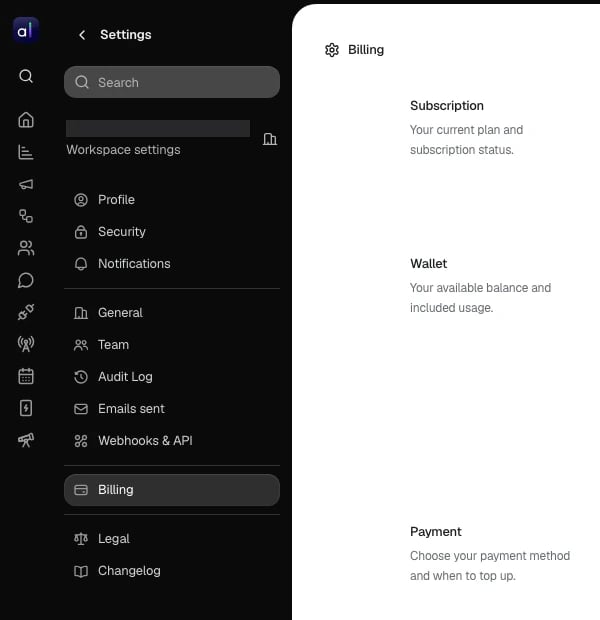
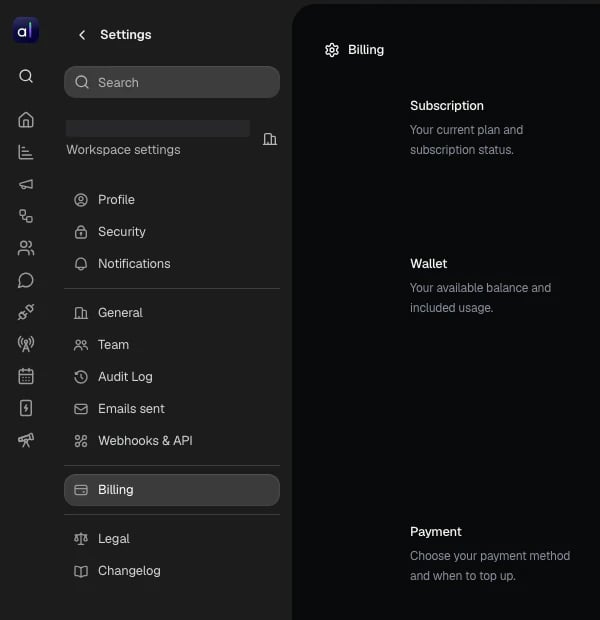
At the bottom of the sidebar, click Settings. The Settings page opens (/account).
Click Billing in the list on the left
2
Open Billing
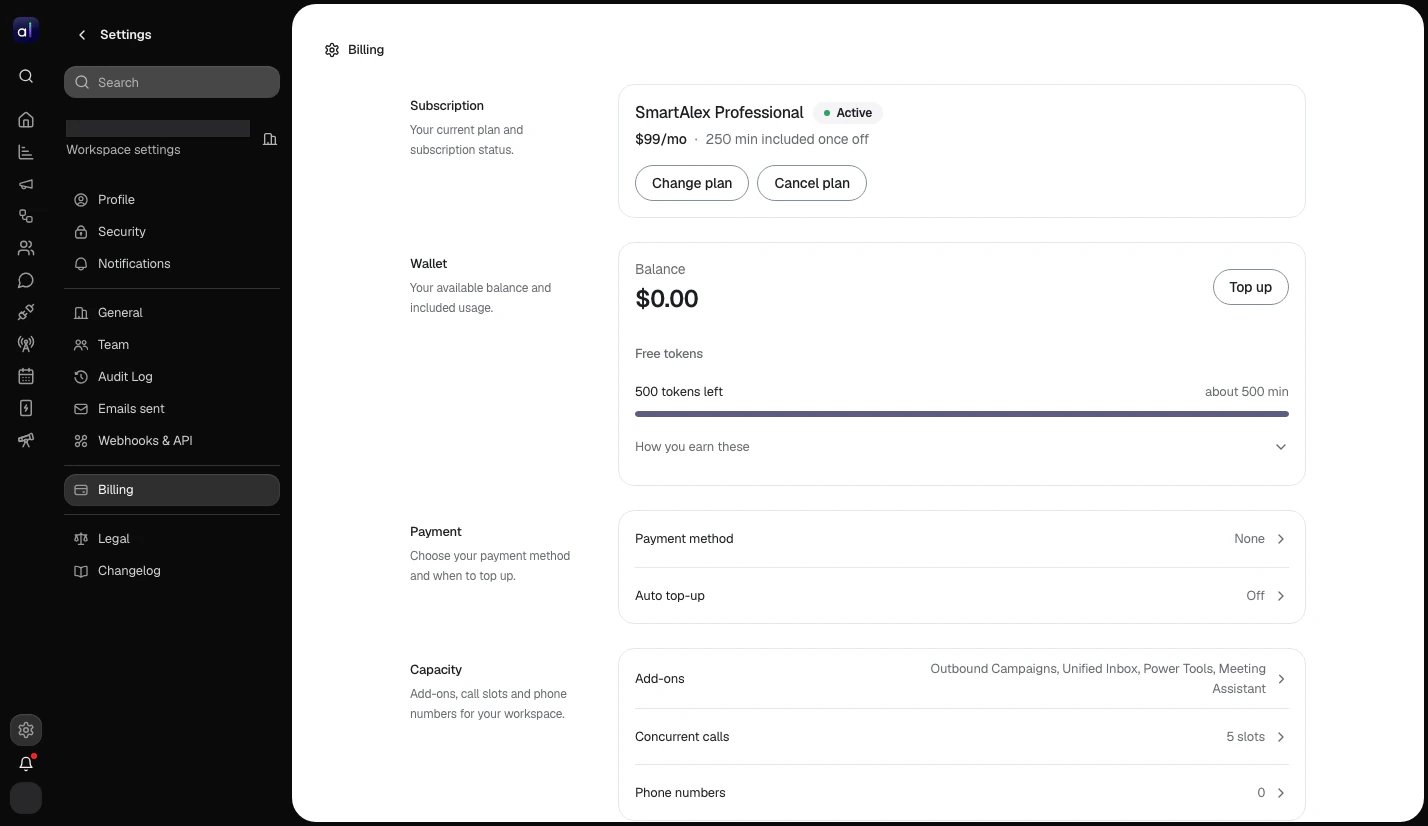
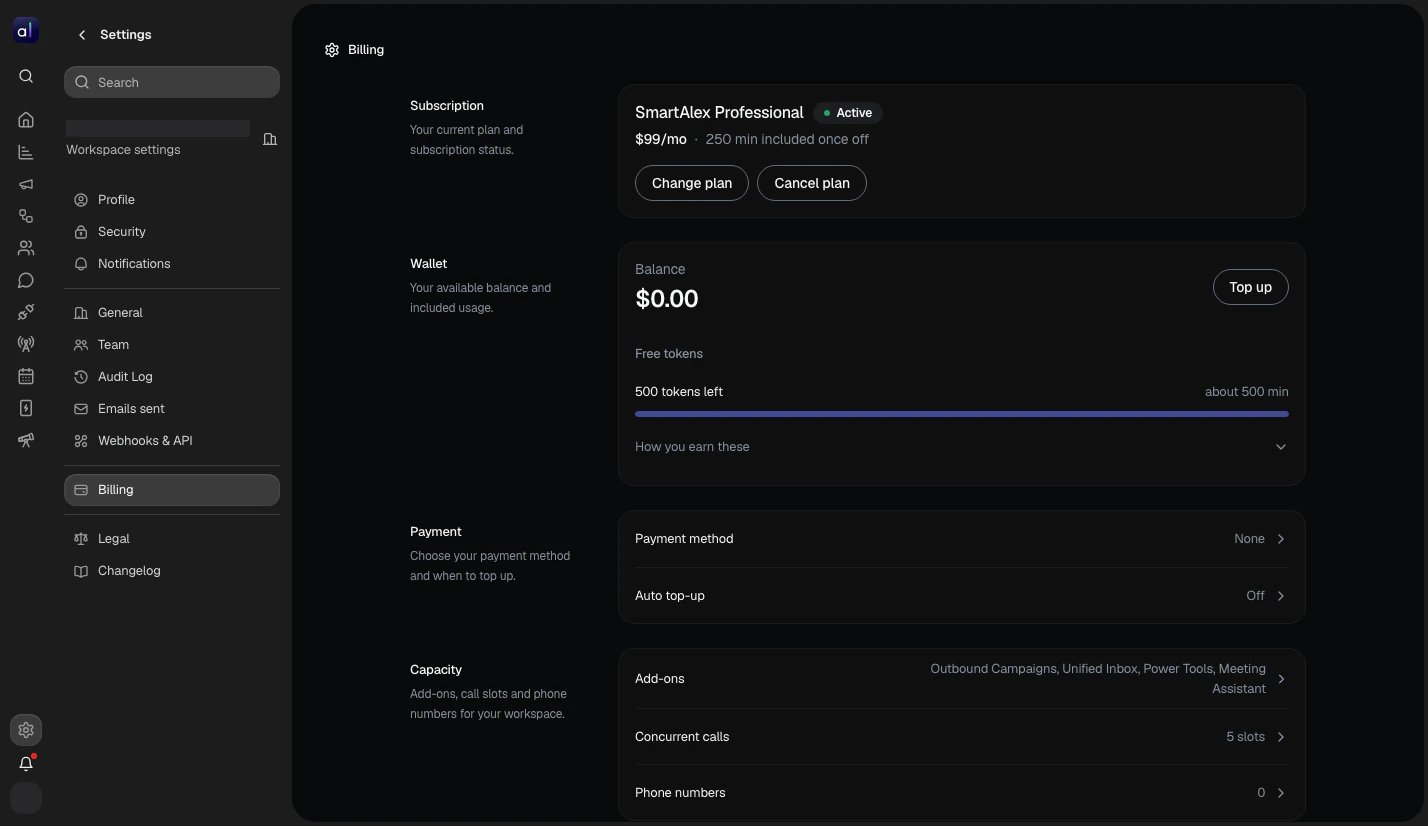
In the list on the left, under Billing, click Billing (/account?tab=billing). Wallet shows your Balance.
Everything about paying for SmartAlex is on one page
3
Click Top up
In Wallet, click Top up. The Top up dialog opens with quick amounts and a box for your own amount.
Pick an amount or type your own
4
Choose an amount
Click a quick amount, or type your own amount in the box and click Add.
5
Pay
The secure checkout page opens in a new tab, or in the same tab if your browser blocks pop-ups. Enter your card and pay. The card is saved for later top-ups.
6
Come back to SmartAlex
You return to Settings → Billing with the message “Your wallet has been topped up!”
Setting
What it does
Default
When to change it
Quick amounts (Top up dialog)
Tops up that amount with one click
None chosen
Use them for a fast top-up
Your own amount (the box next to Add)
Tops up any amount between the smallest and largest top-up in the table above
Blank
When you want an amount the quick buttons do not offer
Switch on auto top-up
1
Open Balance preferences
On Billing, under Payment, click Auto top-up. Balance preferences opens.
2
Turn on Automatic top-up
Switch on Automatic top-up. Two boxes appear.
3
Set the trigger and the amount
In When my balance falls below, type the balance that starts a top-up. In Top up by, type how much to add. The amount must be more than the trigger.
4
Save
Click Save preferences. You see “Balance preferences saved”.
Settings in Balance preferences
Setting
What it does
Default
When to change it
Automatic top-up
Charges a card already saved on your account when the balance falls below your trigger. With no saved card, nothing is charged
Off
Switch it on as soon as your agent takes real calls
When my balance falls below
The balance that starts an automatic top-up
Blank
Set it to about a day or two of your usual spending
Top up by
How much each automatic top-up adds. It must be more than the trigger and no more than the daily safety ceiling
Blank
Raise it if top-ups happen several times a day
Daily safety ceiling
The most automatic top-up adds in one day. Shown on screen, not editable
Shown in the table above
It cannot be changed here. Top up by hand if you need more in one day
Low balance alert
Tells you when the balance is getting low, without topping up
Blank (off)
Set it if you would rather top up yourself
Monthly spend cap
The most the workspace may spend from the wallet in a calendar month. New calls and messages wait once it is reached
Blank (no cap)
Set it to keep a hard limit on usage
Your auto top-up switches itself off if the card fails three times in a row. Check your card under Payment → Payment method and switch it on again.
Check it worked
In Wallet, the Balance shows the new amount. Open Records → Statement: the top-up is a line with a plus sign. If you switched on auto top-up, the Auto top-up row under Payment reads On.
The wallet can only be topped up while the account has a plan or a free trial. With no plan, start your free trial first. If the plan was cancelled or suspended, click Resubscribe in Subscription.
I paid but my balance did not change. What now?
Refresh the page. If the balance is still the same after a minute, check Records → Statement for the top-up line. If it is not there, contact support with the payment date.
Does my wallet balance expire?
No. A wallet balance has no expiry date. It stays until it is spent.
Last modified on November 27, 2026
{"docsConfig":{"theme":"sequoia","$schema":"https://mintlify.com/docs.json","name":"SmartAlex Documentation","description":"Documentation for SmartAlex, the AI voice assistant platform for businesses. Build voice agents, run outbound campaigns, manage contacts and call analytics, and connect your own systems through the MCP server.","colors":{"primary":"#010033","light":"#8B93E6","dark":"#5E6AD2"},"logo":{"light":"https://mintcdn.com/smartalex/qlHSvs0nyK6c2s5R/logo/light.png?fit=max\u0026auto=format\u0026n=qlHSvs0nyK6c2s5R\u0026q=85\u0026s=f2b8d4b820c7af262103f73350d3cc4e","dark":"https://mintcdn.com/smartalex/qlHSvs0nyK6c2s5R/logo/dark.png?fit=max\u0026auto=format\u0026n=qlHSvs0nyK6c2s5R\u0026q=85\u0026s=a98ea864686586154e8b6398c073d378"},"favicon":"https://mintcdn.com/smartalex/aHrSp8SKq40Ip2qH/favicon.png?fit=max\u0026auto=format\u0026n=aHrSp8SKq40Ip2qH\u0026q=85\u0026s=00fe0a5429a5be6c7a7d76dfef957afa","background":{"color":{"light":"#FFFFFF","dark":"#08090A"}},"navbar":{"links":[{"href":"/pricing","label":"Pricing"},{"href":"/faq","label":"Help"},{"href":"https://getsmartalex.com","label":"Website"},{"href":"https://getsmartalex.com/login","label":"Sign in"}],"primary":{"type":"button","label":"Start free","href":"https://getsmartalex.com/instant"}},"footer":{"socials":{"x":"https://x.com/smartalexhq","linkedin":"https://www.linkedin.com/company/smartalexhq","instagram":"https://www.instagram.com/smartalexhq","youtube":"https://www.youtube.com/@smartalexhq"},"links":[{"header":"Product","items":[{"label":"Pricing","href":"/pricing"},{"label":"Price list","href":"https://getsmartalex.com/legal/smartalex-usage-pricing-schedule"},{"label":"Integrations","href":"/integrations"},{"label":"Telephony","href":"/telephony/overview"},{"label":"MCP server","href":"/mcp/overview"}]},{"header":"Help","items":[{"label":"Quickstart","href":"/quickstart"},{"label":"FAQ","href":"/faq"},{"label":"Help centre","href":"https://getsmartalex.com/help"},{"label":"Email support","href":"mailto:support@getsmartalex.com"},{"label":"System status","href":"https://status.getsmartalex.com"}]},{"header":"Legal","items":[{"label":"Security","href":"/security"},{"label":"Trust and compliance","href":"/trust/compliance"},{"label":"Terms of Service","href":"https://getsmartalex.com/legal/smartalex-terms-of-services"},{"label":"Privacy Policy","href":"https://getsmartalex.com/legal/smartalex-privacy-policy"},{"label":"All legal documents","href":"https://getsmartalex.com/legal"}]},{"header":"Company","items":[{"label":"Website","href":"https://getsmartalex.com"},{"label":"Start free","href":"https://getsmartalex.com/instant"},{"label":"Sign in","href":"https://getsmartalex.com/login"},{"label":"Compare","href":"/comparisons/overview"}]}]},"seo":{"organization":{"id":"https://getsmartalex.com/#organization","name":"SmartAlex","url":"https://getsmartalex.com"},"indexing":"all"},"fonts":{"family":"Geist"},"errors":{"404":{"redirect":false,"title":"We could not find that page","description":"The link may be old, or the page has moved. Search with the bar at the top, or start from [Home](/), the [Quickstart](/quickstart) or [Help](/faq). Still stuck? Email [support@getsmartalex.com](mailto:support@getsmartalex.com)."}},"contextual":{"options":["assistant","copy","view","chatgpt","claude","perplexity","aistudio","mcp","add-mcp","cursor","vscode"],"display":"header"},"metadata":{"timestamp":true},"markdown":{"instructions":["For short, quotable answers about SmartAlex (what it is, who it is for, what it costs, where it runs, how it keeps data safe, which apps it connects to), read the facts page at /ai/facts on this site first, then the page it links to. Its last table maps every section of these docs.","For how to do something, use the step-by-step pages: /learn for whole paths, and each section's first-time pages such as /calls/buy-your-first-number, /agents/create-an-agent or /campaigns/import-your-first-contacts. Give the click path exactly as written there, for example Calls, then Numbers, then Buy number, with the bold button labels unchanged.","Prices come from the Pricing page at /pricing and the pages under /pricing. Quote a price exactly as written there, with its currency and unit.","Short answers to common questions are under /help, grouped by section. Legal documents are summarised under /legal; each summary links to the binding text, which prevails over the summary.","If a feature or screen is not described in these docs, say that you could not find it rather than guessing.","Pages under /comparisons describe other companies' products as of the date on each page. For SmartAlex's own features and prices, use the product pages.","The MCP server at /mcp on this site only searches this documentation. To work inside your own SmartAlex workspace (agents, calls, campaigns, contacts), use the SmartAlex MCP server described at /mcp/overview."]},"styling":{"latex":false},"navigation":{"global":{"anchors":[{"anchor":"Dashboard","icon":"gauge","href":"https://app.getsmartalex.com"}]},"pages":[]}},"deployment":{"deploymentMetadataValue":{"subdomain":"smartalex","hasAudioNarration":false,"actualSubdomain":"smartalex","customDomains":["docs.getsmartalex.com"],"gitSource":{"type":"github","owner":"the-rcs-group","repo":"docs","deployBranch":"main","contentDirectory":"","isPrivate":true,"mountPath":"","label":""},"feedback":{"agentFeedback":true},"entitlements":{},"buildId":"6b0beea7d4f92785796ee5a7","clientVersion":"0.0.4344","searchFilterCounts":[{"language":"default","tag":"Product","count":204},{"language":"default","tag":"Developers","count":128},{"language":"default","tag":"REST API","count":99},{"language":"default","tag":"Endpoints","count":95},{"language":"default","tag":"Start here","count":81},{"language":"default","tag":"Trust","count":63},{"language":"default","tag":"Agents","count":51},{"language":"default","tag":"Legal","count":49},{"language":"default","tag":"Learn","count":46},{"language":"default","tag":"Telephony","count":42}]},"assistantConfig":{"enableAskAiButton":false,"enableStarterQuestions":false,"enableAskAiSearchBar":true},"basePath":"","hasChatPermissions":false,"hasWebMcpPermissions":false,"toggles":[{"name":"kill-isr","enabled":true,"variant":{"name":"disabled","enabled":false,"feature_enabled":true},"impressionData":false},{"name":"custom-rbac-roles","enabled":true,"variant":{"name":"disabled","enabled":false,"feature_enabled":true},"impressionData":false},{"name":"agent-mintlify-slack","enabled":true,"variant":{"name":"disabled","enabled":false,"feature_enabled":true},"impressionData":false},{"name":"agent-integrations-settings","enabled":true,"variant":{"name":"disabled","enabled":false,"feature_enabled":true},"impressionData":false},{"name":"rbac-expansion","enabled":true,"variant":{"name":"disabled","enabled":false,"feature_enabled":true},"impressionData":false},{"name":"automations-pr-grouping","enabled":true,"variant":{"name":"disabled","enabled":false,"feature_enabled":true},"impressionData":false},{"name":"custom-prefix","enabled":true,"variant":{"name":"disabled","enabled":false,"feature_enabled":true},"impressionData":false},{"name":"analytics-v7","enabled":true,"variant":{"name":"disabled","enabled":false,"feature_enabled":true},"impressionData":false},{"name":"user-flows-analytics","enabled":true,"variant":{"name":"disabled","enabled":false,"feature_enabled":true},"impressionData":false},{"name":"no-publish-flow","enabled":true,"variant":{"name":"disabled","enabled":false,"feature_enabled":true},"impressionData":false},{"name":"snapshot-serving-live","enabled":true,"variant":{"name":"disabled","enabled":false,"feature_enabled":true},"impressionData":false},{"name":"stripTemperatureMiddleware","enabled":true,"variant":{"name":"disabled","enabled":false,"feature_enabled":true},"impressionData":false},{"name":"support-platform-pylon-zendesk","enabled":true,"variant":{"name":"disabled","enabled":false,"feature_enabled":true},"impressionData":false},{"name":"snapshot-serving","enabled":true,"variant":{"name":"disabled","enabled":false,"feature_enabled":true},"impressionData":false},{"name":"instant-rollback","enabled":true,"variant":{"name":"disabled","enabled":false,"feature_enabled":true},"impressionData":false},{"name":"granular-notifications-server","enabled":true,"variant":{"name":"disabled","enabled":false,"feature_enabled":true},"impressionData":false},{"name":"granular-notifications","enabled":true,"variant":{"name":"disabled","enabled":false,"feature_enabled":true},"impressionData":false},{"name":"automations-fable","enabled":true,"variant":{"name":"disabled","enabled":false,"feature_enabled":true},"impressionData":false},{"name":"fixed-ai-action-pricing","enabled":true,"variant":{"name":"disabled","enabled":false,"feature_enabled":true},"impressionData":false},{"name":"site-roles","enabled":true,"variant":{"name":"disabled","enabled":false,"feature_enabled":true},"impressionData":false},{"name":"automation-resolve-merge-conflict","enabled":true,"variant":{"name":"disabled","enabled":false,"feature_enabled":true},"impressionData":false},{"name":"scoped-publishing","enabled":true,"variant":{"name":"disabled","enabled":false,"feature_enabled":true},"impressionData":false},{"name":"mintql","enabled":true,"variant":{"name":"disabled","enabled":false,"feature_enabled":true},"impressionData":false},{"name":"page-level-analytics","enabled":true,"variant":{"name":"disabled","enabled":false,"feature_enabled":true},"impressionData":false},{"name":"editor-version-history-v2","enabled":true,"variant":{"name":"disabled","enabled":false,"feature_enabled":true},"impressionData":false},{"name":"billing-page-v2","enabled":true,"variant":{"name":"disabled","enabled":false,"feature_enabled":true},"impressionData":false},{"name":"full-page-search","enabled":true,"variant":{"name":"disabled","enabled":false,"feature_enabled":true},"impressionData":false},{"name":"workspace-projects","enabled":true,"variant":{"name":"disabled","enabled":false,"feature_enabled":true},"impressionData":false},{"name":"fork-pr-previews","enabled":true,"variant":{"name":"disabled","enabled":false,"feature_enabled":true},"impressionData":false},{"name":"revalidation-jwt","enabled":true,"variant":{"name":"disabled","enabled":false,"feature_enabled":true},"impressionData":false},{"name":"hobby-abuse-scan","enabled":true,"variant":{"name":"disabled","enabled":false,"feature_enabled":true},"impressionData":false},{"name":"dashboard-inbox","enabled":true,"variant":{"name":"disabled","enabled":false,"feature_enabled":true},"impressionData":false},{"name":"turbopuffer-dual-write","enabled":true,"variant":{"name":"disabled","enabled":false,"feature_enabled":true},"impressionData":false},{"name":"approve-review-flow","enabled":true,"variant":{"name":"disabled","enabled":false,"feature_enabled":true},"impressionData":false},{"name":"editor-metadata","enabled":true,"variant":{"name":"disabled","enabled":false,"feature_enabled":true},"impressionData":false},{"name":"turbopuffer-serve","enabled":true,"variant":{"name":"disabled","enabled":false,"feature_enabled":true},"impressionData":false},{"name":"live-agents","enabled":true,"variant":{"name":"disabled","enabled":false,"feature_enabled":true},"impressionData":false},{"name":"starter-pricing","enabled":true,"variant":{"name":"control","enabled":true,"payload":{"type":"string","value":"control"},"feature_enabled":true},"impressionData":false},{"name":"llms-txt-v2","enabled":true,"variant":{"name":"disabled","enabled":false,"feature_enabled":true},"impressionData":false},{"name":"wildcard-email-auth","enabled":true,"variant":{"name":"disabled","enabled":false,"feature_enabled":true},"impressionData":false}],"starterQuestions":[],"googleFontsInlined":true},"customCss":[{"filePath":"style.css","content":":root{--sa-radius: 12px;--sa-radius-sm: 10px;--sa-ease: cubic-bezier(0.2, 0, 0, 1);--sa-fast: 150ms;--sa-hairline: rgb(var(--gray-950) / 0.08);--sa-hairline-strong: rgb(var(--gray-950) / 0.14);--sa-well: rgb(var(--gray-50))}html.dark{--sa-hairline: rgb(255 255 255 / 0.08);--sa-hairline-strong: rgb(255 255 255 / 0.16);--sa-well: rgb(255 255 255 / 0.03)}h1{font-weight:400!important;letter-spacing:-0.025em!important;line-height:1.15!important}h2{font-weight:500!important;letter-spacing:-0.02em!important;line-height:1.25!important;margin-top:2.75rem!important}h3{font-weight:500!important;letter-spacing:-0.015em!important}.mdx-content p,.mdx-content li{line-height:1.7}button[class*=\"Button\"],button[class*=\"button\"],a[role=\"button\"],a[class*=\"Button\"],a[class*=\"button\"],[class*=\"btn\"],#navbar a[class*=\"bg-primary\"]{border-radius:9999px!important}#navbar a[class*=\"bg-primary\"]{padding-left:1rem!important;padding-right:1rem!important;box-shadow:none!important}input[type=\"search\"]{border-radius:9999px!important}#navbar img.nav-logo{height:40px!important}@media (max-width: 1023px){#navbar img.nav-logo,#mobile-nav img.nav-logo{height:34px!important;max-width:none!important}}#navbar:has(a[href*=\"getsmartalex\"]) img.nav-logo[class*=\"dark:hidden\"]{display:none!important}#navbar:has(a[href*=\"getsmartalex\"]) img.nav-logo[class*=\"dark:block\"]{display:block!important}#navbar:has(a[href*=\"getsmartalex\"]) img.nav-logo{aspect-ratio:2520 / 624}#navbar:has(a[href*=\"getsmartalex\"]){--sa-bar-fg: rgb(255 255 255 / 0.72);--sa-bar-dim: rgb(255 255 255 / 0.5);--sa-bar-line: rgb(255 255 255 / 0.12);--sa-bar-field: rgb(255 255 255 / 0.07);color-scheme:dark}#navbar:has(a[href*=\"getsmartalex\"])>div.absolute.inset-0,#navbar:has(a[href*=\"getsmartalex\"]) div[class*=\"bg-gray-50\"]{background:#000!important}#navbar:has(a[href*=\"getsmartalex\"])>div.absolute[class*=\"border-b\"]{border-color:var(--sa-bar-line)!important}#navbar:has(a[href*=\"getsmartalex\"]) div[class*=\"bg-gray-50\"]{border-top:1px solid var(--sa-bar-line)}#navbar:has(a[href*=\"getsmartalex\"]) div[class*=\"bg-gray-50\"] span,#navbar:has(a[href*=\"getsmartalex\"]) div[class*=\"bg-gray-50\"] button{color:var(--sa-bar-fg)!important}#navbar:has(a[href*=\"getsmartalex\"]) div[class*=\"bg-gray-50\"] [class*=\"text-gray-900\"]{color:#fff!important}#navbar:has(a[href*=\"getsmartalex\"]) div[class*=\"bg-gray-50\"] svg[class*=\"fill-gray\"]{fill:var(--sa-bar-dim)!important}#navbar:has(a[href*=\"getsmartalex\"]) a.font-medium:not([class*=\"bg-primary\"]),#navbar:has(a[href*=\"getsmartalex\"]) .nav-tabs-item{color:var(--sa-bar-fg)!important;transition:color var(--sa-fast) var(--sa-ease)}#navbar:has(a[href*=\"getsmartalex\"]) a.font-medium:not([class*=\"bg-primary\"]):hover,#navbar:has(a[href*=\"getsmartalex\"]) .nav-tabs-item:hover,#navbar:has(a[href*=\"getsmartalex\"]) .nav-tabs-item[class*=\"text-shadow\"]{color:#fff!important}#navbar:has(a[href*=\"getsmartalex\"]) .nav-tabs-item>div[class*=\"bg-primary\"]{background:#fff!important}#navbar:has(a[href*=\"getsmartalex\"]) .nav-tabs-item:hover>div:not([class*=\"bg-primary\"]){background:rgb(255 255 255 / 0.3)!important}#navbar:has(a[href*=\"getsmartalex\"]) #search-bar-entry{background:var(--sa-bar-field)!important;border-color:var(--sa-bar-line)!important;color:var(--sa-bar-dim)!important;border-radius:9999px!important;padding-left:0.75rem!important}#navbar:has(a[href*=\"getsmartalex\"]) #search-bar-entry:hover{background:rgb(255 255 255 / 0.11)!important}#navbar:has(a[href*=\"getsmartalex\"]) #search-bar-entry *{color:var(--sa-bar-dim)!important}#navbar:has(a[href*=\"getsmartalex\"]) #search-bar-entry svg[class*=\"bg-gray\"]{background-color:var(--sa-bar-dim)!important}#navbar:has(a[href*=\"getsmartalex\"]) #search-bar-entry span[class*=\"bg-white\"]{background:rgb(255 255 255 / 0.1)!important;border-radius:9999px!important}#navbar:has(a[href*=\"getsmartalex\"]) button svg{color:var(--sa-bar-fg)!important}#navbar:has(a[href*=\"getsmartalex\"]) a[class*=\"bg-primary\"]{background:#fff!important;color:#000!important}#navbar:has(a[href*=\"getsmartalex\"]) a[class*=\"bg-primary\"]:hover{opacity:0.88!important}#navbar:has(a[href*=\"getsmartalex\"]) a:focus-visible,#navbar:has(a[href*=\"getsmartalex\"]) button:focus-visible{outline:2px solid #fff!important;outline-offset:2px}.card{border-radius:var(--sa-radius)!important;border:1px solid var(--sa-hairline-strong)!important;box-shadow:none!important;transition:border-color var(--sa-fast) var(--sa-ease),\n background-color var(--sa-fast) var(--sa-ease)!important}.card:hover{transform:none!important;box-shadow:none!important}a.card:hover,.card[href]:hover,.card:has(>a):hover,.card.cursor-pointer:hover{border-color:rgb(var(--primary) / 0.45)!important;background-color:var(--sa-well)!important}html.dark a.card:hover,html.dark .card[href]:hover,html.dark .card:has(>a):hover,html.dark .card.cursor-pointer:hover{border-color:rgb(var(--primary-light) / 0.5)!important}.card [data-component-part=\"card-icon\"]{color:rgb(var(--primary))!important;fill:rgb(var(--primary))!important}html.dark .card [data-component-part=\"card-icon\"]{color:rgb(var(--primary-light))!important;fill:rgb(var(--primary-light))!important}.card [data-component-part=\"card-title\"]{font-weight:500!important;letter-spacing:-0.01em}.card ul{margin-top:0.5rem;margin-bottom:0;padding-left:1.1rem}.card li{margin:0.2rem 0}.callout{border-radius:var(--sa-radius)!important}.accordion-group{border-radius:var(--sa-radius)!important;border-color:var(--sa-hairline-strong)!important}.accordion-group summary{transition:background-color var(--sa-fast) var(--sa-ease)}.accordion-group summary:hover{background-color:var(--sa-well)}.mdx-content table{font-size:0.925rem;border-collapse:separate;border-spacing:0;width:100%}.mdx-content thead th{font-size:0.75rem;font-weight:500;letter-spacing:0.02em;color:rgb(var(--gray-500));border-bottom:1px solid var(--sa-hairline-strong)!important;background:transparent;white-space:nowrap}html.dark .mdx-content thead th{color:rgb(var(--gray-400))}.mdx-content tbody td{border-bottom:1px solid var(--sa-hairline)!important;vertical-align:top}.mdx-content tbody tr:last-child td{border-bottom:0!important}.mdx-content table{display:block;overflow-x:auto;-webkit-overflow-scrolling:touch}@media (min-width: 768px){.mdx-content table{display:table;overflow-x:visible}}code,pre,kbd{font-family:\"Geist Mono\", ui-monospace, SFMono-Regular, \"SF Mono\", Menlo, monospace;font-feature-settings:\"liga\" 0}pre,.code-block,div[class*=\"codeblock\"],div[class*=\"code-block\"]{border-radius:var(--sa-radius-sm)!important}.code-block,div[class*=\"code-block\"]{border:1px solid var(--sa-hairline-strong)!important;box-shadow:none!important}.mdx-content :not(pre)>code{padding:0.12em 0.4em;border-radius:6px;background:var(--sa-well);font-size:0.875em}.mermaid{display:flex;justify-content:center;margin:1.5rem 0;padding:1rem;border:1px solid var(--sa-hairline);border-radius:var(--sa-radius);overflow-x:auto;-webkit-overflow-scrolling:touch}.mermaid svg{height:auto;font-family:inherit!important}@media (max-width: 767px){.mermaid{justify-content:flex-start}.mermaid svg{min-width:560px}}.mermaid .node rect,.mermaid .node polygon,.mermaid .node circle,.mermaid .node path.basic,.mermaid .node .label-container>path{fill:rgb(var(--background-light))!important;stroke:rgb(var(--primary) / 0.35)!important;stroke-width:1px!important}.mermaid .node rect{rx:8px;ry:8px}.mermaid .node.core rect,.mermaid .node.core polygon,.mermaid .node.core .label-container>path{fill:rgb(var(--primary) / 0.06)!important;stroke:rgb(var(--primary))!important;stroke-width:1.5px!important}html.dark .mermaid .node.core rect,html.dark .mermaid .node.core polygon,html.dark .mermaid .node.core .label-container>path{fill:rgb(var(--primary-light) / 0.12)!important;stroke:rgb(var(--primary-light))!important}.mermaid .cluster rect{fill:rgb(var(--gray-50))!important;stroke:rgb(var(--gray-200))!important;stroke-width:1px!important;rx:12px;ry:12px}.mermaid .nodeLabel,.mermaid .cluster-label,.mermaid .cluster-label span,.mermaid .label,.mermaid text{color:rgb(var(--gray-900))!important;fill:rgb(var(--gray-900))!important}.mermaid .cluster-label .nodeLabel,.mermaid .cluster-label span{color:rgb(var(--gray-500))!important;font-weight:500;font-size:0.85em}.mermaid .flowchart-link,.mermaid .edgePath path,.mermaid .messageLine0,.mermaid .messageLine1,.mermaid .actor-line,.mermaid .loopLine{stroke:rgb(var(--gray-400))!important}.mermaid .arrowMarkerPath,.mermaid marker path,.mermaid #arrowhead path,.mermaid .arrowheadPath{fill:rgb(var(--gray-400))!important;stroke:rgb(var(--gray-400))!important}.mermaid .edgeLabel,.mermaid .edgeLabel rect,.mermaid .labelBkg{background-color:rgb(var(--background-light))!important;fill:rgb(var(--background-light))!important}.mermaid rect.actor,.mermaid .actor-box{fill:rgb(var(--background-light))!important;stroke:rgb(var(--primary) / 0.35)!important}.mermaid .actor-man circle,.mermaid .actor-man line{fill:rgb(var(--background-light))!important;stroke:rgb(var(--primary) / 0.6)!important}.mermaid .messageText,.mermaid text.actor,.mermaid text.actor>tspan{fill:rgb(var(--gray-900))!important}.mermaid .note{fill:rgb(var(--gray-50))!important;stroke:rgb(var(--gray-200))!important}html.dark .mermaid .node rect,html.dark .mermaid .node polygon,html.dark .mermaid .node circle,html.dark .mermaid .node path.basic,html.dark .mermaid .node .label-container>path,html.dark .mermaid rect.actor,html.dark .mermaid .actor-box,html.dark .mermaid .actor-man circle{fill:rgb(var(--background-dark))!important;stroke:rgb(var(--primary-light) / 0.45)!important}html.dark .mermaid .cluster rect,html.dark .mermaid .note{fill:rgb(255 255 255 / 0.03)!important;stroke:rgb(255 255 255 / 0.1)!important}html.dark .mermaid .nodeLabel,html.dark .mermaid .label,html.dark .mermaid text,html.dark .mermaid .messageText,html.dark .mermaid text.actor,html.dark .mermaid text.actor>tspan{color:rgb(var(--gray-100))!important;fill:rgb(var(--gray-100))!important}html.dark .mermaid .cluster-label .nodeLabel,html.dark .mermaid .cluster-label span{color:rgb(var(--gray-400))!important}html.dark .mermaid .flowchart-link,html.dark .mermaid .edgePath path,html.dark .mermaid .messageLine0,html.dark .mermaid .messageLine1,html.dark .mermaid .actor-line,html.dark .mermaid .loopLine{stroke:rgb(var(--gray-500))!important}html.dark .mermaid .arrowMarkerPath,html.dark .mermaid marker path,html.dark .mermaid #arrowhead path,html.dark .mermaid .arrowheadPath{fill:rgb(var(--gray-500))!important;stroke:rgb(var(--gray-500))!important}html.dark .mermaid .edgeLabel,html.dark .mermaid .edgeLabel rect,html.dark .mermaid .labelBkg{background-color:rgb(var(--background-dark))!important;fill:rgb(var(--background-dark))!important}html.dark .mermaid .actor-man line{stroke:rgb(var(--primary-light) / 0.6)!important}@media (min-width: 1024px){html[data-page-mode=\"wide\"] #content-area{max-width:1040px!important}}a:focus-visible,button:focus-visible,summary:focus-visible,.card:focus-visible{outline:2px solid rgb(var(--primary))!important;outline-offset:2px}html.dark a:focus-visible,html.dark button:focus-visible,html.dark summary:focus-visible,html.dark .card:focus-visible{outline-color:rgb(var(--primary-light))!important}@media (prefers-reduced-motion: reduce){*,*::before,*::after{transition-duration:0ms!important;animation-duration:0ms!important}}.mdx-content[data-page-title=\"Integrations\"] [data-component-part=\"card-icon\"]{display:flex;align-items:center;justify-content:center;box-sizing:border-box;width:fit-content;min-width:48px;height:48px;padding:8px;background:#fff;border:1px solid rgb(var(--gray-950) / 0.1);border-radius:12px;color:rgb(var(--gray-800))!important;fill:rgb(var(--gray-800))!important}html.dark .mdx-content[data-page-title=\"Integrations\"] [data-component-part=\"card-icon\"]{border-color:rgb(255 255 255 / 0.14)}.mdx-content[data-page-title=\"Integrations\"] [data-component-part=\"card-icon\"]>img{width:auto;height:32px;max-width:96px;object-fit:contain}.mdx-content[data-page-title=\"Integrations\"] [data-component-part=\"card-icon\"]>svg{width:22px;height:22px;opacity:1}@media (min-width: 768px){#footer div[class*=\"sm:grid\"]{grid-template-columns:repeat(2, max-content)!important;column-gap:3rem!important;justify-content:end}#footer div[class*=\"sm:grid\"]>div{align-items:flex-start!important}}@media (min-width: 1280px){#footer div[class*=\"sm:grid\"]{grid-template-columns:none!important;grid-auto-flow:column;grid-auto-columns:max-content;column-gap:2.5rem!important}}"}]}
{"page":{"pagePath":"pricing/start/top-up-your-wallet","slug":"/pricing/start/top-up-your-wallet","pageMetadata":{"title":"Top up your SmartAlex wallet","sidebarTitle":"Top up your wallet","description":"Add money to your SmartAlex wallet by card from Settings, Billing in about 2 minutes, then switch on auto top-up so calls never stop.","keywords":["top up wallet","add funds","add money to smartalex","auto top-up","balance preferences","low balance alert","monthly spend cap"],"icon":"wallet","structuredData":{"@type":"FAQPage","mainEntity":[{"@type":"Question","name":"Why is the Top up button greyed out?","acceptedAnswer":{"@type":"Answer","text":"The wallet can only be topped up while the account has a plan or a free trial. With no plan, start your free trial first. If the plan was cancelled or suspended, click Resubscribe in Subscription."}},{"@type":"Question","name":"I paid but my balance did not change. What now?","acceptedAnswer":{"@type":"Answer","text":"Refresh the page. If the balance is still the same after a minute, check Records → Statement for the top-up line. If it is not there, contact support with the payment date."}},{"@type":"Question","name":"Does my wallet balance expire?","acceptedAnswer":{"@type":"Answer","text":"No. A wallet balance has no expiry date. It stays until it is spent."}}]},"href":"/pricing/start/top-up-your-wallet"},"description":{"compiledSource":"\"use strict\";\nconst {jsx: _jsx} = arguments[0];\nconst {useMDXComponents: _provideComponents} = arguments[0];\nfunction _createMdxContent(props) {\n const _components = {\n p: \"p\",\n ..._provideComponents(),\n ...props.components\n };\n return _jsx(_components.p, {\n children: \"Add money to your SmartAlex wallet by card from Settings, Billing in about 2 minutes, then switch on auto top-up so calls never stop.\"\n });\n}\nfunction MDXContent(props = {}) {\n const {wrapper: MDXLayout} = {\n ..._provideComponents(),\n ...props.components\n };\n return MDXLayout ? _jsx(MDXLayout, {\n ...props,\n children: _jsx(_createMdxContent, {\n ...props\n })\n }) : _createMdxContent(props);\n}\nreturn {\n default: MDXContent\n};\n","frontmatter":{},"scope":{}},"pageType":"default","mdx":{"mdxSource":{"compiledSource":"\"use strict\";const{Fragment:_Fragment,jsx:_jsx,jsxs:_jsxs}=arguments[0];const{useMDXComponents:_provideComponents}=arguments[0];function _createMdxContent(props){const _components={a:`a`,code:`code`,li:`li`,p:`p`,strong:`strong`,tbody:`tbody`,td:`td`,th:`th`,thead:`thead`,tr:`tr`,ul:`ul`,..._provideComponents(),...props.components},{Accordion,AccordionGroup,Frame,Heading,Info,OptimizedImage,Step,Steps,Table}=_components;if(!Accordion)_missingMdxReference(`Accordion`,true);if(!AccordionGroup)_missingMdxReference(`AccordionGroup`,true);if(!Frame)_missingMdxReference(`Frame`,true);if(!Heading)_missingMdxReference(`Heading`,true);if(!Info)_missingMdxReference(`Info`,true);if(!OptimizedImage)_missingMdxReference(`OptimizedImage`,true);if(!Step)_missingMdxReference(`Step`,true);if(!Steps)_missingMdxReference(`Steps`,true);if(!Table)_missingMdxReference(`Table`,true);return _jsxs(_Fragment,{children:[_jsxs(_components.p,{children:[`You top up your wallet from `,_jsx(_components.strong,{children:`Settings → Billing`}),` in about 2 minutes. Click `,_jsx(_components.strong,{children:`Top up`}),`, pick an amount and pay by card on the secure checkout page. The money is in your wallet as soon as you come back. Then switch on auto top-up in `,_jsx(_components.strong,{children:`Balance preferences`}),`, so your agent keeps taking calls when the balance runs low.`]}),`\n`,_jsx(Info,{children:_jsxs(_components.p,{children:[`In the app: `,_jsx(_components.strong,{children:`Sidebar → Settings → Billing`}),` (`,_jsx(_components.code,{children:`/account?tab=billing`}),`), then `,_jsx(_components.strong,{children:`Top up`}),` in `,_jsx(_components.strong,{children:`Wallet`}),`. Auto top-up is under `,_jsx(_components.strong,{children:`Payment → Auto top-up`}),`.`]})}),`\n`,_jsx(Heading,{level:`2`,id:`before-you-start`,children:`Before you start`}),`\n`,_jsxs(Table,{children:[_jsx(_components.thead,{children:_jsxs(_components.tr,{children:[_jsx(_components.th,{}),_jsx(_components.th,{})]})}),_jsxs(_components.tbody,{children:[_jsxs(_components.tr,{children:[_jsx(_components.td,{children:_jsx(_components.strong,{children:`You will have`})}),_jsx(_components.td,{children:`Money in your wallet for calls, phone numbers and messages, and auto top-up if you switch it on`})]}),_jsxs(_components.tr,{children:[_jsx(_components.td,{children:_jsx(_components.strong,{children:`Time`})}),_jsx(_components.td,{children:`About 2 minutes`})]}),_jsxs(_components.tr,{children:[_jsx(_components.td,{children:_jsx(_components.strong,{children:`You need`})}),_jsx(_components.td,{children:`To be the workspace owner, a plan or free trial, and a card`})]})]})]}),`\n`,_jsxs(Table,{children:[_jsx(_components.thead,{children:_jsxs(_components.tr,{children:[_jsx(_components.th,{children:`Wallet rule`}),_jsx(_components.th,{children:`Amount`})]})}),_jsxs(_components.tbody,{children:[_jsxs(_components.tr,{children:[_jsx(_components.td,{children:`Quick top-up amounts`}),_jsx(_components.td,{\"data-numeric\":`true`,children:`$5, $10, $25, $50 or $100`})]}),_jsxs(_components.tr,{children:[_jsx(_components.td,{children:`Smallest top-up`}),_jsx(_components.td,{\"data-numeric\":`true`,children:`$1`})]}),_jsxs(_components.tr,{children:[_jsx(_components.td,{children:`Largest single top-up`}),_jsx(_components.td,{children:`$10,000. For more, contact support`})]}),_jsxs(_components.tr,{children:[_jsx(_components.td,{children:`Balance needed to make or take a call`}),_jsx(_components.td,{children:`More than $0, unless you still have free credits`})]}),_jsxs(_components.tr,{children:[_jsx(_components.td,{children:`Balance needed to buy a phone number`}),_jsx(_components.td,{children:`Enough for the number’s first month`})]}),_jsxs(_components.tr,{children:[_jsx(_components.td,{children:`Most auto top-up can add in one day`}),_jsx(_components.td,{\"data-numeric\":`true`,children:`$100`})]})]})]}),`\n`,_jsx(Heading,{level:`2`,id:`top-up-by-card`,children:`Top up by card`}),`\n`,_jsxs(Steps,{children:[_jsxs(Step,{title:`Open Settings`,children:[_jsxs(_components.p,{children:[`At the bottom of the sidebar, click `,_jsx(_components.strong,{children:`Settings`}),`. The Settings page opens (`,_jsx(_components.code,{children:`/account`}),`).`]}),_jsxs(Frame,{caption:`Click Billing in the list on the left`,children:[_jsx(OptimizedImage,{className:`mint-block dark:mint-hidden`,src:`https://mintcdn.com/smartalex/kH_ICIPoijeWBR2w/images/screens/pricing-plans/settings-billing-rail.webp?fit=max\u0026auto=format\u0026n=kH_ICIPoijeWBR2w\u0026q=85\u0026s=e4bbea52ff5683f45bf28c0885b44a3c`,alt:`Settings page with Billing in the list on the left`,\"data-og-width\":`600`,width:`600`,\"data-og-height\":`620`,height:`620`,\"data-path\":`images/screens/pricing-plans/settings-billing-rail.webp`,\"data-optimize\":`true`,\"data-opv\":`3`,srcset:`https://mintcdn.com/smartalex/kH_ICIPoijeWBR2w/images/screens/pricing-plans/settings-billing-rail.webp?w=280\u0026fit=max\u0026auto=format\u0026n=kH_ICIPoijeWBR2w\u0026q=85\u0026s=7562af410dfe659c417e9e988c5fecde 280w, https://mintcdn.com/smartalex/kH_ICIPoijeWBR2w/images/screens/pricing-plans/settings-billing-rail.webp?w=560\u0026fit=max\u0026auto=format\u0026n=kH_ICIPoijeWBR2w\u0026q=85\u0026s=519517545300aba34cf00890045e050f 560w, https://mintcdn.com/smartalex/kH_ICIPoijeWBR2w/images/screens/pricing-plans/settings-billing-rail.webp?w=840\u0026fit=max\u0026auto=format\u0026n=kH_ICIPoijeWBR2w\u0026q=85\u0026s=f3ceb139ee1b7f21ce8a4c565e596d9b 840w, https://mintcdn.com/smartalex/kH_ICIPoijeWBR2w/images/screens/pricing-plans/settings-billing-rail.webp?w=1100\u0026fit=max\u0026auto=format\u0026n=kH_ICIPoijeWBR2w\u0026q=85\u0026s=d91a25bc5a209d567ed934c798a97df5 1100w, https://mintcdn.com/smartalex/kH_ICIPoijeWBR2w/images/screens/pricing-plans/settings-billing-rail.webp?w=1650\u0026fit=max\u0026auto=format\u0026n=kH_ICIPoijeWBR2w\u0026q=85\u0026s=cdf5bd300ef9162af1453c0d3db3b2a2 1650w, https://mintcdn.com/smartalex/kH_ICIPoijeWBR2w/images/screens/pricing-plans/settings-billing-rail.webp?w=2500\u0026fit=max\u0026auto=format\u0026n=kH_ICIPoijeWBR2w\u0026q=85\u0026s=80cf1d4730f225f02e38fc7bfa26b437 2500w`}),_jsx(OptimizedImage,{className:`mint-hidden dark:mint-block`,src:`https://mintcdn.com/smartalex/kH_ICIPoijeWBR2w/images/screens/pricing-plans/settings-billing-rail.dark.webp?fit=max\u0026auto=format\u0026n=kH_ICIPoijeWBR2w\u0026q=85\u0026s=6bbf99bd18ae36a045364f2949e64b79`,alt:`Settings page with Billing in the list on the left`,\"data-og-width\":`600`,width:`600`,\"data-og-height\":`620`,height:`620`,\"data-path\":`images/screens/pricing-plans/settings-billing-rail.dark.webp`,\"data-optimize\":`true`,\"data-opv\":`3`,srcset:`https://mintcdn.com/smartalex/kH_ICIPoijeWBR2w/images/screens/pricing-plans/settings-billing-rail.dark.webp?w=280\u0026fit=max\u0026auto=format\u0026n=kH_ICIPoijeWBR2w\u0026q=85\u0026s=4ba074e9d03461046483bae11d0f2ff0 280w, https://mintcdn.com/smartalex/kH_ICIPoijeWBR2w/images/screens/pricing-plans/settings-billing-rail.dark.webp?w=560\u0026fit=max\u0026auto=format\u0026n=kH_ICIPoijeWBR2w\u0026q=85\u0026s=013ebc9614f2910acaeaab2867da3631 560w, https://mintcdn.com/smartalex/kH_ICIPoijeWBR2w/images/screens/pricing-plans/settings-billing-rail.dark.webp?w=840\u0026fit=max\u0026auto=format\u0026n=kH_ICIPoijeWBR2w\u0026q=85\u0026s=dbd7b5801504c548c8d73ec3a845766a 840w, https://mintcdn.com/smartalex/kH_ICIPoijeWBR2w/images/screens/pricing-plans/settings-billing-rail.dark.webp?w=1100\u0026fit=max\u0026auto=format\u0026n=kH_ICIPoijeWBR2w\u0026q=85\u0026s=5d57699a7eb22ab4d1f0f6c78d0dc1e1 1100w, https://mintcdn.com/smartalex/kH_ICIPoijeWBR2w/images/screens/pricing-plans/settings-billing-rail.dark.webp?w=1650\u0026fit=max\u0026auto=format\u0026n=kH_ICIPoijeWBR2w\u0026q=85\u0026s=a73f3fa6e4f670a6a965de156d6a189f 1650w, https://mintcdn.com/smartalex/kH_ICIPoijeWBR2w/images/screens/pricing-plans/settings-billing-rail.dark.webp?w=2500\u0026fit=max\u0026auto=format\u0026n=kH_ICIPoijeWBR2w\u0026q=85\u0026s=281142f19616fd810b8fb06376e436c4 2500w`})]})]}),_jsxs(Step,{title:`Open Billing`,children:[_jsxs(_components.p,{children:[`In the list on the left, under `,_jsx(_components.strong,{children:`Billing`}),`, click `,_jsx(_components.strong,{children:`Billing`}),` (`,_jsx(_components.code,{children:`/account?tab=billing`}),`). `,_jsx(_components.strong,{children:`Wallet`}),` shows your `,_jsx(_components.strong,{children:`Balance`}),`.`]}),_jsxs(Frame,{caption:`Everything about paying for SmartAlex is on one page`,children:[_jsx(OptimizedImage,{className:`mint-block dark:mint-hidden`,src:`https://mintcdn.com/smartalex/kH_ICIPoijeWBR2w/images/screens/pricing-plans/billing-page.webp?fit=max\u0026auto=format\u0026n=kH_ICIPoijeWBR2w\u0026q=85\u0026s=ef4c790b57c145af13b4548497917e49`,alt:`Billing page with the Subscription, Wallet, Payment, Capacity and Records panels`,\"data-og-width\":`1428`,width:`1428`,\"data-og-height\":`826`,height:`826`,\"data-path\":`images/screens/pricing-plans/billing-page.webp`,\"data-optimize\":`true`,\"data-opv\":`3`,srcset:`https://mintcdn.com/smartalex/kH_ICIPoijeWBR2w/images/screens/pricing-plans/billing-page.webp?w=280\u0026fit=max\u0026auto=format\u0026n=kH_ICIPoijeWBR2w\u0026q=85\u0026s=0d23914b779478e35032c416785bb547 280w, https://mintcdn.com/smartalex/kH_ICIPoijeWBR2w/images/screens/pricing-plans/billing-page.webp?w=560\u0026fit=max\u0026auto=format\u0026n=kH_ICIPoijeWBR2w\u0026q=85\u0026s=faeccd883e2afbf2f83cf07f8eaeead8 560w, https://mintcdn.com/smartalex/kH_ICIPoijeWBR2w/images/screens/pricing-plans/billing-page.webp?w=840\u0026fit=max\u0026auto=format\u0026n=kH_ICIPoijeWBR2w\u0026q=85\u0026s=ec6b340819179b378b979132ab38b659 840w, https://mintcdn.com/smartalex/kH_ICIPoijeWBR2w/images/screens/pricing-plans/billing-page.webp?w=1100\u0026fit=max\u0026auto=format\u0026n=kH_ICIPoijeWBR2w\u0026q=85\u0026s=ff5e7cbe1be4fd1a47456294f93cfbb6 1100w, https://mintcdn.com/smartalex/kH_ICIPoijeWBR2w/images/screens/pricing-plans/billing-page.webp?w=1650\u0026fit=max\u0026auto=format\u0026n=kH_ICIPoijeWBR2w\u0026q=85\u0026s=138a2dd4c2bda12c7fbd4f557a5549a9 1650w, https://mintcdn.com/smartalex/kH_ICIPoijeWBR2w/images/screens/pricing-plans/billing-page.webp?w=2500\u0026fit=max\u0026auto=format\u0026n=kH_ICIPoijeWBR2w\u0026q=85\u0026s=d577022a6fd6ba052f34f30c976aab42 2500w`}),_jsx(OptimizedImage,{className:`mint-hidden dark:mint-block`,src:`https://mintcdn.com/smartalex/kH_ICIPoijeWBR2w/images/screens/pricing-plans/billing-page.dark.webp?fit=max\u0026auto=format\u0026n=kH_ICIPoijeWBR2w\u0026q=85\u0026s=796f8884d42528e89a9ddf7427ad3b23`,alt:`Billing page with the Subscription, Wallet, Payment, Capacity and Records panels`,\"data-og-width\":`1428`,width:`1428`,\"data-og-height\":`826`,height:`826`,\"data-path\":`images/screens/pricing-plans/billing-page.dark.webp`,\"data-optimize\":`true`,\"data-opv\":`3`,srcset:`https://mintcdn.com/smartalex/kH_ICIPoijeWBR2w/images/screens/pricing-plans/billing-page.dark.webp?w=280\u0026fit=max\u0026auto=format\u0026n=kH_ICIPoijeWBR2w\u0026q=85\u0026s=74b0791000d21a9a3bccd1edc329b800 280w, https://mintcdn.com/smartalex/kH_ICIPoijeWBR2w/images/screens/pricing-plans/billing-page.dark.webp?w=560\u0026fit=max\u0026auto=format\u0026n=kH_ICIPoijeWBR2w\u0026q=85\u0026s=d454840da192d17c265f900fe0a93dfd 560w, https://mintcdn.com/smartalex/kH_ICIPoijeWBR2w/images/screens/pricing-plans/billing-page.dark.webp?w=840\u0026fit=max\u0026auto=format\u0026n=kH_ICIPoijeWBR2w\u0026q=85\u0026s=36592ad6d196f68091e57030426f4b44 840w, https://mintcdn.com/smartalex/kH_ICIPoijeWBR2w/images/screens/pricing-plans/billing-page.dark.webp?w=1100\u0026fit=max\u0026auto=format\u0026n=kH_ICIPoijeWBR2w\u0026q=85\u0026s=b4ad7b8abb4daabe86cd429082d70998 1100w, https://mintcdn.com/smartalex/kH_ICIPoijeWBR2w/images/screens/pricing-plans/billing-page.dark.webp?w=1650\u0026fit=max\u0026auto=format\u0026n=kH_ICIPoijeWBR2w\u0026q=85\u0026s=d90d7b44adf7027de662c25c136582c8 1650w, https://mintcdn.com/smartalex/kH_ICIPoijeWBR2w/images/screens/pricing-plans/billing-page.dark.webp?w=2500\u0026fit=max\u0026auto=format\u0026n=kH_ICIPoijeWBR2w\u0026q=85\u0026s=e4a7f48c583e09bfdce6e4094233c5ba 2500w`})]})]}),_jsxs(Step,{title:`Click Top up`,children:[_jsxs(_components.p,{children:[`In `,_jsx(_components.strong,{children:`Wallet`}),`, click `,_jsx(_components.strong,{children:`Top up`}),`. The `,_jsx(_components.strong,{children:`Top up`}),` dialog opens with quick amounts and a box for your own amount.`]}),_jsxs(Frame,{caption:`Pick an amount or type your own`,children:[_jsx(OptimizedImage,{className:`mint-block dark:mint-hidden`,src:`https://mintcdn.com/smartalex/kH_ICIPoijeWBR2w/images/screens/pricing-plans/top-up-dialog.webp?fit=max\u0026auto=format\u0026n=kH_ICIPoijeWBR2w\u0026q=85\u0026s=18601b7bb9aa382ccc9d327bb609f44e`,alt:`Top up dialog with quick amounts and a box for your own amount`,\"data-og-width\":`1428`,width:`1428`,\"data-og-height\":`826`,height:`826`,\"data-path\":`images/screens/pricing-plans/top-up-dialog.webp`,\"data-optimize\":`true`,\"data-opv\":`3`,srcset:`https://mintcdn.com/smartalex/kH_ICIPoijeWBR2w/images/screens/pricing-plans/top-up-dialog.webp?w=280\u0026fit=max\u0026auto=format\u0026n=kH_ICIPoijeWBR2w\u0026q=85\u0026s=8c27de0f202c33deb1da787a1c2eac51 280w, https://mintcdn.com/smartalex/kH_ICIPoijeWBR2w/images/screens/pricing-plans/top-up-dialog.webp?w=560\u0026fit=max\u0026auto=format\u0026n=kH_ICIPoijeWBR2w\u0026q=85\u0026s=a085248f078103171f09a52aea6911cb 560w, https://mintcdn.com/smartalex/kH_ICIPoijeWBR2w/images/screens/pricing-plans/top-up-dialog.webp?w=840\u0026fit=max\u0026auto=format\u0026n=kH_ICIPoijeWBR2w\u0026q=85\u0026s=966a74f0a787f8c7c9b8c1a9aaad965c 840w, https://mintcdn.com/smartalex/kH_ICIPoijeWBR2w/images/screens/pricing-plans/top-up-dialog.webp?w=1100\u0026fit=max\u0026auto=format\u0026n=kH_ICIPoijeWBR2w\u0026q=85\u0026s=eb52936c12fbfdd8da5e5ce98152344f 1100w, https://mintcdn.com/smartalex/kH_ICIPoijeWBR2w/images/screens/pricing-plans/top-up-dialog.webp?w=1650\u0026fit=max\u0026auto=format\u0026n=kH_ICIPoijeWBR2w\u0026q=85\u0026s=4a6b8fa2562832980b26f690cc6abade 1650w, https://mintcdn.com/smartalex/kH_ICIPoijeWBR2w/images/screens/pricing-plans/top-up-dialog.webp?w=2500\u0026fit=max\u0026auto=format\u0026n=kH_ICIPoijeWBR2w\u0026q=85\u0026s=ec18ab9874cb969952c8ce86c4e812ff 2500w`}),_jsx(OptimizedImage,{className:`mint-hidden dark:mint-block`,src:`https://mintcdn.com/smartalex/kH_ICIPoijeWBR2w/images/screens/pricing-plans/top-up-dialog.dark.webp?fit=max\u0026auto=format\u0026n=kH_ICIPoijeWBR2w\u0026q=85\u0026s=cb9c0e004af0a77e6224bb5cab04f79f`,alt:`Top up dialog with quick amounts and a box for your own amount`,\"data-og-width\":`1428`,width:`1428`,\"data-og-height\":`826`,height:`826`,\"data-path\":`images/screens/pricing-plans/top-up-dialog.dark.webp`,\"data-optimize\":`true`,\"data-opv\":`3`,srcset:`https://mintcdn.com/smartalex/kH_ICIPoijeWBR2w/images/screens/pricing-plans/top-up-dialog.dark.webp?w=280\u0026fit=max\u0026auto=format\u0026n=kH_ICIPoijeWBR2w\u0026q=85\u0026s=8f6c98bbf3beaf58031e3ec7eb0fb4a3 280w, https://mintcdn.com/smartalex/kH_ICIPoijeWBR2w/images/screens/pricing-plans/top-up-dialog.dark.webp?w=560\u0026fit=max\u0026auto=format\u0026n=kH_ICIPoijeWBR2w\u0026q=85\u0026s=a8ad8fabf417fb585aec85f9d10715c2 560w, https://mintcdn.com/smartalex/kH_ICIPoijeWBR2w/images/screens/pricing-plans/top-up-dialog.dark.webp?w=840\u0026fit=max\u0026auto=format\u0026n=kH_ICIPoijeWBR2w\u0026q=85\u0026s=c0176573b90861410e526f0879d0e6bc 840w, https://mintcdn.com/smartalex/kH_ICIPoijeWBR2w/images/screens/pricing-plans/top-up-dialog.dark.webp?w=1100\u0026fit=max\u0026auto=format\u0026n=kH_ICIPoijeWBR2w\u0026q=85\u0026s=33a6cb896263b619d375fbe92218ed3d 1100w, https://mintcdn.com/smartalex/kH_ICIPoijeWBR2w/images/screens/pricing-plans/top-up-dialog.dark.webp?w=1650\u0026fit=max\u0026auto=format\u0026n=kH_ICIPoijeWBR2w\u0026q=85\u0026s=c7c6912e1ec428e865fa2a8ac048d3dd 1650w, https://mintcdn.com/smartalex/kH_ICIPoijeWBR2w/images/screens/pricing-plans/top-up-dialog.dark.webp?w=2500\u0026fit=max\u0026auto=format\u0026n=kH_ICIPoijeWBR2w\u0026q=85\u0026s=fdb3e3ed77d31ec82ef22abc023468db 2500w`})]})]}),_jsx(Step,{title:`Choose an amount`,children:_jsxs(_components.p,{children:[`Click a quick amount, or type your own amount in the box and click `,_jsx(_components.strong,{children:`Add`}),`.`]})}),_jsx(Step,{title:`Pay`,children:_jsx(_components.p,{children:`The secure checkout page opens in a new tab, or in the same tab if your browser blocks pop-ups. Enter your card and pay. The card is saved for later top-ups.`})}),_jsx(Step,{title:`Come back to SmartAlex`,children:_jsxs(_components.p,{children:[`You return to `,_jsx(_components.strong,{children:`Settings → Billing`}),` with the message “Your wallet has been topped up!”`]})})]}),`\n`,_jsxs(Table,{children:[_jsx(_components.thead,{children:_jsxs(_components.tr,{children:[_jsx(_components.th,{children:`Setting`}),_jsx(_components.th,{children:`What it does`}),_jsx(_components.th,{children:`Default`}),_jsx(_components.th,{children:`When to change it`})]})}),_jsxs(_components.tbody,{children:[_jsxs(_components.tr,{children:[_jsxs(_components.td,{children:[_jsx(_components.strong,{children:`Quick amounts`}),` (Top up dialog)`]}),_jsx(_components.td,{children:`Tops up that amount with one click`}),_jsx(_components.td,{children:`None chosen`}),_jsx(_components.td,{children:`Use them for a fast top-up`})]}),_jsxs(_components.tr,{children:[_jsxs(_components.td,{children:[_jsx(_components.strong,{children:`Your own amount`}),` (the box next to `,_jsx(_components.strong,{children:`Add`}),`)`]}),_jsx(_components.td,{children:`Tops up any amount between the smallest and largest top-up in the table above`}),_jsx(_components.td,{children:`Blank`}),_jsx(_components.td,{children:`When you want an amount the quick buttons do not offer`})]})]})]}),`\n`,_jsx(Heading,{level:`2`,id:`switch-on-auto-top-up`,children:`Switch on auto top-up`}),`\n`,_jsxs(Steps,{children:[_jsx(Step,{title:`Open Balance preferences`,children:_jsxs(_components.p,{children:[`On `,_jsx(_components.strong,{children:`Billing`}),`, under `,_jsx(_components.strong,{children:`Payment`}),`, click `,_jsx(_components.strong,{children:`Auto top-up`}),`. `,_jsx(_components.strong,{children:`Balance preferences`}),` opens.`]})}),_jsx(Step,{title:`Turn on Automatic top-up`,children:_jsxs(_components.p,{children:[`Switch on `,_jsx(_components.strong,{children:`Automatic top-up`}),`. Two boxes appear.`]})}),_jsx(Step,{title:`Set the trigger and the amount`,children:_jsxs(_components.p,{children:[`In `,_jsx(_components.strong,{children:`When my balance falls below`}),`, type the balance that starts a top-up. In `,_jsx(_components.strong,{children:`Top up by`}),`, type how much to add. The amount must be more than the trigger.`]})}),_jsx(Step,{title:`Save`,children:_jsxs(_components.p,{children:[`Click `,_jsx(_components.strong,{children:`Save preferences`}),`. You see “Balance preferences saved”.`]})})]}),`\n`,_jsx(Heading,{level:`2`,id:`settings-in-balance-preferences`,children:`Settings in Balance preferences`}),`\n`,_jsxs(Table,{children:[_jsx(_components.thead,{children:_jsxs(_components.tr,{children:[_jsx(_components.th,{children:`Setting`}),_jsx(_components.th,{children:`What it does`}),_jsx(_components.th,{children:`Default`}),_jsx(_components.th,{children:`When to change it`})]})}),_jsxs(_components.tbody,{children:[_jsxs(_components.tr,{children:[_jsx(_components.td,{children:_jsx(_components.strong,{children:`Automatic top-up`})}),_jsx(_components.td,{children:`Charges a card already saved on your account when the balance falls below your trigger. With no saved card, nothing is charged`}),_jsx(_components.td,{children:`Off`}),_jsx(_components.td,{children:`Switch it on as soon as your agent takes real calls`})]}),_jsxs(_components.tr,{children:[_jsx(_components.td,{children:_jsx(_components.strong,{children:`When my balance falls below`})}),_jsx(_components.td,{children:`The balance that starts an automatic top-up`}),_jsx(_components.td,{children:`Blank`}),_jsx(_components.td,{children:`Set it to about a day or two of your usual spending`})]}),_jsxs(_components.tr,{children:[_jsx(_components.td,{children:_jsx(_components.strong,{children:`Top up by`})}),_jsx(_components.td,{children:`How much each automatic top-up adds. It must be more than the trigger and no more than the daily safety ceiling`}),_jsx(_components.td,{children:`Blank`}),_jsx(_components.td,{children:`Raise it if top-ups happen several times a day`})]}),_jsxs(_components.tr,{children:[_jsx(_components.td,{children:_jsx(_components.strong,{children:`Daily safety ceiling`})}),_jsx(_components.td,{children:`The most automatic top-up adds in one day. Shown on screen, not editable`}),_jsx(_components.td,{children:`Shown in the table above`}),_jsx(_components.td,{children:`It cannot be changed here. Top up by hand if you need more in one day`})]}),_jsxs(_components.tr,{children:[_jsx(_components.td,{children:_jsx(_components.strong,{children:`Low balance alert`})}),_jsx(_components.td,{children:`Tells you when the balance is getting low, without topping up`}),_jsx(_components.td,{children:`Blank (off)`}),_jsx(_components.td,{children:`Set it if you would rather top up yourself`})]}),_jsxs(_components.tr,{children:[_jsx(_components.td,{children:_jsx(_components.strong,{children:`Monthly spend cap`})}),_jsx(_components.td,{children:`The most the workspace may spend from the wallet in a calendar month. New calls and messages wait once it is reached`}),_jsx(_components.td,{children:`Blank (no cap)`}),_jsx(_components.td,{children:`Set it to keep a hard limit on usage`})]})]})]}),`\n`,_jsxs(_components.p,{children:[`Your auto top-up switches itself off if the card fails three times in a row. Check your card under `,_jsx(_components.strong,{children:`Payment → Payment method`}),` and switch it on again.`]}),`\n`,_jsx(Heading,{level:`2`,id:`check-it-worked`,children:`Check it worked`}),`\n`,_jsxs(_components.p,{children:[`In `,_jsx(_components.strong,{children:`Wallet`}),`, the `,_jsx(_components.strong,{children:`Balance`}),` shows the new amount. Open `,_jsx(_components.strong,{children:`Records → Statement`}),`: the top-up is a line with a plus sign. If you switched on auto top-up, the `,_jsx(_components.strong,{children:`Auto top-up`}),` row under `,_jsx(_components.strong,{children:`Payment`}),` reads `,_jsx(_components.strong,{children:`On`}),`.`]}),`\n`,_jsx(Heading,{level:`2`,id:`next`,children:`Next`}),`\n`,_jsxs(_components.ul,{children:[`\n`,_jsxs(_components.li,{children:[_jsx(_components.a,{href:`/pricing/start/download-an-invoice`,children:`Download an invoice`}),`: get the receipt for your top-up.`]}),`\n`,_jsxs(_components.li,{children:[_jsx(_components.a,{href:`/pricing/start/add-an-add-on`,children:`Add an add-on`}),`: switch on what your business needs.`]}),`\n`]}),`\n`,_jsx(Heading,{level:`2`,id:`questions-people-ask`,children:`Questions people ask`}),`\n`,_jsxs(AccordionGroup,{children:[_jsx(Accordion,{title:`Why is the Top up button greyed out?`,id:`why-is-the-top-up-button-greyed-out`,children:_jsxs(_components.p,{children:[`The wallet can only be topped up while the account has a plan or a free trial. With no plan, `,_jsx(_components.a,{href:`/pricing/start/start-your-free-trial`,children:`start your free trial`}),` first. If the plan was cancelled or suspended, click `,_jsx(_components.strong,{children:`Resubscribe`}),` in `,_jsx(_components.strong,{children:`Subscription`}),`.`]})}),_jsx(Accordion,{title:`I paid but my balance did not change. What now?`,id:`i-paid-but-my-balance-did-not-change-what-now`,children:_jsxs(_components.p,{children:[`Refresh the page. If the balance is still the same after a minute, check `,_jsx(_components.strong,{children:`Records → Statement`}),` for the top-up line. If it is not there, contact support with the payment date.`]})}),_jsx(Accordion,{title:`Does my wallet balance expire?`,id:`does-my-wallet-balance-expire`,children:_jsx(_components.p,{children:`No. A wallet balance has no expiry date. It stays until it is spent.`})})]})]})}function MDXContent(props={}){const{wrapper:MDXLayout}={..._provideComponents(),...props.components};return MDXLayout?_jsx(MDXLayout,{...props,children:_jsx(_createMdxContent,{...props})}):_createMdxContent(props)}return{default:MDXContent};function _missingMdxReference(id,component){throw new Error(`Expected `+(component?`component`:`object`)+\" `\"+id+\"` to be defined: you likely forgot to import, pass, or provide it.\")}","frontmatter":{},"scope":{"config":{},"pageMetadata":{"title":"Top up your SmartAlex wallet","sidebarTitle":"Top up your wallet","description":"Add money to your SmartAlex wallet by card from Settings, Billing in about 2 minutes, then switch on auto top-up so calls never stop.","keywords":["top up wallet","add funds","add money to smartalex","auto top-up","balance preferences","low balance alert","monthly spend cap"],"icon":"wallet","structuredData":{"@type":"FAQPage","mainEntity":[{"@type":"Question","name":"Why is the Top up button greyed out?","acceptedAnswer":{"@type":"Answer","text":"The wallet can only be topped up while the account has a plan or a free trial. With no plan, start your free trial first. If the plan was cancelled or suspended, click Resubscribe in Subscription."}},{"@type":"Question","name":"I paid but my balance did not change. What now?","acceptedAnswer":{"@type":"Answer","text":"Refresh the page. If the balance is still the same after a minute, check Records → Statement for the top-up line. If it is not there, contact support with the payment date."}},{"@type":"Question","name":"Does my wallet balance expire?","acceptedAnswer":{"@type":"Answer","text":"No. A wallet balance has no expiry date. It stays until it is spent."}}]},"href":"/pricing/start/top-up-your-wallet"}}},"mdxSourceWithNoJs":null},"mdxExtracts":{"tableOfContents":[{"title":"Before you start","slug":"before-you-start","depth":2,"children":[]},{"title":"Top up by card","slug":"top-up-by-card","depth":2,"children":[]},{"title":"Switch on auto top-up","slug":"switch-on-auto-top-up","depth":2,"children":[]},{"title":"Settings in Balance preferences","slug":"settings-in-balance-preferences","depth":2,"children":[]},{"title":"Check it worked","slug":"check-it-worked","depth":2,"children":[]},{"title":"Next","slug":"next","depth":2,"children":[]},{"title":"Questions people ask","slug":"questions-people-ask","depth":2,"children":[]}],"codeExamples":{}},"jsLinks":[],"dynamicCss":".mint-block {\n display: block\n}\n.mint-hidden {\n display: none\n}\n.dark\\:mint-block:is(.dark *) {\n display: block\n}\n.dark\\:mint-hidden:is(.dark *) {\n display: none\n}","subdomain":"smartalex","siteName":"SmartAlex Documentation","title":"Top up your SmartAlex wallet - SmartAlex Documentation","contextualStarterQuestions":[],"navMaps":{"firstHrefInVersion":{},"firstHrefInLanguage":{}},"lastModified":"2026-11-27T04:05:46.132Z","gitLastModified":"2026-11-27T04:05:19.000Z","originalFileLocation":"pricing/start/top-up-your-wallet.mdx"},"headHtml":"\u003cscript data-mint-head>(function(){var d=document.documentElement,p=null;if(!p){try{p=localStorage.getItem(\"isDarkMode\")}catch(e){}if(p==='true')p='dark';else if(p==='false')p='light';if(p!=='light'\u0026\u0026p!=='dark'\u0026\u0026p!=='system')p=\"system\"}var r=p==='system'?(matchMedia(\"(prefers-color-scheme: dark)\").matches?'dark':'light'):p;d.classList.remove(r==='dark'?'light':'dark');d.classList.add(r);d.setAttribute(\"data-theme-preference\",p)})();\u003c/script>\u003cmeta data-mint-head name=\"description\" content=\"Add money to your SmartAlex wallet by card from Settings, Billing in about 2 minutes, then switch on auto top-up so calls never stop.\">\u003cmeta data-mint-head name=\"application-name\" content=\"SmartAlex Documentation\">\u003cmeta data-mint-head name=\"generator\" content=\"Mintlify\">\u003clink data-mint-head rel=\"icon\" type=\"image/png\" sizes=\"192x192\" href=\"/mintlify-assets/_mintlify/favicons/smartalex/NBkkhKCoVcXXvqQT/_generated/favicon/android-chrome-192x192.png\" media=\"(prefers-color-scheme: light)\">\u003clink data-mint-head rel=\"apple-touch-icon\" type=\"image/png\" sizes=\"180x180\" href=\"/mintlify-assets/_mintlify/favicons/smartalex/NBkkhKCoVcXXvqQT/_generated/favicon/apple-touch-icon.png\">\u003clink data-mint-head rel=\"icon\" type=\"image/png\" sizes=\"16x16\" href=\"/mintlify-assets/_mintlify/favicons/smartalex/NBkkhKCoVcXXvqQT/_generated/favicon/favicon-16x16.png\" media=\"(prefers-color-scheme: light)\">\u003clink data-mint-head rel=\"icon\" type=\"image/png\" sizes=\"32x32\" href=\"/mintlify-assets/_mintlify/favicons/smartalex/NBkkhKCoVcXXvqQT/_generated/favicon/favicon-32x32.png\" media=\"(prefers-color-scheme: light)\">\u003clink data-mint-head rel=\"shortcut icon\" type=\"image/x-icon\" href=\"/mintlify-assets/_mintlify/favicons/smartalex/NBkkhKCoVcXXvqQT/_generated/favicon/favicon.ico\" media=\"(prefers-color-scheme: light)\">\u003clink data-mint-head rel=\"icon\" type=\"image/png\" sizes=\"192x192\" href=\"/mintlify-assets/_mintlify/favicons/smartalex/NBkkhKCoVcXXvqQT/_generated/favicon-dark/android-chrome-192x192.png\" media=\"(prefers-color-scheme: dark)\">\u003clink data-mint-head rel=\"icon\" type=\"image/png\" sizes=\"16x16\" href=\"/mintlify-assets/_mintlify/favicons/smartalex/NBkkhKCoVcXXvqQT/_generated/favicon-dark/favicon-16x16.png\" media=\"(prefers-color-scheme: dark)\">\u003clink data-mint-head rel=\"icon\" type=\"image/png\" sizes=\"32x32\" href=\"/mintlify-assets/_mintlify/favicons/smartalex/NBkkhKCoVcXXvqQT/_generated/favicon-dark/favicon-32x32.png\" media=\"(prefers-color-scheme: dark)\">\u003clink data-mint-head rel=\"shortcut icon\" type=\"image/x-icon\" href=\"/mintlify-assets/_mintlify/favicons/smartalex/NBkkhKCoVcXXvqQT/_generated/favicon-dark/favicon.ico\" media=\"(prefers-color-scheme: dark)\">\u003cmeta data-mint-head property=\"og:title\" content=\"Top up your SmartAlex wallet - SmartAlex Documentation\">\u003cmeta data-mint-head property=\"og:description\" content=\"Add money to your SmartAlex wallet by card from Settings, Billing in about 2 minutes, then switch on auto top-up so calls never stop.\">\u003cmeta data-mint-head property=\"og:site_name\" content=\"SmartAlex Documentation\">\u003cmeta data-mint-head property=\"og:url\" content=\"https://docs.getsmartalex.com/pricing/start/top-up-your-wallet\">\u003cmeta data-mint-head property=\"og:type\" content=\"website\">\u003cmeta data-mint-head property=\"og:image\" content=\"https://smartalex.mintlify.site/_mintlify/api/og/v2?division=Start+here\u0026amp;title=Top+up+your+SmartAlex+wallet\u0026amp;description=Add+money+to+your+SmartAlex+wallet+by+card+from+Settings%2C+Billing+in+about+2+minutes%2C+then+switch+on+auto+top-up+so+calls+never+stop.\u0026amp;theme=179d14681dde27b354098b2e\u0026amp;signature=8978b2bf09d9b4e4d1a0a645f6a7e16947cec6d28d845fd0c6adbdaae5bb2d60\">\u003cmeta data-mint-head property=\"og:image:width\" content=\"1200\">\u003cmeta data-mint-head property=\"og:image:height\" content=\"630\">\u003cmeta data-mint-head name=\"twitter:card\" content=\"summary_large_image\">\u003cmeta data-mint-head name=\"twitter:title\" content=\"Top up your SmartAlex wallet - SmartAlex Documentation\">\u003cmeta data-mint-head name=\"twitter:description\" content=\"Add money to your SmartAlex wallet by card from Settings, Billing in about 2 minutes, then switch on auto top-up so calls never stop.\">\u003cmeta data-mint-head name=\"twitter:image\" content=\"https://smartalex.mintlify.site/_mintlify/api/og/v2?division=Start+here\u0026amp;title=Top+up+your+SmartAlex+wallet\u0026amp;description=Add+money+to+your+SmartAlex+wallet+by+card+from+Settings%2C+Billing+in+about+2+minutes%2C+then+switch+on+auto+top-up+so+calls+never+stop.\u0026amp;theme=179d14681dde27b354098b2e\u0026amp;signature=8978b2bf09d9b4e4d1a0a645f6a7e16947cec6d28d845fd0c6adbdaae5bb2d60\">\u003cmeta data-mint-head name=\"twitter:image:width\" content=\"1200\">\u003cmeta data-mint-head name=\"twitter:image:height\" content=\"630\">\u003cmeta data-mint-head name=\"msapplication-config\" content=\"/mintlify-assets/_mintlify/favicons/smartalex/NBkkhKCoVcXXvqQT/_generated/favicon/browserconfig.xml\">\u003cmeta data-mint-head name=\"apple-mobile-web-app-title\" content=\"SmartAlex Documentation\">\u003cmeta data-mint-head name=\"msapplication-TileColor\" content=\"#010033\">\u003clink data-mint-head rel=\"canonical\" href=\"https://docs.getsmartalex.com/pricing/start/top-up-your-wallet\">\u003clink data-mint-head rel=\"alternate\" type=\"application/xml\" href=\"/sitemap.xml\">\u003clink data-mint-head rel=\"alternate\" type=\"text/markdown\" href=\"/pricing/start/top-up-your-wallet.md\">\u003cscript data-mint-head type=\"application/ld+json\">{\"@context\":\"https://schema.org\",\"@graph\":[{\"@type\":\"Organization\",\"@id\":\"https://getsmartalex.com/#organization\",\"name\":\"SmartAlex\",\"url\":\"https://getsmartalex.com\",\"logo\":{\"@type\":\"ImageObject\",\"url\":\"https://mintcdn.com/smartalex/qlHSvs0nyK6c2s5R/logo/light.png?fit=max\u0026auto=format\u0026n=qlHSvs0nyK6c2s5R\u0026q=85\u0026s=f2b8d4b820c7af262103f73350d3cc4e\"}},{\"@type\":\"WebSite\",\"@id\":\"https://docs.getsmartalex.com#website\",\"name\":\"SmartAlex Documentation\",\"url\":\"https://docs.getsmartalex.com\",\"publisher\":{\"@id\":\"https://getsmartalex.com/#organization\"}},{\"@type\":\"WebPage\",\"@id\":\"https://docs.getsmartalex.com/pricing/start/top-up-your-wallet#webpage\",\"url\":\"https://docs.getsmartalex.com/pricing/start/top-up-your-wallet\",\"name\":\"Top up your SmartAlex wallet\",\"description\":\"Add money to your SmartAlex wallet by card from Settings, Billing in about 2 minutes, then switch on auto top-up so calls never stop.\",\"dateModified\":\"2026-11-27T04:05:19.000Z\",\"isPartOf\":{\"@id\":\"https://docs.getsmartalex.com#website\"},\"breadcrumb\":{\"@id\":\"https://docs.getsmartalex.com/pricing/start/top-up-your-wallet#breadcrumb\"}},{\"@type\":\"BreadcrumbList\",\"@id\":\"https://docs.getsmartalex.com/pricing/start/top-up-your-wallet#breadcrumb\",\"itemListElement\":[{\"@type\":\"ListItem\",\"position\":1,\"name\":\"Start here\",\"item\":\"https://docs.getsmartalex.com/pricing/start/start-your-free-trial\"},{\"@type\":\"ListItem\",\"position\":2,\"name\":\"Top up your SmartAlex wallet\",\"item\":\"https://docs.getsmartalex.com/pricing/start/top-up-your-wallet\"}]},{\"@type\":[\"Article\",\"TechArticle\"],\"@id\":\"https://docs.getsmartalex.com/pricing/start/top-up-your-wallet#article\",\"headline\":\"Top up your SmartAlex wallet\",\"name\":\"Top up your SmartAlex wallet\",\"description\":\"Add money to your SmartAlex wallet by card from Settings, Billing in about 2 minutes, then switch on auto top-up so calls never stop.\",\"url\":\"https://docs.getsmartalex.com/pricing/start/top-up-your-wallet\",\"mainEntityOfPage\":{\"@id\":\"https://docs.getsmartalex.com/pricing/start/top-up-your-wallet#webpage\"},\"dateModified\":\"2026-11-27T04:05:19.000Z\",\"keywords\":\"top up wallet, add funds, add money to smartalex, auto top-up, balance preferences, low balance alert, monthly spend cap\",\"publisher\":{\"@id\":\"https://getsmartalex.com/#organization\"},\"isPartOf\":{\"@id\":\"https://docs.getsmartalex.com#website\"}},{\"@type\":\"FAQPage\",\"mainEntity\":[{\"@type\":\"Question\",\"name\":\"Why is the Top up button greyed out?\",\"acceptedAnswer\":{\"@type\":\"Answer\",\"text\":\"The wallet can only be topped up while the account has a plan or a free trial. With no plan, start your free trial first. If the plan was cancelled or suspended, click Resubscribe in Subscription.\"}},{\"@type\":\"Question\",\"name\":\"I paid but my balance did not change. What now?\",\"acceptedAnswer\":{\"@type\":\"Answer\",\"text\":\"Refresh the page. If the balance is still the same after a minute, check Records → Statement for the top-up line. If it is not there, contact support with the payment date.\"}},{\"@type\":\"Question\",\"name\":\"Does my wallet balance expire?\",\"acceptedAnswer\":{\"@type\":\"Answer\",\"text\":\"No. A wallet balance has no expiry date. It stays until it is spent.\"}}]}]}\u003c/script>\u003cscript data-mint-head type=\"application/ld+json\">{\"@context\":\"https://schema.org\",\"@type\":\"WebSite\",\"name\":\"SmartAlex Documentation\",\"publisher\":{\"@type\":\"Organization\",\"name\":\"SmartAlex\"},\"provider\":{\"@type\":\"Organization\",\"name\":\"Mintlify\",\"url\":\"https://mintlify.com\"}}\u003c/script>","agentPointerHref":"/pricing/start/top-up-your-wallet.md","siteName":"SmartAlex Documentation","nav":{"global":{"anchors":[{"anchor":"Dashboard","icon":"gauge","href":"https://app.getsmartalex.com"}]},"tabs":[{"tab":"Product","icon":"cube","pages":[{"title":"Product","href":""}]},{"tab":"Pricing","icon":"tag","groups":[{"group":"Start here","icon":"flag-checkered","pages":[{"title":"Start your SmartAlex free trial","sidebarTitle":"Start your free trial","icon":"gift","href":"/pricing/start/start-your-free-trial"},{"title":"Choose or change your SmartAlex plan","sidebarTitle":"Choose a plan","icon":"layer-group","href":"/pricing/start/choose-a-plan"},{"title":"Add an add-on, extra agent or extra calls","sidebarTitle":"Add an add-on","description":"Switch on Outbound Campaigns, Unified Inbox, Power Tools or Meeting Assistant from Settings, Billing, Add-ons in about a minute. It starts straight away.","icon":"puzzle-piece","href":"/pricing/start/add-an-add-on"},{"title":"Top up your SmartAlex wallet","sidebarTitle":"Top up your wallet","icon":"wallet","href":"/pricing/start/top-up-your-wallet"},{"title":"Download a SmartAlex invoice","sidebarTitle":"Download an invoice","description":"Download any SmartAlex invoice or top-up receipt as a PDF from Settings, Billing, Records, Invoices in under a minute.","icon":"file-arrow-down","href":"/pricing/start/download-an-invoice"},{"title":"Cancel your SmartAlex plan","sidebarTitle":"Cancel your plan","icon":"circle-xmark","href":"/pricing/start/cancel-your-plan"}]},{"group":"Pricing","icon":"tags","pages":[{"title":"SmartAlex pricing","sidebarTitle":"Pricing overview","icon":"tags","href":"/pricing"},{"title":"SmartAlex plans and prices","sidebarTitle":"Plans","icon":"layer-group","href":"/pricing/plans"},{"title":"SmartAlex price sheet: every price in one table","sidebarTitle":"Full price sheet","icon":"table","href":"/pricing/price-sheet"},{"title":"What SmartAlex costs: every cost, with a worked example","sidebarTitle":"Every cost, worked out","icon":"calculator","href":"/pricing/what-you-pay"}]},{"group":"Free plan and trial","icon":"gift","pages":[{"title":"The SmartAlex Free plan","sidebarTitle":"Free plan","icon":"seedling","href":"/pricing/free-plan"},{"title":"SmartAlex free trial: what you get and what happens after","sidebarTitle":"Free trial","icon":"gift","href":"/pricing/free-trial"},{"title":"Free credits and allowances on each plan","sidebarTitle":"Free credits","icon":"coins","href":"/pricing/free-credits"}]},{"group":"Add-ons and capacity","icon":"puzzle-piece","pages":[{"title":"Add-ons","icon":"puzzle-piece","href":"/essentials/add-ons"},{"title":"Outbound Campaigns add-on: price and what it unlocks","sidebarTitle":"Outbound Campaigns","icon":"bullhorn","href":"/pricing/outbound-campaigns"},{"title":"Unified Inbox add-on: price and what it unlocks","sidebarTitle":"Unified Inbox","icon":"inbox","href":"/pricing/unified-inbox"},{"title":"Power Tools add-on: price and what it unlocks","sidebarTitle":"Power Tools","icon":"screwdriver-wrench","href":"/pricing/power-tools"},{"title":"Meeting Assistant add-on: price and what it unlocks","sidebarTitle":"Meeting Assistant","icon":"video","href":"/pricing/meeting-assistant"},{"title":"Extra agents and extra calls at the same time","sidebarTitle":"Extra agents and calls","icon":"users","href":"/pricing/extra-agents-and-calls"}]},{"group":"Usage","icon":"phone","pages":[{"title":"How a SmartAlex call is billed","sidebarTitle":"How calls are billed","icon":"phone","href":"/pricing/call-pricing"},{"title":"The SmartAlex wallet: top-ups, auto top-up and spend cap","sidebarTitle":"Wallet and top-ups","icon":"wallet","href":"/pricing/wallet"}]},{"group":"Billing","icon":"file-invoice-dollar","pages":[{"title":"How SmartAlex billing works","sidebarTitle":"How billing works","icon":"file-invoice-dollar","href":"/pricing/billing"},{"title":"The Billing page","sidebarTitle":"Billing","icon":"credit-card","href":"/account/billing"},{"title":"Pay for SmartAlex: your plan, wallet, top-ups and invoices","sidebarTitle":"Billing and top-ups","icon":"list-check","href":"/how-to/billing-and-top-ups"},{"title":"Upgrade, downgrade or cancel your SmartAlex plan","sidebarTitle":"Change or cancel","icon":"arrow-right-arrow-left","href":"/pricing/change-or-cancel"},{"title":"SmartAlex refunds: what the terms say","sidebarTitle":"Refunds","icon":"rotate-left","href":"/pricing/refunds"}]}]},{"tab":"Help","icon":"circle-question","pages":[{"title":"Help","href":"/faq"}]},{"tab":"Social","icon":"comments","pages":[{"title":"Social","href":"/meta/overview"}]},{"tab":"Telephony","icon":"tower-broadcast","pages":[{"title":"Telephony","href":"/telephony/connect-your-first-phone-system"}]},{"tab":"Developers","icon":"code","pages":[{"title":"Developers","href":"/mcp/overview"}]},{"tab":"Build","icon":"hammer","pages":[{"title":"Build","href":"/build-with/overview"}]},{"tab":"Trust","icon":"shield-check","pages":[{"title":"Trust","href":"/trust/find-a-legal-document"}]},{"tab":"Learn","icon":"graduation-cap","pages":[{"title":"Learn","href":"/learn"}]},{"tab":"Compare","icon":"scale-balanced","pages":[{"title":"Compare","href":"/comparisons/overview"}]}]},"basePath":"","title":"Top up your SmartAlex wallet - SmartAlex Documentation","deploymentId":"dpl_EwfxjeKENdVkfzdag8rM6mKzcTUJ","buildId":"dpl_EwfxjeKENdVkfzdag8rM6mKzcTUJ","dynamics":["07c022d89b","a74be98ba7"],"chunks":["Frame-CG7QalVD.js","DynamicMarkdown-B_9ywLDq.js","zoom-image-lightbox-uS0aI388.js","lightbox-handle-r17bVUz3.js"]}