Download any SmartAlex invoice or top-up receipt as a PDF from Settings, Billing, Records, Invoices in under a minute.
Every card payment to SmartAlex is listed under Settings → Billing → Records → Invoices. You can open each one as a PDF in under a minute. Plan and add-on payments have an invoice, and wallet top-ups have a receipt. What you spend from the wallet is on your Statement in the same place.
In the app: Sidebar → Settings → Billing (/account?tab=billing), then Records → Invoices.
Before you start
You will have
The invoice as a PDF, ready to save or forward to your accountant
Time
Under 1 minute
You need
To be the workspace owner, and at least one card payment
Download an invoice
1
Open Settings
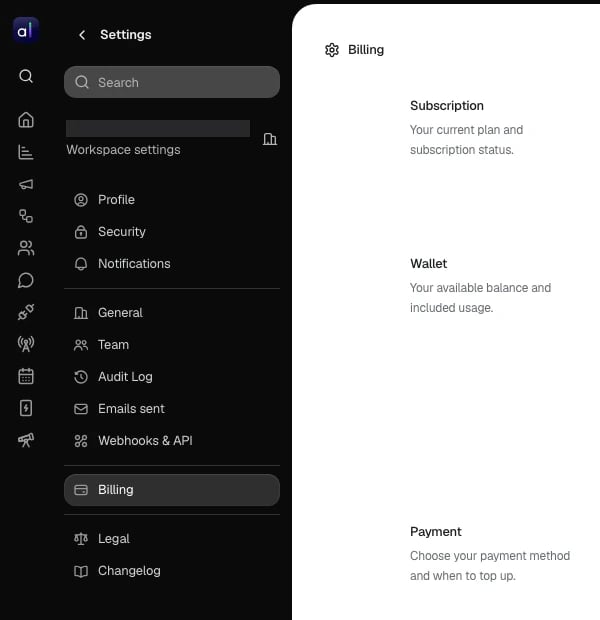
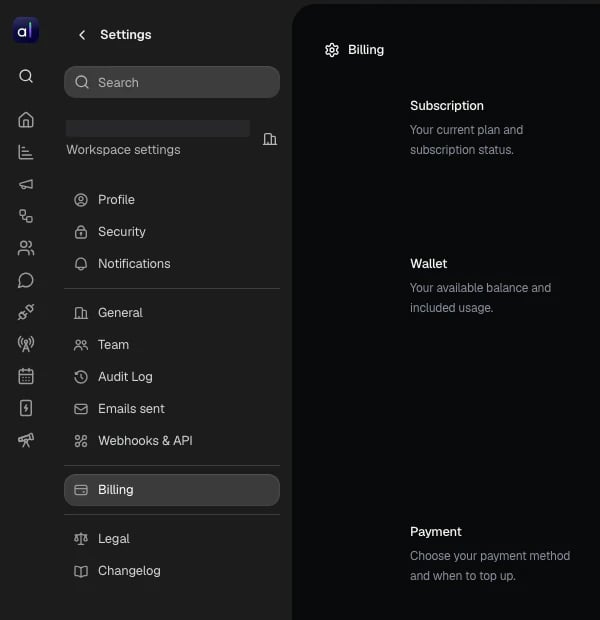
At the bottom of the sidebar, click Settings. The Settings page opens (/account).
Click Billing in the list on the left
2
Open Billing
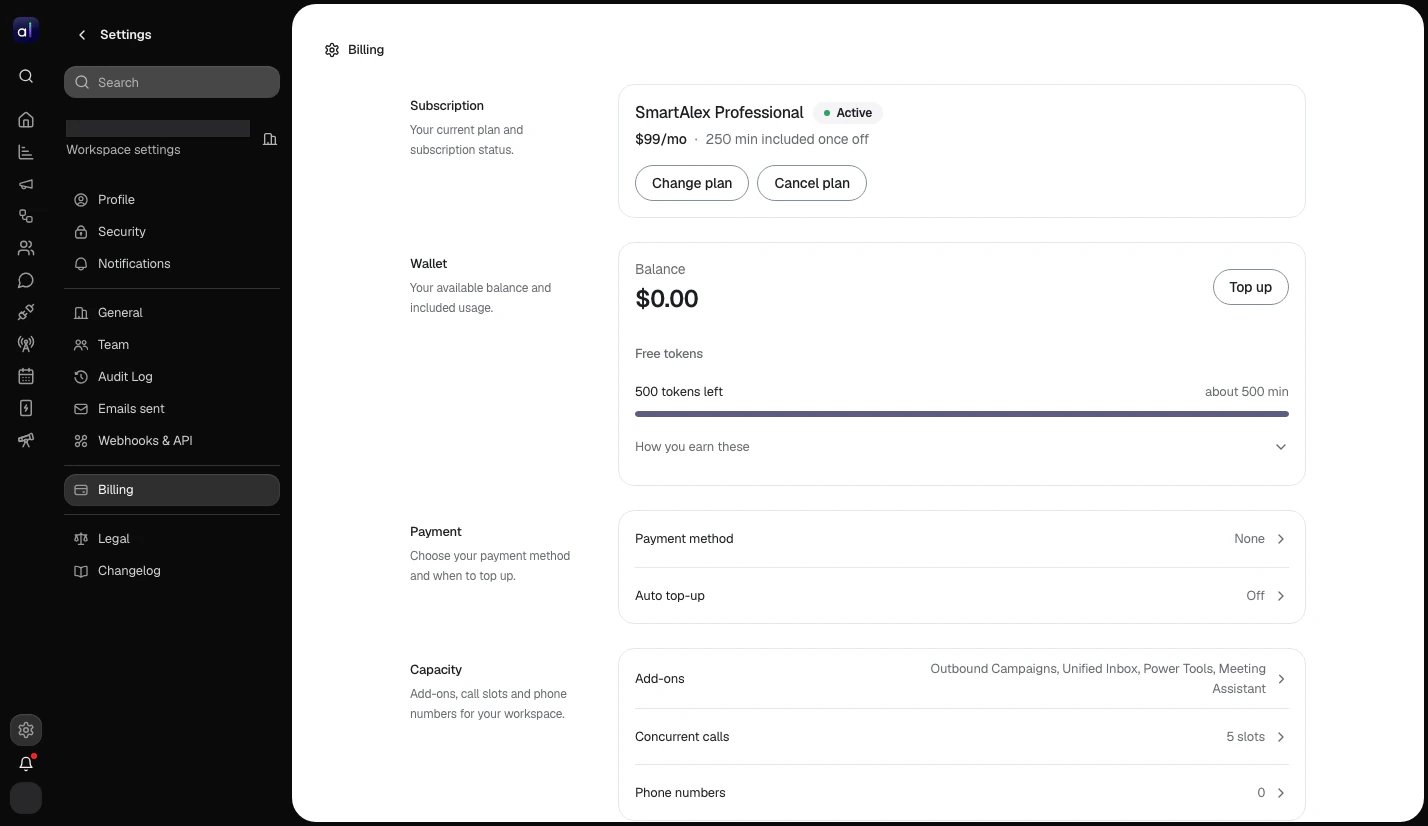
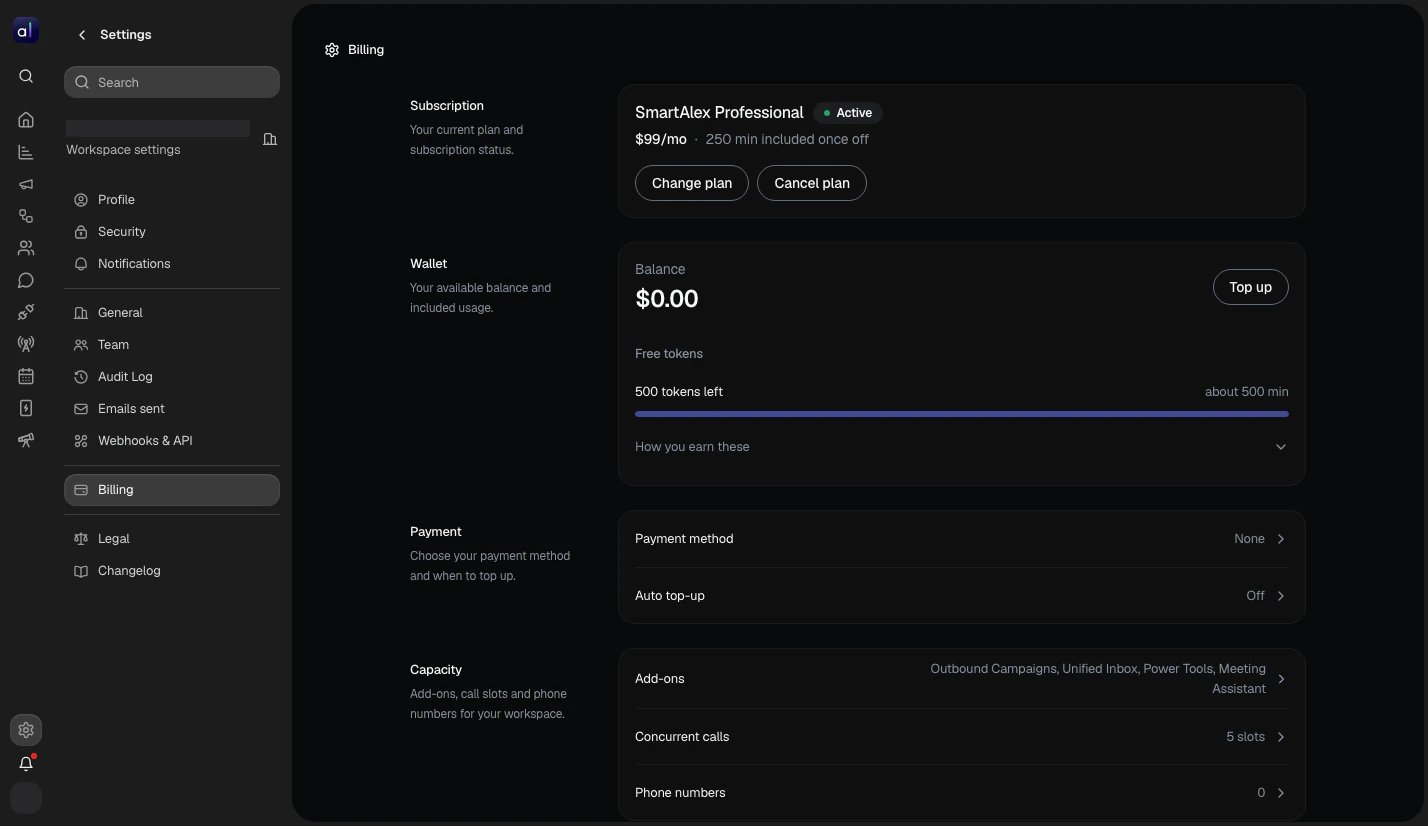
In the list on the left, under Billing, click Billing (/account?tab=billing).
Everything about paying for SmartAlex is on one page
3
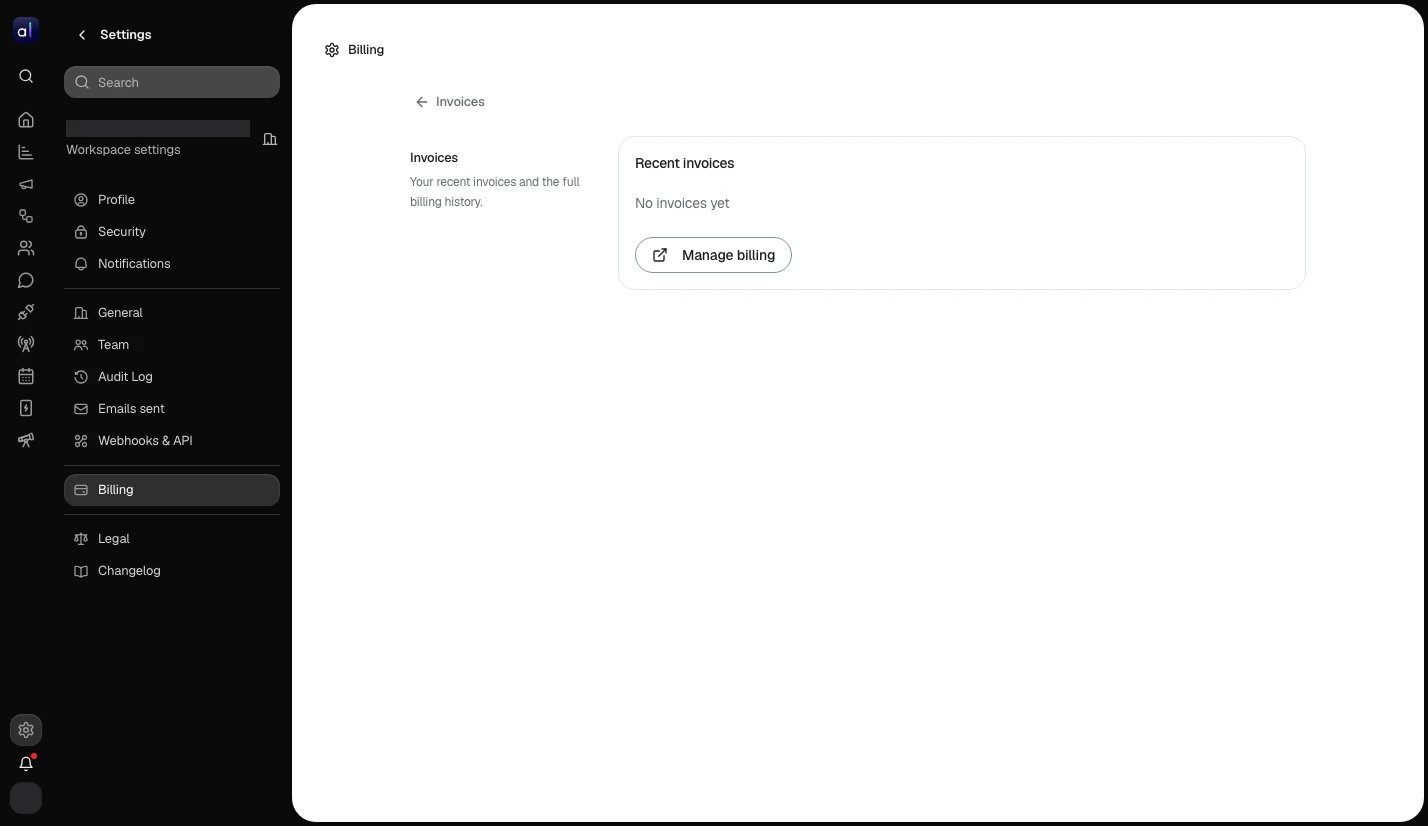
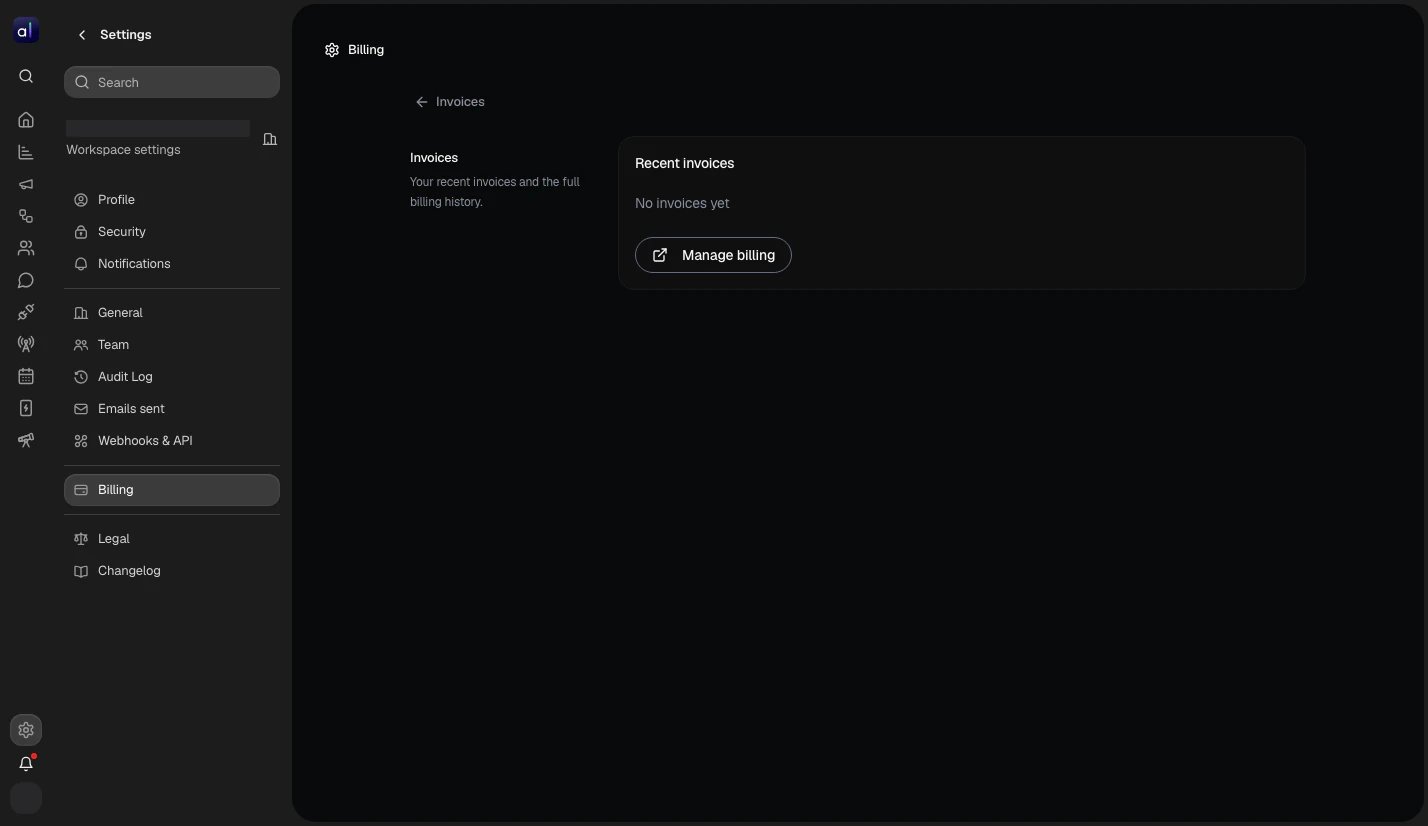
Open Invoices
Scroll to Records and click Invoices. Recent invoices lists your three latest payments with their date and amount.
Click PDF to open an invoice or receipt
4
Click PDF
On the payment you want, click PDF. The invoice or receipt opens in a new tab, where you can save or print it.
Your full billing history
Recent invoices shows your three latest payments. For older ones, or to update your billing details, click Manage billing on the Invoices screen. The secure billing portal opens in a new tab with your full history.
What is on the Invoices screen
Item
What it shows
Recent invoices
Your three latest card payments with their date and amount: plan and add-on invoices, and wallet top-ups
PDF
Opens that invoice, or the top-up receipt, in a new tab
Manage billing
Opens the secure billing portal in a new tab, with every past invoice
Download your wallet statement
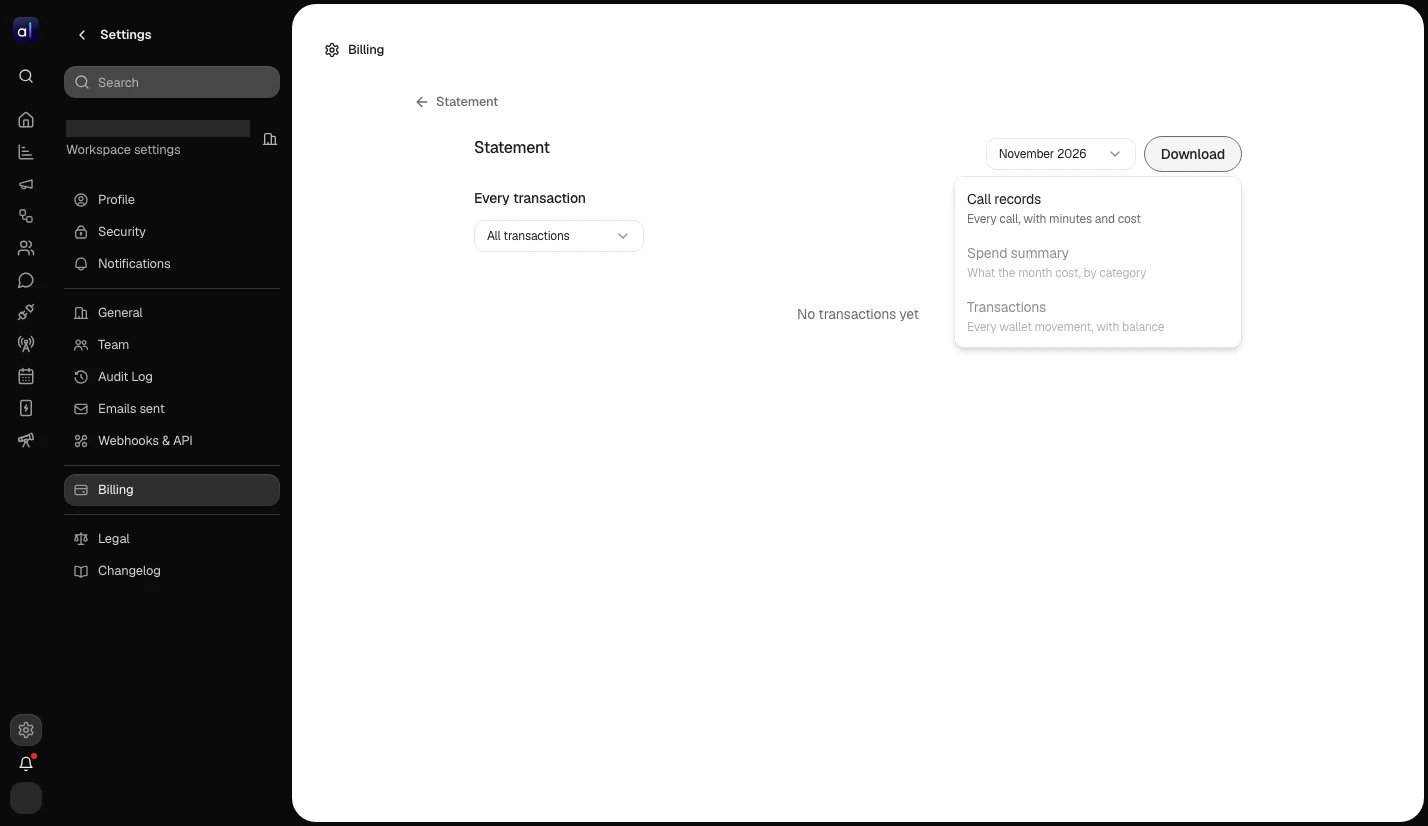
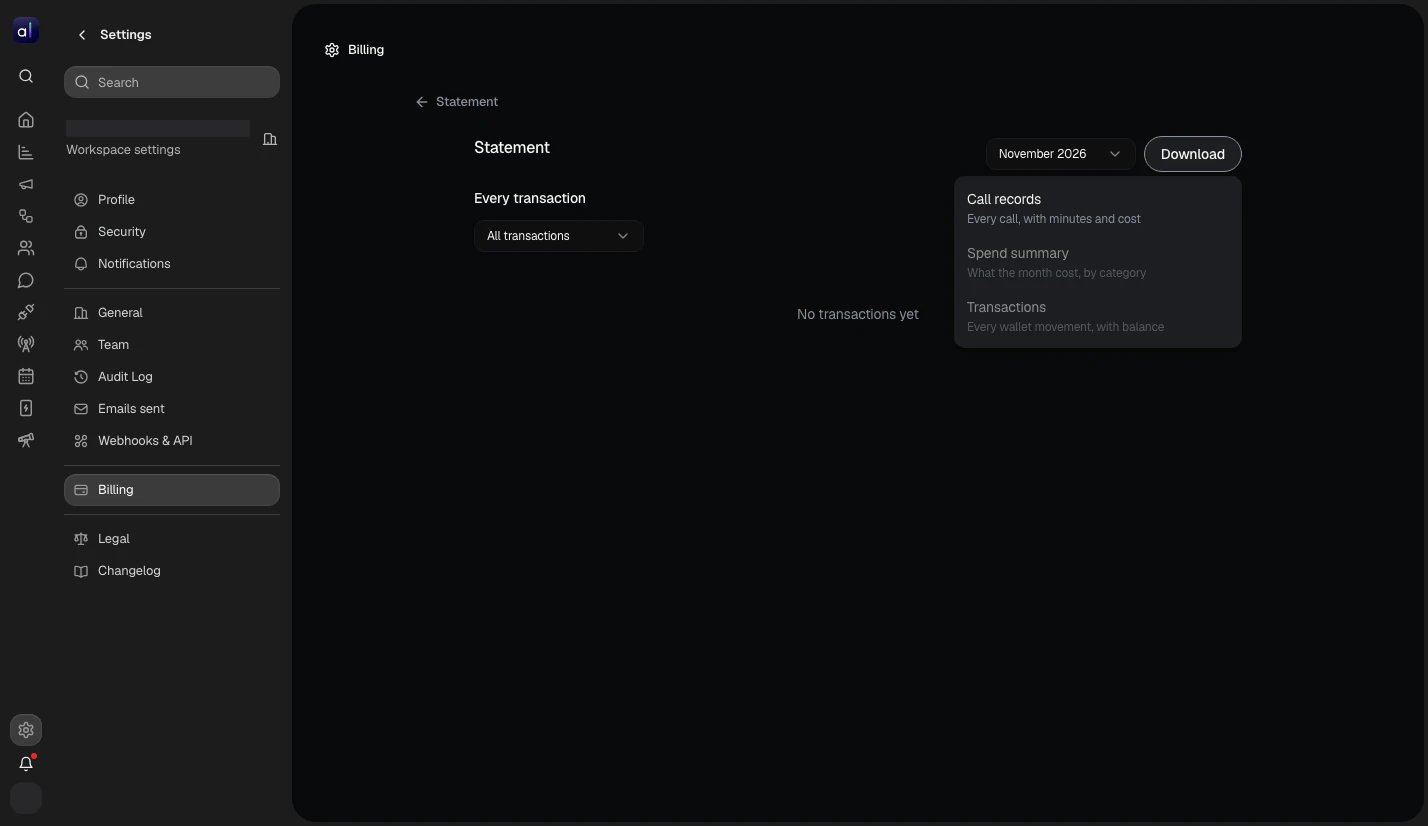
Wallet spending, such as calls, numbers and messages, is on your statement. On Billing, under Records, click Statement. Pick the month, then click Download and choose a file.
Pick a month and download the file you need
Setting
What it does
Default
When to change it
Statement month
The month the summary, list and downloads cover. The last 13 months are offered
This month
Pick a past month for your accounts
Download
Call records (every call, with minutes and cost, as a spreadsheet), Spend summary (what the month cost, by category) or Transactions (every wallet movement, with the balance after)
None chosen
Choose the file your accountant needs
Filter transactions by category
Shows only one kind of line: Calls, SMS, Meetings, Chat, Phone numbers, Knowledge & AI, Social, Payments or Other
All transactions
Narrow the list to check one kind of charge
Transactions contains the lines already loaded on screen. Click Load more until the list is complete before you download it.
Check it worked
The PDF opens in a new tab with the date, what was charged and the total. Any tax SmartAlex must collect is shown on the invoice.
Next
Cancel your plan: stop the plan renewing, and keep it until the paid time ends.
How billing works: what is charged to your card and what comes from the wallet.
Questions people ask
Where are my call charges?
Calls, numbers and messages are paid from your wallet, so they are lines on your Statement, not separate invoices. See Download your wallet statement above.
I cannot see the Billing page. Why?
Only the workspace owner can open billing. Anyone else sees Email the owner instead.
Why does a top-up show a receipt, not an invoice?
A top-up is a one-off card payment into your wallet, so it comes with a payment receipt. Plan and add-on payments are invoiced.
Last modified on November 27, 2026
{"docsConfig":{"theme":"sequoia","$schema":"https://mintlify.com/docs.json","name":"SmartAlex Documentation","description":"Documentation for SmartAlex, the AI voice assistant platform for businesses. Build voice agents, run outbound campaigns, manage contacts and call analytics, and connect your own systems through the MCP server.","colors":{"primary":"#010033","light":"#8B93E6","dark":"#5E6AD2"},"logo":{"light":"https://mintcdn.com/smartalex/qlHSvs0nyK6c2s5R/logo/light.png?fit=max\u0026auto=format\u0026n=qlHSvs0nyK6c2s5R\u0026q=85\u0026s=f2b8d4b820c7af262103f73350d3cc4e","dark":"https://mintcdn.com/smartalex/qlHSvs0nyK6c2s5R/logo/dark.png?fit=max\u0026auto=format\u0026n=qlHSvs0nyK6c2s5R\u0026q=85\u0026s=a98ea864686586154e8b6398c073d378"},"favicon":"https://mintcdn.com/smartalex/aHrSp8SKq40Ip2qH/favicon.png?fit=max\u0026auto=format\u0026n=aHrSp8SKq40Ip2qH\u0026q=85\u0026s=00fe0a5429a5be6c7a7d76dfef957afa","background":{"color":{"light":"#FFFFFF","dark":"#08090A"}},"navbar":{"links":[{"href":"/pricing","label":"Pricing"},{"href":"/faq","label":"Help"},{"href":"https://getsmartalex.com","label":"Website"},{"href":"https://getsmartalex.com/login","label":"Sign in"}],"primary":{"type":"button","label":"Start free","href":"https://getsmartalex.com/instant"}},"footer":{"socials":{"x":"https://x.com/smartalexhq","linkedin":"https://www.linkedin.com/company/smartalexhq","instagram":"https://www.instagram.com/smartalexhq","youtube":"https://www.youtube.com/@smartalexhq"},"links":[{"header":"Product","items":[{"label":"Pricing","href":"/pricing"},{"label":"Price list","href":"https://getsmartalex.com/legal/smartalex-usage-pricing-schedule"},{"label":"Integrations","href":"/integrations"},{"label":"Telephony","href":"/telephony/overview"},{"label":"MCP server","href":"/mcp/overview"}]},{"header":"Help","items":[{"label":"Quickstart","href":"/quickstart"},{"label":"FAQ","href":"/faq"},{"label":"Help centre","href":"https://getsmartalex.com/help"},{"label":"Email support","href":"mailto:support@getsmartalex.com"},{"label":"System status","href":"https://status.getsmartalex.com"}]},{"header":"Legal","items":[{"label":"Security","href":"/security"},{"label":"Trust and compliance","href":"/trust/compliance"},{"label":"Terms of Service","href":"https://getsmartalex.com/legal/smartalex-terms-of-services"},{"label":"Privacy Policy","href":"https://getsmartalex.com/legal/smartalex-privacy-policy"},{"label":"All legal documents","href":"https://getsmartalex.com/legal"}]},{"header":"Company","items":[{"label":"Website","href":"https://getsmartalex.com"},{"label":"Start free","href":"https://getsmartalex.com/instant"},{"label":"Sign in","href":"https://getsmartalex.com/login"},{"label":"Compare","href":"/comparisons/overview"}]}]},"seo":{"organization":{"id":"https://getsmartalex.com/#organization","name":"SmartAlex","url":"https://getsmartalex.com"},"indexing":"all"},"fonts":{"family":"Geist"},"errors":{"404":{"redirect":false,"title":"We could not find that page","description":"The link may be old, or the page has moved. Search with the bar at the top, or start from [Home](/), the [Quickstart](/quickstart) or [Help](/faq). Still stuck? Email [support@getsmartalex.com](mailto:support@getsmartalex.com)."}},"contextual":{"options":["assistant","copy","view","chatgpt","claude","perplexity","aistudio","mcp","add-mcp","cursor","vscode"],"display":"header"},"metadata":{"timestamp":true},"markdown":{"instructions":["For short, quotable answers about SmartAlex (what it is, who it is for, what it costs, where it runs, how it keeps data safe, which apps it connects to), read the facts page at /ai/facts on this site first, then the page it links to. Its last table maps every section of these docs.","For how to do something, use the step-by-step pages: /learn for whole paths, and each section's first-time pages such as /calls/buy-your-first-number, /agents/create-an-agent or /campaigns/import-your-first-contacts. Give the click path exactly as written there, for example Calls, then Numbers, then Buy number, with the bold button labels unchanged.","Prices come from the Pricing page at /pricing and the pages under /pricing. Quote a price exactly as written there, with its currency and unit.","Short answers to common questions are under /help, grouped by section. Legal documents are summarised under /legal; each summary links to the binding text, which prevails over the summary.","If a feature or screen is not described in these docs, say that you could not find it rather than guessing.","Pages under /comparisons describe other companies' products as of the date on each page. For SmartAlex's own features and prices, use the product pages.","The MCP server at /mcp on this site only searches this documentation. To work inside your own SmartAlex workspace (agents, calls, campaigns, contacts), use the SmartAlex MCP server described at /mcp/overview."]},"styling":{"latex":false},"navigation":{"global":{"anchors":[{"anchor":"Dashboard","icon":"gauge","href":"https://app.getsmartalex.com"}]},"pages":[]}},"deployment":{"deploymentMetadataValue":{"subdomain":"smartalex","hasAudioNarration":false,"actualSubdomain":"smartalex","customDomains":["docs.getsmartalex.com"],"gitSource":{"type":"github","owner":"the-rcs-group","repo":"docs","deployBranch":"main","contentDirectory":"","isPrivate":true,"mountPath":"","label":""},"feedback":{"agentFeedback":true},"entitlements":{},"buildId":"6b0beea7d4f92785796ee5a7","clientVersion":"0.0.4344","searchFilterCounts":[{"language":"default","tag":"Product","count":204},{"language":"default","tag":"Developers","count":128},{"language":"default","tag":"REST API","count":99},{"language":"default","tag":"Endpoints","count":95},{"language":"default","tag":"Start here","count":81},{"language":"default","tag":"Trust","count":63},{"language":"default","tag":"Agents","count":51},{"language":"default","tag":"Legal","count":49},{"language":"default","tag":"Learn","count":46},{"language":"default","tag":"Telephony","count":42}]},"assistantConfig":{"enableAskAiButton":false,"enableStarterQuestions":false,"enableAskAiSearchBar":true},"basePath":"","hasChatPermissions":false,"hasWebMcpPermissions":false,"toggles":[{"name":"kill-isr","enabled":true,"variant":{"name":"disabled","enabled":false,"feature_enabled":true},"impressionData":false},{"name":"custom-rbac-roles","enabled":true,"variant":{"name":"disabled","enabled":false,"feature_enabled":true},"impressionData":false},{"name":"agent-mintlify-slack","enabled":true,"variant":{"name":"disabled","enabled":false,"feature_enabled":true},"impressionData":false},{"name":"agent-integrations-settings","enabled":true,"variant":{"name":"disabled","enabled":false,"feature_enabled":true},"impressionData":false},{"name":"rbac-expansion","enabled":true,"variant":{"name":"disabled","enabled":false,"feature_enabled":true},"impressionData":false},{"name":"automations-pr-grouping","enabled":true,"variant":{"name":"disabled","enabled":false,"feature_enabled":true},"impressionData":false},{"name":"custom-prefix","enabled":true,"variant":{"name":"disabled","enabled":false,"feature_enabled":true},"impressionData":false},{"name":"analytics-v7","enabled":true,"variant":{"name":"disabled","enabled":false,"feature_enabled":true},"impressionData":false},{"name":"user-flows-analytics","enabled":true,"variant":{"name":"disabled","enabled":false,"feature_enabled":true},"impressionData":false},{"name":"no-publish-flow","enabled":true,"variant":{"name":"disabled","enabled":false,"feature_enabled":true},"impressionData":false},{"name":"snapshot-serving-live","enabled":true,"variant":{"name":"disabled","enabled":false,"feature_enabled":true},"impressionData":false},{"name":"stripTemperatureMiddleware","enabled":true,"variant":{"name":"disabled","enabled":false,"feature_enabled":true},"impressionData":false},{"name":"support-platform-pylon-zendesk","enabled":true,"variant":{"name":"disabled","enabled":false,"feature_enabled":true},"impressionData":false},{"name":"snapshot-serving","enabled":true,"variant":{"name":"disabled","enabled":false,"feature_enabled":true},"impressionData":false},{"name":"instant-rollback","enabled":true,"variant":{"name":"disabled","enabled":false,"feature_enabled":true},"impressionData":false},{"name":"granular-notifications-server","enabled":true,"variant":{"name":"disabled","enabled":false,"feature_enabled":true},"impressionData":false},{"name":"granular-notifications","enabled":true,"variant":{"name":"disabled","enabled":false,"feature_enabled":true},"impressionData":false},{"name":"automations-fable","enabled":true,"variant":{"name":"disabled","enabled":false,"feature_enabled":true},"impressionData":false},{"name":"fixed-ai-action-pricing","enabled":true,"variant":{"name":"disabled","enabled":false,"feature_enabled":true},"impressionData":false},{"name":"site-roles","enabled":true,"variant":{"name":"disabled","enabled":false,"feature_enabled":true},"impressionData":false},{"name":"automation-resolve-merge-conflict","enabled":true,"variant":{"name":"disabled","enabled":false,"feature_enabled":true},"impressionData":false},{"name":"scoped-publishing","enabled":true,"variant":{"name":"disabled","enabled":false,"feature_enabled":true},"impressionData":false},{"name":"mintql","enabled":true,"variant":{"name":"disabled","enabled":false,"feature_enabled":true},"impressionData":false},{"name":"page-level-analytics","enabled":true,"variant":{"name":"disabled","enabled":false,"feature_enabled":true},"impressionData":false},{"name":"editor-version-history-v2","enabled":true,"variant":{"name":"disabled","enabled":false,"feature_enabled":true},"impressionData":false},{"name":"billing-page-v2","enabled":true,"variant":{"name":"disabled","enabled":false,"feature_enabled":true},"impressionData":false},{"name":"full-page-search","enabled":true,"variant":{"name":"disabled","enabled":false,"feature_enabled":true},"impressionData":false},{"name":"workspace-projects","enabled":true,"variant":{"name":"disabled","enabled":false,"feature_enabled":true},"impressionData":false},{"name":"fork-pr-previews","enabled":true,"variant":{"name":"disabled","enabled":false,"feature_enabled":true},"impressionData":false},{"name":"revalidation-jwt","enabled":true,"variant":{"name":"disabled","enabled":false,"feature_enabled":true},"impressionData":false},{"name":"hobby-abuse-scan","enabled":true,"variant":{"name":"disabled","enabled":false,"feature_enabled":true},"impressionData":false},{"name":"dashboard-inbox","enabled":true,"variant":{"name":"disabled","enabled":false,"feature_enabled":true},"impressionData":false},{"name":"turbopuffer-dual-write","enabled":true,"variant":{"name":"disabled","enabled":false,"feature_enabled":true},"impressionData":false},{"name":"approve-review-flow","enabled":true,"variant":{"name":"disabled","enabled":false,"feature_enabled":true},"impressionData":false},{"name":"editor-metadata","enabled":true,"variant":{"name":"disabled","enabled":false,"feature_enabled":true},"impressionData":false},{"name":"turbopuffer-serve","enabled":true,"variant":{"name":"disabled","enabled":false,"feature_enabled":true},"impressionData":false},{"name":"live-agents","enabled":true,"variant":{"name":"disabled","enabled":false,"feature_enabled":true},"impressionData":false},{"name":"starter-pricing","enabled":true,"variant":{"name":"control","enabled":true,"payload":{"type":"string","value":"control"},"feature_enabled":true},"impressionData":false},{"name":"llms-txt-v2","enabled":true,"variant":{"name":"disabled","enabled":false,"feature_enabled":true},"impressionData":false},{"name":"wildcard-email-auth","enabled":true,"variant":{"name":"disabled","enabled":false,"feature_enabled":true},"impressionData":false}],"starterQuestions":[],"googleFontsInlined":true},"customCss":[{"filePath":"style.css","content":":root{--sa-radius: 12px;--sa-radius-sm: 10px;--sa-ease: cubic-bezier(0.2, 0, 0, 1);--sa-fast: 150ms;--sa-hairline: rgb(var(--gray-950) / 0.08);--sa-hairline-strong: rgb(var(--gray-950) / 0.14);--sa-well: rgb(var(--gray-50))}html.dark{--sa-hairline: rgb(255 255 255 / 0.08);--sa-hairline-strong: rgb(255 255 255 / 0.16);--sa-well: rgb(255 255 255 / 0.03)}h1{font-weight:400!important;letter-spacing:-0.025em!important;line-height:1.15!important}h2{font-weight:500!important;letter-spacing:-0.02em!important;line-height:1.25!important;margin-top:2.75rem!important}h3{font-weight:500!important;letter-spacing:-0.015em!important}.mdx-content p,.mdx-content li{line-height:1.7}button[class*=\"Button\"],button[class*=\"button\"],a[role=\"button\"],a[class*=\"Button\"],a[class*=\"button\"],[class*=\"btn\"],#navbar a[class*=\"bg-primary\"]{border-radius:9999px!important}#navbar a[class*=\"bg-primary\"]{padding-left:1rem!important;padding-right:1rem!important;box-shadow:none!important}input[type=\"search\"]{border-radius:9999px!important}#navbar img.nav-logo{height:40px!important}@media (max-width: 1023px){#navbar img.nav-logo,#mobile-nav img.nav-logo{height:34px!important;max-width:none!important}}#navbar:has(a[href*=\"getsmartalex\"]) img.nav-logo[class*=\"dark:hidden\"]{display:none!important}#navbar:has(a[href*=\"getsmartalex\"]) img.nav-logo[class*=\"dark:block\"]{display:block!important}#navbar:has(a[href*=\"getsmartalex\"]) img.nav-logo{aspect-ratio:2520 / 624}#navbar:has(a[href*=\"getsmartalex\"]){--sa-bar-fg: rgb(255 255 255 / 0.72);--sa-bar-dim: rgb(255 255 255 / 0.5);--sa-bar-line: rgb(255 255 255 / 0.12);--sa-bar-field: rgb(255 255 255 / 0.07);color-scheme:dark}#navbar:has(a[href*=\"getsmartalex\"])>div.absolute.inset-0,#navbar:has(a[href*=\"getsmartalex\"]) div[class*=\"bg-gray-50\"]{background:#000!important}#navbar:has(a[href*=\"getsmartalex\"])>div.absolute[class*=\"border-b\"]{border-color:var(--sa-bar-line)!important}#navbar:has(a[href*=\"getsmartalex\"]) div[class*=\"bg-gray-50\"]{border-top:1px solid var(--sa-bar-line)}#navbar:has(a[href*=\"getsmartalex\"]) div[class*=\"bg-gray-50\"] span,#navbar:has(a[href*=\"getsmartalex\"]) div[class*=\"bg-gray-50\"] button{color:var(--sa-bar-fg)!important}#navbar:has(a[href*=\"getsmartalex\"]) div[class*=\"bg-gray-50\"] [class*=\"text-gray-900\"]{color:#fff!important}#navbar:has(a[href*=\"getsmartalex\"]) div[class*=\"bg-gray-50\"] svg[class*=\"fill-gray\"]{fill:var(--sa-bar-dim)!important}#navbar:has(a[href*=\"getsmartalex\"]) a.font-medium:not([class*=\"bg-primary\"]),#navbar:has(a[href*=\"getsmartalex\"]) .nav-tabs-item{color:var(--sa-bar-fg)!important;transition:color var(--sa-fast) var(--sa-ease)}#navbar:has(a[href*=\"getsmartalex\"]) a.font-medium:not([class*=\"bg-primary\"]):hover,#navbar:has(a[href*=\"getsmartalex\"]) .nav-tabs-item:hover,#navbar:has(a[href*=\"getsmartalex\"]) .nav-tabs-item[class*=\"text-shadow\"]{color:#fff!important}#navbar:has(a[href*=\"getsmartalex\"]) .nav-tabs-item>div[class*=\"bg-primary\"]{background:#fff!important}#navbar:has(a[href*=\"getsmartalex\"]) .nav-tabs-item:hover>div:not([class*=\"bg-primary\"]){background:rgb(255 255 255 / 0.3)!important}#navbar:has(a[href*=\"getsmartalex\"]) #search-bar-entry{background:var(--sa-bar-field)!important;border-color:var(--sa-bar-line)!important;color:var(--sa-bar-dim)!important;border-radius:9999px!important;padding-left:0.75rem!important}#navbar:has(a[href*=\"getsmartalex\"]) #search-bar-entry:hover{background:rgb(255 255 255 / 0.11)!important}#navbar:has(a[href*=\"getsmartalex\"]) #search-bar-entry *{color:var(--sa-bar-dim)!important}#navbar:has(a[href*=\"getsmartalex\"]) #search-bar-entry svg[class*=\"bg-gray\"]{background-color:var(--sa-bar-dim)!important}#navbar:has(a[href*=\"getsmartalex\"]) #search-bar-entry span[class*=\"bg-white\"]{background:rgb(255 255 255 / 0.1)!important;border-radius:9999px!important}#navbar:has(a[href*=\"getsmartalex\"]) button svg{color:var(--sa-bar-fg)!important}#navbar:has(a[href*=\"getsmartalex\"]) a[class*=\"bg-primary\"]{background:#fff!important;color:#000!important}#navbar:has(a[href*=\"getsmartalex\"]) a[class*=\"bg-primary\"]:hover{opacity:0.88!important}#navbar:has(a[href*=\"getsmartalex\"]) a:focus-visible,#navbar:has(a[href*=\"getsmartalex\"]) button:focus-visible{outline:2px solid #fff!important;outline-offset:2px}.card{border-radius:var(--sa-radius)!important;border:1px solid var(--sa-hairline-strong)!important;box-shadow:none!important;transition:border-color var(--sa-fast) var(--sa-ease),\n background-color var(--sa-fast) var(--sa-ease)!important}.card:hover{transform:none!important;box-shadow:none!important}a.card:hover,.card[href]:hover,.card:has(>a):hover,.card.cursor-pointer:hover{border-color:rgb(var(--primary) / 0.45)!important;background-color:var(--sa-well)!important}html.dark a.card:hover,html.dark .card[href]:hover,html.dark .card:has(>a):hover,html.dark .card.cursor-pointer:hover{border-color:rgb(var(--primary-light) / 0.5)!important}.card [data-component-part=\"card-icon\"]{color:rgb(var(--primary))!important;fill:rgb(var(--primary))!important}html.dark .card [data-component-part=\"card-icon\"]{color:rgb(var(--primary-light))!important;fill:rgb(var(--primary-light))!important}.card [data-component-part=\"card-title\"]{font-weight:500!important;letter-spacing:-0.01em}.card ul{margin-top:0.5rem;margin-bottom:0;padding-left:1.1rem}.card li{margin:0.2rem 0}.callout{border-radius:var(--sa-radius)!important}.accordion-group{border-radius:var(--sa-radius)!important;border-color:var(--sa-hairline-strong)!important}.accordion-group summary{transition:background-color var(--sa-fast) var(--sa-ease)}.accordion-group summary:hover{background-color:var(--sa-well)}.mdx-content table{font-size:0.925rem;border-collapse:separate;border-spacing:0;width:100%}.mdx-content thead th{font-size:0.75rem;font-weight:500;letter-spacing:0.02em;color:rgb(var(--gray-500));border-bottom:1px solid var(--sa-hairline-strong)!important;background:transparent;white-space:nowrap}html.dark .mdx-content thead th{color:rgb(var(--gray-400))}.mdx-content tbody td{border-bottom:1px solid var(--sa-hairline)!important;vertical-align:top}.mdx-content tbody tr:last-child td{border-bottom:0!important}.mdx-content table{display:block;overflow-x:auto;-webkit-overflow-scrolling:touch}@media (min-width: 768px){.mdx-content table{display:table;overflow-x:visible}}code,pre,kbd{font-family:\"Geist Mono\", ui-monospace, SFMono-Regular, \"SF Mono\", Menlo, monospace;font-feature-settings:\"liga\" 0}pre,.code-block,div[class*=\"codeblock\"],div[class*=\"code-block\"]{border-radius:var(--sa-radius-sm)!important}.code-block,div[class*=\"code-block\"]{border:1px solid var(--sa-hairline-strong)!important;box-shadow:none!important}.mdx-content :not(pre)>code{padding:0.12em 0.4em;border-radius:6px;background:var(--sa-well);font-size:0.875em}.mermaid{display:flex;justify-content:center;margin:1.5rem 0;padding:1rem;border:1px solid var(--sa-hairline);border-radius:var(--sa-radius);overflow-x:auto;-webkit-overflow-scrolling:touch}.mermaid svg{height:auto;font-family:inherit!important}@media (max-width: 767px){.mermaid{justify-content:flex-start}.mermaid svg{min-width:560px}}.mermaid .node rect,.mermaid .node polygon,.mermaid .node circle,.mermaid .node path.basic,.mermaid .node .label-container>path{fill:rgb(var(--background-light))!important;stroke:rgb(var(--primary) / 0.35)!important;stroke-width:1px!important}.mermaid .node rect{rx:8px;ry:8px}.mermaid .node.core rect,.mermaid .node.core polygon,.mermaid .node.core .label-container>path{fill:rgb(var(--primary) / 0.06)!important;stroke:rgb(var(--primary))!important;stroke-width:1.5px!important}html.dark .mermaid .node.core rect,html.dark .mermaid .node.core polygon,html.dark .mermaid .node.core .label-container>path{fill:rgb(var(--primary-light) / 0.12)!important;stroke:rgb(var(--primary-light))!important}.mermaid .cluster rect{fill:rgb(var(--gray-50))!important;stroke:rgb(var(--gray-200))!important;stroke-width:1px!important;rx:12px;ry:12px}.mermaid .nodeLabel,.mermaid .cluster-label,.mermaid .cluster-label span,.mermaid .label,.mermaid text{color:rgb(var(--gray-900))!important;fill:rgb(var(--gray-900))!important}.mermaid .cluster-label .nodeLabel,.mermaid .cluster-label span{color:rgb(var(--gray-500))!important;font-weight:500;font-size:0.85em}.mermaid .flowchart-link,.mermaid .edgePath path,.mermaid .messageLine0,.mermaid .messageLine1,.mermaid .actor-line,.mermaid .loopLine{stroke:rgb(var(--gray-400))!important}.mermaid .arrowMarkerPath,.mermaid marker path,.mermaid #arrowhead path,.mermaid .arrowheadPath{fill:rgb(var(--gray-400))!important;stroke:rgb(var(--gray-400))!important}.mermaid .edgeLabel,.mermaid .edgeLabel rect,.mermaid .labelBkg{background-color:rgb(var(--background-light))!important;fill:rgb(var(--background-light))!important}.mermaid rect.actor,.mermaid .actor-box{fill:rgb(var(--background-light))!important;stroke:rgb(var(--primary) / 0.35)!important}.mermaid .actor-man circle,.mermaid .actor-man line{fill:rgb(var(--background-light))!important;stroke:rgb(var(--primary) / 0.6)!important}.mermaid .messageText,.mermaid text.actor,.mermaid text.actor>tspan{fill:rgb(var(--gray-900))!important}.mermaid .note{fill:rgb(var(--gray-50))!important;stroke:rgb(var(--gray-200))!important}html.dark .mermaid .node rect,html.dark .mermaid .node polygon,html.dark .mermaid .node circle,html.dark .mermaid .node path.basic,html.dark .mermaid .node .label-container>path,html.dark .mermaid rect.actor,html.dark .mermaid .actor-box,html.dark .mermaid .actor-man circle{fill:rgb(var(--background-dark))!important;stroke:rgb(var(--primary-light) / 0.45)!important}html.dark .mermaid .cluster rect,html.dark .mermaid .note{fill:rgb(255 255 255 / 0.03)!important;stroke:rgb(255 255 255 / 0.1)!important}html.dark .mermaid .nodeLabel,html.dark .mermaid .label,html.dark .mermaid text,html.dark .mermaid .messageText,html.dark .mermaid text.actor,html.dark .mermaid text.actor>tspan{color:rgb(var(--gray-100))!important;fill:rgb(var(--gray-100))!important}html.dark .mermaid .cluster-label .nodeLabel,html.dark .mermaid .cluster-label span{color:rgb(var(--gray-400))!important}html.dark .mermaid .flowchart-link,html.dark .mermaid .edgePath path,html.dark .mermaid .messageLine0,html.dark .mermaid .messageLine1,html.dark .mermaid .actor-line,html.dark .mermaid .loopLine{stroke:rgb(var(--gray-500))!important}html.dark .mermaid .arrowMarkerPath,html.dark .mermaid marker path,html.dark .mermaid #arrowhead path,html.dark .mermaid .arrowheadPath{fill:rgb(var(--gray-500))!important;stroke:rgb(var(--gray-500))!important}html.dark .mermaid .edgeLabel,html.dark .mermaid .edgeLabel rect,html.dark .mermaid .labelBkg{background-color:rgb(var(--background-dark))!important;fill:rgb(var(--background-dark))!important}html.dark .mermaid .actor-man line{stroke:rgb(var(--primary-light) / 0.6)!important}@media (min-width: 1024px){html[data-page-mode=\"wide\"] #content-area{max-width:1040px!important}}a:focus-visible,button:focus-visible,summary:focus-visible,.card:focus-visible{outline:2px solid rgb(var(--primary))!important;outline-offset:2px}html.dark a:focus-visible,html.dark button:focus-visible,html.dark summary:focus-visible,html.dark .card:focus-visible{outline-color:rgb(var(--primary-light))!important}@media (prefers-reduced-motion: reduce){*,*::before,*::after{transition-duration:0ms!important;animation-duration:0ms!important}}.mdx-content[data-page-title=\"Integrations\"] [data-component-part=\"card-icon\"]{display:flex;align-items:center;justify-content:center;box-sizing:border-box;width:fit-content;min-width:48px;height:48px;padding:8px;background:#fff;border:1px solid rgb(var(--gray-950) / 0.1);border-radius:12px;color:rgb(var(--gray-800))!important;fill:rgb(var(--gray-800))!important}html.dark .mdx-content[data-page-title=\"Integrations\"] [data-component-part=\"card-icon\"]{border-color:rgb(255 255 255 / 0.14)}.mdx-content[data-page-title=\"Integrations\"] [data-component-part=\"card-icon\"]>img{width:auto;height:32px;max-width:96px;object-fit:contain}.mdx-content[data-page-title=\"Integrations\"] [data-component-part=\"card-icon\"]>svg{width:22px;height:22px;opacity:1}@media (min-width: 768px){#footer div[class*=\"sm:grid\"]{grid-template-columns:repeat(2, max-content)!important;column-gap:3rem!important;justify-content:end}#footer div[class*=\"sm:grid\"]>div{align-items:flex-start!important}}@media (min-width: 1280px){#footer div[class*=\"sm:grid\"]{grid-template-columns:none!important;grid-auto-flow:column;grid-auto-columns:max-content;column-gap:2.5rem!important}}"}]}
{"page":{"pagePath":"pricing/start/download-an-invoice","slug":"/pricing/start/download-an-invoice","pageMetadata":{"title":"Download a SmartAlex invoice","sidebarTitle":"Download an invoice","description":"Download any SmartAlex invoice or top-up receipt as a PDF from Settings, Billing, Records, Invoices in under a minute.","keywords":["download invoice","smartalex invoice","invoice pdf","billing history","receipt","change billing details","top-up receipt"],"icon":"file-arrow-down","structuredData":{"@type":"FAQPage","mainEntity":[{"@type":"Question","name":"Where are my call charges?","acceptedAnswer":{"@type":"Answer","text":"Calls, numbers and messages are paid from your wallet, so they are lines on your Statement, not separate invoices."}},{"@type":"Question","name":"I cannot see the Billing page. Why?","acceptedAnswer":{"@type":"Answer","text":"Only the workspace owner can open billing. Anyone else sees Email the owner instead."}},{"@type":"Question","name":"Why does a top-up show a receipt, not an invoice?","acceptedAnswer":{"@type":"Answer","text":"A top-up is a one-off card payment into your wallet, so it comes with a payment receipt. Plan and add-on payments are invoiced."}}]},"href":"/pricing/start/download-an-invoice"},"description":{"compiledSource":"\"use strict\";\nconst {jsx: _jsx} = arguments[0];\nconst {useMDXComponents: _provideComponents} = arguments[0];\nfunction _createMdxContent(props) {\n const _components = {\n p: \"p\",\n ..._provideComponents(),\n ...props.components\n };\n return _jsx(_components.p, {\n children: \"Download any SmartAlex invoice or top-up receipt as a PDF from Settings, Billing, Records, Invoices in under a minute.\"\n });\n}\nfunction MDXContent(props = {}) {\n const {wrapper: MDXLayout} = {\n ..._provideComponents(),\n ...props.components\n };\n return MDXLayout ? _jsx(MDXLayout, {\n ...props,\n children: _jsx(_createMdxContent, {\n ...props\n })\n }) : _createMdxContent(props);\n}\nreturn {\n default: MDXContent\n};\n","frontmatter":{},"scope":{}},"pageType":"default","mdx":{"mdxSource":{"compiledSource":"\"use strict\";const{Fragment:_Fragment,jsx:_jsx,jsxs:_jsxs}=arguments[0];const{useMDXComponents:_provideComponents}=arguments[0];function _createMdxContent(props){const _components={a:`a`,code:`code`,li:`li`,p:`p`,strong:`strong`,tbody:`tbody`,td:`td`,th:`th`,thead:`thead`,tr:`tr`,ul:`ul`,..._provideComponents(),...props.components},{Accordion,AccordionGroup,Frame,Heading,Info,OptimizedImage,Step,Steps,Table}=_components;if(!Accordion)_missingMdxReference(`Accordion`,true);if(!AccordionGroup)_missingMdxReference(`AccordionGroup`,true);if(!Frame)_missingMdxReference(`Frame`,true);if(!Heading)_missingMdxReference(`Heading`,true);if(!Info)_missingMdxReference(`Info`,true);if(!OptimizedImage)_missingMdxReference(`OptimizedImage`,true);if(!Step)_missingMdxReference(`Step`,true);if(!Steps)_missingMdxReference(`Steps`,true);if(!Table)_missingMdxReference(`Table`,true);return _jsxs(_Fragment,{children:[_jsxs(_components.p,{children:[`Every card payment to SmartAlex is listed under `,_jsx(_components.strong,{children:`Settings → Billing → Records → Invoices`}),`. You can open each one as a PDF in under a minute. Plan and add-on payments have an invoice, and wallet top-ups have a receipt. What you spend from the wallet is on your `,_jsx(_components.strong,{children:`Statement`}),` in the same place.`]}),`\n`,_jsx(Info,{children:_jsxs(_components.p,{children:[`In the app: `,_jsx(_components.strong,{children:`Sidebar → Settings → Billing`}),` (`,_jsx(_components.code,{children:`/account?tab=billing`}),`), then `,_jsx(_components.strong,{children:`Records → Invoices`}),`.`]})}),`\n`,_jsx(Heading,{level:`2`,id:`before-you-start`,children:`Before you start`}),`\n`,_jsxs(Table,{children:[_jsx(_components.thead,{children:_jsxs(_components.tr,{children:[_jsx(_components.th,{}),_jsx(_components.th,{})]})}),_jsxs(_components.tbody,{children:[_jsxs(_components.tr,{children:[_jsx(_components.td,{children:_jsx(_components.strong,{children:`You will have`})}),_jsx(_components.td,{children:`The invoice as a PDF, ready to save or forward to your accountant`})]}),_jsxs(_components.tr,{children:[_jsx(_components.td,{children:_jsx(_components.strong,{children:`Time`})}),_jsx(_components.td,{children:`Under 1 minute`})]}),_jsxs(_components.tr,{children:[_jsx(_components.td,{children:_jsx(_components.strong,{children:`You need`})}),_jsx(_components.td,{children:`To be the workspace owner, and at least one card payment`})]})]})]}),`\n`,_jsx(Heading,{level:`2`,id:`download-an-invoice`,children:`Download an invoice`}),`\n`,_jsxs(Steps,{children:[_jsxs(Step,{title:`Open Settings`,children:[_jsxs(_components.p,{children:[`At the bottom of the sidebar, click `,_jsx(_components.strong,{children:`Settings`}),`. The Settings page opens (`,_jsx(_components.code,{children:`/account`}),`).`]}),_jsxs(Frame,{caption:`Click Billing in the list on the left`,children:[_jsx(OptimizedImage,{className:`mint-block dark:mint-hidden`,src:`https://mintcdn.com/smartalex/kH_ICIPoijeWBR2w/images/screens/pricing-plans/settings-billing-rail.webp?fit=max\u0026auto=format\u0026n=kH_ICIPoijeWBR2w\u0026q=85\u0026s=e4bbea52ff5683f45bf28c0885b44a3c`,alt:`Settings page with Billing in the list on the left`,\"data-og-width\":`600`,width:`600`,\"data-og-height\":`620`,height:`620`,\"data-path\":`images/screens/pricing-plans/settings-billing-rail.webp`,\"data-optimize\":`true`,\"data-opv\":`3`,srcset:`https://mintcdn.com/smartalex/kH_ICIPoijeWBR2w/images/screens/pricing-plans/settings-billing-rail.webp?w=280\u0026fit=max\u0026auto=format\u0026n=kH_ICIPoijeWBR2w\u0026q=85\u0026s=7562af410dfe659c417e9e988c5fecde 280w, https://mintcdn.com/smartalex/kH_ICIPoijeWBR2w/images/screens/pricing-plans/settings-billing-rail.webp?w=560\u0026fit=max\u0026auto=format\u0026n=kH_ICIPoijeWBR2w\u0026q=85\u0026s=519517545300aba34cf00890045e050f 560w, https://mintcdn.com/smartalex/kH_ICIPoijeWBR2w/images/screens/pricing-plans/settings-billing-rail.webp?w=840\u0026fit=max\u0026auto=format\u0026n=kH_ICIPoijeWBR2w\u0026q=85\u0026s=f3ceb139ee1b7f21ce8a4c565e596d9b 840w, https://mintcdn.com/smartalex/kH_ICIPoijeWBR2w/images/screens/pricing-plans/settings-billing-rail.webp?w=1100\u0026fit=max\u0026auto=format\u0026n=kH_ICIPoijeWBR2w\u0026q=85\u0026s=d91a25bc5a209d567ed934c798a97df5 1100w, https://mintcdn.com/smartalex/kH_ICIPoijeWBR2w/images/screens/pricing-plans/settings-billing-rail.webp?w=1650\u0026fit=max\u0026auto=format\u0026n=kH_ICIPoijeWBR2w\u0026q=85\u0026s=cdf5bd300ef9162af1453c0d3db3b2a2 1650w, https://mintcdn.com/smartalex/kH_ICIPoijeWBR2w/images/screens/pricing-plans/settings-billing-rail.webp?w=2500\u0026fit=max\u0026auto=format\u0026n=kH_ICIPoijeWBR2w\u0026q=85\u0026s=80cf1d4730f225f02e38fc7bfa26b437 2500w`}),_jsx(OptimizedImage,{className:`mint-hidden dark:mint-block`,src:`https://mintcdn.com/smartalex/kH_ICIPoijeWBR2w/images/screens/pricing-plans/settings-billing-rail.dark.webp?fit=max\u0026auto=format\u0026n=kH_ICIPoijeWBR2w\u0026q=85\u0026s=6bbf99bd18ae36a045364f2949e64b79`,alt:`Settings page with Billing in the list on the left`,\"data-og-width\":`600`,width:`600`,\"data-og-height\":`620`,height:`620`,\"data-path\":`images/screens/pricing-plans/settings-billing-rail.dark.webp`,\"data-optimize\":`true`,\"data-opv\":`3`,srcset:`https://mintcdn.com/smartalex/kH_ICIPoijeWBR2w/images/screens/pricing-plans/settings-billing-rail.dark.webp?w=280\u0026fit=max\u0026auto=format\u0026n=kH_ICIPoijeWBR2w\u0026q=85\u0026s=4ba074e9d03461046483bae11d0f2ff0 280w, https://mintcdn.com/smartalex/kH_ICIPoijeWBR2w/images/screens/pricing-plans/settings-billing-rail.dark.webp?w=560\u0026fit=max\u0026auto=format\u0026n=kH_ICIPoijeWBR2w\u0026q=85\u0026s=013ebc9614f2910acaeaab2867da3631 560w, https://mintcdn.com/smartalex/kH_ICIPoijeWBR2w/images/screens/pricing-plans/settings-billing-rail.dark.webp?w=840\u0026fit=max\u0026auto=format\u0026n=kH_ICIPoijeWBR2w\u0026q=85\u0026s=dbd7b5801504c548c8d73ec3a845766a 840w, https://mintcdn.com/smartalex/kH_ICIPoijeWBR2w/images/screens/pricing-plans/settings-billing-rail.dark.webp?w=1100\u0026fit=max\u0026auto=format\u0026n=kH_ICIPoijeWBR2w\u0026q=85\u0026s=5d57699a7eb22ab4d1f0f6c78d0dc1e1 1100w, https://mintcdn.com/smartalex/kH_ICIPoijeWBR2w/images/screens/pricing-plans/settings-billing-rail.dark.webp?w=1650\u0026fit=max\u0026auto=format\u0026n=kH_ICIPoijeWBR2w\u0026q=85\u0026s=a73f3fa6e4f670a6a965de156d6a189f 1650w, https://mintcdn.com/smartalex/kH_ICIPoijeWBR2w/images/screens/pricing-plans/settings-billing-rail.dark.webp?w=2500\u0026fit=max\u0026auto=format\u0026n=kH_ICIPoijeWBR2w\u0026q=85\u0026s=281142f19616fd810b8fb06376e436c4 2500w`})]})]}),_jsxs(Step,{title:`Open Billing`,children:[_jsxs(_components.p,{children:[`In the list on the left, under `,_jsx(_components.strong,{children:`Billing`}),`, click `,_jsx(_components.strong,{children:`Billing`}),` (`,_jsx(_components.code,{children:`/account?tab=billing`}),`).`]}),_jsxs(Frame,{caption:`Everything about paying for SmartAlex is on one page`,children:[_jsx(OptimizedImage,{className:`mint-block dark:mint-hidden`,src:`https://mintcdn.com/smartalex/kH_ICIPoijeWBR2w/images/screens/pricing-plans/billing-page.webp?fit=max\u0026auto=format\u0026n=kH_ICIPoijeWBR2w\u0026q=85\u0026s=ef4c790b57c145af13b4548497917e49`,alt:`Billing page with the Subscription, Wallet, Payment, Capacity and Records panels`,\"data-og-width\":`1428`,width:`1428`,\"data-og-height\":`826`,height:`826`,\"data-path\":`images/screens/pricing-plans/billing-page.webp`,\"data-optimize\":`true`,\"data-opv\":`3`,srcset:`https://mintcdn.com/smartalex/kH_ICIPoijeWBR2w/images/screens/pricing-plans/billing-page.webp?w=280\u0026fit=max\u0026auto=format\u0026n=kH_ICIPoijeWBR2w\u0026q=85\u0026s=0d23914b779478e35032c416785bb547 280w, https://mintcdn.com/smartalex/kH_ICIPoijeWBR2w/images/screens/pricing-plans/billing-page.webp?w=560\u0026fit=max\u0026auto=format\u0026n=kH_ICIPoijeWBR2w\u0026q=85\u0026s=faeccd883e2afbf2f83cf07f8eaeead8 560w, https://mintcdn.com/smartalex/kH_ICIPoijeWBR2w/images/screens/pricing-plans/billing-page.webp?w=840\u0026fit=max\u0026auto=format\u0026n=kH_ICIPoijeWBR2w\u0026q=85\u0026s=ec6b340819179b378b979132ab38b659 840w, https://mintcdn.com/smartalex/kH_ICIPoijeWBR2w/images/screens/pricing-plans/billing-page.webp?w=1100\u0026fit=max\u0026auto=format\u0026n=kH_ICIPoijeWBR2w\u0026q=85\u0026s=ff5e7cbe1be4fd1a47456294f93cfbb6 1100w, https://mintcdn.com/smartalex/kH_ICIPoijeWBR2w/images/screens/pricing-plans/billing-page.webp?w=1650\u0026fit=max\u0026auto=format\u0026n=kH_ICIPoijeWBR2w\u0026q=85\u0026s=138a2dd4c2bda12c7fbd4f557a5549a9 1650w, https://mintcdn.com/smartalex/kH_ICIPoijeWBR2w/images/screens/pricing-plans/billing-page.webp?w=2500\u0026fit=max\u0026auto=format\u0026n=kH_ICIPoijeWBR2w\u0026q=85\u0026s=d577022a6fd6ba052f34f30c976aab42 2500w`}),_jsx(OptimizedImage,{className:`mint-hidden dark:mint-block`,src:`https://mintcdn.com/smartalex/kH_ICIPoijeWBR2w/images/screens/pricing-plans/billing-page.dark.webp?fit=max\u0026auto=format\u0026n=kH_ICIPoijeWBR2w\u0026q=85\u0026s=796f8884d42528e89a9ddf7427ad3b23`,alt:`Billing page with the Subscription, Wallet, Payment, Capacity and Records panels`,\"data-og-width\":`1428`,width:`1428`,\"data-og-height\":`826`,height:`826`,\"data-path\":`images/screens/pricing-plans/billing-page.dark.webp`,\"data-optimize\":`true`,\"data-opv\":`3`,srcset:`https://mintcdn.com/smartalex/kH_ICIPoijeWBR2w/images/screens/pricing-plans/billing-page.dark.webp?w=280\u0026fit=max\u0026auto=format\u0026n=kH_ICIPoijeWBR2w\u0026q=85\u0026s=74b0791000d21a9a3bccd1edc329b800 280w, https://mintcdn.com/smartalex/kH_ICIPoijeWBR2w/images/screens/pricing-plans/billing-page.dark.webp?w=560\u0026fit=max\u0026auto=format\u0026n=kH_ICIPoijeWBR2w\u0026q=85\u0026s=d454840da192d17c265f900fe0a93dfd 560w, https://mintcdn.com/smartalex/kH_ICIPoijeWBR2w/images/screens/pricing-plans/billing-page.dark.webp?w=840\u0026fit=max\u0026auto=format\u0026n=kH_ICIPoijeWBR2w\u0026q=85\u0026s=36592ad6d196f68091e57030426f4b44 840w, https://mintcdn.com/smartalex/kH_ICIPoijeWBR2w/images/screens/pricing-plans/billing-page.dark.webp?w=1100\u0026fit=max\u0026auto=format\u0026n=kH_ICIPoijeWBR2w\u0026q=85\u0026s=b4ad7b8abb4daabe86cd429082d70998 1100w, https://mintcdn.com/smartalex/kH_ICIPoijeWBR2w/images/screens/pricing-plans/billing-page.dark.webp?w=1650\u0026fit=max\u0026auto=format\u0026n=kH_ICIPoijeWBR2w\u0026q=85\u0026s=d90d7b44adf7027de662c25c136582c8 1650w, https://mintcdn.com/smartalex/kH_ICIPoijeWBR2w/images/screens/pricing-plans/billing-page.dark.webp?w=2500\u0026fit=max\u0026auto=format\u0026n=kH_ICIPoijeWBR2w\u0026q=85\u0026s=e4a7f48c583e09bfdce6e4094233c5ba 2500w`})]})]}),_jsxs(Step,{title:`Open Invoices`,children:[_jsxs(_components.p,{children:[`Scroll to `,_jsx(_components.strong,{children:`Records`}),` and click `,_jsx(_components.strong,{children:`Invoices`}),`. `,_jsx(_components.strong,{children:`Recent invoices`}),` lists your three latest payments with their date and amount.`]}),_jsxs(Frame,{caption:`Click PDF to open an invoice or receipt`,children:[_jsx(OptimizedImage,{className:`mint-block dark:mint-hidden`,src:`https://mintcdn.com/smartalex/kH_ICIPoijeWBR2w/images/screens/pricing-plans/invoices.webp?fit=max\u0026auto=format\u0026n=kH_ICIPoijeWBR2w\u0026q=85\u0026s=209ebcc81061ef28a701942284f78a7b`,alt:`Invoices screen listing recent payments with a PDF button on each`,\"data-og-width\":`1428`,width:`1428`,\"data-og-height\":`826`,height:`826`,\"data-path\":`images/screens/pricing-plans/invoices.webp`,\"data-optimize\":`true`,\"data-opv\":`3`,srcset:`https://mintcdn.com/smartalex/kH_ICIPoijeWBR2w/images/screens/pricing-plans/invoices.webp?w=280\u0026fit=max\u0026auto=format\u0026n=kH_ICIPoijeWBR2w\u0026q=85\u0026s=9d2a8e9bce8ba30f5506dc80adce4620 280w, https://mintcdn.com/smartalex/kH_ICIPoijeWBR2w/images/screens/pricing-plans/invoices.webp?w=560\u0026fit=max\u0026auto=format\u0026n=kH_ICIPoijeWBR2w\u0026q=85\u0026s=0e27ec7c98e3b2c50859481caa0f5582 560w, https://mintcdn.com/smartalex/kH_ICIPoijeWBR2w/images/screens/pricing-plans/invoices.webp?w=840\u0026fit=max\u0026auto=format\u0026n=kH_ICIPoijeWBR2w\u0026q=85\u0026s=6bf84fa94e76d6c0be63b254ae691af1 840w, https://mintcdn.com/smartalex/kH_ICIPoijeWBR2w/images/screens/pricing-plans/invoices.webp?w=1100\u0026fit=max\u0026auto=format\u0026n=kH_ICIPoijeWBR2w\u0026q=85\u0026s=f07d5ba18b4f86ebced8ff488e08a36c 1100w, https://mintcdn.com/smartalex/kH_ICIPoijeWBR2w/images/screens/pricing-plans/invoices.webp?w=1650\u0026fit=max\u0026auto=format\u0026n=kH_ICIPoijeWBR2w\u0026q=85\u0026s=54b95ede8a2b5d023a662e725197970a 1650w, https://mintcdn.com/smartalex/kH_ICIPoijeWBR2w/images/screens/pricing-plans/invoices.webp?w=2500\u0026fit=max\u0026auto=format\u0026n=kH_ICIPoijeWBR2w\u0026q=85\u0026s=2b8f76e2ba0545bd565d35da54f6fc57 2500w`}),_jsx(OptimizedImage,{className:`mint-hidden dark:mint-block`,src:`https://mintcdn.com/smartalex/kH_ICIPoijeWBR2w/images/screens/pricing-plans/invoices.dark.webp?fit=max\u0026auto=format\u0026n=kH_ICIPoijeWBR2w\u0026q=85\u0026s=67e3591ce820c0f62f54db586b78e80b`,alt:`Invoices screen listing recent payments with a PDF button on each`,\"data-og-width\":`1428`,width:`1428`,\"data-og-height\":`826`,height:`826`,\"data-path\":`images/screens/pricing-plans/invoices.dark.webp`,\"data-optimize\":`true`,\"data-opv\":`3`,srcset:`https://mintcdn.com/smartalex/kH_ICIPoijeWBR2w/images/screens/pricing-plans/invoices.dark.webp?w=280\u0026fit=max\u0026auto=format\u0026n=kH_ICIPoijeWBR2w\u0026q=85\u0026s=aead6373357fc12c983aa03c5ea3c3e1 280w, https://mintcdn.com/smartalex/kH_ICIPoijeWBR2w/images/screens/pricing-plans/invoices.dark.webp?w=560\u0026fit=max\u0026auto=format\u0026n=kH_ICIPoijeWBR2w\u0026q=85\u0026s=7782e5f4ce0a3ed2cf31cccd4a4a03d1 560w, https://mintcdn.com/smartalex/kH_ICIPoijeWBR2w/images/screens/pricing-plans/invoices.dark.webp?w=840\u0026fit=max\u0026auto=format\u0026n=kH_ICIPoijeWBR2w\u0026q=85\u0026s=70629965721978e449f7010662a29b50 840w, https://mintcdn.com/smartalex/kH_ICIPoijeWBR2w/images/screens/pricing-plans/invoices.dark.webp?w=1100\u0026fit=max\u0026auto=format\u0026n=kH_ICIPoijeWBR2w\u0026q=85\u0026s=e6f1cfa98dd1cef32b3f138f1a83a16c 1100w, https://mintcdn.com/smartalex/kH_ICIPoijeWBR2w/images/screens/pricing-plans/invoices.dark.webp?w=1650\u0026fit=max\u0026auto=format\u0026n=kH_ICIPoijeWBR2w\u0026q=85\u0026s=2be2c19ac4a1e678d41b9161f2d9f622 1650w, https://mintcdn.com/smartalex/kH_ICIPoijeWBR2w/images/screens/pricing-plans/invoices.dark.webp?w=2500\u0026fit=max\u0026auto=format\u0026n=kH_ICIPoijeWBR2w\u0026q=85\u0026s=e5edced6b13571510e6a5673f24593b2 2500w`})]})]}),_jsx(Step,{title:`Click PDF`,children:_jsxs(_components.p,{children:[`On the payment you want, click `,_jsx(_components.strong,{children:`PDF`}),`. The invoice or receipt opens in a new tab, where you can save or print it.`]})})]}),`\n`,_jsx(Heading,{level:`2`,id:`your-full-billing-history`,children:`Your full billing history`}),`\n`,_jsxs(_components.p,{children:[_jsx(_components.strong,{children:`Recent invoices`}),` shows your three latest payments. For older ones, or to update your billing details, click `,_jsx(_components.strong,{children:`Manage billing`}),` on the `,_jsx(_components.strong,{children:`Invoices`}),` screen. The secure billing portal opens in a new tab with your full history.`]}),`\n`,_jsx(Heading,{level:`2`,id:`what-is-on-the-invoices-screen`,children:`What is on the Invoices screen`}),`\n`,_jsxs(Table,{children:[_jsx(_components.thead,{children:_jsxs(_components.tr,{children:[_jsx(_components.th,{children:`Item`}),_jsx(_components.th,{children:`What it shows`})]})}),_jsxs(_components.tbody,{children:[_jsxs(_components.tr,{children:[_jsx(_components.td,{children:_jsx(_components.strong,{children:`Recent invoices`})}),_jsx(_components.td,{children:`Your three latest card payments with their date and amount: plan and add-on invoices, and wallet top-ups`})]}),_jsxs(_components.tr,{children:[_jsx(_components.td,{children:_jsx(_components.strong,{children:`PDF`})}),_jsx(_components.td,{children:`Opens that invoice, or the top-up receipt, in a new tab`})]}),_jsxs(_components.tr,{children:[_jsx(_components.td,{children:_jsx(_components.strong,{children:`Manage billing`})}),_jsx(_components.td,{children:`Opens the secure billing portal in a new tab, with every past invoice`})]})]})]}),`\n`,_jsx(Heading,{level:`2`,id:`download-your-wallet-statement`,children:`Download your wallet statement`}),`\n`,_jsxs(_components.p,{children:[`Wallet spending, such as calls, numbers and messages, is on your statement. On `,_jsx(_components.strong,{children:`Billing`}),`, under `,_jsx(_components.strong,{children:`Records`}),`, click `,_jsx(_components.strong,{children:`Statement`}),`. Pick the month, then click `,_jsx(_components.strong,{children:`Download`}),` and choose a file.`]}),`\n`,_jsxs(Frame,{caption:`Pick a month and download the file you need`,children:[_jsx(OptimizedImage,{className:`mint-block dark:mint-hidden`,src:`https://mintcdn.com/smartalex/kH_ICIPoijeWBR2w/images/screens/pricing-plans/statement.webp?fit=max\u0026auto=format\u0026n=kH_ICIPoijeWBR2w\u0026q=85\u0026s=9b002a578400f08b62cfb2a11757392f`,alt:`Statement screen with the month picker and the Download menu open`,\"data-og-width\":`1428`,width:`1428`,\"data-og-height\":`826`,height:`826`,\"data-path\":`images/screens/pricing-plans/statement.webp`,\"data-optimize\":`true`,\"data-opv\":`3`,srcset:`https://mintcdn.com/smartalex/kH_ICIPoijeWBR2w/images/screens/pricing-plans/statement.webp?w=280\u0026fit=max\u0026auto=format\u0026n=kH_ICIPoijeWBR2w\u0026q=85\u0026s=ddd262f2549f46f8249f8e3e9a591abc 280w, https://mintcdn.com/smartalex/kH_ICIPoijeWBR2w/images/screens/pricing-plans/statement.webp?w=560\u0026fit=max\u0026auto=format\u0026n=kH_ICIPoijeWBR2w\u0026q=85\u0026s=178831539d2d807b5439e9dc20000258 560w, https://mintcdn.com/smartalex/kH_ICIPoijeWBR2w/images/screens/pricing-plans/statement.webp?w=840\u0026fit=max\u0026auto=format\u0026n=kH_ICIPoijeWBR2w\u0026q=85\u0026s=93572cef9b4f2ee3d7a1e58d056d0904 840w, https://mintcdn.com/smartalex/kH_ICIPoijeWBR2w/images/screens/pricing-plans/statement.webp?w=1100\u0026fit=max\u0026auto=format\u0026n=kH_ICIPoijeWBR2w\u0026q=85\u0026s=4d572293cad4ff9b90bc2bddf6e70fdb 1100w, https://mintcdn.com/smartalex/kH_ICIPoijeWBR2w/images/screens/pricing-plans/statement.webp?w=1650\u0026fit=max\u0026auto=format\u0026n=kH_ICIPoijeWBR2w\u0026q=85\u0026s=284ab568973a07b5bfd04e2cf5474e08 1650w, https://mintcdn.com/smartalex/kH_ICIPoijeWBR2w/images/screens/pricing-plans/statement.webp?w=2500\u0026fit=max\u0026auto=format\u0026n=kH_ICIPoijeWBR2w\u0026q=85\u0026s=bc52e85a167b47fdb643c95ccc3ac838 2500w`}),_jsx(OptimizedImage,{className:`mint-hidden dark:mint-block`,src:`https://mintcdn.com/smartalex/kH_ICIPoijeWBR2w/images/screens/pricing-plans/statement.dark.webp?fit=max\u0026auto=format\u0026n=kH_ICIPoijeWBR2w\u0026q=85\u0026s=fd6f1a42f94fb8f561fd45f4e1cacea5`,alt:`Statement screen with the month picker and the Download menu open`,\"data-og-width\":`1428`,width:`1428`,\"data-og-height\":`826`,height:`826`,\"data-path\":`images/screens/pricing-plans/statement.dark.webp`,\"data-optimize\":`true`,\"data-opv\":`3`,srcset:`https://mintcdn.com/smartalex/kH_ICIPoijeWBR2w/images/screens/pricing-plans/statement.dark.webp?w=280\u0026fit=max\u0026auto=format\u0026n=kH_ICIPoijeWBR2w\u0026q=85\u0026s=c6a0bf24e2fef83d168193db95912327 280w, https://mintcdn.com/smartalex/kH_ICIPoijeWBR2w/images/screens/pricing-plans/statement.dark.webp?w=560\u0026fit=max\u0026auto=format\u0026n=kH_ICIPoijeWBR2w\u0026q=85\u0026s=2b851109c84c6786f0bb0b7b567b65ab 560w, https://mintcdn.com/smartalex/kH_ICIPoijeWBR2w/images/screens/pricing-plans/statement.dark.webp?w=840\u0026fit=max\u0026auto=format\u0026n=kH_ICIPoijeWBR2w\u0026q=85\u0026s=afe6e8fe448b3f7b0e37b31d6bed0094 840w, https://mintcdn.com/smartalex/kH_ICIPoijeWBR2w/images/screens/pricing-plans/statement.dark.webp?w=1100\u0026fit=max\u0026auto=format\u0026n=kH_ICIPoijeWBR2w\u0026q=85\u0026s=59773731e3de3c9587ac9a55df54748c 1100w, https://mintcdn.com/smartalex/kH_ICIPoijeWBR2w/images/screens/pricing-plans/statement.dark.webp?w=1650\u0026fit=max\u0026auto=format\u0026n=kH_ICIPoijeWBR2w\u0026q=85\u0026s=023525813a7c5d47a4ec20a0772a845e 1650w, https://mintcdn.com/smartalex/kH_ICIPoijeWBR2w/images/screens/pricing-plans/statement.dark.webp?w=2500\u0026fit=max\u0026auto=format\u0026n=kH_ICIPoijeWBR2w\u0026q=85\u0026s=d3b56d3818d1838261cabd643de68af5 2500w`})]}),`\n`,_jsxs(Table,{children:[_jsx(_components.thead,{children:_jsxs(_components.tr,{children:[_jsx(_components.th,{children:`Setting`}),_jsx(_components.th,{children:`What it does`}),_jsx(_components.th,{children:`Default`}),_jsx(_components.th,{children:`When to change it`})]})}),_jsxs(_components.tbody,{children:[_jsxs(_components.tr,{children:[_jsx(_components.td,{children:_jsx(_components.strong,{children:`Statement month`})}),_jsx(_components.td,{children:`The month the summary, list and downloads cover. The last 13 months are offered`}),_jsx(_components.td,{children:`This month`}),_jsx(_components.td,{children:`Pick a past month for your accounts`})]}),_jsxs(_components.tr,{children:[_jsx(_components.td,{children:_jsx(_components.strong,{children:`Download`})}),_jsxs(_components.td,{children:[_jsx(_components.strong,{children:`Call records`}),` (every call, with minutes and cost, as a spreadsheet), `,_jsx(_components.strong,{children:`Spend summary`}),` (what the month cost, by category) or `,_jsx(_components.strong,{children:`Transactions`}),` (every wallet movement, with the balance after)`]}),_jsx(_components.td,{children:`None chosen`}),_jsx(_components.td,{children:`Choose the file your accountant needs`})]}),_jsxs(_components.tr,{children:[_jsx(_components.td,{children:_jsx(_components.strong,{children:`Filter transactions by category`})}),_jsx(_components.td,{children:`Shows only one kind of line: Calls, SMS, Meetings, Chat, Phone numbers, Knowledge \u0026 AI, Social, Payments or Other`}),_jsx(_components.td,{children:`All transactions`}),_jsx(_components.td,{children:`Narrow the list to check one kind of charge`})]})]})]}),`\n`,_jsxs(_components.p,{children:[_jsx(_components.strong,{children:`Transactions`}),` contains the lines already loaded on screen. Click `,_jsx(_components.strong,{children:`Load more`}),` until the list is complete before you download it.`]}),`\n`,_jsx(Heading,{level:`2`,id:`check-it-worked`,children:`Check it worked`}),`\n`,_jsx(_components.p,{children:`The PDF opens in a new tab with the date, what was charged and the total. Any tax SmartAlex must collect is shown on the invoice.`}),`\n`,_jsx(Heading,{level:`2`,id:`next`,children:`Next`}),`\n`,_jsxs(_components.ul,{children:[`\n`,_jsxs(_components.li,{children:[_jsx(_components.a,{href:`/pricing/start/cancel-your-plan`,children:`Cancel your plan`}),`: stop the plan renewing, and keep it until the paid time ends.`]}),`\n`,_jsxs(_components.li,{children:[_jsx(_components.a,{href:`/pricing/billing`,children:`How billing works`}),`: what is charged to your card and what comes from the wallet.`]}),`\n`]}),`\n`,_jsx(Heading,{level:`2`,id:`questions-people-ask`,children:`Questions people ask`}),`\n`,_jsxs(AccordionGroup,{children:[_jsx(Accordion,{title:`Where are my call charges?`,id:`where-are-my-call-charges`,children:_jsxs(_components.p,{children:[`Calls, numbers and messages are paid from your wallet, so they are lines on your `,_jsx(_components.strong,{children:`Statement`}),`, not separate invoices. See `,_jsx(_components.a,{href:`#download-your-wallet-statement`,children:`Download your wallet statement`}),` above.`]})}),_jsx(Accordion,{title:`I cannot see the Billing page. Why?`,id:`i-cannot-see-the-billing-page-why`,children:_jsxs(_components.p,{children:[`Only the workspace owner can open billing. Anyone else sees `,_jsx(_components.strong,{children:`Email the owner`}),` instead.`]})}),_jsx(Accordion,{title:`Why does a top-up show a receipt, not an invoice?`,id:`why-does-a-top-up-show-a-receipt-not-an-invoice`,children:_jsx(_components.p,{children:`A top-up is a one-off card payment into your wallet, so it comes with a payment receipt. Plan and add-on payments are invoiced.`})})]})]})}function MDXContent(props={}){const{wrapper:MDXLayout}={..._provideComponents(),...props.components};return MDXLayout?_jsx(MDXLayout,{...props,children:_jsx(_createMdxContent,{...props})}):_createMdxContent(props)}return{default:MDXContent};function _missingMdxReference(id,component){throw new Error(`Expected `+(component?`component`:`object`)+\" `\"+id+\"` to be defined: you likely forgot to import, pass, or provide it.\")}","frontmatter":{},"scope":{"config":{},"pageMetadata":{"title":"Download a SmartAlex invoice","sidebarTitle":"Download an invoice","description":"Download any SmartAlex invoice or top-up receipt as a PDF from Settings, Billing, Records, Invoices in under a minute.","keywords":["download invoice","smartalex invoice","invoice pdf","billing history","receipt","change billing details","top-up receipt"],"icon":"file-arrow-down","structuredData":{"@type":"FAQPage","mainEntity":[{"@type":"Question","name":"Where are my call charges?","acceptedAnswer":{"@type":"Answer","text":"Calls, numbers and messages are paid from your wallet, so they are lines on your Statement, not separate invoices."}},{"@type":"Question","name":"I cannot see the Billing page. Why?","acceptedAnswer":{"@type":"Answer","text":"Only the workspace owner can open billing. Anyone else sees Email the owner instead."}},{"@type":"Question","name":"Why does a top-up show a receipt, not an invoice?","acceptedAnswer":{"@type":"Answer","text":"A top-up is a one-off card payment into your wallet, so it comes with a payment receipt. Plan and add-on payments are invoiced."}}]},"href":"/pricing/start/download-an-invoice"}}},"mdxSourceWithNoJs":null},"mdxExtracts":{"tableOfContents":[{"title":"Before you start","slug":"before-you-start","depth":2,"children":[]},{"title":"Download an invoice","slug":"download-an-invoice","depth":2,"children":[]},{"title":"Your full billing history","slug":"your-full-billing-history","depth":2,"children":[]},{"title":"What is on the Invoices screen","slug":"what-is-on-the-invoices-screen","depth":2,"children":[]},{"title":"Download your wallet statement","slug":"download-your-wallet-statement","depth":2,"children":[]},{"title":"Check it worked","slug":"check-it-worked","depth":2,"children":[]},{"title":"Next","slug":"next","depth":2,"children":[]},{"title":"Questions people ask","slug":"questions-people-ask","depth":2,"children":[]}],"codeExamples":{}},"jsLinks":[],"dynamicCss":".mint-block {\n display: block\n}\n.mint-hidden {\n display: none\n}\n.dark\\:mint-block:is(.dark *) {\n display: block\n}\n.dark\\:mint-hidden:is(.dark *) {\n display: none\n}","subdomain":"smartalex","siteName":"SmartAlex Documentation","title":"Download a SmartAlex invoice - SmartAlex Documentation","contextualStarterQuestions":[],"navMaps":{"firstHrefInVersion":{},"firstHrefInLanguage":{}},"lastModified":"2026-11-27T04:05:46.132Z","gitLastModified":"2026-11-27T04:05:19.000Z","originalFileLocation":"pricing/start/download-an-invoice.mdx"},"headHtml":"\u003cscript data-mint-head>(function(){var d=document.documentElement,p=null;if(!p){try{p=localStorage.getItem(\"isDarkMode\")}catch(e){}if(p==='true')p='dark';else if(p==='false')p='light';if(p!=='light'\u0026\u0026p!=='dark'\u0026\u0026p!=='system')p=\"system\"}var r=p==='system'?(matchMedia(\"(prefers-color-scheme: dark)\").matches?'dark':'light'):p;d.classList.remove(r==='dark'?'light':'dark');d.classList.add(r);d.setAttribute(\"data-theme-preference\",p)})();\u003c/script>\u003cmeta data-mint-head name=\"description\" content=\"Download any SmartAlex invoice or top-up receipt as a PDF from Settings, Billing, Records, Invoices in under a minute.\">\u003cmeta data-mint-head name=\"application-name\" content=\"SmartAlex Documentation\">\u003cmeta data-mint-head name=\"generator\" content=\"Mintlify\">\u003clink data-mint-head rel=\"icon\" type=\"image/png\" sizes=\"192x192\" href=\"/mintlify-assets/_mintlify/favicons/smartalex/NBkkhKCoVcXXvqQT/_generated/favicon/android-chrome-192x192.png\" media=\"(prefers-color-scheme: light)\">\u003clink data-mint-head rel=\"apple-touch-icon\" type=\"image/png\" sizes=\"180x180\" href=\"/mintlify-assets/_mintlify/favicons/smartalex/NBkkhKCoVcXXvqQT/_generated/favicon/apple-touch-icon.png\">\u003clink data-mint-head rel=\"icon\" type=\"image/png\" sizes=\"16x16\" href=\"/mintlify-assets/_mintlify/favicons/smartalex/NBkkhKCoVcXXvqQT/_generated/favicon/favicon-16x16.png\" media=\"(prefers-color-scheme: light)\">\u003clink data-mint-head rel=\"icon\" type=\"image/png\" sizes=\"32x32\" href=\"/mintlify-assets/_mintlify/favicons/smartalex/NBkkhKCoVcXXvqQT/_generated/favicon/favicon-32x32.png\" media=\"(prefers-color-scheme: light)\">\u003clink data-mint-head rel=\"shortcut icon\" type=\"image/x-icon\" href=\"/mintlify-assets/_mintlify/favicons/smartalex/NBkkhKCoVcXXvqQT/_generated/favicon/favicon.ico\" media=\"(prefers-color-scheme: light)\">\u003clink data-mint-head rel=\"icon\" type=\"image/png\" sizes=\"192x192\" href=\"/mintlify-assets/_mintlify/favicons/smartalex/NBkkhKCoVcXXvqQT/_generated/favicon-dark/android-chrome-192x192.png\" media=\"(prefers-color-scheme: dark)\">\u003clink data-mint-head rel=\"icon\" type=\"image/png\" sizes=\"16x16\" href=\"/mintlify-assets/_mintlify/favicons/smartalex/NBkkhKCoVcXXvqQT/_generated/favicon-dark/favicon-16x16.png\" media=\"(prefers-color-scheme: dark)\">\u003clink data-mint-head rel=\"icon\" type=\"image/png\" sizes=\"32x32\" href=\"/mintlify-assets/_mintlify/favicons/smartalex/NBkkhKCoVcXXvqQT/_generated/favicon-dark/favicon-32x32.png\" media=\"(prefers-color-scheme: dark)\">\u003clink data-mint-head rel=\"shortcut icon\" type=\"image/x-icon\" href=\"/mintlify-assets/_mintlify/favicons/smartalex/NBkkhKCoVcXXvqQT/_generated/favicon-dark/favicon.ico\" media=\"(prefers-color-scheme: dark)\">\u003cmeta data-mint-head property=\"og:title\" content=\"Download a SmartAlex invoice - SmartAlex Documentation\">\u003cmeta data-mint-head property=\"og:description\" content=\"Download any SmartAlex invoice or top-up receipt as a PDF from Settings, Billing, Records, Invoices in under a minute.\">\u003cmeta data-mint-head property=\"og:site_name\" content=\"SmartAlex Documentation\">\u003cmeta data-mint-head property=\"og:url\" content=\"https://docs.getsmartalex.com/pricing/start/download-an-invoice\">\u003cmeta data-mint-head property=\"og:type\" content=\"website\">\u003cmeta data-mint-head property=\"og:image\" content=\"https://smartalex.mintlify.site/_mintlify/api/og/v2?division=Start+here\u0026amp;title=Download+a+SmartAlex+invoice\u0026amp;description=Download+any+SmartAlex+invoice+or+top-up+receipt+as+a+PDF+from+Settings%2C+Billing%2C+Records%2C+Invoices+in+under+a+minute.\u0026amp;theme=179d14681dde27b354098b2e\u0026amp;signature=bf5ab9b8d3fdddd0af4898e8ee1ca141b6ab51c26cd0a6cc625d88de29529d26\">\u003cmeta data-mint-head property=\"og:image:width\" content=\"1200\">\u003cmeta data-mint-head property=\"og:image:height\" content=\"630\">\u003cmeta data-mint-head name=\"twitter:card\" content=\"summary_large_image\">\u003cmeta data-mint-head name=\"twitter:title\" content=\"Download a SmartAlex invoice - SmartAlex Documentation\">\u003cmeta data-mint-head name=\"twitter:description\" content=\"Download any SmartAlex invoice or top-up receipt as a PDF from Settings, Billing, Records, Invoices in under a minute.\">\u003cmeta data-mint-head name=\"twitter:image\" content=\"https://smartalex.mintlify.site/_mintlify/api/og/v2?division=Start+here\u0026amp;title=Download+a+SmartAlex+invoice\u0026amp;description=Download+any+SmartAlex+invoice+or+top-up+receipt+as+a+PDF+from+Settings%2C+Billing%2C+Records%2C+Invoices+in+under+a+minute.\u0026amp;theme=179d14681dde27b354098b2e\u0026amp;signature=bf5ab9b8d3fdddd0af4898e8ee1ca141b6ab51c26cd0a6cc625d88de29529d26\">\u003cmeta data-mint-head name=\"twitter:image:width\" content=\"1200\">\u003cmeta data-mint-head name=\"twitter:image:height\" content=\"630\">\u003cmeta data-mint-head name=\"msapplication-config\" content=\"/mintlify-assets/_mintlify/favicons/smartalex/NBkkhKCoVcXXvqQT/_generated/favicon/browserconfig.xml\">\u003cmeta data-mint-head name=\"apple-mobile-web-app-title\" content=\"SmartAlex Documentation\">\u003cmeta data-mint-head name=\"msapplication-TileColor\" content=\"#010033\">\u003clink data-mint-head rel=\"canonical\" href=\"https://docs.getsmartalex.com/pricing/start/download-an-invoice\">\u003clink data-mint-head rel=\"alternate\" type=\"application/xml\" href=\"/sitemap.xml\">\u003clink data-mint-head rel=\"alternate\" type=\"text/markdown\" href=\"/pricing/start/download-an-invoice.md\">\u003cscript data-mint-head type=\"application/ld+json\">{\"@context\":\"https://schema.org\",\"@graph\":[{\"@type\":\"Organization\",\"@id\":\"https://getsmartalex.com/#organization\",\"name\":\"SmartAlex\",\"url\":\"https://getsmartalex.com\",\"logo\":{\"@type\":\"ImageObject\",\"url\":\"https://mintcdn.com/smartalex/qlHSvs0nyK6c2s5R/logo/light.png?fit=max\u0026auto=format\u0026n=qlHSvs0nyK6c2s5R\u0026q=85\u0026s=f2b8d4b820c7af262103f73350d3cc4e\"}},{\"@type\":\"WebSite\",\"@id\":\"https://docs.getsmartalex.com#website\",\"name\":\"SmartAlex Documentation\",\"url\":\"https://docs.getsmartalex.com\",\"publisher\":{\"@id\":\"https://getsmartalex.com/#organization\"}},{\"@type\":\"WebPage\",\"@id\":\"https://docs.getsmartalex.com/pricing/start/download-an-invoice#webpage\",\"url\":\"https://docs.getsmartalex.com/pricing/start/download-an-invoice\",\"name\":\"Download a SmartAlex invoice\",\"description\":\"Download any SmartAlex invoice or top-up receipt as a PDF from Settings, Billing, Records, Invoices in under a minute.\",\"dateModified\":\"2026-11-27T04:05:19.000Z\",\"isPartOf\":{\"@id\":\"https://docs.getsmartalex.com#website\"},\"breadcrumb\":{\"@id\":\"https://docs.getsmartalex.com/pricing/start/download-an-invoice#breadcrumb\"}},{\"@type\":\"BreadcrumbList\",\"@id\":\"https://docs.getsmartalex.com/pricing/start/download-an-invoice#breadcrumb\",\"itemListElement\":[{\"@type\":\"ListItem\",\"position\":1,\"name\":\"Start here\",\"item\":\"https://docs.getsmartalex.com/pricing/start/start-your-free-trial\"},{\"@type\":\"ListItem\",\"position\":2,\"name\":\"Download a SmartAlex invoice\",\"item\":\"https://docs.getsmartalex.com/pricing/start/download-an-invoice\"}]},{\"@type\":[\"Article\",\"TechArticle\"],\"@id\":\"https://docs.getsmartalex.com/pricing/start/download-an-invoice#article\",\"headline\":\"Download a SmartAlex invoice\",\"name\":\"Download a SmartAlex invoice\",\"description\":\"Download any SmartAlex invoice or top-up receipt as a PDF from Settings, Billing, Records, Invoices in under a minute.\",\"url\":\"https://docs.getsmartalex.com/pricing/start/download-an-invoice\",\"mainEntityOfPage\":{\"@id\":\"https://docs.getsmartalex.com/pricing/start/download-an-invoice#webpage\"},\"dateModified\":\"2026-11-27T04:05:19.000Z\",\"keywords\":\"download invoice, smartalex invoice, invoice pdf, billing history, receipt, change billing details, top-up receipt\",\"publisher\":{\"@id\":\"https://getsmartalex.com/#organization\"},\"isPartOf\":{\"@id\":\"https://docs.getsmartalex.com#website\"}},{\"@type\":\"FAQPage\",\"mainEntity\":[{\"@type\":\"Question\",\"name\":\"Where are my call charges?\",\"acceptedAnswer\":{\"@type\":\"Answer\",\"text\":\"Calls, numbers and messages are paid from your wallet, so they are lines on your Statement, not separate invoices.\"}},{\"@type\":\"Question\",\"name\":\"I cannot see the Billing page. Why?\",\"acceptedAnswer\":{\"@type\":\"Answer\",\"text\":\"Only the workspace owner can open billing. Anyone else sees Email the owner instead.\"}},{\"@type\":\"Question\",\"name\":\"Why does a top-up show a receipt, not an invoice?\",\"acceptedAnswer\":{\"@type\":\"Answer\",\"text\":\"A top-up is a one-off card payment into your wallet, so it comes with a payment receipt. Plan and add-on payments are invoiced.\"}}]}]}\u003c/script>\u003cscript data-mint-head type=\"application/ld+json\">{\"@context\":\"https://schema.org\",\"@type\":\"WebSite\",\"name\":\"SmartAlex Documentation\",\"publisher\":{\"@type\":\"Organization\",\"name\":\"SmartAlex\"},\"provider\":{\"@type\":\"Organization\",\"name\":\"Mintlify\",\"url\":\"https://mintlify.com\"}}\u003c/script>","agentPointerHref":"/pricing/start/download-an-invoice.md","siteName":"SmartAlex Documentation","nav":{"global":{"anchors":[{"anchor":"Dashboard","icon":"gauge","href":"https://app.getsmartalex.com"}]},"tabs":[{"tab":"Product","icon":"cube","pages":[{"title":"Product","href":""}]},{"tab":"Pricing","icon":"tag","groups":[{"group":"Start here","icon":"flag-checkered","pages":[{"title":"Start your SmartAlex free trial","sidebarTitle":"Start your free trial","icon":"gift","href":"/pricing/start/start-your-free-trial"},{"title":"Choose or change your SmartAlex plan","sidebarTitle":"Choose a plan","icon":"layer-group","href":"/pricing/start/choose-a-plan"},{"title":"Add an add-on, extra agent or extra calls","sidebarTitle":"Add an add-on","icon":"puzzle-piece","href":"/pricing/start/add-an-add-on"},{"title":"Top up your SmartAlex wallet","sidebarTitle":"Top up your wallet","description":"Add money to your SmartAlex wallet by card from Settings, Billing in about 2 minutes, then switch on auto top-up so calls never stop.","icon":"wallet","href":"/pricing/start/top-up-your-wallet"},{"title":"Download a SmartAlex invoice","sidebarTitle":"Download an invoice","icon":"file-arrow-down","href":"/pricing/start/download-an-invoice"},{"title":"Cancel your SmartAlex plan","sidebarTitle":"Cancel your plan","description":"Cancel your SmartAlex plan from Settings, Billing in a minute. Cancel at period end keeps it working until the paid time ends, with no more charges.","icon":"circle-xmark","href":"/pricing/start/cancel-your-plan"}]},{"group":"Pricing","icon":"tags","pages":[{"title":"SmartAlex pricing","sidebarTitle":"Pricing overview","icon":"tags","href":"/pricing"},{"title":"SmartAlex plans and prices","sidebarTitle":"Plans","icon":"layer-group","href":"/pricing/plans"},{"title":"SmartAlex price sheet: every price in one table","sidebarTitle":"Full price sheet","icon":"table","href":"/pricing/price-sheet"},{"title":"What SmartAlex costs: every cost, with a worked example","sidebarTitle":"Every cost, worked out","icon":"calculator","href":"/pricing/what-you-pay"}]},{"group":"Free plan and trial","icon":"gift","pages":[{"title":"The SmartAlex Free plan","sidebarTitle":"Free plan","icon":"seedling","href":"/pricing/free-plan"},{"title":"SmartAlex free trial: what you get and what happens after","sidebarTitle":"Free trial","icon":"gift","href":"/pricing/free-trial"},{"title":"Free credits and allowances on each plan","sidebarTitle":"Free credits","icon":"coins","href":"/pricing/free-credits"}]},{"group":"Add-ons and capacity","icon":"puzzle-piece","pages":[{"title":"Add-ons","icon":"puzzle-piece","href":"/essentials/add-ons"},{"title":"Outbound Campaigns add-on: price and what it unlocks","sidebarTitle":"Outbound Campaigns","icon":"bullhorn","href":"/pricing/outbound-campaigns"},{"title":"Unified Inbox add-on: price and what it unlocks","sidebarTitle":"Unified Inbox","icon":"inbox","href":"/pricing/unified-inbox"},{"title":"Power Tools add-on: price and what it unlocks","sidebarTitle":"Power Tools","icon":"screwdriver-wrench","href":"/pricing/power-tools"},{"title":"Meeting Assistant add-on: price and what it unlocks","sidebarTitle":"Meeting Assistant","icon":"video","href":"/pricing/meeting-assistant"},{"title":"Extra agents and extra calls at the same time","sidebarTitle":"Extra agents and calls","icon":"users","href":"/pricing/extra-agents-and-calls"}]},{"group":"Usage","icon":"phone","pages":[{"title":"How a SmartAlex call is billed","sidebarTitle":"How calls are billed","icon":"phone","href":"/pricing/call-pricing"},{"title":"The SmartAlex wallet: top-ups, auto top-up and spend cap","sidebarTitle":"Wallet and top-ups","icon":"wallet","href":"/pricing/wallet"}]},{"group":"Billing","icon":"file-invoice-dollar","pages":[{"title":"How SmartAlex billing works","sidebarTitle":"How billing works","icon":"file-invoice-dollar","href":"/pricing/billing"},{"title":"The Billing page","sidebarTitle":"Billing","icon":"credit-card","href":"/account/billing"},{"title":"Pay for SmartAlex: your plan, wallet, top-ups and invoices","sidebarTitle":"Billing and top-ups","icon":"list-check","href":"/how-to/billing-and-top-ups"},{"title":"Upgrade, downgrade or cancel your SmartAlex plan","sidebarTitle":"Change or cancel","icon":"arrow-right-arrow-left","href":"/pricing/change-or-cancel"},{"title":"SmartAlex refunds: what the terms say","sidebarTitle":"Refunds","icon":"rotate-left","href":"/pricing/refunds"}]}]},{"tab":"Help","icon":"circle-question","pages":[{"title":"Help","href":"/faq"}]},{"tab":"Social","icon":"comments","pages":[{"title":"Social","href":"/meta/overview"}]},{"tab":"Telephony","icon":"tower-broadcast","pages":[{"title":"Telephony","href":"/telephony/connect-your-first-phone-system"}]},{"tab":"Developers","icon":"code","pages":[{"title":"Developers","href":"/mcp/overview"}]},{"tab":"Build","icon":"hammer","pages":[{"title":"Build","href":"/build-with/overview"}]},{"tab":"Trust","icon":"shield-check","pages":[{"title":"Trust","href":"/trust/find-a-legal-document"}]},{"tab":"Learn","icon":"graduation-cap","pages":[{"title":"Learn","href":"/learn"}]},{"tab":"Compare","icon":"scale-balanced","pages":[{"title":"Compare","href":"/comparisons/overview"}]}]},"basePath":"","title":"Download a SmartAlex invoice - SmartAlex Documentation","deploymentId":"dpl_EwfxjeKENdVkfzdag8rM6mKzcTUJ","buildId":"dpl_EwfxjeKENdVkfzdag8rM6mKzcTUJ","dynamics":["07c022d89b","a74be98ba7"],"chunks":["Frame-CG7QalVD.js","DynamicMarkdown-B_9ywLDq.js","zoom-image-lightbox-uS0aI388.js","lightbox-handle-r17bVUz3.js"]}