

In the app: Settings → Workspace → General (/account?tab=workspace). The tabs at the top are General, Your workspaces and, for owners and admins, Domains.
What is on the General tab
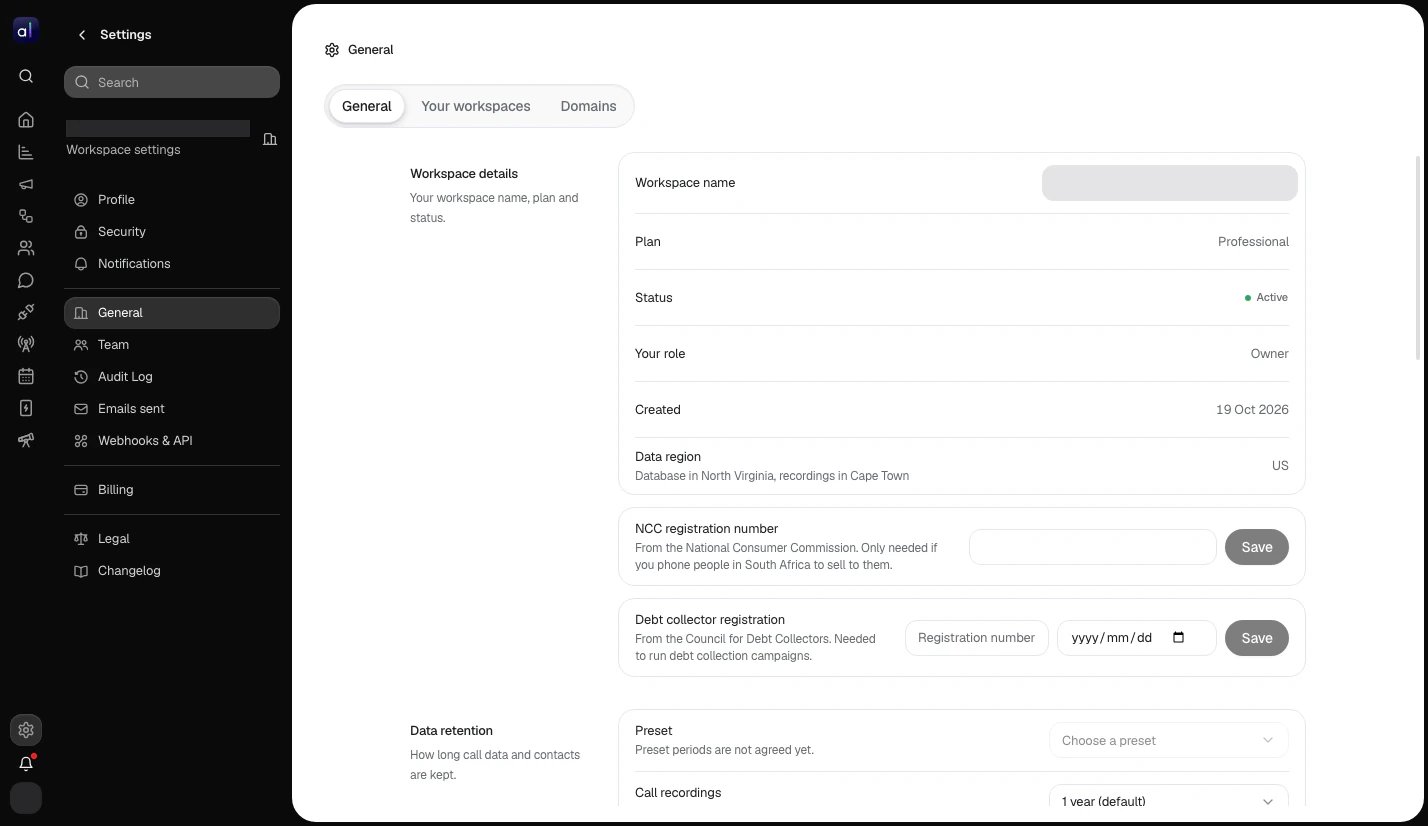
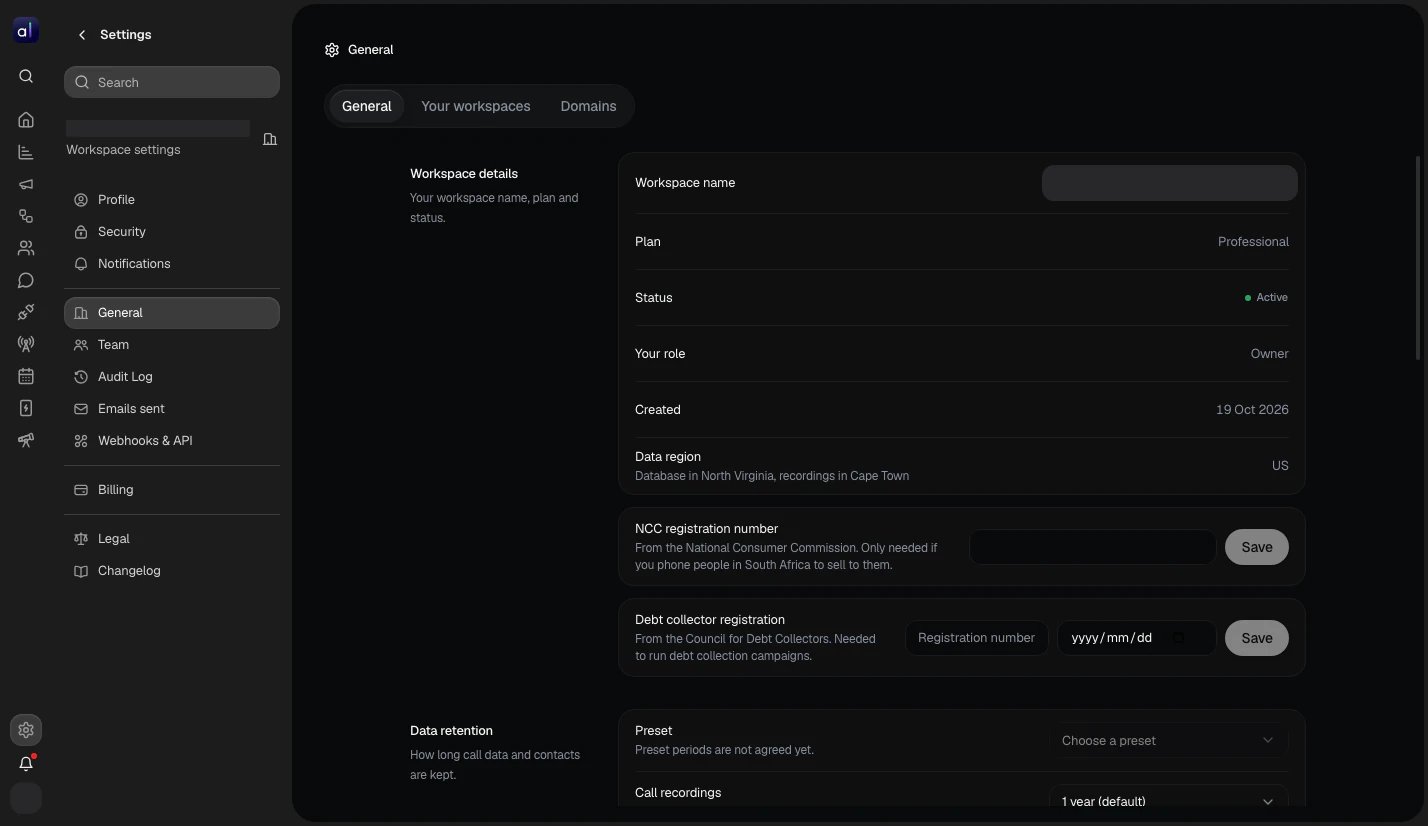
Settings, Workspace, General
Every setting on the General tab
Settings on the General tab, in screen order:
Choices for each data period run from 30 days to 5 years.
Rename your workspace
Owners only. Click the Workspace name, type the new name and press Save changes (or Enter). Everyone in the workspace sees the new name, including in invitations.Registration numbers
- NCC registration number: “From the National Consumer Commission. Only needed if you phone people in South Africa to sell to them.” Type it and press Save.
- Debt collector registration: “From the Council for Debt Collectors. Needed to run debt collection campaigns.” Add the number and its expiry date. If it expires, debt collection campaigns cannot start until you add the current one.
Data retention
“How long call data and contacts are kept.” Choose a period for each kind of data.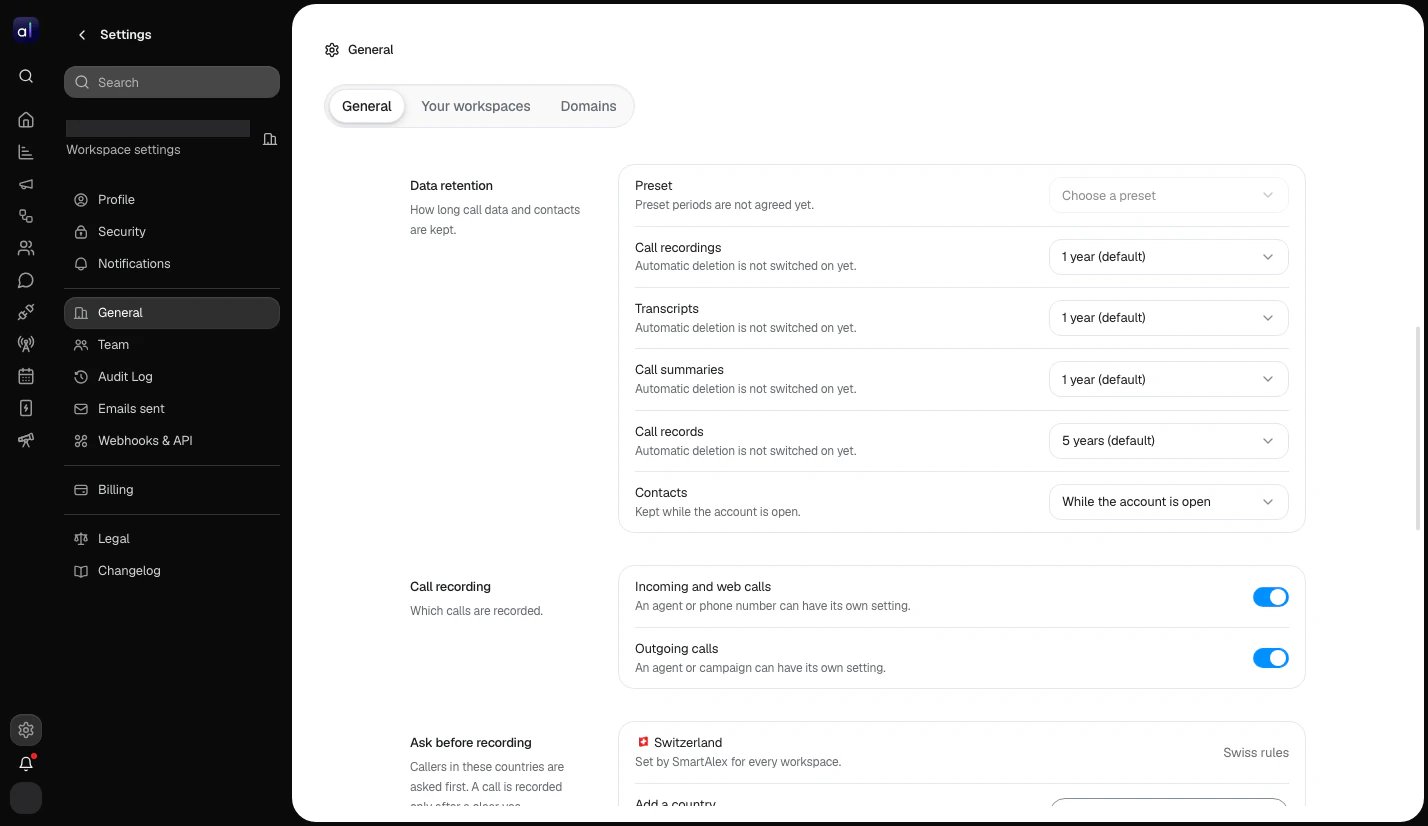
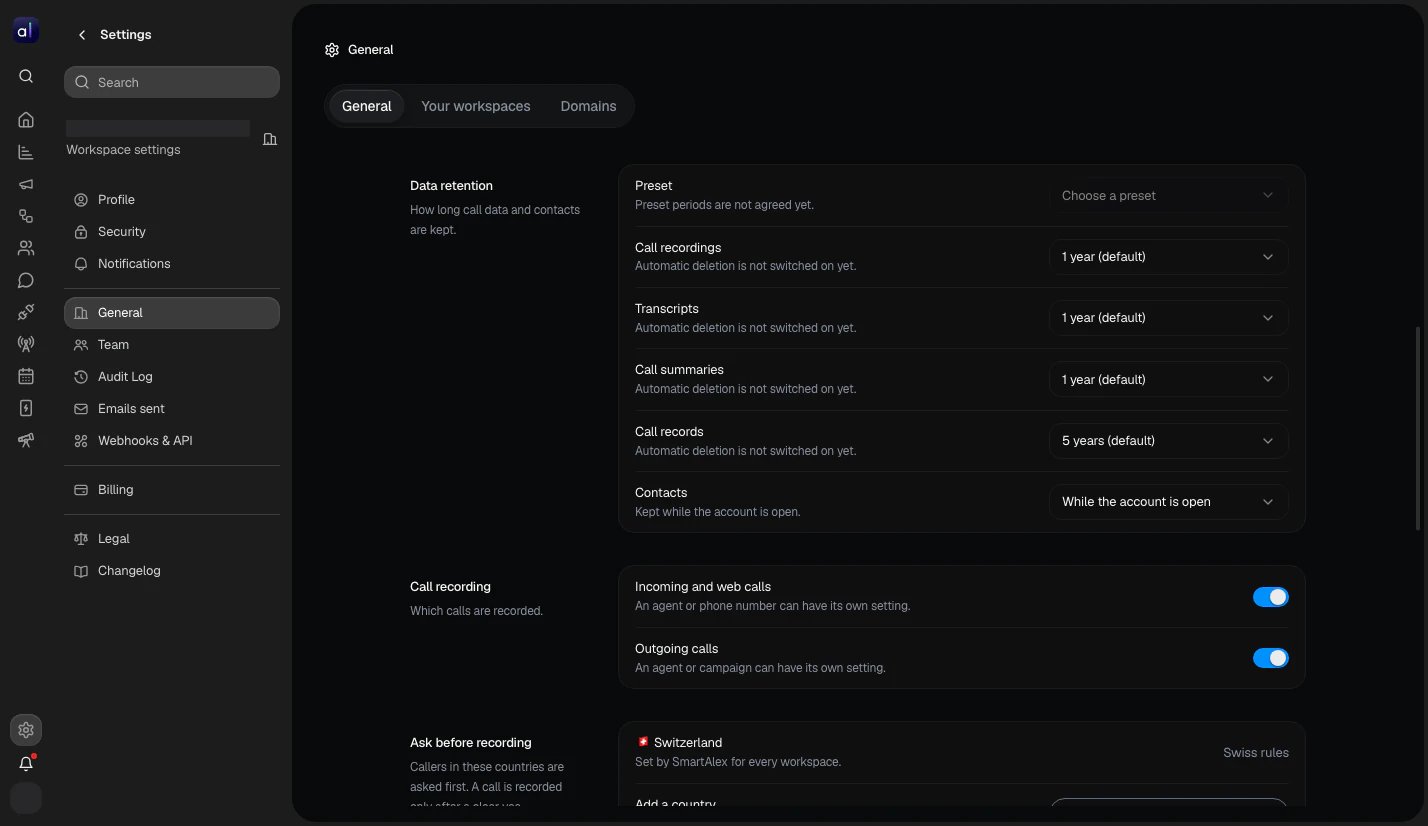
Choose how long data is kept
What people are told
With either off, agents still say they are an AI whenever someone asks.
Benchmarks
Count this workspace in benchmarks: “Only counts and rates, never recordings, transcripts or wording. Workspaces with SmartAlex staff access off are left out. A figure needs five or more workspaces before any customer sees it.”Subprocessor changes
The owner’s email is always on the list. Under Add an address, add up to five more, such as a privacy or legal contact. The panel says: “We email these addresses when we add a provider that handles your data, with 30 days to object.”Your workspaces and Domains
- Your workspaces lists every workspace you belong to, with Your role, and lets you switch or Add workspace. See Workspaces and Create a new workspace.
- Domains (owners and admins) lists the email domains your agents send from, with their DNS checks, and your Email signature. See Email inbox.
Questions people ask
Why can't I change these settings?
Why can't I change these settings?
Members and viewers can read them only. Ask an owner or admin. Security and access and the workspace name are for the owner alone.
Where is my data stored?
Where is my data stored?
Data region under Workspace details shows where. See Security architecture.
Where do I save my company registration number?
Where do I save my company registration number?
Your NCC registration number goes in Settings → General, under NCC registration number. For the business check that lets your numbers make calls, your company registration number and registration document go in Calls → Verification.
Why can't I save my registration number?
Why can't I save my registration number?
Only owners and admins can save it, and it can be up to 64 characters. If it still does not save, contact our support team.
Do I need an NCC registration number?
Do I need an NCC registration number?
Only if you phone people in South Africa to sell to them. Add it so your campaigns can show it.
How do I choose how long recordings are kept?
How do I choose how long recordings are kept?
Set a period for Call recordings under Data retention. The note under the row says what the setting does and whether automatic deletion is on for your workspace.
Related
Workspace security
The owner’s Security and access switches.
Workspaces
Switch and add workspaces.
Recordings and transcripts
How recordings work on your calls.
Settings overview
Every section of Settings.