

In the app: Settings → Workspace → General, panel Security and access (owner only). Its subtitle reads: “How people sign in, who can listen to calls or open this workspace, and who approves agent changes.”
The switches
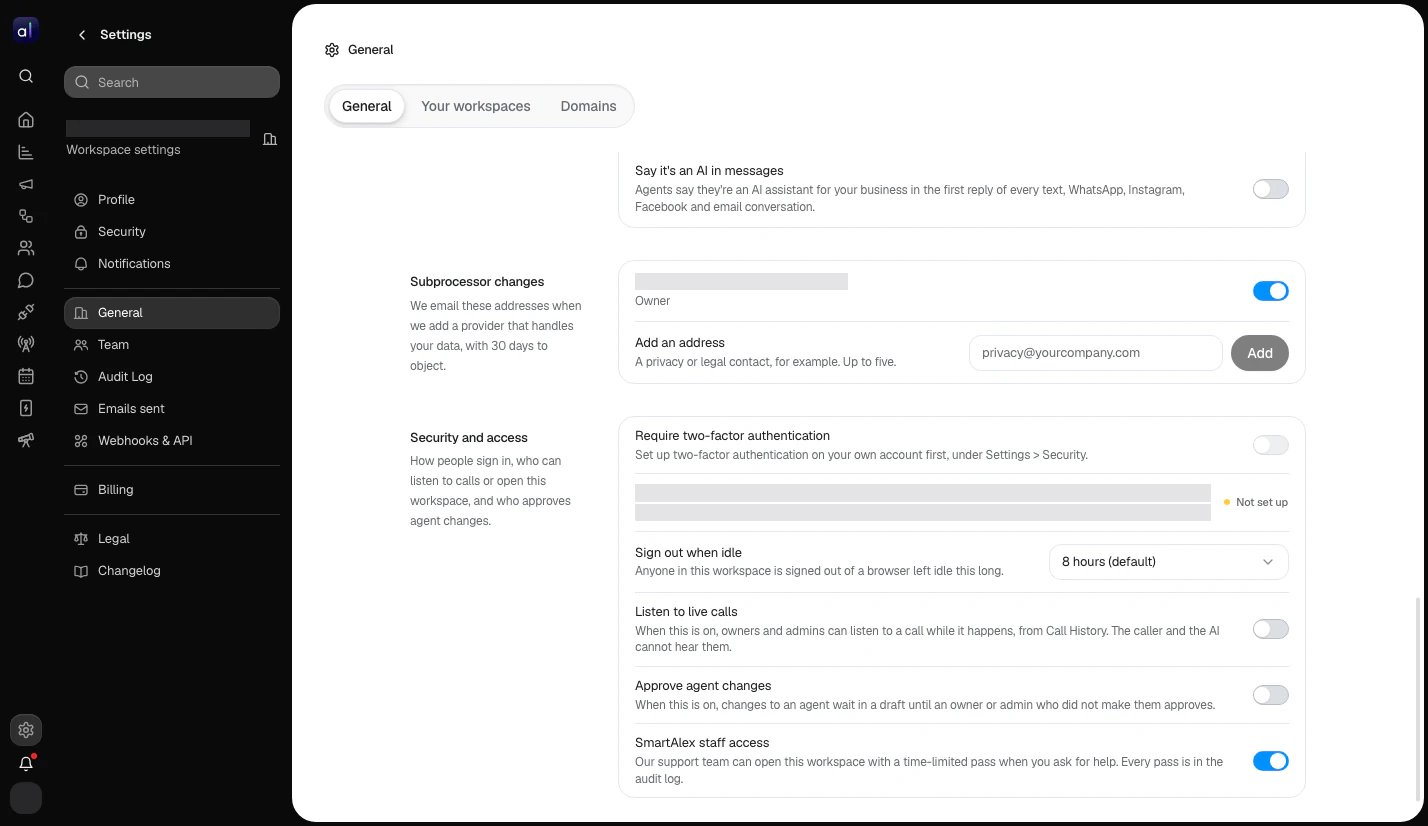
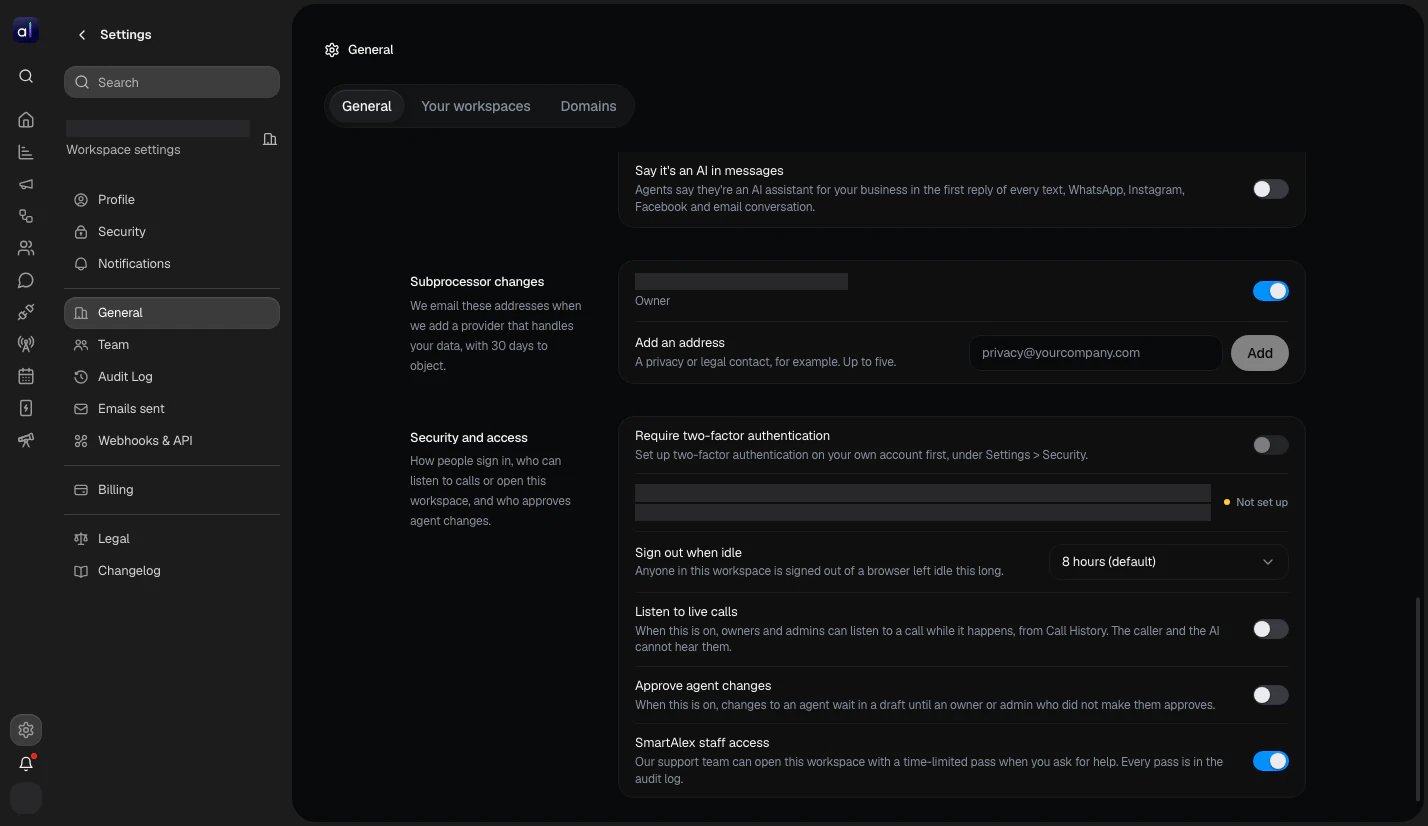
The owner's security switches
Require two-factor authentication
1
Set it up on your own account
The switch stays locked until you have: “Set up two-factor authentication on your own account first, under Settings > Security.” See Set up two-factor.
2
Turn on Require two-factor authentication
People who have not set it up are listed under the switch as Not set up.
3
Confirm
The window Require two-factor authentication? says how many people have not set it up. Press Require it. The window warns: “The next time they open SmartAlex, they will need to set it up before they can continue.”
Sign out when idle
Choose 15 minutes, 30 minutes, 1 hour, 2 hours, 4 hours or 8 hours (default). Anyone who leaves a browser idle for that long is signed out and sees “Your session timed out. Sign in to pick up where you left off.” The mobile app is not affected.Listen to live calls
When it is on, owners and admins can listen from Call History while a call happens, with the transcript. “The caller and the AI cannot hear them, and every listen is in the audit log.” You can give it to other roles under Team. To turn it on you must tick the confirmation: “SmartAlex does not tell callers that someone may be listening. Telling them, where the law needs it, is this workspace’s job under our Terms.” Then press Turn it on.Approve agent changes
“Changes to an agent wait in a draft until an owner or admin who did not make them approves. Then they can be published.” Use it when one wrong edit to a live agent would be costly.SmartAlex staff access
When it is on: “Our support team can open this workspace with a time-limited pass when you ask for help. Every pass is in the audit log.” When it is off, our support team cannot open this workspace or read its calls and contacts, even to fix a fault. To turn it off, press Turn it off in the window Turn off SmartAlex staff access?. You can turn it back on at any time. The window warns that support “cannot look into a problem for you while this is off. Any pass in use ends now.”Require single sign-on
This switch appears once SmartAlex has connected your workspace to your company’s sign-in. Ask your SmartAlex contact to set that up. While your domain is checked, it says “SmartAlex is still confirming your company email domain. This switch unlocks once that is done.”1
Sign in once with your company account
Until someone has, the switch says “Sign in once with your company account first, so we know single sign-on works.”
2
Turn on Require single sign-on
People who have not signed in with a company account are listed as No company sign-in.
3
Confirm
Press Require it in the window Require single sign-on?. Those marked No company sign-in “will be removed from this workspace and signed out, and can come back by signing in with their company account.”
Questions people ask
Why can't I see Security and access?
Why can't I see Security and access?
Only the owner of the workspace sees it. Admins do not.
Why is Require two-factor greyed out?
Why is Require two-factor greyed out?
You have not set up two-factor on your own account yet. Do that in Settings → Security first.
Does requiring two-factor lock people out?
Does requiring two-factor lock people out?
No. The next time they open SmartAlex, they are asked to set it up before they can continue. It takes about a minute.
Will callers know we are listening in?
Will callers know we are listening in?
SmartAlex does not tell them. If the law where you operate requires it, telling callers is your responsibility.
Can SmartAlex support see our calls?
Can SmartAlex support see our calls?
Only if SmartAlex staff access is on, with a time-limited pass when you ask for help. Every pass is in the audit log.
I don't see Require single sign-on.
I don't see Require single sign-on.
It appears only once SmartAlex has connected your workspace to your company sign-in. Ask your SmartAlex contact.
Related
Set up two-factor
Your own two-factor, step by step.
Log in with single sign-on
What your team sees at sign-in.
Audit log
Every listen, pass and setting change.
Security at SmartAlex
How we protect your data.