

In the app: Settings → Account → Security → Your data (/account?tab=security). Settings is the last row at the bottom of the sidebar.
Before you start
- A SmartAlex login. Anyone with an account can download their own data.
- Owner or admin role to export the whole workspace. Other roles do not see that row.
- Two-factor sign-in, if your workspace requires it. The Your data panel stays hidden until it is set up.
- No login? If you are not a SmartAlex user, for example someone a SmartAlex customer called, email privacy@getsmartalex.com instead. See Send a privacy request by email below.
Which route is yours?
This diagram shows which of the three routes fits who you are and what you want.The Your data panel
The panel has three rows. Nothing runs until you select its button.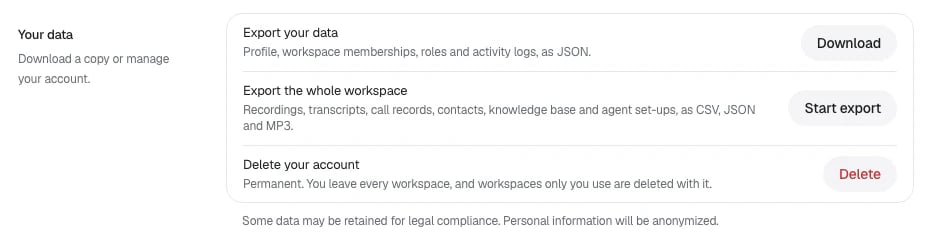
Your own data, the whole workspace, or account deletion, all in one panel
Download your own data
1
Open Security settings
Select Settings at the bottom of the sidebar, then Security under Account. The address is /account?tab=security.
2
Find Your data
Scroll to the Your data panel, headed “Download a copy or manage your account.”
3
Download
On the Export your data row, select Download. The button shows Preparing for a moment, then your browser saves the file.
Export the whole workspace
1
Start the export
In the same Your data panel, on the Export the whole workspace row, select Start export.
2
Let it pack
The row shows “Packing your workspace” with a percentage. You can leave the page. SmartAlex emails you when it is ready.
3
Get the files
Come back to Settings → Account → Security → Your data. The row now says “Ready. Kept until” and a date. Select Get files, then select each zip part to download it.
4
Open the zip parts
Open each part with any unzip tool. Recordings are MP3 files and the records are CSV and JSON.
Send a privacy request by email
Use email when you have no SmartAlex login. Use it too when you want something the buttons do not do. Examples are a correction, a restriction or a list of who your data was shared with.1
Write to privacy@getsmartalex.com
Email privacy@getsmartalex.com. Say what you want (a copy, a correction or a deletion) and give the email address or phone number SmartAlex would know you by.
2
Confirm who you are
Reply to any question SmartAlex asks to confirm your identity. Routine requests do not need a government ID.
3
Get your answer
Under the GDPR and UK GDPR you get an answer within one month. If a SmartAlex customer called you, that business is responsible for your data, and SmartAlex passes your request to them and helps them answer. The full timings for every region are in the Data Subject Access Request Procedure.
Check it worked
- Your own data: a file named
my-data-export-followed by today’s date, ending.json, is in your downloads folder. - The workspace: the email has arrived, the row says “Ready. Kept until” a date seven days away, and Get files lists every zip part with its size.
- An email request: you have a reply from privacy@getsmartalex.com about your request.
Questions people ask
How long is the workspace export kept?
How long is the workspace export kept?
7 days from when it finishes. The row shows the date it is kept until. After that the files are deleted and you can start a new export at any time.
Why can I not see Export the whole workspace?
Why can I not see Export the whole workspace?
Only workspace owners and admins see it. Ask an owner or admin to run the export, or to change your role in Settings → Workspace → Team.
Why can I not see the Your data panel at all?
Why can I not see the Your data panel at all?
Your workspace requires two-factor sign-in and you have not set it up yet. Set it up on the same Security tab and the Your data panel appears.
Someone we called wants their data. What do we do?
Someone we called wants their data. What do we do?
Your business is the controller of the personal data in your calls, so the request is yours to answer. Find their calls and contact record in your workspace and send or delete what they ask for. If they write to SmartAlex instead, we pass the request to you and help you answer it.
Next
Data lifecycle
How long each kind of call data is kept, and what happens when a workspace closes.
Sign the DPA
Get a signed copy of the Data Processing Addendum for procurement.