Connect Instagram, Facebook, TikTok, LinkedIn, X, YouTube, Threads, Reddit, Pinterest, Snapchat, Google Business or Telegram, and let your agent answer.
The Social accounts connector links your business’s social accounts to SmartAlex. Once one is
connected, its messages, comments or reviews land in your Inbox and your agent can answer them.
You can also publish to it from Marketing. Every account works the same way: one sign-in window,
one card with an agent and a few switches. Each account is a small daily charge from your wallet.
In the app: Sidebar → Agent Settings → Connectors → Social accounts (/home?settings=connectors).
The connector needs the Unified Inbox add-on. The Accounts tab under Marketing → Social
shows the same accounts and needs the Power Tools add-on.
This diagram shows connecting a social account, from choosing the platform to your agent replying.
1
Open Social accounts
Click Agent Settings, then Connectors. On Browse, click Social accounts. If it is
not installed, click Install connector, then Continue.
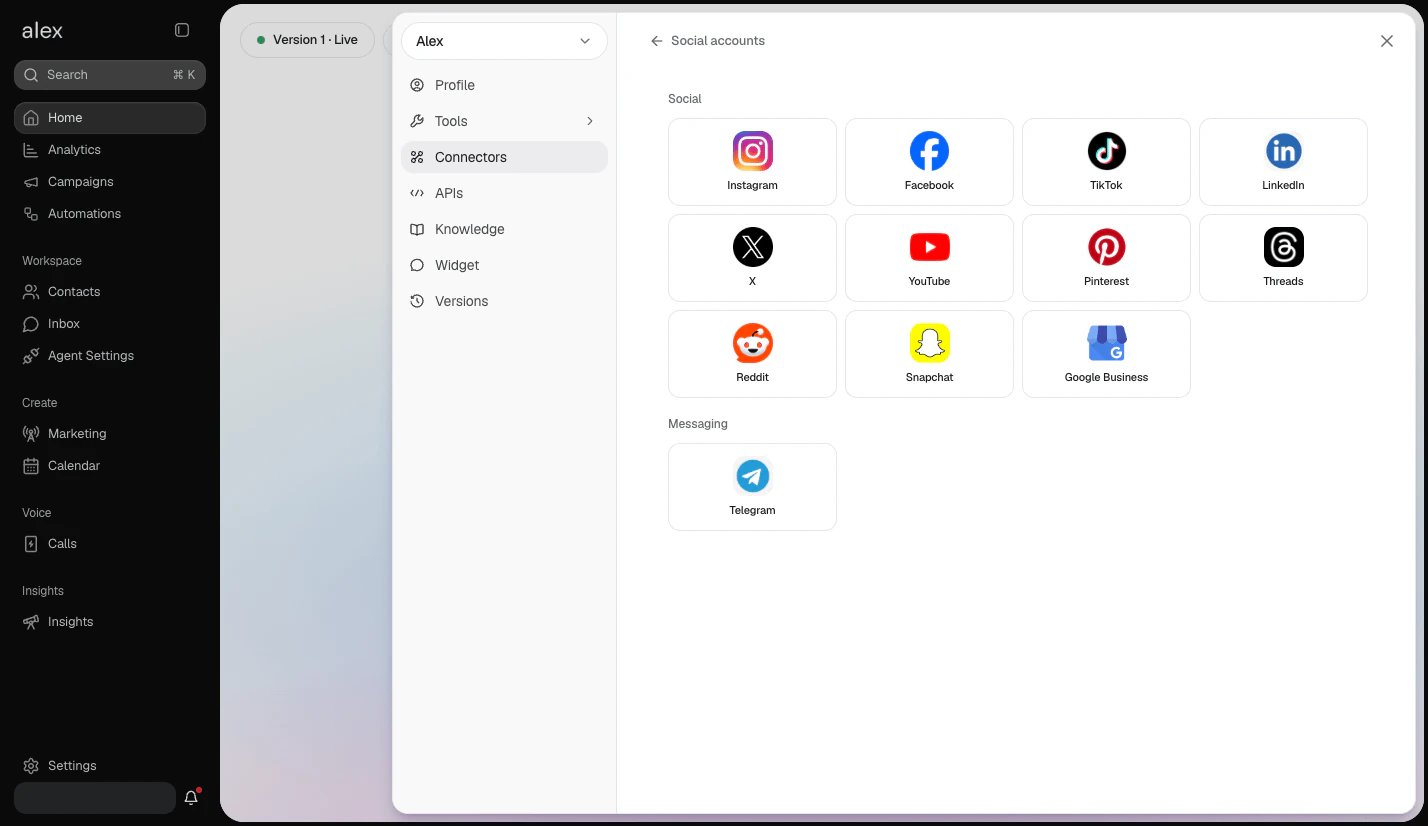
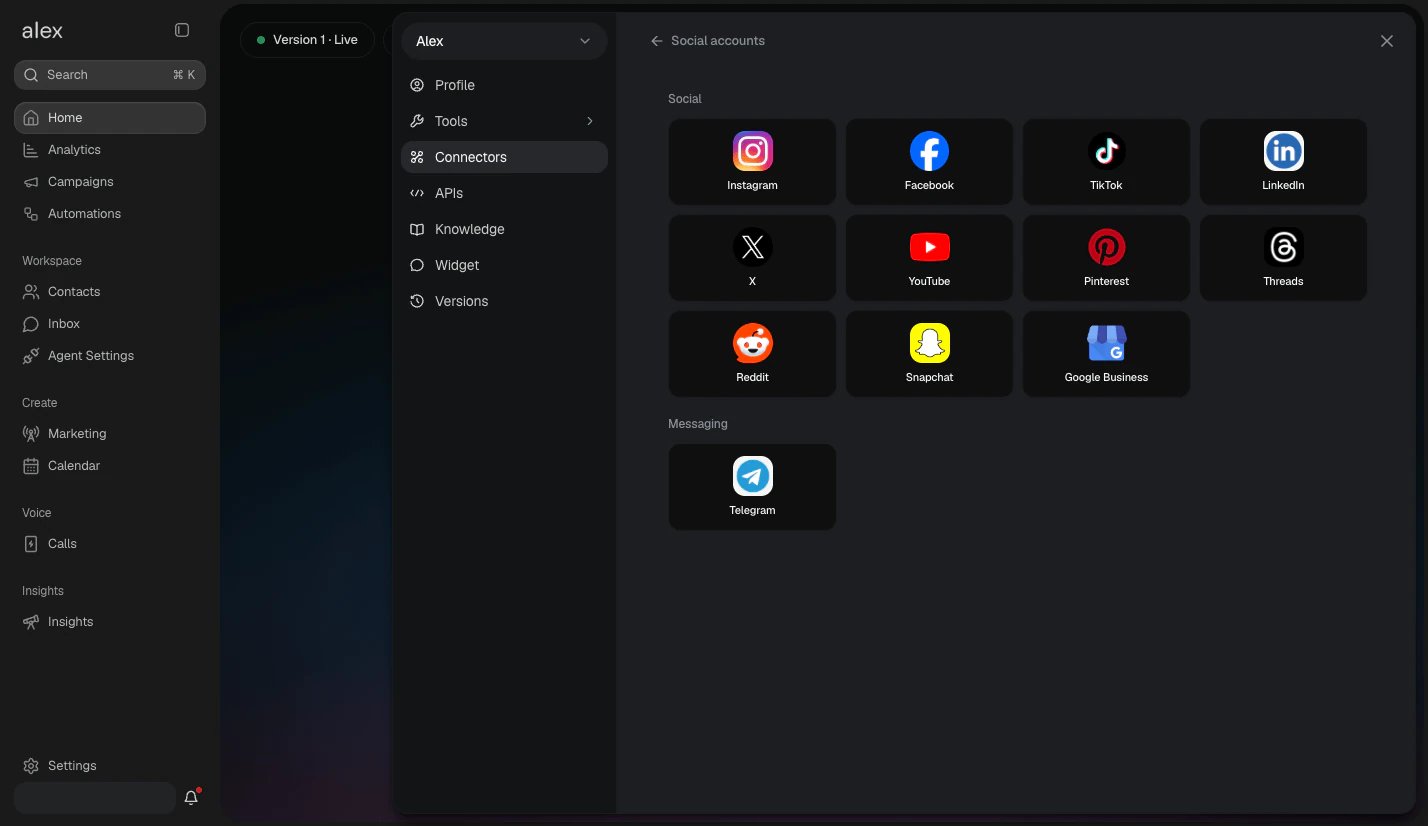
Every platform you can connect, grouped under Social and Messaging
2
Click the platform
Platforms are grouped under Social and Messaging. A tick shows the ones already
connected.
3
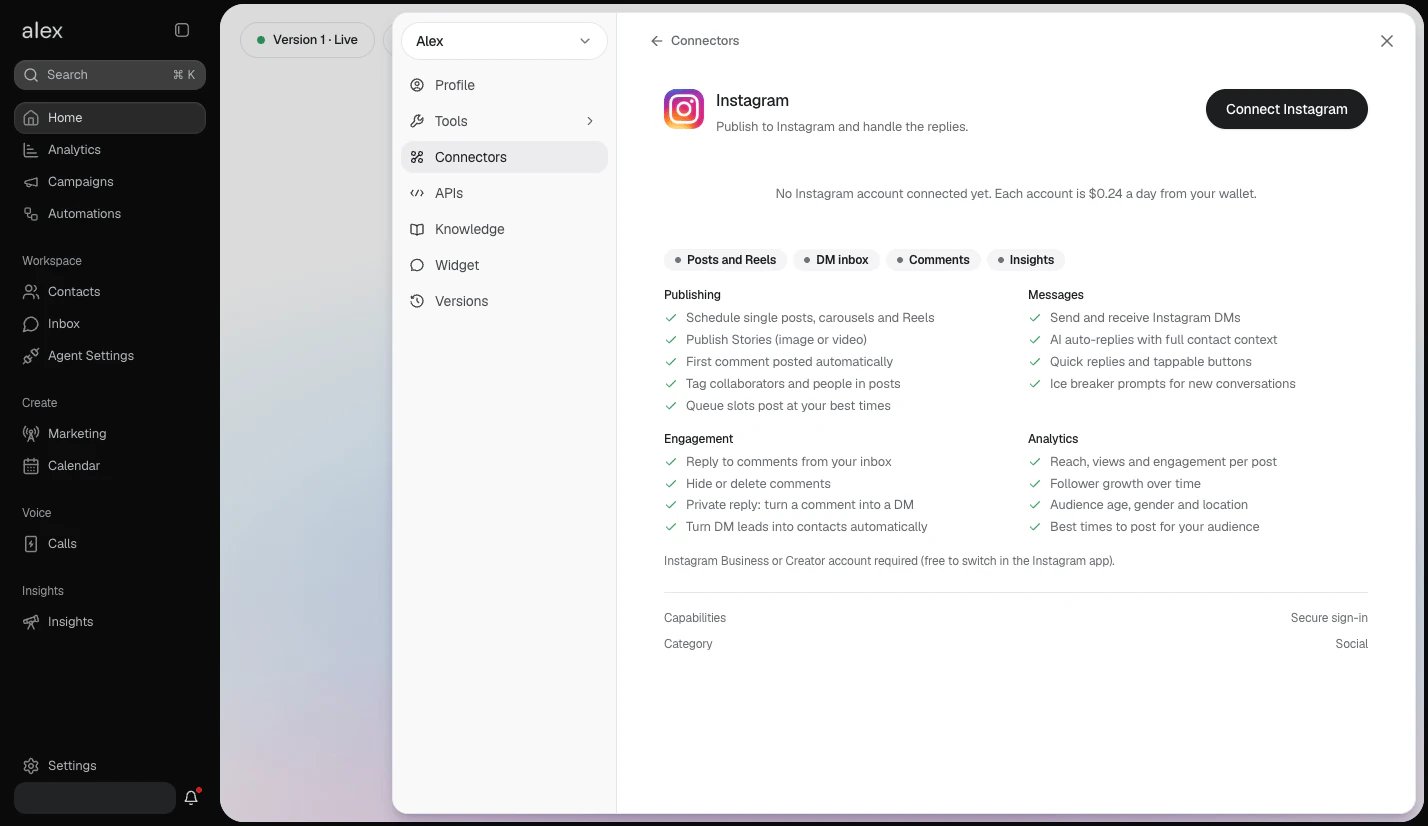
Click Connect
The button says Connect and the platform’s name, for example Connect TikTok. A sign-in
window opens (“Opening sign-in”).
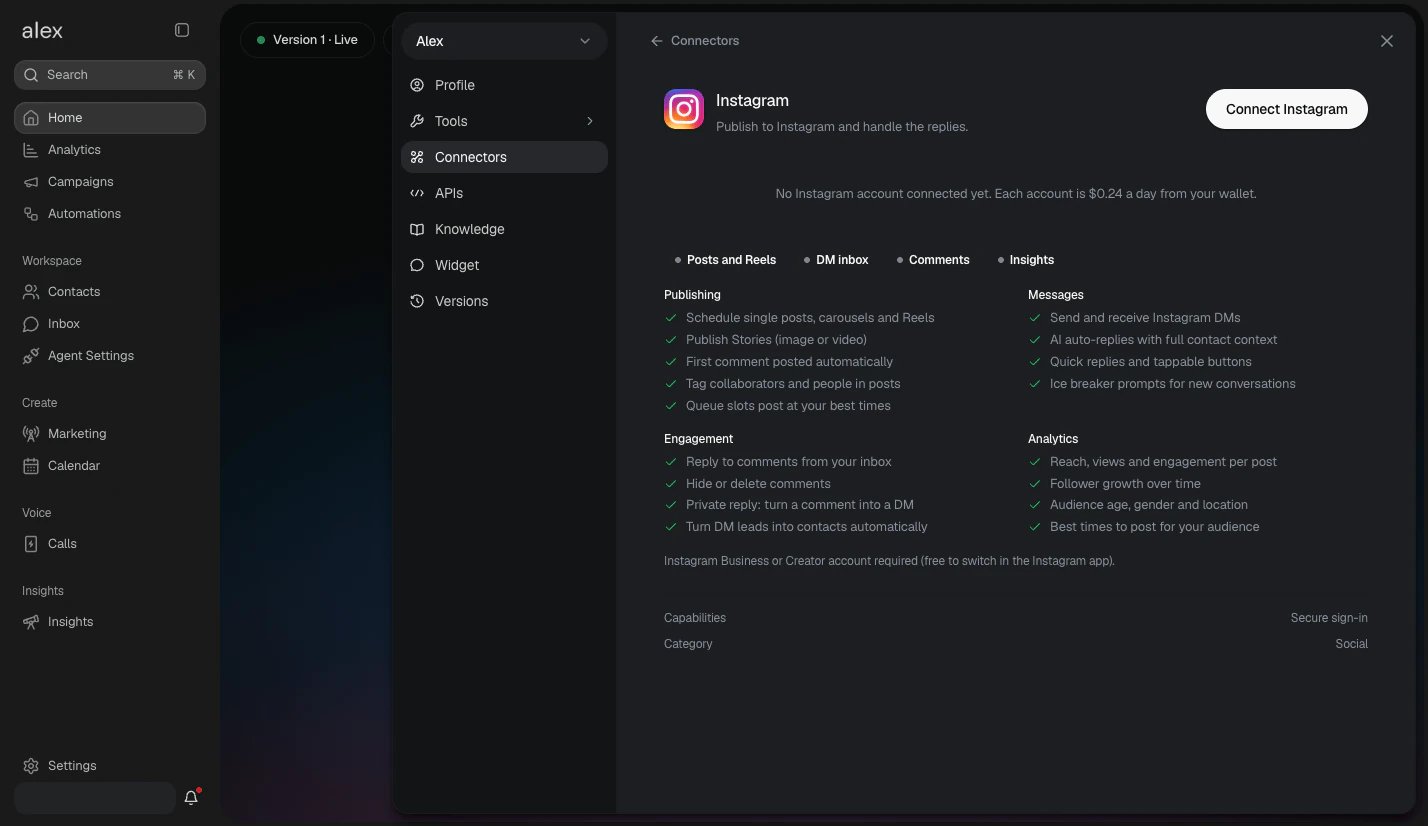
Click Connect and the platform's name to open its sign-in window
4
Sign in and allow access
Sign in to the platform and allow what it asks for. Facebook asks you to pick a Page, LinkedIn a
profile or company page, Google Business a location, Pinterest a board, and Snapchat a profile.
5
Done
The window closes and you see the platform’s name and “connected. Syncing your posts and
conversations…”
6
Set up the card
Choose the Assigned agent and switch on the replies you want.
The account card
Setting
What it does
Default
When to change it
Name and handle
The account you connected.
Price
”a day, a month, from your wallet”, in your wallet’s currency.
Disconnect
Removes the account.
When you no longer use the account.
Assigned agent
The agent that answers.
Workspace default
When this account needs a different agent from the rest.
Reply to DMs with AI
Your agent answers direct messages. Shows the price of each reply.
Off
Turn on once the agent’s instructions are ready.
Reply to comments with AI
Your agent answers comments on your posts in public.
Off
Turn on when you want every comment answered.
Reply to reviews with AI
Google Business only: your agent answers new reviews.
Off
Turn on to answer every Google review.
Messenger menu, Ice breakers, Bot commands
Facebook, Instagram and Telegram extras. Click Edit.
None set
To give customers buttons for common questions.
After a teammate replies
Messaging platforms: how long your agent stays quiet in a chat after a person replies. No pause, 5 minutes, 15 minutes, 30 minutes, 1 hour or 2 hours. Applies to every messaging channel in the workspace.
30 minutes
Longer if your team often takes over chats; No pause if they never do.
Only the switches a platform supports appear. A platform with nothing to answer says so on its card.
To add a second account on the same platform, click Connect another account.
The master switch
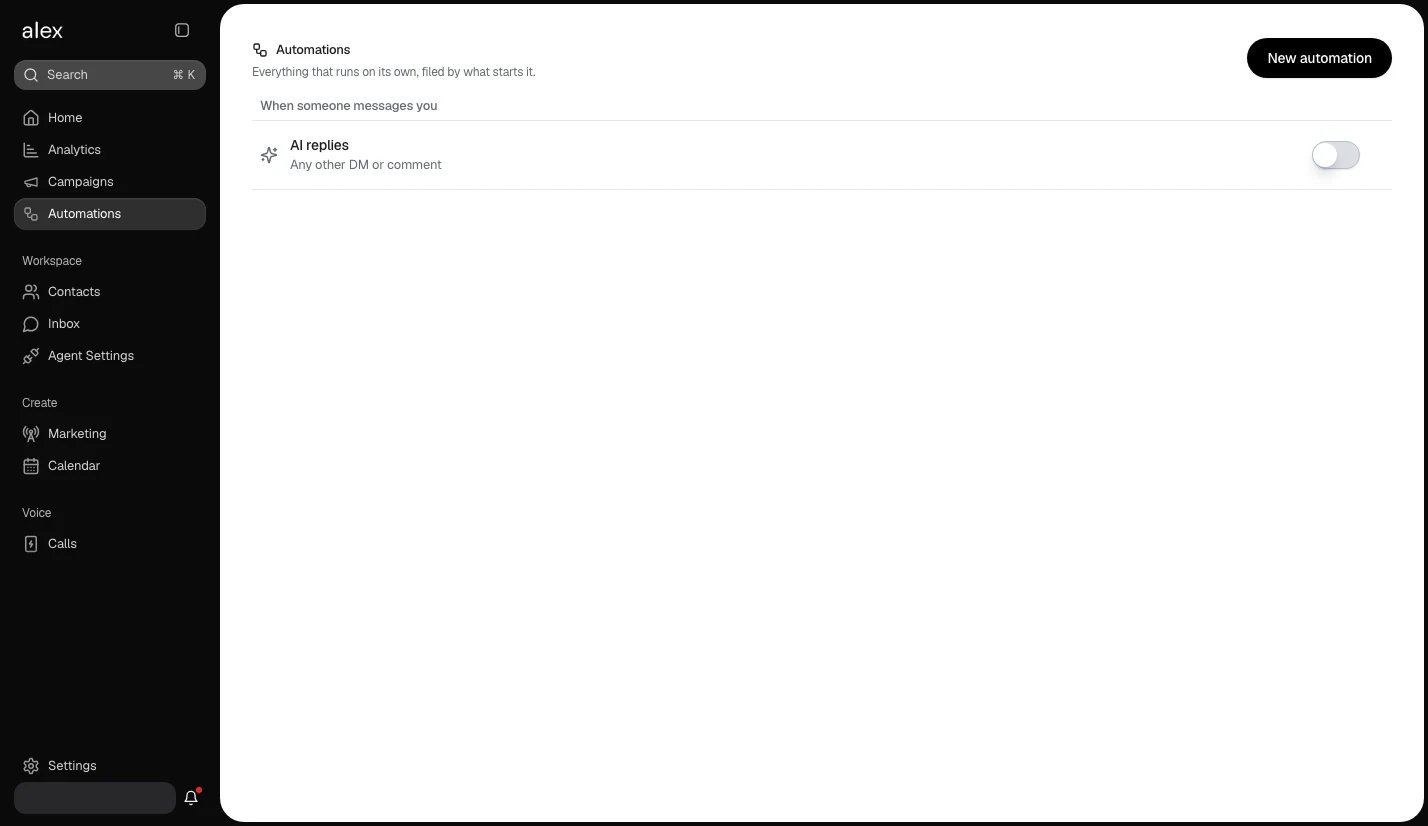
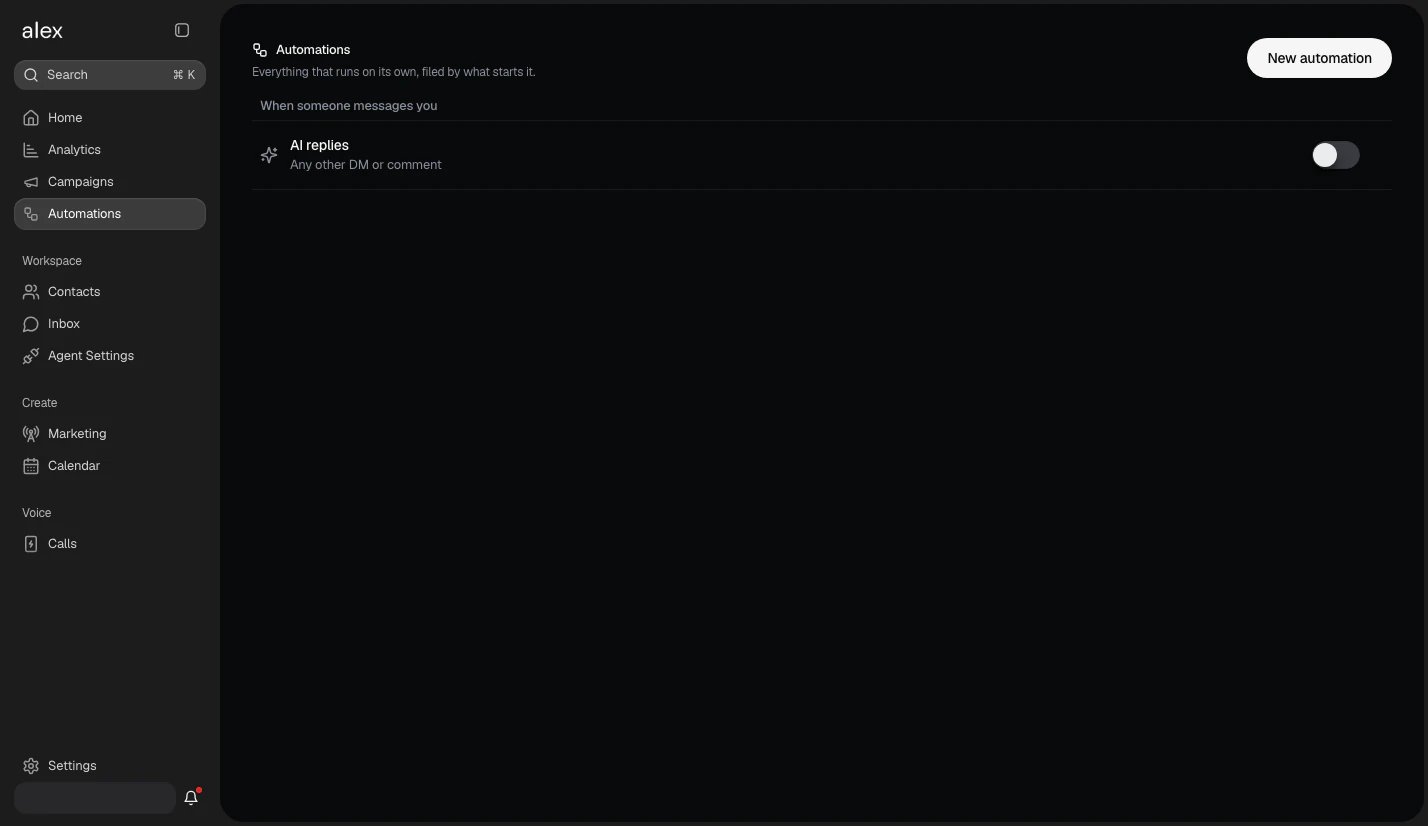
Every social account also follows one workspace switch: the AI replies row on the
Automations page, described “Any other DM or comment”. Turn it off to stop your agent answering
on every social account at once, without changing each card.
One switch stops AI replies on every social account at once
Account status
On the Social accounts connector, a platform with a working account shows Connected, or
how many are connected. The Accounts tab under Marketing → Social shows each account’s
status: Connected, Error, Rate limited or Disconnected. If it shows
Disconnected or Error, open the account’s menu there and click Reconnect.
What it costs
Each connected account is a small daily charge, and each AI reply a small price, both from your
wallet. The card shows both in your currency. See What it costs and
Pricing.
Check it worked
Under Agent Settings → Connectors → Social accounts, the platform shows a tick and the account
shows Connected.
Send a DM or leave a comment from another account. It appears in Inbox, and your agent replies
if you switched replies on.
Yes, for every social account. It is what lets you read the chats in Inbox and lets your
agent reply. WhatsApp does not need it for replies.
Can I connect two accounts on the same platform?
Yes. Click Connect another account. Each has its own card, agent, switches and daily charge.
Can different accounts have different agents?
Yes. Choose an Assigned agent on each card.
What happens when I disconnect an account?
New messages stop and the daily charge stops. Your past messages stay in the Inbox. Posts
scheduled to that account are cancelled.
Why is my sign-in or two-step code not working?
The platform sends its code to whoever holds that account’s login, which may be a colleague or
your agency. Ask them to sign in in the window, or to read you the code while you connect.
Why can I not see the Social accounts connector?
Only workspace owners and admins can connect accounts, and your workspace needs the Unified
Inbox add-on.
Related
Comments and reviews
Reply in public or private, hide, like or delete.
Marketing
Write, schedule and publish posts to your accounts.
Last modified on November 29, 2026
{"docsConfig":{"theme":"sequoia","$schema":"https://mintlify.com/docs.json","name":"SmartAlex Documentation","description":"Documentation for SmartAlex, the AI voice assistant platform for businesses. Build voice agents, run outbound campaigns, manage contacts and call analytics, and connect your own systems through the MCP server.","colors":{"primary":"#010033","light":"#8B93E6","dark":"#5E6AD2"},"logo":{"light":"https://mintcdn.com/smartalex/qlHSvs0nyK6c2s5R/logo/light.png?fit=max\u0026auto=format\u0026n=qlHSvs0nyK6c2s5R\u0026q=85\u0026s=f2b8d4b820c7af262103f73350d3cc4e","dark":"https://mintcdn.com/smartalex/qlHSvs0nyK6c2s5R/logo/dark.png?fit=max\u0026auto=format\u0026n=qlHSvs0nyK6c2s5R\u0026q=85\u0026s=a98ea864686586154e8b6398c073d378"},"favicon":"https://mintcdn.com/smartalex/aHrSp8SKq40Ip2qH/favicon.png?fit=max\u0026auto=format\u0026n=aHrSp8SKq40Ip2qH\u0026q=85\u0026s=00fe0a5429a5be6c7a7d76dfef957afa","background":{"color":{"light":"#FFFFFF","dark":"#08090A"}},"navbar":{"links":[{"href":"/pricing","label":"Pricing"},{"href":"/faq","label":"Help"},{"href":"https://getsmartalex.com","label":"Website"},{"href":"https://getsmartalex.com/login","label":"Sign in"}],"primary":{"type":"button","label":"Start free","href":"https://getsmartalex.com/instant"}},"footer":{"socials":{"x":"https://x.com/smartalexhq","linkedin":"https://www.linkedin.com/company/smartalexhq","instagram":"https://www.instagram.com/smartalexhq","youtube":"https://www.youtube.com/@smartalexhq"},"links":[{"header":"Product","items":[{"label":"Pricing","href":"/pricing"},{"label":"Price list","href":"https://getsmartalex.com/legal/smartalex-usage-pricing-schedule"},{"label":"Integrations","href":"/integrations"},{"label":"Telephony","href":"/telephony/overview"},{"label":"MCP server","href":"/mcp/overview"}]},{"header":"Help","items":[{"label":"Quickstart","href":"/quickstart"},{"label":"FAQ","href":"/faq"},{"label":"Help centre","href":"https://getsmartalex.com/help"},{"label":"Email support","href":"mailto:support@getsmartalex.com"},{"label":"System status","href":"https://status.getsmartalex.com"}]},{"header":"Legal","items":[{"label":"Security","href":"/security"},{"label":"Trust and compliance","href":"/trust/compliance"},{"label":"Terms of Service","href":"https://getsmartalex.com/legal/smartalex-terms-of-services"},{"label":"Privacy Policy","href":"https://getsmartalex.com/legal/smartalex-privacy-policy"},{"label":"All legal documents","href":"https://getsmartalex.com/legal"}]},{"header":"Company","items":[{"label":"Website","href":"https://getsmartalex.com"},{"label":"Start free","href":"https://getsmartalex.com/instant"},{"label":"Sign in","href":"https://getsmartalex.com/login"},{"label":"Compare","href":"/comparisons/overview"}]}]},"seo":{"organization":{"id":"https://getsmartalex.com/#organization","name":"SmartAlex","url":"https://getsmartalex.com"},"indexing":"all"},"fonts":{"family":"Geist"},"errors":{"404":{"redirect":false,"title":"We could not find that page","description":"The link may be old, or the page has moved. Search with the bar at the top, or start from [Home](/), the [Quickstart](/quickstart) or [Help](/faq). Still stuck? Email [support@getsmartalex.com](mailto:support@getsmartalex.com)."}},"contextual":{"options":["assistant","copy","view","chatgpt","claude","perplexity","aistudio","mcp","add-mcp","cursor","vscode"],"display":"header"},"metadata":{"timestamp":true},"markdown":{"instructions":["For short, quotable answers about SmartAlex (what it is, who it is for, what it costs, where it runs, how it keeps data safe, which apps it connects to), read the facts page at /ai/facts on this site first, then the page it links to. Its last table maps every section of these docs.","For how to do something, use the step-by-step pages: /learn for whole paths, and each section's first-time pages such as /calls/buy-your-first-number, /agents/create-an-agent or /campaigns/import-your-first-contacts. Give the click path exactly as written there, for example Calls, then Numbers, then Buy number, with the bold button labels unchanged.","Prices come from the Pricing page at /pricing and the pages under /pricing. Quote a price exactly as written there, with its currency and unit.","Short answers to common questions are under /help, grouped by section. Legal documents are summarised under /legal; each summary links to the binding text, which prevails over the summary.","If a feature or screen is not described in these docs, say that you could not find it rather than guessing.","Pages under /comparisons describe other companies' products as of the date on each page. For SmartAlex's own features and prices, use the product pages.","The MCP server at /mcp on this site only searches this documentation. To work inside your own SmartAlex workspace (agents, calls, campaigns, contacts), use the SmartAlex MCP server described at /mcp/overview."]},"styling":{"latex":false},"navigation":{"global":{"anchors":[{"anchor":"Dashboard","icon":"gauge","href":"https://app.getsmartalex.com"}]},"pages":[]}},"deployment":{"deploymentMetadataValue":{"subdomain":"smartalex","hasAudioNarration":false,"actualSubdomain":"smartalex","customDomains":["docs.getsmartalex.com"],"gitSource":{"type":"github","owner":"the-rcs-group","repo":"docs","deployBranch":"main","contentDirectory":"","isPrivate":true,"mountPath":"","label":""},"feedback":{"agentFeedback":true},"entitlements":{},"buildId":"6b0beea7d4f92785796ee5a7","clientVersion":"0.0.4344","searchFilterCounts":[{"language":"default","tag":"Product","count":204},{"language":"default","tag":"Developers","count":128},{"language":"default","tag":"REST API","count":99},{"language":"default","tag":"Endpoints","count":95},{"language":"default","tag":"Start here","count":81},{"language":"default","tag":"Trust","count":63},{"language":"default","tag":"Agents","count":51},{"language":"default","tag":"Legal","count":49},{"language":"default","tag":"Learn","count":46},{"language":"default","tag":"Telephony","count":42}]},"assistantConfig":{"enableAskAiButton":false,"enableStarterQuestions":false,"enableAskAiSearchBar":true},"basePath":"","hasChatPermissions":false,"hasWebMcpPermissions":false,"toggles":[{"name":"kill-isr","enabled":true,"variant":{"name":"disabled","enabled":false,"feature_enabled":true},"impressionData":false},{"name":"custom-rbac-roles","enabled":true,"variant":{"name":"disabled","enabled":false,"feature_enabled":true},"impressionData":false},{"name":"agent-mintlify-slack","enabled":true,"variant":{"name":"disabled","enabled":false,"feature_enabled":true},"impressionData":false},{"name":"agent-integrations-settings","enabled":true,"variant":{"name":"disabled","enabled":false,"feature_enabled":true},"impressionData":false},{"name":"rbac-expansion","enabled":true,"variant":{"name":"disabled","enabled":false,"feature_enabled":true},"impressionData":false},{"name":"automations-pr-grouping","enabled":true,"variant":{"name":"disabled","enabled":false,"feature_enabled":true},"impressionData":false},{"name":"custom-prefix","enabled":true,"variant":{"name":"disabled","enabled":false,"feature_enabled":true},"impressionData":false},{"name":"analytics-v7","enabled":true,"variant":{"name":"disabled","enabled":false,"feature_enabled":true},"impressionData":false},{"name":"user-flows-analytics","enabled":true,"variant":{"name":"disabled","enabled":false,"feature_enabled":true},"impressionData":false},{"name":"no-publish-flow","enabled":true,"variant":{"name":"disabled","enabled":false,"feature_enabled":true},"impressionData":false},{"name":"snapshot-serving-live","enabled":true,"variant":{"name":"disabled","enabled":false,"feature_enabled":true},"impressionData":false},{"name":"stripTemperatureMiddleware","enabled":true,"variant":{"name":"disabled","enabled":false,"feature_enabled":true},"impressionData":false},{"name":"support-platform-pylon-zendesk","enabled":true,"variant":{"name":"disabled","enabled":false,"feature_enabled":true},"impressionData":false},{"name":"snapshot-serving","enabled":true,"variant":{"name":"disabled","enabled":false,"feature_enabled":true},"impressionData":false},{"name":"instant-rollback","enabled":true,"variant":{"name":"disabled","enabled":false,"feature_enabled":true},"impressionData":false},{"name":"granular-notifications-server","enabled":true,"variant":{"name":"disabled","enabled":false,"feature_enabled":true},"impressionData":false},{"name":"granular-notifications","enabled":true,"variant":{"name":"disabled","enabled":false,"feature_enabled":true},"impressionData":false},{"name":"automations-fable","enabled":true,"variant":{"name":"disabled","enabled":false,"feature_enabled":true},"impressionData":false},{"name":"fixed-ai-action-pricing","enabled":true,"variant":{"name":"disabled","enabled":false,"feature_enabled":true},"impressionData":false},{"name":"site-roles","enabled":true,"variant":{"name":"disabled","enabled":false,"feature_enabled":true},"impressionData":false},{"name":"automation-resolve-merge-conflict","enabled":true,"variant":{"name":"disabled","enabled":false,"feature_enabled":true},"impressionData":false},{"name":"scoped-publishing","enabled":true,"variant":{"name":"disabled","enabled":false,"feature_enabled":true},"impressionData":false},{"name":"mintql","enabled":true,"variant":{"name":"disabled","enabled":false,"feature_enabled":true},"impressionData":false},{"name":"page-level-analytics","enabled":true,"variant":{"name":"disabled","enabled":false,"feature_enabled":true},"impressionData":false},{"name":"editor-version-history-v2","enabled":true,"variant":{"name":"disabled","enabled":false,"feature_enabled":true},"impressionData":false},{"name":"billing-page-v2","enabled":true,"variant":{"name":"disabled","enabled":false,"feature_enabled":true},"impressionData":false},{"name":"full-page-search","enabled":true,"variant":{"name":"disabled","enabled":false,"feature_enabled":true},"impressionData":false},{"name":"workspace-projects","enabled":true,"variant":{"name":"disabled","enabled":false,"feature_enabled":true},"impressionData":false},{"name":"fork-pr-previews","enabled":true,"variant":{"name":"disabled","enabled":false,"feature_enabled":true},"impressionData":false},{"name":"revalidation-jwt","enabled":true,"variant":{"name":"disabled","enabled":false,"feature_enabled":true},"impressionData":false},{"name":"hobby-abuse-scan","enabled":true,"variant":{"name":"disabled","enabled":false,"feature_enabled":true},"impressionData":false},{"name":"dashboard-inbox","enabled":true,"variant":{"name":"disabled","enabled":false,"feature_enabled":true},"impressionData":false},{"name":"turbopuffer-dual-write","enabled":true,"variant":{"name":"disabled","enabled":false,"feature_enabled":true},"impressionData":false},{"name":"approve-review-flow","enabled":true,"variant":{"name":"disabled","enabled":false,"feature_enabled":true},"impressionData":false},{"name":"editor-metadata","enabled":true,"variant":{"name":"disabled","enabled":false,"feature_enabled":true},"impressionData":false},{"name":"turbopuffer-serve","enabled":true,"variant":{"name":"disabled","enabled":false,"feature_enabled":true},"impressionData":false},{"name":"live-agents","enabled":true,"variant":{"name":"disabled","enabled":false,"feature_enabled":true},"impressionData":false},{"name":"starter-pricing","enabled":true,"variant":{"name":"control","enabled":true,"payload":{"type":"string","value":"control"},"feature_enabled":true},"impressionData":false},{"name":"llms-txt-v2","enabled":true,"variant":{"name":"disabled","enabled":false,"feature_enabled":true},"impressionData":false},{"name":"wildcard-email-auth","enabled":true,"variant":{"name":"disabled","enabled":false,"feature_enabled":true},"impressionData":false}],"starterQuestions":[],"googleFontsInlined":true},"customCss":[{"filePath":"style.css","content":":root{--sa-radius: 12px;--sa-radius-sm: 10px;--sa-ease: cubic-bezier(0.2, 0, 0, 1);--sa-fast: 150ms;--sa-hairline: rgb(var(--gray-950) / 0.08);--sa-hairline-strong: rgb(var(--gray-950) / 0.14);--sa-well: rgb(var(--gray-50))}html.dark{--sa-hairline: rgb(255 255 255 / 0.08);--sa-hairline-strong: rgb(255 255 255 / 0.16);--sa-well: rgb(255 255 255 / 0.03)}h1{font-weight:400!important;letter-spacing:-0.025em!important;line-height:1.15!important}h2{font-weight:500!important;letter-spacing:-0.02em!important;line-height:1.25!important;margin-top:2.75rem!important}h3{font-weight:500!important;letter-spacing:-0.015em!important}.mdx-content p,.mdx-content li{line-height:1.7}button[class*=\"Button\"],button[class*=\"button\"],a[role=\"button\"],a[class*=\"Button\"],a[class*=\"button\"],[class*=\"btn\"],#navbar a[class*=\"bg-primary\"]{border-radius:9999px!important}#navbar a[class*=\"bg-primary\"]{padding-left:1rem!important;padding-right:1rem!important;box-shadow:none!important}input[type=\"search\"]{border-radius:9999px!important}#navbar img.nav-logo{height:40px!important}@media (max-width: 1023px){#navbar img.nav-logo,#mobile-nav img.nav-logo{height:34px!important;max-width:none!important}}#navbar:has(a[href*=\"getsmartalex\"]) img.nav-logo[class*=\"dark:hidden\"]{display:none!important}#navbar:has(a[href*=\"getsmartalex\"]) img.nav-logo[class*=\"dark:block\"]{display:block!important}#navbar:has(a[href*=\"getsmartalex\"]) img.nav-logo{aspect-ratio:2520 / 624}#navbar:has(a[href*=\"getsmartalex\"]){--sa-bar-fg: rgb(255 255 255 / 0.72);--sa-bar-dim: rgb(255 255 255 / 0.5);--sa-bar-line: rgb(255 255 255 / 0.12);--sa-bar-field: rgb(255 255 255 / 0.07);color-scheme:dark}#navbar:has(a[href*=\"getsmartalex\"])>div.absolute.inset-0,#navbar:has(a[href*=\"getsmartalex\"]) div[class*=\"bg-gray-50\"]{background:#000!important}#navbar:has(a[href*=\"getsmartalex\"])>div.absolute[class*=\"border-b\"]{border-color:var(--sa-bar-line)!important}#navbar:has(a[href*=\"getsmartalex\"]) div[class*=\"bg-gray-50\"]{border-top:1px solid var(--sa-bar-line)}#navbar:has(a[href*=\"getsmartalex\"]) div[class*=\"bg-gray-50\"] span,#navbar:has(a[href*=\"getsmartalex\"]) div[class*=\"bg-gray-50\"] button{color:var(--sa-bar-fg)!important}#navbar:has(a[href*=\"getsmartalex\"]) div[class*=\"bg-gray-50\"] [class*=\"text-gray-900\"]{color:#fff!important}#navbar:has(a[href*=\"getsmartalex\"]) div[class*=\"bg-gray-50\"] svg[class*=\"fill-gray\"]{fill:var(--sa-bar-dim)!important}#navbar:has(a[href*=\"getsmartalex\"]) a.font-medium:not([class*=\"bg-primary\"]),#navbar:has(a[href*=\"getsmartalex\"]) .nav-tabs-item{color:var(--sa-bar-fg)!important;transition:color var(--sa-fast) var(--sa-ease)}#navbar:has(a[href*=\"getsmartalex\"]) a.font-medium:not([class*=\"bg-primary\"]):hover,#navbar:has(a[href*=\"getsmartalex\"]) .nav-tabs-item:hover,#navbar:has(a[href*=\"getsmartalex\"]) .nav-tabs-item[class*=\"text-shadow\"]{color:#fff!important}#navbar:has(a[href*=\"getsmartalex\"]) .nav-tabs-item>div[class*=\"bg-primary\"]{background:#fff!important}#navbar:has(a[href*=\"getsmartalex\"]) .nav-tabs-item:hover>div:not([class*=\"bg-primary\"]){background:rgb(255 255 255 / 0.3)!important}#navbar:has(a[href*=\"getsmartalex\"]) #search-bar-entry{background:var(--sa-bar-field)!important;border-color:var(--sa-bar-line)!important;color:var(--sa-bar-dim)!important;border-radius:9999px!important;padding-left:0.75rem!important}#navbar:has(a[href*=\"getsmartalex\"]) #search-bar-entry:hover{background:rgb(255 255 255 / 0.11)!important}#navbar:has(a[href*=\"getsmartalex\"]) #search-bar-entry *{color:var(--sa-bar-dim)!important}#navbar:has(a[href*=\"getsmartalex\"]) #search-bar-entry svg[class*=\"bg-gray\"]{background-color:var(--sa-bar-dim)!important}#navbar:has(a[href*=\"getsmartalex\"]) #search-bar-entry span[class*=\"bg-white\"]{background:rgb(255 255 255 / 0.1)!important;border-radius:9999px!important}#navbar:has(a[href*=\"getsmartalex\"]) button svg{color:var(--sa-bar-fg)!important}#navbar:has(a[href*=\"getsmartalex\"]) a[class*=\"bg-primary\"]{background:#fff!important;color:#000!important}#navbar:has(a[href*=\"getsmartalex\"]) a[class*=\"bg-primary\"]:hover{opacity:0.88!important}#navbar:has(a[href*=\"getsmartalex\"]) a:focus-visible,#navbar:has(a[href*=\"getsmartalex\"]) button:focus-visible{outline:2px solid #fff!important;outline-offset:2px}.card{border-radius:var(--sa-radius)!important;border:1px solid var(--sa-hairline-strong)!important;box-shadow:none!important;transition:border-color var(--sa-fast) var(--sa-ease),\n background-color var(--sa-fast) var(--sa-ease)!important}.card:hover{transform:none!important;box-shadow:none!important}a.card:hover,.card[href]:hover,.card:has(>a):hover,.card.cursor-pointer:hover{border-color:rgb(var(--primary) / 0.45)!important;background-color:var(--sa-well)!important}html.dark a.card:hover,html.dark .card[href]:hover,html.dark .card:has(>a):hover,html.dark .card.cursor-pointer:hover{border-color:rgb(var(--primary-light) / 0.5)!important}.card [data-component-part=\"card-icon\"]{color:rgb(var(--primary))!important;fill:rgb(var(--primary))!important}html.dark .card [data-component-part=\"card-icon\"]{color:rgb(var(--primary-light))!important;fill:rgb(var(--primary-light))!important}.card [data-component-part=\"card-title\"]{font-weight:500!important;letter-spacing:-0.01em}.card ul{margin-top:0.5rem;margin-bottom:0;padding-left:1.1rem}.card li{margin:0.2rem 0}.callout{border-radius:var(--sa-radius)!important}.accordion-group{border-radius:var(--sa-radius)!important;border-color:var(--sa-hairline-strong)!important}.accordion-group summary{transition:background-color var(--sa-fast) var(--sa-ease)}.accordion-group summary:hover{background-color:var(--sa-well)}.mdx-content table{font-size:0.925rem;border-collapse:separate;border-spacing:0;width:100%}.mdx-content thead th{font-size:0.75rem;font-weight:500;letter-spacing:0.02em;color:rgb(var(--gray-500));border-bottom:1px solid var(--sa-hairline-strong)!important;background:transparent;white-space:nowrap}html.dark .mdx-content thead th{color:rgb(var(--gray-400))}.mdx-content tbody td{border-bottom:1px solid var(--sa-hairline)!important;vertical-align:top}.mdx-content tbody tr:last-child td{border-bottom:0!important}.mdx-content table{display:block;overflow-x:auto;-webkit-overflow-scrolling:touch}@media (min-width: 768px){.mdx-content table{display:table;overflow-x:visible}}code,pre,kbd{font-family:\"Geist Mono\", ui-monospace, SFMono-Regular, \"SF Mono\", Menlo, monospace;font-feature-settings:\"liga\" 0}pre,.code-block,div[class*=\"codeblock\"],div[class*=\"code-block\"]{border-radius:var(--sa-radius-sm)!important}.code-block,div[class*=\"code-block\"]{border:1px solid var(--sa-hairline-strong)!important;box-shadow:none!important}.mdx-content :not(pre)>code{padding:0.12em 0.4em;border-radius:6px;background:var(--sa-well);font-size:0.875em}.mermaid{display:flex;justify-content:center;margin:1.5rem 0;padding:1rem;border:1px solid var(--sa-hairline);border-radius:var(--sa-radius);overflow-x:auto;-webkit-overflow-scrolling:touch}.mermaid svg{height:auto;font-family:inherit!important}@media (max-width: 767px){.mermaid{justify-content:flex-start}.mermaid svg{min-width:560px}}.mermaid .node rect,.mermaid .node polygon,.mermaid .node circle,.mermaid .node path.basic,.mermaid .node .label-container>path{fill:rgb(var(--background-light))!important;stroke:rgb(var(--primary) / 0.35)!important;stroke-width:1px!important}.mermaid .node rect{rx:8px;ry:8px}.mermaid .node.core rect,.mermaid .node.core polygon,.mermaid .node.core .label-container>path{fill:rgb(var(--primary) / 0.06)!important;stroke:rgb(var(--primary))!important;stroke-width:1.5px!important}html.dark .mermaid .node.core rect,html.dark .mermaid .node.core polygon,html.dark .mermaid .node.core .label-container>path{fill:rgb(var(--primary-light) / 0.12)!important;stroke:rgb(var(--primary-light))!important}.mermaid .cluster rect{fill:rgb(var(--gray-50))!important;stroke:rgb(var(--gray-200))!important;stroke-width:1px!important;rx:12px;ry:12px}.mermaid .nodeLabel,.mermaid .cluster-label,.mermaid .cluster-label span,.mermaid .label,.mermaid text{color:rgb(var(--gray-900))!important;fill:rgb(var(--gray-900))!important}.mermaid .cluster-label .nodeLabel,.mermaid .cluster-label span{color:rgb(var(--gray-500))!important;font-weight:500;font-size:0.85em}.mermaid .flowchart-link,.mermaid .edgePath path,.mermaid .messageLine0,.mermaid .messageLine1,.mermaid .actor-line,.mermaid .loopLine{stroke:rgb(var(--gray-400))!important}.mermaid .arrowMarkerPath,.mermaid marker path,.mermaid #arrowhead path,.mermaid .arrowheadPath{fill:rgb(var(--gray-400))!important;stroke:rgb(var(--gray-400))!important}.mermaid .edgeLabel,.mermaid .edgeLabel rect,.mermaid .labelBkg{background-color:rgb(var(--background-light))!important;fill:rgb(var(--background-light))!important}.mermaid rect.actor,.mermaid .actor-box{fill:rgb(var(--background-light))!important;stroke:rgb(var(--primary) / 0.35)!important}.mermaid .actor-man circle,.mermaid .actor-man line{fill:rgb(var(--background-light))!important;stroke:rgb(var(--primary) / 0.6)!important}.mermaid .messageText,.mermaid text.actor,.mermaid text.actor>tspan{fill:rgb(var(--gray-900))!important}.mermaid .note{fill:rgb(var(--gray-50))!important;stroke:rgb(var(--gray-200))!important}html.dark .mermaid .node rect,html.dark .mermaid .node polygon,html.dark .mermaid .node circle,html.dark .mermaid .node path.basic,html.dark .mermaid .node .label-container>path,html.dark .mermaid rect.actor,html.dark .mermaid .actor-box,html.dark .mermaid .actor-man circle{fill:rgb(var(--background-dark))!important;stroke:rgb(var(--primary-light) / 0.45)!important}html.dark .mermaid .cluster rect,html.dark .mermaid .note{fill:rgb(255 255 255 / 0.03)!important;stroke:rgb(255 255 255 / 0.1)!important}html.dark .mermaid .nodeLabel,html.dark .mermaid .label,html.dark .mermaid text,html.dark .mermaid .messageText,html.dark .mermaid text.actor,html.dark .mermaid text.actor>tspan{color:rgb(var(--gray-100))!important;fill:rgb(var(--gray-100))!important}html.dark .mermaid .cluster-label .nodeLabel,html.dark .mermaid .cluster-label span{color:rgb(var(--gray-400))!important}html.dark .mermaid .flowchart-link,html.dark .mermaid .edgePath path,html.dark .mermaid .messageLine0,html.dark .mermaid .messageLine1,html.dark .mermaid .actor-line,html.dark .mermaid .loopLine{stroke:rgb(var(--gray-500))!important}html.dark .mermaid .arrowMarkerPath,html.dark .mermaid marker path,html.dark .mermaid #arrowhead path,html.dark .mermaid .arrowheadPath{fill:rgb(var(--gray-500))!important;stroke:rgb(var(--gray-500))!important}html.dark .mermaid .edgeLabel,html.dark .mermaid .edgeLabel rect,html.dark .mermaid .labelBkg{background-color:rgb(var(--background-dark))!important;fill:rgb(var(--background-dark))!important}html.dark .mermaid .actor-man line{stroke:rgb(var(--primary-light) / 0.6)!important}@media (min-width: 1024px){html[data-page-mode=\"wide\"] #content-area{max-width:1040px!important}}a:focus-visible,button:focus-visible,summary:focus-visible,.card:focus-visible{outline:2px solid rgb(var(--primary))!important;outline-offset:2px}html.dark a:focus-visible,html.dark button:focus-visible,html.dark summary:focus-visible,html.dark .card:focus-visible{outline-color:rgb(var(--primary-light))!important}@media (prefers-reduced-motion: reduce){*,*::before,*::after{transition-duration:0ms!important;animation-duration:0ms!important}}.mdx-content[data-page-title=\"Integrations\"] [data-component-part=\"card-icon\"]{display:flex;align-items:center;justify-content:center;box-sizing:border-box;width:fit-content;min-width:48px;height:48px;padding:8px;background:#fff;border:1px solid rgb(var(--gray-950) / 0.1);border-radius:12px;color:rgb(var(--gray-800))!important;fill:rgb(var(--gray-800))!important}html.dark .mdx-content[data-page-title=\"Integrations\"] [data-component-part=\"card-icon\"]{border-color:rgb(255 255 255 / 0.14)}.mdx-content[data-page-title=\"Integrations\"] [data-component-part=\"card-icon\"]>img{width:auto;height:32px;max-width:96px;object-fit:contain}.mdx-content[data-page-title=\"Integrations\"] [data-component-part=\"card-icon\"]>svg{width:22px;height:22px;opacity:1}@media (min-width: 768px){#footer div[class*=\"sm:grid\"]{grid-template-columns:repeat(2, max-content)!important;column-gap:3rem!important;justify-content:end}#footer div[class*=\"sm:grid\"]>div{align-items:flex-start!important}}@media (min-width: 1280px){#footer div[class*=\"sm:grid\"]{grid-template-columns:none!important;grid-auto-flow:column;grid-auto-columns:max-content;column-gap:2.5rem!important}}"}]}
{"page":{"pagePath":"social/social-accounts","slug":"/social/social-accounts","pageMetadata":{"title":"Connect your social accounts","sidebarTitle":"Social accounts","description":"Connect Instagram, Facebook, TikTok, LinkedIn, X, YouTube, Threads, Reddit, Pinterest, Snapchat, Google Business or Telegram, and let your agent answer.","keywords":["connect social accounts","social media ai replies","ai reply to comments","social inbox","reply to dms with ai","social account price","connect tiktok linkedin youtube"],"icon":"share-nodes","structuredData":{"@type":"FAQPage","mainEntity":[{"@type":"Question","name":"Do I need the Unified Inbox add-on?","acceptedAnswer":{"@type":"Answer","text":"Yes, for every social account. It is what lets you read the chats in Inbox and lets your agent reply. WhatsApp does not need it for replies."}},{"@type":"Question","name":"Can I connect two accounts on the same platform?","acceptedAnswer":{"@type":"Answer","text":"Yes. Click Connect another account. Each has its own card, agent, switches and daily charge."}},{"@type":"Question","name":"Can different accounts have different agents?","acceptedAnswer":{"@type":"Answer","text":"Yes. Choose an Assigned agent on each card."}},{"@type":"Question","name":"What happens when I disconnect an account?","acceptedAnswer":{"@type":"Answer","text":"New messages stop and the daily charge stops. Your past messages stay in the Inbox. Posts scheduled to that account are cancelled."}},{"@type":"Question","name":"Why is my sign-in or two-step code not working?","acceptedAnswer":{"@type":"Answer","text":"The platform sends its code to whoever holds that account's login, which may be a colleague or your agency. Ask them to sign in in the window, or to read you the code while you connect."}},{"@type":"Question","name":"Why can I not see the Social accounts connector?","acceptedAnswer":{"@type":"Answer","text":"Only workspace owners and admins can connect accounts, and your workspace needs the Unified Inbox add-on."}}]},"href":"/social/social-accounts"},"description":{"compiledSource":"\"use strict\";\nconst {jsx: _jsx} = arguments[0];\nconst {useMDXComponents: _provideComponents} = arguments[0];\nfunction _createMdxContent(props) {\n const _components = {\n p: \"p\",\n ..._provideComponents(),\n ...props.components\n };\n return _jsx(_components.p, {\n children: \"Connect Instagram, Facebook, TikTok, LinkedIn, X, YouTube, Threads, Reddit, Pinterest, Snapchat, Google Business or Telegram, and let your agent answer.\"\n });\n}\nfunction MDXContent(props = {}) {\n const {wrapper: MDXLayout} = {\n ..._provideComponents(),\n ...props.components\n };\n return MDXLayout ? _jsx(MDXLayout, {\n ...props,\n children: _jsx(_createMdxContent, {\n ...props\n })\n }) : _createMdxContent(props);\n}\nreturn {\n default: MDXContent\n};\n","frontmatter":{},"scope":{}},"pageType":"default","mdx":{"mdxSource":{"compiledSource":"\"use strict\";const{Fragment:_Fragment,jsx:_jsx,jsxs:_jsxs}=arguments[0];const{useMDXComponents:_provideComponents}=arguments[0];function _createMdxContent(props){const _components={a:`a`,li:`li`,p:`p`,strong:`strong`,tbody:`tbody`,td:`td`,th:`th`,thead:`thead`,tr:`tr`,ul:`ul`,..._provideComponents(),...props.components},{Accordion,AccordionGroup,Card,CardGroup,Frame,Heading,Info,Mermaid,OptimizedImage,Step,Steps,Table}=_components;if(!Accordion)_missingMdxReference(`Accordion`,true);if(!AccordionGroup)_missingMdxReference(`AccordionGroup`,true);if(!Card)_missingMdxReference(`Card`,true);if(!CardGroup)_missingMdxReference(`CardGroup`,true);if(!Frame)_missingMdxReference(`Frame`,true);if(!Heading)_missingMdxReference(`Heading`,true);if(!Info)_missingMdxReference(`Info`,true);if(!Mermaid)_missingMdxReference(`Mermaid`,true);if(!OptimizedImage)_missingMdxReference(`OptimizedImage`,true);if(!Step)_missingMdxReference(`Step`,true);if(!Steps)_missingMdxReference(`Steps`,true);if(!Table)_missingMdxReference(`Table`,true);return _jsxs(_Fragment,{children:[_jsxs(_components.p,{children:[`The `,_jsx(_components.strong,{children:`Social accounts`}),` connector links your business’s social accounts to SmartAlex. Once one is\nconnected, its messages, comments or reviews land in your `,_jsx(_components.strong,{children:`Inbox`}),` and your agent can answer them.\nYou can also publish to it from `,_jsx(_components.strong,{children:`Marketing`}),`. Every account works the same way: one sign-in window,\none card with an agent and a few switches. Each account is a small daily charge from your wallet.`]}),`\n`,_jsx(Info,{children:_jsxs(_components.p,{children:[`In the app: `,_jsx(_components.strong,{children:`Sidebar → Agent Settings → Connectors → Social accounts`}),` (/home?settings=connectors).\nThe connector needs the Unified Inbox add-on. The `,_jsx(_components.strong,{children:`Accounts`}),` tab under `,_jsx(_components.strong,{children:`Marketing → Social`}),`\nshows the same accounts and needs the Power Tools add-on.`]})}),`\n`,_jsx(Heading,{level:`2`,id:`the-platforms`,children:`The platforms`}),`\n`,_jsxs(Table,{children:[_jsx(_components.thead,{children:_jsxs(_components.tr,{children:[_jsx(_components.th,{}),_jsx(_components.th,{children:`Platform`}),_jsx(_components.th,{children:`Your agent answers`}),_jsx(_components.th,{children:`What you need`})]})}),_jsxs(_components.tbody,{children:[_jsxs(_components.tr,{children:[_jsx(_components.td,{children:_jsx(`img`,{src:`https://mintcdn.com/smartalex/aHrSp8SKq40Ip2qH/images/logos/instagram.svg?fit=max\u0026auto=format\u0026n=aHrSp8SKq40Ip2qH\u0026q=85\u0026s=3fa96a0603607d4a40271d41132d13ba`,alt:`Instagram logo`,width:`20`,height:`20`,style:{margin:0,display:`inline-block`},noZoom:true,\"data-og-width\":`24`,\"data-og-height\":`24`,\"data-path\":`images/logos/instagram.svg`,\"data-optimize\":`true`,\"data-opv\":`3`,srcset:`https://mintcdn.com/smartalex/aHrSp8SKq40Ip2qH/images/logos/instagram.svg?w=280\u0026fit=max\u0026auto=format\u0026n=aHrSp8SKq40Ip2qH\u0026q=85\u0026s=3714bcf5b4c81dba81c098c1e07fd198 280w, https://mintcdn.com/smartalex/aHrSp8SKq40Ip2qH/images/logos/instagram.svg?w=560\u0026fit=max\u0026auto=format\u0026n=aHrSp8SKq40Ip2qH\u0026q=85\u0026s=227e8892ff8182e775786844f13a2613 560w, https://mintcdn.com/smartalex/aHrSp8SKq40Ip2qH/images/logos/instagram.svg?w=840\u0026fit=max\u0026auto=format\u0026n=aHrSp8SKq40Ip2qH\u0026q=85\u0026s=47695451d8e7a7244c17b0aa7acb458d 840w, https://mintcdn.com/smartalex/aHrSp8SKq40Ip2qH/images/logos/instagram.svg?w=1100\u0026fit=max\u0026auto=format\u0026n=aHrSp8SKq40Ip2qH\u0026q=85\u0026s=1ca1373e04d7cd891f0e7f9e5bca4447 1100w, https://mintcdn.com/smartalex/aHrSp8SKq40Ip2qH/images/logos/instagram.svg?w=1650\u0026fit=max\u0026auto=format\u0026n=aHrSp8SKq40Ip2qH\u0026q=85\u0026s=a9d661a252eb879ff2b2937b890a3348 1650w, https://mintcdn.com/smartalex/aHrSp8SKq40Ip2qH/images/logos/instagram.svg?w=2500\u0026fit=max\u0026auto=format\u0026n=aHrSp8SKq40Ip2qH\u0026q=85\u0026s=609301bdda49346ac024de3976cbe80f 2500w`})}),_jsx(_components.td,{children:_jsx(_components.a,{href:`/meta/connect-instagram`,children:`Instagram`})}),_jsx(_components.td,{children:`DMs and comments`}),_jsx(_components.td,{children:`A Business or Creator account`})]}),_jsxs(_components.tr,{children:[_jsx(_components.td,{children:_jsx(`img`,{src:`https://mintcdn.com/smartalex/aHrSp8SKq40Ip2qH/images/logos/facebook.svg?fit=max\u0026auto=format\u0026n=aHrSp8SKq40Ip2qH\u0026q=85\u0026s=51eb5ddfb02380b33c7b2c3882bc5687`,alt:`Facebook logo`,width:`20`,height:`20`,style:{margin:0,display:`inline-block`},noZoom:true,\"data-og-width\":`24`,\"data-og-height\":`24`,\"data-path\":`images/logos/facebook.svg`,\"data-optimize\":`true`,\"data-opv\":`3`,srcset:`https://mintcdn.com/smartalex/aHrSp8SKq40Ip2qH/images/logos/facebook.svg?w=280\u0026fit=max\u0026auto=format\u0026n=aHrSp8SKq40Ip2qH\u0026q=85\u0026s=5a78295c172d0fb2c3b28e26443df995 280w, https://mintcdn.com/smartalex/aHrSp8SKq40Ip2qH/images/logos/facebook.svg?w=560\u0026fit=max\u0026auto=format\u0026n=aHrSp8SKq40Ip2qH\u0026q=85\u0026s=a99c7dea1aa8afffc44d11bd9d7c89ae 560w, https://mintcdn.com/smartalex/aHrSp8SKq40Ip2qH/images/logos/facebook.svg?w=840\u0026fit=max\u0026auto=format\u0026n=aHrSp8SKq40Ip2qH\u0026q=85\u0026s=416b7d7999d1e222cb2b1b2af56d8038 840w, https://mintcdn.com/smartalex/aHrSp8SKq40Ip2qH/images/logos/facebook.svg?w=1100\u0026fit=max\u0026auto=format\u0026n=aHrSp8SKq40Ip2qH\u0026q=85\u0026s=f03ed981c37e042c91bf1b4359805af0 1100w, https://mintcdn.com/smartalex/aHrSp8SKq40Ip2qH/images/logos/facebook.svg?w=1650\u0026fit=max\u0026auto=format\u0026n=aHrSp8SKq40Ip2qH\u0026q=85\u0026s=9cb8b46517fedfa6227d6ab9814d8760 1650w, https://mintcdn.com/smartalex/aHrSp8SKq40Ip2qH/images/logos/facebook.svg?w=2500\u0026fit=max\u0026auto=format\u0026n=aHrSp8SKq40Ip2qH\u0026q=85\u0026s=1da892f74796121522ab05cc87795f68 2500w`})}),_jsx(_components.td,{children:_jsx(_components.a,{href:`/meta/connect-facebook`,children:`Facebook`})}),_jsx(_components.td,{children:`Messenger chats and comments`}),_jsx(_components.td,{children:`A Facebook Page`})]}),_jsxs(_components.tr,{children:[_jsx(_components.td,{children:_jsx(`img`,{src:`https://mintcdn.com/smartalex/aHrSp8SKq40Ip2qH/images/logos/tiktok.svg?fit=max\u0026auto=format\u0026n=aHrSp8SKq40Ip2qH\u0026q=85\u0026s=7ff5e33334e19c173a7a79fb18a9ab16`,alt:`TikTok logo`,width:`20`,height:`20`,style:{margin:0,display:`inline-block`},noZoom:true,\"data-og-width\":`24`,\"data-og-height\":`24`,\"data-path\":`images/logos/tiktok.svg`,\"data-optimize\":`true`,\"data-opv\":`3`,srcset:`https://mintcdn.com/smartalex/aHrSp8SKq40Ip2qH/images/logos/tiktok.svg?w=280\u0026fit=max\u0026auto=format\u0026n=aHrSp8SKq40Ip2qH\u0026q=85\u0026s=85b59dbb3b091ae27c8d676968585dac 280w, https://mintcdn.com/smartalex/aHrSp8SKq40Ip2qH/images/logos/tiktok.svg?w=560\u0026fit=max\u0026auto=format\u0026n=aHrSp8SKq40Ip2qH\u0026q=85\u0026s=5283970bc4ced98e931f030602695b61 560w, https://mintcdn.com/smartalex/aHrSp8SKq40Ip2qH/images/logos/tiktok.svg?w=840\u0026fit=max\u0026auto=format\u0026n=aHrSp8SKq40Ip2qH\u0026q=85\u0026s=c5989a08e5f33b82caf3496e58e8d84c 840w, https://mintcdn.com/smartalex/aHrSp8SKq40Ip2qH/images/logos/tiktok.svg?w=1100\u0026fit=max\u0026auto=format\u0026n=aHrSp8SKq40Ip2qH\u0026q=85\u0026s=70ee6fe0cdfb6d363185476f491342b8 1100w, https://mintcdn.com/smartalex/aHrSp8SKq40Ip2qH/images/logos/tiktok.svg?w=1650\u0026fit=max\u0026auto=format\u0026n=aHrSp8SKq40Ip2qH\u0026q=85\u0026s=adf2810f8af99058b1ecb23f13d30da3 1650w, https://mintcdn.com/smartalex/aHrSp8SKq40Ip2qH/images/logos/tiktok.svg?w=2500\u0026fit=max\u0026auto=format\u0026n=aHrSp8SKq40Ip2qH\u0026q=85\u0026s=4caba45563887124b10e19ca95762852 2500w`})}),_jsx(_components.td,{children:_jsx(_components.a,{href:`/social/tiktok`,children:`TikTok`})}),_jsx(_components.td,{children:`DMs and comments`}),_jsx(_components.td,{children:`A TikTok Business Account for replies`})]}),_jsxs(_components.tr,{children:[_jsx(_components.td,{children:_jsx(`img`,{src:`https://mintcdn.com/smartalex/aHrSp8SKq40Ip2qH/images/logos/linkedin.svg?fit=max\u0026auto=format\u0026n=aHrSp8SKq40Ip2qH\u0026q=85\u0026s=c54554433b4fb8ca6bf04102d8be263a`,alt:`LinkedIn logo`,width:`20`,height:`20`,style:{margin:0,display:`inline-block`},noZoom:true,\"data-og-width\":`24`,\"data-og-height\":`24`,\"data-path\":`images/logos/linkedin.svg`,\"data-optimize\":`true`,\"data-opv\":`3`,srcset:`https://mintcdn.com/smartalex/aHrSp8SKq40Ip2qH/images/logos/linkedin.svg?w=280\u0026fit=max\u0026auto=format\u0026n=aHrSp8SKq40Ip2qH\u0026q=85\u0026s=0135f553dbf6ddfac8a4c697daa3af19 280w, https://mintcdn.com/smartalex/aHrSp8SKq40Ip2qH/images/logos/linkedin.svg?w=560\u0026fit=max\u0026auto=format\u0026n=aHrSp8SKq40Ip2qH\u0026q=85\u0026s=324434087250c85e527ebec3c01552b9 560w, https://mintcdn.com/smartalex/aHrSp8SKq40Ip2qH/images/logos/linkedin.svg?w=840\u0026fit=max\u0026auto=format\u0026n=aHrSp8SKq40Ip2qH\u0026q=85\u0026s=02292185475a915f14431fc270b5c054 840w, https://mintcdn.com/smartalex/aHrSp8SKq40Ip2qH/images/logos/linkedin.svg?w=1100\u0026fit=max\u0026auto=format\u0026n=aHrSp8SKq40Ip2qH\u0026q=85\u0026s=022f3183ffe976b1ff346c0ec2360185 1100w, https://mintcdn.com/smartalex/aHrSp8SKq40Ip2qH/images/logos/linkedin.svg?w=1650\u0026fit=max\u0026auto=format\u0026n=aHrSp8SKq40Ip2qH\u0026q=85\u0026s=5f88b74303c31bf7fdbd211ab0c437f4 1650w, https://mintcdn.com/smartalex/aHrSp8SKq40Ip2qH/images/logos/linkedin.svg?w=2500\u0026fit=max\u0026auto=format\u0026n=aHrSp8SKq40Ip2qH\u0026q=85\u0026s=bd0cce8956617e533f518e92de30b448 2500w`})}),_jsx(_components.td,{children:_jsx(_components.a,{href:`/social/linkedin`,children:`LinkedIn`})}),_jsx(_components.td,{children:`Comments`}),_jsx(_components.td,{children:`A profile or company page`})]}),_jsxs(_components.tr,{children:[_jsx(_components.td,{children:_jsx(`img`,{src:`https://mintcdn.com/smartalex/W83SmqMCqKwQyJ4e/images/logos/x.svg?fit=max\u0026auto=format\u0026n=W83SmqMCqKwQyJ4e\u0026q=85\u0026s=801369b19f6f27d9c1f45a2d7d5095c8`,alt:`X logo`,width:`20`,height:`20`,style:{margin:0,display:`inline-block`},noZoom:true,\"data-og-width\":`24`,\"data-og-height\":`24`,\"data-path\":`images/logos/x.svg`,\"data-optimize\":`true`,\"data-opv\":`3`,srcset:`https://mintcdn.com/smartalex/W83SmqMCqKwQyJ4e/images/logos/x.svg?w=280\u0026fit=max\u0026auto=format\u0026n=W83SmqMCqKwQyJ4e\u0026q=85\u0026s=dab80cc81736d16d087ad4bb1eabdb1d 280w, https://mintcdn.com/smartalex/W83SmqMCqKwQyJ4e/images/logos/x.svg?w=560\u0026fit=max\u0026auto=format\u0026n=W83SmqMCqKwQyJ4e\u0026q=85\u0026s=2fe1880a0255449f14f43d7e85766eb3 560w, https://mintcdn.com/smartalex/W83SmqMCqKwQyJ4e/images/logos/x.svg?w=840\u0026fit=max\u0026auto=format\u0026n=W83SmqMCqKwQyJ4e\u0026q=85\u0026s=b68f6c30679b5ce701e0497452af5b87 840w, https://mintcdn.com/smartalex/W83SmqMCqKwQyJ4e/images/logos/x.svg?w=1100\u0026fit=max\u0026auto=format\u0026n=W83SmqMCqKwQyJ4e\u0026q=85\u0026s=18b1714caaa3762b375073d536d9febf 1100w, https://mintcdn.com/smartalex/W83SmqMCqKwQyJ4e/images/logos/x.svg?w=1650\u0026fit=max\u0026auto=format\u0026n=W83SmqMCqKwQyJ4e\u0026q=85\u0026s=1ad6a64e270dd292f07c3cfc65130ec6 1650w, https://mintcdn.com/smartalex/W83SmqMCqKwQyJ4e/images/logos/x.svg?w=2500\u0026fit=max\u0026auto=format\u0026n=W83SmqMCqKwQyJ4e\u0026q=85\u0026s=4d14170bf7787609eeb5823181b549bb 2500w`})}),_jsx(_components.td,{children:_jsx(_components.a,{href:`/social/x`,children:`X`})}),_jsx(_components.td,{children:`DMs and comments`}),_jsx(_components.td,{children:`An X account`})]}),_jsxs(_components.tr,{children:[_jsx(_components.td,{children:_jsx(`img`,{src:`https://mintcdn.com/smartalex/W83SmqMCqKwQyJ4e/images/logos/youtube.svg?fit=max\u0026auto=format\u0026n=W83SmqMCqKwQyJ4e\u0026q=85\u0026s=8d24a0ae77e0867a7a1e1fceda25ee0a`,alt:`YouTube logo`,width:`20`,height:`20`,style:{margin:0,display:`inline-block`},noZoom:true,\"data-og-width\":`24`,\"data-og-height\":`24`,\"data-path\":`images/logos/youtube.svg`,\"data-optimize\":`true`,\"data-opv\":`3`,srcset:`https://mintcdn.com/smartalex/W83SmqMCqKwQyJ4e/images/logos/youtube.svg?w=280\u0026fit=max\u0026auto=format\u0026n=W83SmqMCqKwQyJ4e\u0026q=85\u0026s=c097328add4d0ac8694c50899033ba8e 280w, https://mintcdn.com/smartalex/W83SmqMCqKwQyJ4e/images/logos/youtube.svg?w=560\u0026fit=max\u0026auto=format\u0026n=W83SmqMCqKwQyJ4e\u0026q=85\u0026s=249a2edbab2fbae26149245a9fb0d9d3 560w, https://mintcdn.com/smartalex/W83SmqMCqKwQyJ4e/images/logos/youtube.svg?w=840\u0026fit=max\u0026auto=format\u0026n=W83SmqMCqKwQyJ4e\u0026q=85\u0026s=db53d57a61a256570074e84f978ba26e 840w, https://mintcdn.com/smartalex/W83SmqMCqKwQyJ4e/images/logos/youtube.svg?w=1100\u0026fit=max\u0026auto=format\u0026n=W83SmqMCqKwQyJ4e\u0026q=85\u0026s=43165d0e1de4b5eca41906f9af18e912 1100w, https://mintcdn.com/smartalex/W83SmqMCqKwQyJ4e/images/logos/youtube.svg?w=1650\u0026fit=max\u0026auto=format\u0026n=W83SmqMCqKwQyJ4e\u0026q=85\u0026s=e2b1460b06398439d5e95f6dc63218e5 1650w, https://mintcdn.com/smartalex/W83SmqMCqKwQyJ4e/images/logos/youtube.svg?w=2500\u0026fit=max\u0026auto=format\u0026n=W83SmqMCqKwQyJ4e\u0026q=85\u0026s=985e213d7201937fad8ac11fc81a730f 2500w`})}),_jsx(_components.td,{children:_jsx(_components.a,{href:`/social/youtube`,children:`YouTube`})}),_jsx(_components.td,{children:`Comments`}),_jsx(_components.td,{children:`A YouTube channel`})]}),_jsxs(_components.tr,{children:[_jsx(_components.td,{children:_jsx(`img`,{src:`https://mintcdn.com/smartalex/aHrSp8SKq40Ip2qH/images/logos/threads.svg?fit=max\u0026auto=format\u0026n=aHrSp8SKq40Ip2qH\u0026q=85\u0026s=a815ff6aafa481d8cf2935cc568bc09a`,alt:`Threads logo`,width:`20`,height:`20`,style:{margin:0,display:`inline-block`},noZoom:true,\"data-og-width\":`24`,\"data-og-height\":`24`,\"data-path\":`images/logos/threads.svg`,\"data-optimize\":`true`,\"data-opv\":`3`,srcset:`https://mintcdn.com/smartalex/aHrSp8SKq40Ip2qH/images/logos/threads.svg?w=280\u0026fit=max\u0026auto=format\u0026n=aHrSp8SKq40Ip2qH\u0026q=85\u0026s=8c9bf558b616a7a0a994ed8ea62829b9 280w, https://mintcdn.com/smartalex/aHrSp8SKq40Ip2qH/images/logos/threads.svg?w=560\u0026fit=max\u0026auto=format\u0026n=aHrSp8SKq40Ip2qH\u0026q=85\u0026s=fb57c0602108d370953d50f213c7bf96 560w, https://mintcdn.com/smartalex/aHrSp8SKq40Ip2qH/images/logos/threads.svg?w=840\u0026fit=max\u0026auto=format\u0026n=aHrSp8SKq40Ip2qH\u0026q=85\u0026s=0a1d514719c47df57b3d7418e4e1821c 840w, https://mintcdn.com/smartalex/aHrSp8SKq40Ip2qH/images/logos/threads.svg?w=1100\u0026fit=max\u0026auto=format\u0026n=aHrSp8SKq40Ip2qH\u0026q=85\u0026s=f40b405b4d3611b9a1d195c32b86cf6e 1100w, https://mintcdn.com/smartalex/aHrSp8SKq40Ip2qH/images/logos/threads.svg?w=1650\u0026fit=max\u0026auto=format\u0026n=aHrSp8SKq40Ip2qH\u0026q=85\u0026s=0a161a78d537390ef62f9ed6c471a3bd 1650w, https://mintcdn.com/smartalex/aHrSp8SKq40Ip2qH/images/logos/threads.svg?w=2500\u0026fit=max\u0026auto=format\u0026n=aHrSp8SKq40Ip2qH\u0026q=85\u0026s=d5a97f6d1c5abf8cc523b3ba55b43e73 2500w`})}),_jsx(_components.td,{children:_jsx(_components.a,{href:`/social/threads`,children:`Threads`})}),_jsx(_components.td,{children:`Comments`}),_jsx(_components.td,{children:`A Threads account`})]}),_jsxs(_components.tr,{children:[_jsx(_components.td,{children:_jsx(`img`,{src:`https://mintcdn.com/smartalex/aHrSp8SKq40Ip2qH/images/logos/reddit.svg?fit=max\u0026auto=format\u0026n=aHrSp8SKq40Ip2qH\u0026q=85\u0026s=047c9668a97d94dafceaa405e844a95e`,alt:`Reddit logo`,width:`20`,height:`20`,style:{margin:0,display:`inline-block`},noZoom:true,\"data-og-width\":`24`,\"data-og-height\":`24`,\"data-path\":`images/logos/reddit.svg`,\"data-optimize\":`true`,\"data-opv\":`3`,srcset:`https://mintcdn.com/smartalex/aHrSp8SKq40Ip2qH/images/logos/reddit.svg?w=280\u0026fit=max\u0026auto=format\u0026n=aHrSp8SKq40Ip2qH\u0026q=85\u0026s=00d71bcd42268b02065e2ce3d8f468e7 280w, https://mintcdn.com/smartalex/aHrSp8SKq40Ip2qH/images/logos/reddit.svg?w=560\u0026fit=max\u0026auto=format\u0026n=aHrSp8SKq40Ip2qH\u0026q=85\u0026s=3753dc3b75741d495d444e069490d3eb 560w, https://mintcdn.com/smartalex/aHrSp8SKq40Ip2qH/images/logos/reddit.svg?w=840\u0026fit=max\u0026auto=format\u0026n=aHrSp8SKq40Ip2qH\u0026q=85\u0026s=b348bc429bb28c36197804fc1c49f5a1 840w, https://mintcdn.com/smartalex/aHrSp8SKq40Ip2qH/images/logos/reddit.svg?w=1100\u0026fit=max\u0026auto=format\u0026n=aHrSp8SKq40Ip2qH\u0026q=85\u0026s=68dd6cea36266e7073e6545c0c94e1d8 1100w, https://mintcdn.com/smartalex/aHrSp8SKq40Ip2qH/images/logos/reddit.svg?w=1650\u0026fit=max\u0026auto=format\u0026n=aHrSp8SKq40Ip2qH\u0026q=85\u0026s=2abb9b2adefee0b709d255e7a93ce5b6 1650w, https://mintcdn.com/smartalex/aHrSp8SKq40Ip2qH/images/logos/reddit.svg?w=2500\u0026fit=max\u0026auto=format\u0026n=aHrSp8SKq40Ip2qH\u0026q=85\u0026s=0aa8f7d40f7fc85ae11cebfdc43ba348 2500w`})}),_jsx(_components.td,{children:_jsx(_components.a,{href:`/social/reddit`,children:`Reddit`})}),_jsx(_components.td,{children:`DMs and comments`}),_jsx(_components.td,{children:`A Reddit account`})]}),_jsxs(_components.tr,{children:[_jsx(_components.td,{children:_jsx(`img`,{src:`https://mintcdn.com/smartalex/aHrSp8SKq40Ip2qH/images/logos/pinterest.svg?fit=max\u0026auto=format\u0026n=aHrSp8SKq40Ip2qH\u0026q=85\u0026s=bf642a6ca00551320ebc08db7808ea5f`,alt:`Pinterest logo`,width:`20`,height:`20`,style:{margin:0,display:`inline-block`},noZoom:true,\"data-og-width\":`24`,\"data-og-height\":`24`,\"data-path\":`images/logos/pinterest.svg`,\"data-optimize\":`true`,\"data-opv\":`3`,srcset:`https://mintcdn.com/smartalex/aHrSp8SKq40Ip2qH/images/logos/pinterest.svg?w=280\u0026fit=max\u0026auto=format\u0026n=aHrSp8SKq40Ip2qH\u0026q=85\u0026s=e701f217c57c02a95d88b5a797e59b1d 280w, https://mintcdn.com/smartalex/aHrSp8SKq40Ip2qH/images/logos/pinterest.svg?w=560\u0026fit=max\u0026auto=format\u0026n=aHrSp8SKq40Ip2qH\u0026q=85\u0026s=959c31382523cb1b82406b8c0c359849 560w, https://mintcdn.com/smartalex/aHrSp8SKq40Ip2qH/images/logos/pinterest.svg?w=840\u0026fit=max\u0026auto=format\u0026n=aHrSp8SKq40Ip2qH\u0026q=85\u0026s=e2d64b2fa11cc9220d21dbbfa6d9906f 840w, https://mintcdn.com/smartalex/aHrSp8SKq40Ip2qH/images/logos/pinterest.svg?w=1100\u0026fit=max\u0026auto=format\u0026n=aHrSp8SKq40Ip2qH\u0026q=85\u0026s=4c7edf98233d8c472ab97deae166151d 1100w, https://mintcdn.com/smartalex/aHrSp8SKq40Ip2qH/images/logos/pinterest.svg?w=1650\u0026fit=max\u0026auto=format\u0026n=aHrSp8SKq40Ip2qH\u0026q=85\u0026s=ae09380e3d34b6acb95c5314be33e8b5 1650w, https://mintcdn.com/smartalex/aHrSp8SKq40Ip2qH/images/logos/pinterest.svg?w=2500\u0026fit=max\u0026auto=format\u0026n=aHrSp8SKq40Ip2qH\u0026q=85\u0026s=116c790e512b88d0059925cd8d9ecdf5 2500w`})}),_jsx(_components.td,{children:_jsx(_components.a,{href:`/social/pinterest`,children:`Pinterest`})}),_jsx(_components.td,{children:`Publishing only`}),_jsx(_components.td,{children:`A Pinterest account with a board`})]}),_jsxs(_components.tr,{children:[_jsx(_components.td,{children:_jsx(`img`,{src:`https://mintcdn.com/smartalex/aHrSp8SKq40Ip2qH/images/logos/snapchat.svg?fit=max\u0026auto=format\u0026n=aHrSp8SKq40Ip2qH\u0026q=85\u0026s=218dd15c8e58fdc0f3dde8ff5c0f6ba1`,alt:`Snapchat logo`,width:`20`,height:`20`,style:{margin:0,display:`inline-block`},noZoom:true,\"data-og-width\":`24`,\"data-og-height\":`24`,\"data-path\":`images/logos/snapchat.svg`,\"data-optimize\":`true`,\"data-opv\":`3`,srcset:`https://mintcdn.com/smartalex/aHrSp8SKq40Ip2qH/images/logos/snapchat.svg?w=280\u0026fit=max\u0026auto=format\u0026n=aHrSp8SKq40Ip2qH\u0026q=85\u0026s=8ecd9db9926ba61ccc2c3b7cf758bdb3 280w, https://mintcdn.com/smartalex/aHrSp8SKq40Ip2qH/images/logos/snapchat.svg?w=560\u0026fit=max\u0026auto=format\u0026n=aHrSp8SKq40Ip2qH\u0026q=85\u0026s=a07a6074b480b226ad72c120207268f3 560w, https://mintcdn.com/smartalex/aHrSp8SKq40Ip2qH/images/logos/snapchat.svg?w=840\u0026fit=max\u0026auto=format\u0026n=aHrSp8SKq40Ip2qH\u0026q=85\u0026s=fa2b72354538d59ff4750ec1eb3716e2 840w, https://mintcdn.com/smartalex/aHrSp8SKq40Ip2qH/images/logos/snapchat.svg?w=1100\u0026fit=max\u0026auto=format\u0026n=aHrSp8SKq40Ip2qH\u0026q=85\u0026s=26d4cab9eaf9ee4da187591fc32bb201 1100w, https://mintcdn.com/smartalex/aHrSp8SKq40Ip2qH/images/logos/snapchat.svg?w=1650\u0026fit=max\u0026auto=format\u0026n=aHrSp8SKq40Ip2qH\u0026q=85\u0026s=17ef80d1e66a9a4b212c5b4f49a0c1fd 1650w, https://mintcdn.com/smartalex/aHrSp8SKq40Ip2qH/images/logos/snapchat.svg?w=2500\u0026fit=max\u0026auto=format\u0026n=aHrSp8SKq40Ip2qH\u0026q=85\u0026s=9fb3e6fe300a9ddb4dba321503b38b59 2500w`})}),_jsx(_components.td,{children:_jsx(_components.a,{href:`/social/snapchat`,children:`Snapchat`})}),_jsx(_components.td,{children:`Publishing only`}),_jsx(_components.td,{children:`A Snapchat public profile`})]}),_jsxs(_components.tr,{children:[_jsx(_components.td,{children:_jsx(`img`,{src:`https://mintcdn.com/smartalex/aHrSp8SKq40Ip2qH/images/logos/google-business.svg?fit=max\u0026auto=format\u0026n=aHrSp8SKq40Ip2qH\u0026q=85\u0026s=62b0fe5a3e534fb4869c362653bc8409`,alt:`Google Business Profile logo`,width:`20`,height:`20`,style:{margin:0,display:`inline-block`},noZoom:true,\"data-og-width\":`24`,\"data-og-height\":`24`,\"data-path\":`images/logos/google-business.svg`,\"data-optimize\":`true`,\"data-opv\":`3`,srcset:`https://mintcdn.com/smartalex/aHrSp8SKq40Ip2qH/images/logos/google-business.svg?w=280\u0026fit=max\u0026auto=format\u0026n=aHrSp8SKq40Ip2qH\u0026q=85\u0026s=19dae5f92502c664cc25c0b7b6c00b29 280w, https://mintcdn.com/smartalex/aHrSp8SKq40Ip2qH/images/logos/google-business.svg?w=560\u0026fit=max\u0026auto=format\u0026n=aHrSp8SKq40Ip2qH\u0026q=85\u0026s=b393b11e874f651fcdbe62b3875be155 560w, https://mintcdn.com/smartalex/aHrSp8SKq40Ip2qH/images/logos/google-business.svg?w=840\u0026fit=max\u0026auto=format\u0026n=aHrSp8SKq40Ip2qH\u0026q=85\u0026s=bb10414e9d8823e8c5dd7df845e82216 840w, https://mintcdn.com/smartalex/aHrSp8SKq40Ip2qH/images/logos/google-business.svg?w=1100\u0026fit=max\u0026auto=format\u0026n=aHrSp8SKq40Ip2qH\u0026q=85\u0026s=94e08510161ee52897a5a0a24ce7f73b 1100w, https://mintcdn.com/smartalex/aHrSp8SKq40Ip2qH/images/logos/google-business.svg?w=1650\u0026fit=max\u0026auto=format\u0026n=aHrSp8SKq40Ip2qH\u0026q=85\u0026s=3d0eb3c6402514807a9d304d6700a1fd 1650w, https://mintcdn.com/smartalex/aHrSp8SKq40Ip2qH/images/logos/google-business.svg?w=2500\u0026fit=max\u0026auto=format\u0026n=aHrSp8SKq40Ip2qH\u0026q=85\u0026s=abf17424d86da638bc4433f50d94f634 2500w`})}),_jsx(_components.td,{children:_jsx(_components.a,{href:`/social/google-business`,children:`Google Business`})}),_jsx(_components.td,{children:`Reviews`}),_jsx(_components.td,{children:`A Google Business Profile`})]}),_jsxs(_components.tr,{children:[_jsx(_components.td,{children:_jsx(`img`,{src:`https://mintcdn.com/smartalex/aHrSp8SKq40Ip2qH/images/integrations/telegram.png?fit=max\u0026auto=format\u0026n=aHrSp8SKq40Ip2qH\u0026q=85\u0026s=ef0d65fa33e672d65841fb632a1e333d`,alt:`Telegram logo`,width:`20`,height:`20`,style:{margin:0,display:`inline-block`},noZoom:true,\"data-og-width\":`256`,\"data-og-height\":`256`,\"data-path\":`images/integrations/telegram.png`,\"data-optimize\":`true`,\"data-opv\":`3`,srcset:`https://mintcdn.com/smartalex/aHrSp8SKq40Ip2qH/images/integrations/telegram.png?w=280\u0026fit=max\u0026auto=format\u0026n=aHrSp8SKq40Ip2qH\u0026q=85\u0026s=03ec1e215cbba640a3a14c6930410eea 280w, https://mintcdn.com/smartalex/aHrSp8SKq40Ip2qH/images/integrations/telegram.png?w=560\u0026fit=max\u0026auto=format\u0026n=aHrSp8SKq40Ip2qH\u0026q=85\u0026s=bf33e175ad9a0fc77f344533b58df622 560w, https://mintcdn.com/smartalex/aHrSp8SKq40Ip2qH/images/integrations/telegram.png?w=840\u0026fit=max\u0026auto=format\u0026n=aHrSp8SKq40Ip2qH\u0026q=85\u0026s=9247dc5c998538a4472c51d27a3db58f 840w, https://mintcdn.com/smartalex/aHrSp8SKq40Ip2qH/images/integrations/telegram.png?w=1100\u0026fit=max\u0026auto=format\u0026n=aHrSp8SKq40Ip2qH\u0026q=85\u0026s=a1bac3654870e60eeeee0674ab1cfc37 1100w, https://mintcdn.com/smartalex/aHrSp8SKq40Ip2qH/images/integrations/telegram.png?w=1650\u0026fit=max\u0026auto=format\u0026n=aHrSp8SKq40Ip2qH\u0026q=85\u0026s=93f7ed6bdb9a87c95b9386f2ac671c99 1650w, https://mintcdn.com/smartalex/aHrSp8SKq40Ip2qH/images/integrations/telegram.png?w=2500\u0026fit=max\u0026auto=format\u0026n=aHrSp8SKq40Ip2qH\u0026q=85\u0026s=8ccdc5df8795d6af7edf160c8f6cfde8 2500w`})}),_jsx(_components.td,{children:_jsx(_components.a,{href:`/social/telegram`,children:`Telegram`})}),_jsx(_components.td,{children:`DMs`}),_jsx(_components.td,{children:`A Telegram bot`})]})]})]}),`\n`,_jsxs(_components.p,{children:[`WhatsApp has its own connector. See `,_jsx(_components.a,{href:`/meta/connect-whatsapp`,children:`Connect WhatsApp`}),`.`]}),`\n`,_jsx(Heading,{level:`2`,id:`connect-an-account`,children:`Connect an account`}),`\n`,_jsx(_components.p,{children:`This diagram shows connecting a social account, from choosing the platform to your agent replying.`}),`\n`,_jsx(Mermaid,{chart:`flowchart LR\n A[\"Social accounts\"] --> B[\"Click the platform\"]\n B --> C[\"Connect, then sign in\u003cbr/>in the window\"]\n C --> D{\"Has Pages, boards\u003cbr/>or locations?\"}\n D -- \"Yes\" --> E[\"Pick the one to connect\"]\n D -- \"No\" --> F\n E --> F[\"Account card:\u003cbr/>agent and switches\"]\n F --> G[\"Chats in Inbox,\u003cbr/>agent replies\"]`}),`\n`,_jsxs(Steps,{children:[_jsxs(Step,{title:`Open Social accounts`,children:[_jsxs(_components.p,{children:[`Click `,_jsx(_components.strong,{children:`Agent Settings`}),`, then `,_jsx(_components.strong,{children:`Connectors`}),`. On `,_jsx(_components.strong,{children:`Browse`}),`, click `,_jsx(_components.strong,{children:`Social accounts`}),`. If it is\nnot installed, click `,_jsx(_components.strong,{children:`Install connector`}),`, then `,_jsx(_components.strong,{children:`Continue`}),`.`]}),_jsxs(Frame,{caption:`Every platform you can connect, grouped under Social and Messaging`,children:[_jsx(OptimizedImage,{className:`mint-block dark:mint-hidden`,src:`https://mintcdn.com/smartalex/h9chv-k4s-A4OWeU/images/screens/meta-social/social-accounts-platforms.webp?fit=max\u0026auto=format\u0026n=h9chv-k4s-A4OWeU\u0026q=85\u0026s=bcfa8d059b0fff1adf2a24e454d72cbc`,alt:`Social accounts connector listing Instagram, Facebook, TikTok, LinkedIn and the other platforms`,\"data-og-width\":`1428`,width:`1428`,\"data-og-height\":`826`,height:`826`,\"data-path\":`images/screens/meta-social/social-accounts-platforms.webp`,\"data-optimize\":`true`,\"data-opv\":`3`,srcset:`https://mintcdn.com/smartalex/h9chv-k4s-A4OWeU/images/screens/meta-social/social-accounts-platforms.webp?w=280\u0026fit=max\u0026auto=format\u0026n=h9chv-k4s-A4OWeU\u0026q=85\u0026s=3f4de734f8b59db8d368a22e9bd7f9b8 280w, https://mintcdn.com/smartalex/h9chv-k4s-A4OWeU/images/screens/meta-social/social-accounts-platforms.webp?w=560\u0026fit=max\u0026auto=format\u0026n=h9chv-k4s-A4OWeU\u0026q=85\u0026s=bfa22a6b262cdb90719dd54f3fd37db5 560w, https://mintcdn.com/smartalex/h9chv-k4s-A4OWeU/images/screens/meta-social/social-accounts-platforms.webp?w=840\u0026fit=max\u0026auto=format\u0026n=h9chv-k4s-A4OWeU\u0026q=85\u0026s=c93fc6ea4c314b1c52a07002cb4238fe 840w, https://mintcdn.com/smartalex/h9chv-k4s-A4OWeU/images/screens/meta-social/social-accounts-platforms.webp?w=1100\u0026fit=max\u0026auto=format\u0026n=h9chv-k4s-A4OWeU\u0026q=85\u0026s=3648a36409cf6315067febb4d90771fa 1100w, https://mintcdn.com/smartalex/h9chv-k4s-A4OWeU/images/screens/meta-social/social-accounts-platforms.webp?w=1650\u0026fit=max\u0026auto=format\u0026n=h9chv-k4s-A4OWeU\u0026q=85\u0026s=f8a22815ca7d22765e87410c7192fd13 1650w, https://mintcdn.com/smartalex/h9chv-k4s-A4OWeU/images/screens/meta-social/social-accounts-platforms.webp?w=2500\u0026fit=max\u0026auto=format\u0026n=h9chv-k4s-A4OWeU\u0026q=85\u0026s=59a5d209172200700e6ea83bff8bc366 2500w`}),_jsx(OptimizedImage,{className:`mint-hidden dark:mint-block`,src:`https://mintcdn.com/smartalex/h9chv-k4s-A4OWeU/images/screens/meta-social/social-accounts-platforms.dark.webp?fit=max\u0026auto=format\u0026n=h9chv-k4s-A4OWeU\u0026q=85\u0026s=f962b673d326534d310348f4a3041c53`,alt:`Social accounts connector listing Instagram, Facebook, TikTok, LinkedIn and the other platforms`,\"data-og-width\":`1428`,width:`1428`,\"data-og-height\":`826`,height:`826`,\"data-path\":`images/screens/meta-social/social-accounts-platforms.dark.webp`,\"data-optimize\":`true`,\"data-opv\":`3`,srcset:`https://mintcdn.com/smartalex/h9chv-k4s-A4OWeU/images/screens/meta-social/social-accounts-platforms.dark.webp?w=280\u0026fit=max\u0026auto=format\u0026n=h9chv-k4s-A4OWeU\u0026q=85\u0026s=1d824204a594fd998a992131df725493 280w, https://mintcdn.com/smartalex/h9chv-k4s-A4OWeU/images/screens/meta-social/social-accounts-platforms.dark.webp?w=560\u0026fit=max\u0026auto=format\u0026n=h9chv-k4s-A4OWeU\u0026q=85\u0026s=9d29e184c1b5b2853605ffcd590afbd1 560w, https://mintcdn.com/smartalex/h9chv-k4s-A4OWeU/images/screens/meta-social/social-accounts-platforms.dark.webp?w=840\u0026fit=max\u0026auto=format\u0026n=h9chv-k4s-A4OWeU\u0026q=85\u0026s=78848696987b98e712550ee52cb21525 840w, https://mintcdn.com/smartalex/h9chv-k4s-A4OWeU/images/screens/meta-social/social-accounts-platforms.dark.webp?w=1100\u0026fit=max\u0026auto=format\u0026n=h9chv-k4s-A4OWeU\u0026q=85\u0026s=b752bfecd1027b9674251b43275f847f 1100w, https://mintcdn.com/smartalex/h9chv-k4s-A4OWeU/images/screens/meta-social/social-accounts-platforms.dark.webp?w=1650\u0026fit=max\u0026auto=format\u0026n=h9chv-k4s-A4OWeU\u0026q=85\u0026s=633b1b40ee9053bf0a6146da1c2a6e78 1650w, https://mintcdn.com/smartalex/h9chv-k4s-A4OWeU/images/screens/meta-social/social-accounts-platforms.dark.webp?w=2500\u0026fit=max\u0026auto=format\u0026n=h9chv-k4s-A4OWeU\u0026q=85\u0026s=52713250eedc47aa75ca0db1366b9071 2500w`})]})]}),_jsx(Step,{title:`Click the platform`,children:_jsxs(_components.p,{children:[`Platforms are grouped under `,_jsx(_components.strong,{children:`Social`}),` and `,_jsx(_components.strong,{children:`Messaging`}),`. A tick shows the ones already\nconnected.`]})}),_jsxs(Step,{title:`Click Connect`,children:[_jsxs(_components.p,{children:[`The button says `,_jsx(_components.strong,{children:`Connect`}),` and the platform’s name, for example `,_jsx(_components.strong,{children:`Connect TikTok`}),`. A sign-in\nwindow opens (“Opening sign-in”).`]}),_jsxs(Frame,{caption:`Click Connect and the platform's name to open its sign-in window`,children:[_jsx(OptimizedImage,{className:`mint-block dark:mint-hidden`,src:`https://mintcdn.com/smartalex/h9chv-k4s-A4OWeU/images/screens/meta-social/social-accounts-instagram.webp?fit=max\u0026auto=format\u0026n=h9chv-k4s-A4OWeU\u0026q=85\u0026s=172a26197dfc54ecd4248156ad120f2f`,alt:`Instagram screen in Social accounts with the Connect Instagram button`,\"data-og-width\":`1428`,width:`1428`,\"data-og-height\":`826`,height:`826`,\"data-path\":`images/screens/meta-social/social-accounts-instagram.webp`,\"data-optimize\":`true`,\"data-opv\":`3`,srcset:`https://mintcdn.com/smartalex/h9chv-k4s-A4OWeU/images/screens/meta-social/social-accounts-instagram.webp?w=280\u0026fit=max\u0026auto=format\u0026n=h9chv-k4s-A4OWeU\u0026q=85\u0026s=d3014d3d2686b931c446d437e14a3282 280w, https://mintcdn.com/smartalex/h9chv-k4s-A4OWeU/images/screens/meta-social/social-accounts-instagram.webp?w=560\u0026fit=max\u0026auto=format\u0026n=h9chv-k4s-A4OWeU\u0026q=85\u0026s=b7496dc7f92d418fd7657534636f5d9f 560w, https://mintcdn.com/smartalex/h9chv-k4s-A4OWeU/images/screens/meta-social/social-accounts-instagram.webp?w=840\u0026fit=max\u0026auto=format\u0026n=h9chv-k4s-A4OWeU\u0026q=85\u0026s=1850b059710d533e06fc296f0a4e5f61 840w, https://mintcdn.com/smartalex/h9chv-k4s-A4OWeU/images/screens/meta-social/social-accounts-instagram.webp?w=1100\u0026fit=max\u0026auto=format\u0026n=h9chv-k4s-A4OWeU\u0026q=85\u0026s=c92966fcf66e2e17cc7e9bedc2f1d4f3 1100w, https://mintcdn.com/smartalex/h9chv-k4s-A4OWeU/images/screens/meta-social/social-accounts-instagram.webp?w=1650\u0026fit=max\u0026auto=format\u0026n=h9chv-k4s-A4OWeU\u0026q=85\u0026s=e7474d2ae92d55aff68d3cfb086837da 1650w, https://mintcdn.com/smartalex/h9chv-k4s-A4OWeU/images/screens/meta-social/social-accounts-instagram.webp?w=2500\u0026fit=max\u0026auto=format\u0026n=h9chv-k4s-A4OWeU\u0026q=85\u0026s=f15e7abd0f7b1fb21919578cc7d19337 2500w`}),_jsx(OptimizedImage,{className:`mint-hidden dark:mint-block`,src:`https://mintcdn.com/smartalex/h9chv-k4s-A4OWeU/images/screens/meta-social/social-accounts-instagram.dark.webp?fit=max\u0026auto=format\u0026n=h9chv-k4s-A4OWeU\u0026q=85\u0026s=74fa0059be8d4bc8c4fa64792bb7a5d0`,alt:`Instagram screen in Social accounts with the Connect Instagram button`,\"data-og-width\":`1428`,width:`1428`,\"data-og-height\":`826`,height:`826`,\"data-path\":`images/screens/meta-social/social-accounts-instagram.dark.webp`,\"data-optimize\":`true`,\"data-opv\":`3`,srcset:`https://mintcdn.com/smartalex/h9chv-k4s-A4OWeU/images/screens/meta-social/social-accounts-instagram.dark.webp?w=280\u0026fit=max\u0026auto=format\u0026n=h9chv-k4s-A4OWeU\u0026q=85\u0026s=6b4eaf1cb95b94bdafc20a136227de05 280w, https://mintcdn.com/smartalex/h9chv-k4s-A4OWeU/images/screens/meta-social/social-accounts-instagram.dark.webp?w=560\u0026fit=max\u0026auto=format\u0026n=h9chv-k4s-A4OWeU\u0026q=85\u0026s=acac75afba735cca7388b5fb6ddd3666 560w, https://mintcdn.com/smartalex/h9chv-k4s-A4OWeU/images/screens/meta-social/social-accounts-instagram.dark.webp?w=840\u0026fit=max\u0026auto=format\u0026n=h9chv-k4s-A4OWeU\u0026q=85\u0026s=d66250529a51c4a64fd5d9ec57c18372 840w, https://mintcdn.com/smartalex/h9chv-k4s-A4OWeU/images/screens/meta-social/social-accounts-instagram.dark.webp?w=1100\u0026fit=max\u0026auto=format\u0026n=h9chv-k4s-A4OWeU\u0026q=85\u0026s=dc5bb1f5f5ffb9037dca2d088d4e559e 1100w, https://mintcdn.com/smartalex/h9chv-k4s-A4OWeU/images/screens/meta-social/social-accounts-instagram.dark.webp?w=1650\u0026fit=max\u0026auto=format\u0026n=h9chv-k4s-A4OWeU\u0026q=85\u0026s=6f8631c336b6f387202e6c1ead776492 1650w, https://mintcdn.com/smartalex/h9chv-k4s-A4OWeU/images/screens/meta-social/social-accounts-instagram.dark.webp?w=2500\u0026fit=max\u0026auto=format\u0026n=h9chv-k4s-A4OWeU\u0026q=85\u0026s=997fd6341bf4de60170473a143bc7200 2500w`})]})]}),_jsx(Step,{title:`Sign in and allow access`,children:_jsx(_components.p,{children:`Sign in to the platform and allow what it asks for. Facebook asks you to pick a Page, LinkedIn a\nprofile or company page, Google Business a location, Pinterest a board, and Snapchat a profile.`})}),_jsx(Step,{title:`Done`,children:_jsx(_components.p,{children:`The window closes and you see the platform’s name and “connected. Syncing your posts and\nconversations…”`})}),_jsx(Step,{title:`Set up the card`,children:_jsxs(_components.p,{children:[`Choose the `,_jsx(_components.strong,{children:`Assigned agent`}),` and switch on the replies you want.`]})})]}),`\n`,_jsx(Heading,{level:`2`,id:`the-account-card`,children:`The account card`}),`\n`,_jsxs(Table,{children:[_jsx(_components.thead,{children:_jsxs(_components.tr,{children:[_jsx(_components.th,{children:`Setting`}),_jsx(_components.th,{children:`What it does`}),_jsx(_components.th,{children:`Default`}),_jsx(_components.th,{children:`When to change it`})]})}),_jsxs(_components.tbody,{children:[_jsxs(_components.tr,{children:[_jsx(_components.td,{children:`Name and handle`}),_jsx(_components.td,{children:`The account you connected.`}),_jsx(_components.td,{}),_jsx(_components.td,{})]}),_jsxs(_components.tr,{children:[_jsx(_components.td,{children:`Price`}),_jsx(_components.td,{children:`”a day, a month, from your wallet”, in your wallet’s currency.`}),_jsx(_components.td,{}),_jsx(_components.td,{})]}),_jsxs(_components.tr,{children:[_jsx(_components.td,{children:_jsx(_components.strong,{children:`Disconnect`})}),_jsx(_components.td,{children:`Removes the account.`}),_jsx(_components.td,{}),_jsx(_components.td,{children:`When you no longer use the account.`})]}),_jsxs(_components.tr,{children:[_jsx(_components.td,{children:_jsx(_components.strong,{children:`Assigned agent`})}),_jsx(_components.td,{children:`The agent that answers.`}),_jsx(_components.td,{children:_jsx(_components.strong,{children:`Workspace default`})}),_jsx(_components.td,{children:`When this account needs a different agent from the rest.`})]}),_jsxs(_components.tr,{children:[_jsx(_components.td,{children:_jsx(_components.strong,{children:`Reply to DMs with AI`})}),_jsx(_components.td,{children:`Your agent answers direct messages. Shows the price of each reply.`}),_jsx(_components.td,{children:`Off`}),_jsx(_components.td,{children:`Turn on once the agent’s instructions are ready.`})]}),_jsxs(_components.tr,{children:[_jsx(_components.td,{children:_jsx(_components.strong,{children:`Reply to comments with AI`})}),_jsx(_components.td,{children:`Your agent answers comments on your posts in public.`}),_jsx(_components.td,{children:`Off`}),_jsx(_components.td,{children:`Turn on when you want every comment answered.`})]}),_jsxs(_components.tr,{children:[_jsx(_components.td,{children:_jsx(_components.strong,{children:`Reply to reviews with AI`})}),_jsx(_components.td,{children:`Google Business only: your agent answers new reviews.`}),_jsx(_components.td,{children:`Off`}),_jsx(_components.td,{children:`Turn on to answer every Google review.`})]}),_jsxs(_components.tr,{children:[_jsxs(_components.td,{children:[_jsx(_components.strong,{children:`Messenger menu`}),`, `,_jsx(_components.strong,{children:`Ice breakers`}),`, `,_jsx(_components.strong,{children:`Bot commands`})]}),_jsxs(_components.td,{children:[`Facebook, Instagram and Telegram extras. Click `,_jsx(_components.strong,{children:`Edit`}),`.`]}),_jsx(_components.td,{children:`None set`}),_jsx(_components.td,{children:`To give customers buttons for common questions.`})]}),_jsxs(_components.tr,{children:[_jsx(_components.td,{children:_jsx(_components.strong,{children:`After a teammate replies`})}),_jsxs(_components.td,{children:[`Messaging platforms: how long your agent stays quiet in a chat after a person replies. `,_jsx(_components.strong,{children:`No pause`}),`, `,_jsx(_components.strong,{children:`5 minutes`}),`, `,_jsx(_components.strong,{children:`15 minutes`}),`, `,_jsx(_components.strong,{children:`30 minutes`}),`, `,_jsx(_components.strong,{children:`1 hour`}),` or `,_jsx(_components.strong,{children:`2 hours`}),`. Applies to every messaging channel in the workspace.`]}),_jsx(_components.td,{children:_jsx(_components.strong,{children:`30 minutes`})}),_jsxs(_components.td,{children:[`Longer if your team often takes over chats; `,_jsx(_components.strong,{children:`No pause`}),` if they never do.`]})]})]})]}),`\n`,_jsxs(_components.p,{children:[`Only the switches a platform supports appear. A platform with nothing to answer says so on its card.\nTo add a second account on the same platform, click `,_jsx(_components.strong,{children:`Connect another account`}),`.`]}),`\n`,_jsx(Heading,{level:`2`,id:`the-master-switch`,children:`The master switch`}),`\n`,_jsxs(_components.p,{children:[`Every social account also follows one workspace switch: the `,_jsx(_components.strong,{children:`AI replies`}),` row on the\n`,_jsx(_components.strong,{children:`Automations`}),` page, described “Any other DM or comment”. Turn it off to stop your agent answering\non every social account at once, without changing each card.`]}),`\n`,_jsxs(Frame,{caption:`One switch stops AI replies on every social account at once`,children:[_jsx(OptimizedImage,{className:`mint-block dark:mint-hidden`,src:`https://mintcdn.com/smartalex/kH_ICIPoijeWBR2w/images/screens/meta-social/automations-ai-replies.webp?fit=max\u0026auto=format\u0026n=kH_ICIPoijeWBR2w\u0026q=85\u0026s=8162eb2ef3d090c06cf09bdfe38c0175`,alt:`Automations page showing the AI replies row for any other DM or comment`,\"data-og-width\":`1428`,width:`1428`,\"data-og-height\":`826`,height:`826`,\"data-path\":`images/screens/meta-social/automations-ai-replies.webp`,\"data-optimize\":`true`,\"data-opv\":`3`,srcset:`https://mintcdn.com/smartalex/kH_ICIPoijeWBR2w/images/screens/meta-social/automations-ai-replies.webp?w=280\u0026fit=max\u0026auto=format\u0026n=kH_ICIPoijeWBR2w\u0026q=85\u0026s=ba0c032813f0eeca71b2c48baa930a4d 280w, https://mintcdn.com/smartalex/kH_ICIPoijeWBR2w/images/screens/meta-social/automations-ai-replies.webp?w=560\u0026fit=max\u0026auto=format\u0026n=kH_ICIPoijeWBR2w\u0026q=85\u0026s=16c09866645f899e07961e01a8e6efe2 560w, https://mintcdn.com/smartalex/kH_ICIPoijeWBR2w/images/screens/meta-social/automations-ai-replies.webp?w=840\u0026fit=max\u0026auto=format\u0026n=kH_ICIPoijeWBR2w\u0026q=85\u0026s=df09e4d0d45fca032338573a4a12a3cd 840w, https://mintcdn.com/smartalex/kH_ICIPoijeWBR2w/images/screens/meta-social/automations-ai-replies.webp?w=1100\u0026fit=max\u0026auto=format\u0026n=kH_ICIPoijeWBR2w\u0026q=85\u0026s=0afbdf506d1332b9b041cf6cbfee852b 1100w, https://mintcdn.com/smartalex/kH_ICIPoijeWBR2w/images/screens/meta-social/automations-ai-replies.webp?w=1650\u0026fit=max\u0026auto=format\u0026n=kH_ICIPoijeWBR2w\u0026q=85\u0026s=ed44de0824a52aa75172301ad4db8af3 1650w, https://mintcdn.com/smartalex/kH_ICIPoijeWBR2w/images/screens/meta-social/automations-ai-replies.webp?w=2500\u0026fit=max\u0026auto=format\u0026n=kH_ICIPoijeWBR2w\u0026q=85\u0026s=2db53c7ed9564120b85cfb7a87c490bd 2500w`}),_jsx(OptimizedImage,{className:`mint-hidden dark:mint-block`,src:`https://mintcdn.com/smartalex/kH_ICIPoijeWBR2w/images/screens/meta-social/automations-ai-replies.dark.webp?fit=max\u0026auto=format\u0026n=kH_ICIPoijeWBR2w\u0026q=85\u0026s=aee0706e118251b9b5c8a5396ea3ecd3`,alt:`Automations page showing the AI replies row for any other DM or comment`,\"data-og-width\":`1428`,width:`1428`,\"data-og-height\":`826`,height:`826`,\"data-path\":`images/screens/meta-social/automations-ai-replies.dark.webp`,\"data-optimize\":`true`,\"data-opv\":`3`,srcset:`https://mintcdn.com/smartalex/kH_ICIPoijeWBR2w/images/screens/meta-social/automations-ai-replies.dark.webp?w=280\u0026fit=max\u0026auto=format\u0026n=kH_ICIPoijeWBR2w\u0026q=85\u0026s=0d57dfde6b3048870e38ed857b3b4431 280w, https://mintcdn.com/smartalex/kH_ICIPoijeWBR2w/images/screens/meta-social/automations-ai-replies.dark.webp?w=560\u0026fit=max\u0026auto=format\u0026n=kH_ICIPoijeWBR2w\u0026q=85\u0026s=c40b5d113f872ac293474efa5764e5d6 560w, https://mintcdn.com/smartalex/kH_ICIPoijeWBR2w/images/screens/meta-social/automations-ai-replies.dark.webp?w=840\u0026fit=max\u0026auto=format\u0026n=kH_ICIPoijeWBR2w\u0026q=85\u0026s=efeb62bdef40b7a6d66b89cfa780487e 840w, https://mintcdn.com/smartalex/kH_ICIPoijeWBR2w/images/screens/meta-social/automations-ai-replies.dark.webp?w=1100\u0026fit=max\u0026auto=format\u0026n=kH_ICIPoijeWBR2w\u0026q=85\u0026s=6afb69677c8a3cf8025ce0cefd862397 1100w, https://mintcdn.com/smartalex/kH_ICIPoijeWBR2w/images/screens/meta-social/automations-ai-replies.dark.webp?w=1650\u0026fit=max\u0026auto=format\u0026n=kH_ICIPoijeWBR2w\u0026q=85\u0026s=5ed68c485f0fff6b0e303a16d9473637 1650w, https://mintcdn.com/smartalex/kH_ICIPoijeWBR2w/images/screens/meta-social/automations-ai-replies.dark.webp?w=2500\u0026fit=max\u0026auto=format\u0026n=kH_ICIPoijeWBR2w\u0026q=85\u0026s=c081754a3f71937ddc3990bbd4b6c859 2500w`})]}),`\n`,_jsx(Heading,{level:`2`,id:`account-status`,children:`Account status`}),`\n`,_jsxs(_components.p,{children:[`On the `,_jsx(_components.strong,{children:`Social accounts`}),` connector, a platform with a working account shows `,_jsx(_components.strong,{children:`Connected`}),`, or\nhow many are connected. The `,_jsx(_components.strong,{children:`Accounts`}),` tab under `,_jsx(_components.strong,{children:`Marketing → Social`}),` shows each account’s\nstatus: `,_jsx(_components.strong,{children:`Connected`}),`, `,_jsx(_components.strong,{children:`Error`}),`, `,_jsx(_components.strong,{children:`Rate limited`}),` or `,_jsx(_components.strong,{children:`Disconnected`}),`. If it shows\n`,_jsx(_components.strong,{children:`Disconnected`}),` or `,_jsx(_components.strong,{children:`Error`}),`, open the account’s menu there and click `,_jsx(_components.strong,{children:`Reconnect`}),`.`]}),`\n`,_jsx(Heading,{level:`2`,id:`what-it-costs`,children:`What it costs`}),`\n`,_jsxs(_components.p,{children:[`Each connected account is a small daily charge, and each AI reply a small price, both from your\nwallet. The card shows both in your currency. See `,_jsx(_components.a,{href:`/meta/whatsapp-costs`,children:`What it costs`}),` and\n`,_jsx(_components.a,{href:`/pricing#messaging-chat-and-social`,children:`Pricing`}),`.`]}),`\n`,_jsx(Heading,{level:`2`,id:`check-it-worked`,children:`Check it worked`}),`\n`,_jsxs(_components.ul,{children:[`\n`,_jsxs(_components.li,{children:[`Under `,_jsx(_components.strong,{children:`Agent Settings → Connectors → Social accounts`}),`, the platform shows a tick and the account\nshows `,_jsx(_components.strong,{children:`Connected`}),`.`]}),`\n`,_jsxs(_components.li,{children:[`Send a DM or leave a comment from another account. It appears in `,_jsx(_components.strong,{children:`Inbox`}),`, and your agent replies\nif you switched replies on.`]}),`\n`]}),`\n`,_jsx(Heading,{level:`2`,id:`next`,children:`Next`}),`\n`,_jsxs(_components.p,{children:[_jsx(_components.a,{href:`/social/schedule-your-first-post`,children:`Schedule your first post`}),` to the account you just connected.`]}),`\n`,_jsx(Heading,{level:`2`,id:`questions-people-ask`,children:`Questions people ask`}),`\n`,_jsxs(AccordionGroup,{children:[_jsx(Accordion,{title:`Do I need the Unified Inbox add-on?`,id:`do-i-need-the-unified-inbox-add-on`,children:_jsxs(_components.p,{children:[`Yes, for every social account. It is what lets you read the chats in `,_jsx(_components.strong,{children:`Inbox`}),` and lets your\nagent reply. WhatsApp does not need it for replies.`]})}),_jsx(Accordion,{title:`Can I connect two accounts on the same platform?`,id:`can-i-connect-two-accounts-on-the-same-platform`,children:_jsxs(_components.p,{children:[`Yes. Click `,_jsx(_components.strong,{children:`Connect another account`}),`. Each has its own card, agent, switches and daily charge.`]})}),_jsx(Accordion,{title:`Can different accounts have different agents?`,id:`can-different-accounts-have-different-agents`,children:_jsxs(_components.p,{children:[`Yes. Choose an `,_jsx(_components.strong,{children:`Assigned agent`}),` on each card.`]})}),_jsx(Accordion,{title:`What happens when I disconnect an account?`,id:`what-happens-when-i-disconnect-an-account`,children:_jsx(_components.p,{children:`New messages stop and the daily charge stops. Your past messages stay in the Inbox. Posts\nscheduled to that account are cancelled.`})}),_jsx(Accordion,{title:`Why is my sign-in or two-step code not working?`,id:`why-is-my-sign-in-or-two-step-code-not-working`,children:_jsx(_components.p,{children:`The platform sends its code to whoever holds that account’s login, which may be a colleague or\nyour agency. Ask them to sign in in the window, or to read you the code while you connect.`})}),_jsx(Accordion,{title:`Why can I not see the Social accounts connector?`,id:`why-can-i-not-see-the-social-accounts-connector`,children:_jsx(_components.p,{children:`Only workspace owners and admins can connect accounts, and your workspace needs the Unified\nInbox add-on.`})})]}),`\n`,_jsx(Heading,{level:`2`,id:`related`,children:`Related`}),`\n`,_jsxs(CardGroup,{cols:2,children:[_jsx(Card,{title:`Comments and reviews`,icon:`comments`,href:`/social/comments-and-reviews`,children:_jsx(_components.p,{children:`Reply in public or private, hide, like or delete.`})}),_jsx(Card,{title:`Marketing`,icon:`bullhorn`,href:`/social/marketing`,children:_jsx(_components.p,{children:`Write, schedule and publish posts to your accounts.`})})]})]})}function MDXContent(props={}){const{wrapper:MDXLayout}={..._provideComponents(),...props.components};return MDXLayout?_jsx(MDXLayout,{...props,children:_jsx(_createMdxContent,{...props})}):_createMdxContent(props)}return{default:MDXContent};function _missingMdxReference(id,component){throw new Error(`Expected `+(component?`component`:`object`)+\" `\"+id+\"` to be defined: you likely forgot to import, pass, or provide it.\")}","frontmatter":{},"scope":{"config":{},"pageMetadata":{"title":"Connect your social accounts","sidebarTitle":"Social accounts","description":"Connect Instagram, Facebook, TikTok, LinkedIn, X, YouTube, Threads, Reddit, Pinterest, Snapchat, Google Business or Telegram, and let your agent answer.","keywords":["connect social accounts","social media ai replies","ai reply to comments","social inbox","reply to dms with ai","social account price","connect tiktok linkedin youtube"],"icon":"share-nodes","structuredData":{"@type":"FAQPage","mainEntity":[{"@type":"Question","name":"Do I need the Unified Inbox add-on?","acceptedAnswer":{"@type":"Answer","text":"Yes, for every social account. It is what lets you read the chats in Inbox and lets your agent reply. WhatsApp does not need it for replies."}},{"@type":"Question","name":"Can I connect two accounts on the same platform?","acceptedAnswer":{"@type":"Answer","text":"Yes. Click Connect another account. Each has its own card, agent, switches and daily charge."}},{"@type":"Question","name":"Can different accounts have different agents?","acceptedAnswer":{"@type":"Answer","text":"Yes. Choose an Assigned agent on each card."}},{"@type":"Question","name":"What happens when I disconnect an account?","acceptedAnswer":{"@type":"Answer","text":"New messages stop and the daily charge stops. Your past messages stay in the Inbox. Posts scheduled to that account are cancelled."}},{"@type":"Question","name":"Why is my sign-in or two-step code not working?","acceptedAnswer":{"@type":"Answer","text":"The platform sends its code to whoever holds that account's login, which may be a colleague or your agency. Ask them to sign in in the window, or to read you the code while you connect."}},{"@type":"Question","name":"Why can I not see the Social accounts connector?","acceptedAnswer":{"@type":"Answer","text":"Only workspace owners and admins can connect accounts, and your workspace needs the Unified Inbox add-on."}}]},"href":"/social/social-accounts"}}},"mdxSourceWithNoJs":null},"mdxExtracts":{"tableOfContents":[{"title":"The platforms","slug":"the-platforms","depth":2,"children":[]},{"title":"Connect an account","slug":"connect-an-account","depth":2,"children":[]},{"title":"The account card","slug":"the-account-card","depth":2,"children":[]},{"title":"The master switch","slug":"the-master-switch","depth":2,"children":[]},{"title":"Account status","slug":"account-status","depth":2,"children":[]},{"title":"What it costs","slug":"what-it-costs","depth":2,"children":[]},{"title":"Check it worked","slug":"check-it-worked","depth":2,"children":[]},{"title":"Next","slug":"next","depth":2,"children":[]},{"title":"Questions people ask","slug":"questions-people-ask","depth":2,"children":[]},{"title":"Related","slug":"related","depth":2,"children":[]}],"codeExamples":{}},"jsLinks":[],"dynamicCss":".mint-block {\n display: block\n}\n.mint-hidden {\n display: none\n}\n.dark\\:mint-block:is(.dark *) {\n display: block\n}\n.dark\\:mint-hidden:is(.dark *) {\n display: none\n}","subdomain":"smartalex","siteName":"SmartAlex Documentation","title":"Connect your social accounts - SmartAlex Documentation","contextualStarterQuestions":[],"navMaps":{"firstHrefInVersion":{},"firstHrefInLanguage":{}},"lastModified":"2026-11-29T09:21:51.684Z","gitLastModified":"2026-11-29T09:21:39.000Z","originalFileLocation":"social/social-accounts.mdx"},"headHtml":"\u003cscript data-mint-head>(function(){var d=document.documentElement,p=null;if(!p){try{p=localStorage.getItem(\"isDarkMode\")}catch(e){}if(p==='true')p='dark';else if(p==='false')p='light';if(p!=='light'\u0026\u0026p!=='dark'\u0026\u0026p!=='system')p=\"system\"}var r=p==='system'?(matchMedia(\"(prefers-color-scheme: dark)\").matches?'dark':'light'):p;d.classList.remove(r==='dark'?'light':'dark');d.classList.add(r);d.setAttribute(\"data-theme-preference\",p)})();\u003c/script>\u003cmeta data-mint-head name=\"description\" content=\"Connect Instagram, Facebook, TikTok, LinkedIn, X, YouTube, Threads, Reddit, Pinterest, Snapchat, Google Business or Telegram, and let your agent answer.\">\u003cmeta data-mint-head name=\"application-name\" content=\"SmartAlex Documentation\">\u003cmeta data-mint-head name=\"generator\" content=\"Mintlify\">\u003clink data-mint-head rel=\"icon\" type=\"image/png\" sizes=\"192x192\" href=\"/mintlify-assets/_mintlify/favicons/smartalex/NBkkhKCoVcXXvqQT/_generated/favicon/android-chrome-192x192.png\" media=\"(prefers-color-scheme: light)\">\u003clink data-mint-head rel=\"apple-touch-icon\" type=\"image/png\" sizes=\"180x180\" href=\"/mintlify-assets/_mintlify/favicons/smartalex/NBkkhKCoVcXXvqQT/_generated/favicon/apple-touch-icon.png\">\u003clink data-mint-head rel=\"icon\" type=\"image/png\" sizes=\"16x16\" href=\"/mintlify-assets/_mintlify/favicons/smartalex/NBkkhKCoVcXXvqQT/_generated/favicon/favicon-16x16.png\" media=\"(prefers-color-scheme: light)\">\u003clink data-mint-head rel=\"icon\" type=\"image/png\" sizes=\"32x32\" href=\"/mintlify-assets/_mintlify/favicons/smartalex/NBkkhKCoVcXXvqQT/_generated/favicon/favicon-32x32.png\" media=\"(prefers-color-scheme: light)\">\u003clink data-mint-head rel=\"shortcut icon\" type=\"image/x-icon\" href=\"/mintlify-assets/_mintlify/favicons/smartalex/NBkkhKCoVcXXvqQT/_generated/favicon/favicon.ico\" media=\"(prefers-color-scheme: light)\">\u003clink data-mint-head rel=\"icon\" type=\"image/png\" sizes=\"192x192\" href=\"/mintlify-assets/_mintlify/favicons/smartalex/NBkkhKCoVcXXvqQT/_generated/favicon-dark/android-chrome-192x192.png\" media=\"(prefers-color-scheme: dark)\">\u003clink data-mint-head rel=\"icon\" type=\"image/png\" sizes=\"16x16\" href=\"/mintlify-assets/_mintlify/favicons/smartalex/NBkkhKCoVcXXvqQT/_generated/favicon-dark/favicon-16x16.png\" media=\"(prefers-color-scheme: dark)\">\u003clink data-mint-head rel=\"icon\" type=\"image/png\" sizes=\"32x32\" href=\"/mintlify-assets/_mintlify/favicons/smartalex/NBkkhKCoVcXXvqQT/_generated/favicon-dark/favicon-32x32.png\" media=\"(prefers-color-scheme: dark)\">\u003clink data-mint-head rel=\"shortcut icon\" type=\"image/x-icon\" href=\"/mintlify-assets/_mintlify/favicons/smartalex/NBkkhKCoVcXXvqQT/_generated/favicon-dark/favicon.ico\" media=\"(prefers-color-scheme: dark)\">\u003cmeta data-mint-head property=\"og:title\" content=\"Connect your social accounts - SmartAlex Documentation\">\u003cmeta data-mint-head property=\"og:description\" content=\"Connect Instagram, Facebook, TikTok, LinkedIn, X, YouTube, Threads, Reddit, Pinterest, Snapchat, Google Business or Telegram, and let your agent answer.\">\u003cmeta data-mint-head property=\"og:site_name\" content=\"SmartAlex Documentation\">\u003cmeta data-mint-head property=\"og:url\" content=\"https://docs.getsmartalex.com/social/social-accounts\">\u003cmeta data-mint-head property=\"og:type\" content=\"website\">\u003cmeta data-mint-head property=\"og:image\" content=\"https://smartalex.mintlify.site/_mintlify/api/og/v2?division=Start+here\u0026amp;title=Connect+your+social+accounts\u0026amp;description=Connect+Instagram%2C+Facebook%2C+TikTok%2C+LinkedIn%2C+X%2C+YouTube%2C+Threads%2C+Reddit%2C+Pinterest%2C+Snapchat%2C+Google+Business+or+Telegram%2C+and+let+your+agent+answer.\u0026amp;theme=179d14681dde27b354098b2e\u0026amp;signature=908599985a7813fb795c1522451b1d22e6c03af7682cf623ae35a85e43df34ed\">\u003cmeta data-mint-head property=\"og:image:width\" content=\"1200\">\u003cmeta data-mint-head property=\"og:image:height\" content=\"630\">\u003cmeta data-mint-head name=\"twitter:card\" content=\"summary_large_image\">\u003cmeta data-mint-head name=\"twitter:title\" content=\"Connect your social accounts - SmartAlex Documentation\">\u003cmeta data-mint-head name=\"twitter:description\" content=\"Connect Instagram, Facebook, TikTok, LinkedIn, X, YouTube, Threads, Reddit, Pinterest, Snapchat, Google Business or Telegram, and let your agent answer.\">\u003cmeta data-mint-head name=\"twitter:image\" content=\"https://smartalex.mintlify.site/_mintlify/api/og/v2?division=Start+here\u0026amp;title=Connect+your+social+accounts\u0026amp;description=Connect+Instagram%2C+Facebook%2C+TikTok%2C+LinkedIn%2C+X%2C+YouTube%2C+Threads%2C+Reddit%2C+Pinterest%2C+Snapchat%2C+Google+Business+or+Telegram%2C+and+let+your+agent+answer.\u0026amp;theme=179d14681dde27b354098b2e\u0026amp;signature=908599985a7813fb795c1522451b1d22e6c03af7682cf623ae35a85e43df34ed\">\u003cmeta data-mint-head name=\"twitter:image:width\" content=\"1200\">\u003cmeta data-mint-head name=\"twitter:image:height\" content=\"630\">\u003cmeta data-mint-head name=\"msapplication-config\" content=\"/mintlify-assets/_mintlify/favicons/smartalex/NBkkhKCoVcXXvqQT/_generated/favicon/browserconfig.xml\">\u003cmeta data-mint-head name=\"apple-mobile-web-app-title\" content=\"SmartAlex Documentation\">\u003cmeta data-mint-head name=\"msapplication-TileColor\" content=\"#010033\">\u003clink data-mint-head rel=\"canonical\" href=\"https://docs.getsmartalex.com/social/social-accounts\">\u003clink data-mint-head rel=\"alternate\" type=\"application/xml\" href=\"/sitemap.xml\">\u003clink data-mint-head rel=\"alternate\" type=\"text/markdown\" href=\"/social/social-accounts.md\">\u003cscript data-mint-head type=\"application/ld+json\">{\"@context\":\"https://schema.org\",\"@graph\":[{\"@type\":\"Organization\",\"@id\":\"https://getsmartalex.com/#organization\",\"name\":\"SmartAlex\",\"url\":\"https://getsmartalex.com\",\"logo\":{\"@type\":\"ImageObject\",\"url\":\"https://mintcdn.com/smartalex/qlHSvs0nyK6c2s5R/logo/light.png?fit=max\u0026auto=format\u0026n=qlHSvs0nyK6c2s5R\u0026q=85\u0026s=f2b8d4b820c7af262103f73350d3cc4e\"}},{\"@type\":\"WebSite\",\"@id\":\"https://docs.getsmartalex.com#website\",\"name\":\"SmartAlex Documentation\",\"url\":\"https://docs.getsmartalex.com\",\"publisher\":{\"@id\":\"https://getsmartalex.com/#organization\"}},{\"@type\":\"WebPage\",\"@id\":\"https://docs.getsmartalex.com/social/social-accounts#webpage\",\"url\":\"https://docs.getsmartalex.com/social/social-accounts\",\"name\":\"Connect your social accounts\",\"description\":\"Connect Instagram, Facebook, TikTok, LinkedIn, X, YouTube, Threads, Reddit, Pinterest, Snapchat, Google Business or Telegram, and let your agent answer.\",\"dateModified\":\"2026-11-29T09:21:39.000Z\",\"isPartOf\":{\"@id\":\"https://docs.getsmartalex.com#website\"},\"breadcrumb\":{\"@id\":\"https://docs.getsmartalex.com/social/social-accounts#breadcrumb\"}},{\"@type\":\"BreadcrumbList\",\"@id\":\"https://docs.getsmartalex.com/social/social-accounts#breadcrumb\",\"itemListElement\":[{\"@type\":\"ListItem\",\"position\":1,\"name\":\"Start here\",\"item\":\"https://docs.getsmartalex.com/meta/overview\"},{\"@type\":\"ListItem\",\"position\":2,\"name\":\"Connect your social accounts\",\"item\":\"https://docs.getsmartalex.com/social/social-accounts\"}]},{\"@type\":[\"Article\",\"TechArticle\"],\"@id\":\"https://docs.getsmartalex.com/social/social-accounts#article\",\"headline\":\"Connect your social accounts\",\"name\":\"Connect your social accounts\",\"description\":\"Connect Instagram, Facebook, TikTok, LinkedIn, X, YouTube, Threads, Reddit, Pinterest, Snapchat, Google Business or Telegram, and let your agent answer.\",\"url\":\"https://docs.getsmartalex.com/social/social-accounts\",\"mainEntityOfPage\":{\"@id\":\"https://docs.getsmartalex.com/social/social-accounts#webpage\"},\"dateModified\":\"2026-11-29T09:21:39.000Z\",\"keywords\":\"connect social accounts, social media ai replies, ai reply to comments, social inbox, reply to dms with ai, social account price, connect tiktok linkedin youtube\",\"publisher\":{\"@id\":\"https://getsmartalex.com/#organization\"},\"isPartOf\":{\"@id\":\"https://docs.getsmartalex.com#website\"}},{\"@type\":\"FAQPage\",\"mainEntity\":[{\"@type\":\"Question\",\"name\":\"Do I need the Unified Inbox add-on?\",\"acceptedAnswer\":{\"@type\":\"Answer\",\"text\":\"Yes, for every social account. It is what lets you read the chats in Inbox and lets your agent reply. WhatsApp does not need it for replies.\"}},{\"@type\":\"Question\",\"name\":\"Can I connect two accounts on the same platform?\",\"acceptedAnswer\":{\"@type\":\"Answer\",\"text\":\"Yes. Click Connect another account. Each has its own card, agent, switches and daily charge.\"}},{\"@type\":\"Question\",\"name\":\"Can different accounts have different agents?\",\"acceptedAnswer\":{\"@type\":\"Answer\",\"text\":\"Yes. Choose an Assigned agent on each card.\"}},{\"@type\":\"Question\",\"name\":\"What happens when I disconnect an account?\",\"acceptedAnswer\":{\"@type\":\"Answer\",\"text\":\"New messages stop and the daily charge stops. Your past messages stay in the Inbox. Posts scheduled to that account are cancelled.\"}},{\"@type\":\"Question\",\"name\":\"Why is my sign-in or two-step code not working?\",\"acceptedAnswer\":{\"@type\":\"Answer\",\"text\":\"The platform sends its code to whoever holds that account's login, which may be a colleague or your agency. Ask them to sign in in the window, or to read you the code while you connect.\"}},{\"@type\":\"Question\",\"name\":\"Why can I not see the Social accounts connector?\",\"acceptedAnswer\":{\"@type\":\"Answer\",\"text\":\"Only workspace owners and admins can connect accounts, and your workspace needs the Unified Inbox add-on.\"}}]}]}\u003c/script>\u003cscript data-mint-head type=\"application/ld+json\">{\"@context\":\"https://schema.org\",\"@type\":\"WebSite\",\"name\":\"SmartAlex Documentation\",\"publisher\":{\"@type\":\"Organization\",\"name\":\"SmartAlex\"},\"provider\":{\"@type\":\"Organization\",\"name\":\"Mintlify\",\"url\":\"https://mintlify.com\"}}\u003c/script>","agentPointerHref":"/social/social-accounts.md","siteName":"SmartAlex Documentation","nav":{"global":{"anchors":[{"anchor":"Dashboard","icon":"gauge","href":"https://app.getsmartalex.com"}]},"tabs":[{"tab":"Product","icon":"cube","pages":[{"title":"Product","href":""}]},{"tab":"Pricing","icon":"tag","pages":[{"title":"Pricing","href":"/pricing/start/start-your-free-trial"}]},{"tab":"Help","icon":"circle-question","pages":[{"title":"Help","href":"/faq"}]},{"tab":"Social","icon":"comments","groups":[{"group":"Start here","icon":"flag-checkered","pages":[{"title":"WhatsApp, Facebook and Instagram","sidebarTitle":"Overview","icon":"https://mintlify.s3.us-west-1.amazonaws.com/smartalex/images/logos/meta.svg","href":"/meta/overview"},{"title":"Social and messaging tools in SmartAlex","sidebarTitle":"Overview","icon":"share-nodes","href":"/social/overview"},{"title":"Connect WhatsApp","sidebarTitle":"Connect WhatsApp","icon":"https://mintlify.s3.us-west-1.amazonaws.com/smartalex/images/logos/whatsapp.svg","href":"/meta/connect-whatsapp"},{"title":"Get your WhatsApp name approved","sidebarTitle":"Get your WhatsApp name approved","icon":"badge-check","href":"/meta/whatsapp-approval"},{"title":"Send your first WhatsApp message template","sidebarTitle":"Send your first template","icon":"paper-plane","href":"/meta/send-your-first-template"},{"title":"Connect Facebook Messenger","sidebarTitle":"Connect Facebook Messenger","icon":"https://mintlify.s3.us-west-1.amazonaws.com/smartalex/images/logos/facebook.svg","href":"/meta/connect-facebook"},{"title":"Connect Instagram","sidebarTitle":"Connect Instagram","description":"Connect your Instagram Business or Creator account to SmartAlex so your agent answers DMs and comments, step by step in SmartAlex and Meta.","icon":"https://mintlify.s3.us-west-1.amazonaws.com/smartalex/images/logos/instagram.svg","href":"/meta/connect-instagram"},{"title":"Connect your social accounts","sidebarTitle":"Social accounts","icon":"share-nodes","href":"/social/social-accounts"},{"title":"Schedule your first social post","sidebarTitle":"Schedule your first post","description":"Write a post with AI, add a photo and hashtags, and schedule it to your connected social accounts from SmartAlex Marketing, step by step.","icon":"calendar-check","href":"/social/schedule-your-first-post"}]},{"group":"WhatsApp","icon":"message","pages":[{"title":"Which numbers work with WhatsApp","sidebarTitle":"Which numbers work","icon":"sim-card","href":"/meta/which-numbers-work"},{"title":"How a WhatsApp or Messenger message reaches your agent","sidebarTitle":"How messages flow","icon":"route","href":"/meta/how-messages-reach-your-agent"},{"title":"Verify your business with Meta","sidebarTitle":"Business verification","icon":"building-circle-check","href":"/meta/business-verification"},{"title":"Your WhatsApp display name","sidebarTitle":"Display name","icon":"signature","href":"/meta/display-name"},{"title":"Your WhatsApp number's settings","sidebarTitle":"Number settings","icon":"sliders","href":"/meta/whatsapp-number-settings"},{"title":"WhatsApp message templates","sidebarTitle":"Message templates","icon":"file-lines","href":"/meta/whatsapp-templates"},{"title":"The WhatsApp 24-hour window","sidebarTitle":"The 24-hour window","icon":"clock","href":"/meta/whatsapp-24-hour-window"},{"title":"What your agent can send on WhatsApp","sidebarTitle":"Photos, buttons and products","icon":"images","href":"/meta/whatsapp-rich-messages"},{"title":"Messaging limits, WhatsApp calling and the blue tick","sidebarTitle":"Limits, calling and blue tick","icon":"gauge","href":"/meta/limits-calling-blue-tick"},{"title":"What WhatsApp, Facebook and Instagram cost","sidebarTitle":"Costs","icon":"wallet","href":"/meta/whatsapp-costs"}]},{"group":"Social tools","icon":"share-nodes","pages":[{"title":"Connect your messaging channels","sidebarTitle":"Messaging channels","icon":"message","href":"/social/messaging-channels"},{"title":"Marketing: write, schedule and track social posts","sidebarTitle":"Marketing","icon":"bullhorn","href":"/social/marketing"},{"title":"Social comments and reviews","sidebarTitle":"Comments and reviews","icon":"comments","href":"/social/comments-and-reviews"}]},{"group":"Platforms","icon":"globe","pages":[{"title":"TikTok in SmartAlex","sidebarTitle":"TikTok","icon":"https://mintlify.s3.us-west-1.amazonaws.com/smartalex/images/logos/tiktok.svg","href":"/social/tiktok"},{"title":"LinkedIn in SmartAlex","sidebarTitle":"LinkedIn","icon":"https://mintlify.s3.us-west-1.amazonaws.com/smartalex/images/logos/linkedin.svg","href":"/social/linkedin"},{"title":"X (Twitter) in SmartAlex","sidebarTitle":"X","icon":"https://mintlify.s3.us-west-1.amazonaws.com/smartalex/images/logos/x.svg","href":"/social/x"},{"title":"YouTube in SmartAlex","sidebarTitle":"YouTube","icon":"https://mintlify.s3.us-west-1.amazonaws.com/smartalex/images/logos/youtube.svg","href":"/social/youtube"},{"title":"Threads in SmartAlex","sidebarTitle":"Threads","icon":"https://mintlify.s3.us-west-1.amazonaws.com/smartalex/images/logos/threads.svg","href":"/social/threads"},{"title":"Reddit in SmartAlex","sidebarTitle":"Reddit","icon":"https://mintlify.s3.us-west-1.amazonaws.com/smartalex/images/logos/reddit.svg","href":"/social/reddit"},{"title":"Pinterest in SmartAlex","sidebarTitle":"Pinterest","icon":"https://mintlify.s3.us-west-1.amazonaws.com/smartalex/images/logos/pinterest.svg","href":"/social/pinterest"},{"title":"Snapchat in SmartAlex","sidebarTitle":"Snapchat","icon":"https://mintlify.s3.us-west-1.amazonaws.com/smartalex/images/logos/snapchat.svg","href":"/social/snapchat"},{"title":"Google Business Profile reviews in SmartAlex","sidebarTitle":"Google Business","icon":"https://mintlify.s3.us-west-1.amazonaws.com/smartalex/images/logos/google-business.svg","href":"/social/google-business"},{"title":"Telegram bot for your customers","sidebarTitle":"Telegram","icon":"https://mintlify.s3.us-west-1.amazonaws.com/smartalex/images/integrations/telegram.png","href":"/social/telegram"}]},{"group":"Help","icon":"life-ring","pages":[{"title":"WhatsApp questions answered","sidebarTitle":"WhatsApp questions","icon":"circle-question","href":"/meta/whatsapp-questions"},{"title":"WhatsApp, Facebook and Instagram troubleshooting","sidebarTitle":"Troubleshooting","icon":"wrench","href":"/meta/troubleshooting"}]}]},{"tab":"Telephony","icon":"tower-broadcast","pages":[{"title":"Telephony","href":"/telephony/connect-your-first-phone-system"}]},{"tab":"Developers","icon":"code","pages":[{"title":"Developers","href":"/mcp/overview"}]},{"tab":"Build","icon":"hammer","pages":[{"title":"Build","href":"/build-with/overview"}]},{"tab":"Trust","icon":"shield-check","pages":[{"title":"Trust","href":"/trust/find-a-legal-document"}]},{"tab":"Learn","icon":"graduation-cap","pages":[{"title":"Learn","href":"/learn"}]},{"tab":"Compare","icon":"scale-balanced","pages":[{"title":"Compare","href":"/comparisons/overview"}]}]},"basePath":"","title":"Connect your social accounts - SmartAlex Documentation","deploymentId":"dpl_EwfxjeKENdVkfzdag8rM6mKzcTUJ","buildId":"dpl_EwfxjeKENdVkfzdag8rM6mKzcTUJ","dynamics":["07c022d89b","a74be98ba7"],"chunks":["Frame-CG7QalVD.js","DynamicMarkdown-B_9ywLDq.js","zoom-image-lightbox-uS0aI388.js","lightbox-handle-r17bVUz3.js"]}