

In the app: Marketing in the sidebar (/marketing), then Social. It needs the Power Tools
add-on. Posts go to the accounts you connected under Agent Settings → Connectors → Social
accounts.
From idea to published post
This diagram shows the steps from an idea to a published post in Marketing.The Social tab
Create a post
1
Open Create Post
Click Marketing, then Social, then Create Post.
2
Choose where it goes
Under Post to, click each account to include. If you have two accounts on one platform, each
shows separately.
3
Write the post, or let AI draft it
Type in the editor, or use AI Content: choose a tone (Luxury, Investment,
Lifestyle, Urgency or Informative) and a language, then click Generate. Click
Regenerate for another version. You can edit the draft before you post.
4
Add photos
Drop files onto the box or click to browse. JPG, PNG, WebP and GIF work.
5
Add hashtags
Under Hashtags, click Suggest for AI ideas based on your post, or type your own in
Add custom tag. The counter shows how many the chosen platforms allow. Click a tag to check
it: Safe to use, Banned. Do not use, or Shadowbanned. May reduce reach.
6
Check the preview
The Preview on the right shows how the post looks on each platform.
7
Publish or schedule
Choose Post Now or Schedule and pick the date and time, then click Publish or
Schedule. Click Save Draft to finish it later.
Post statuses
Analytics
The Analytics tab shows the last 7d, 30d or 90d.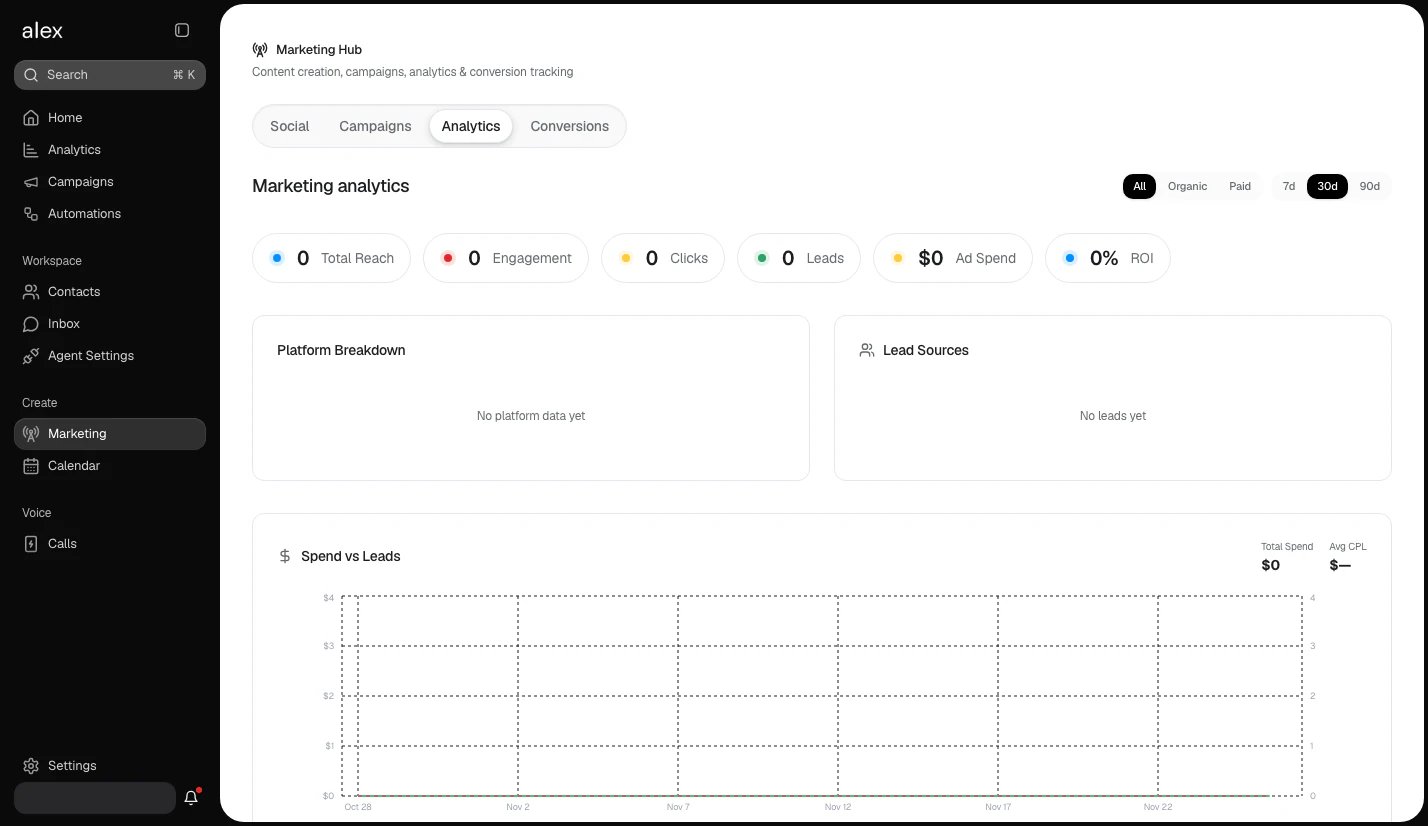
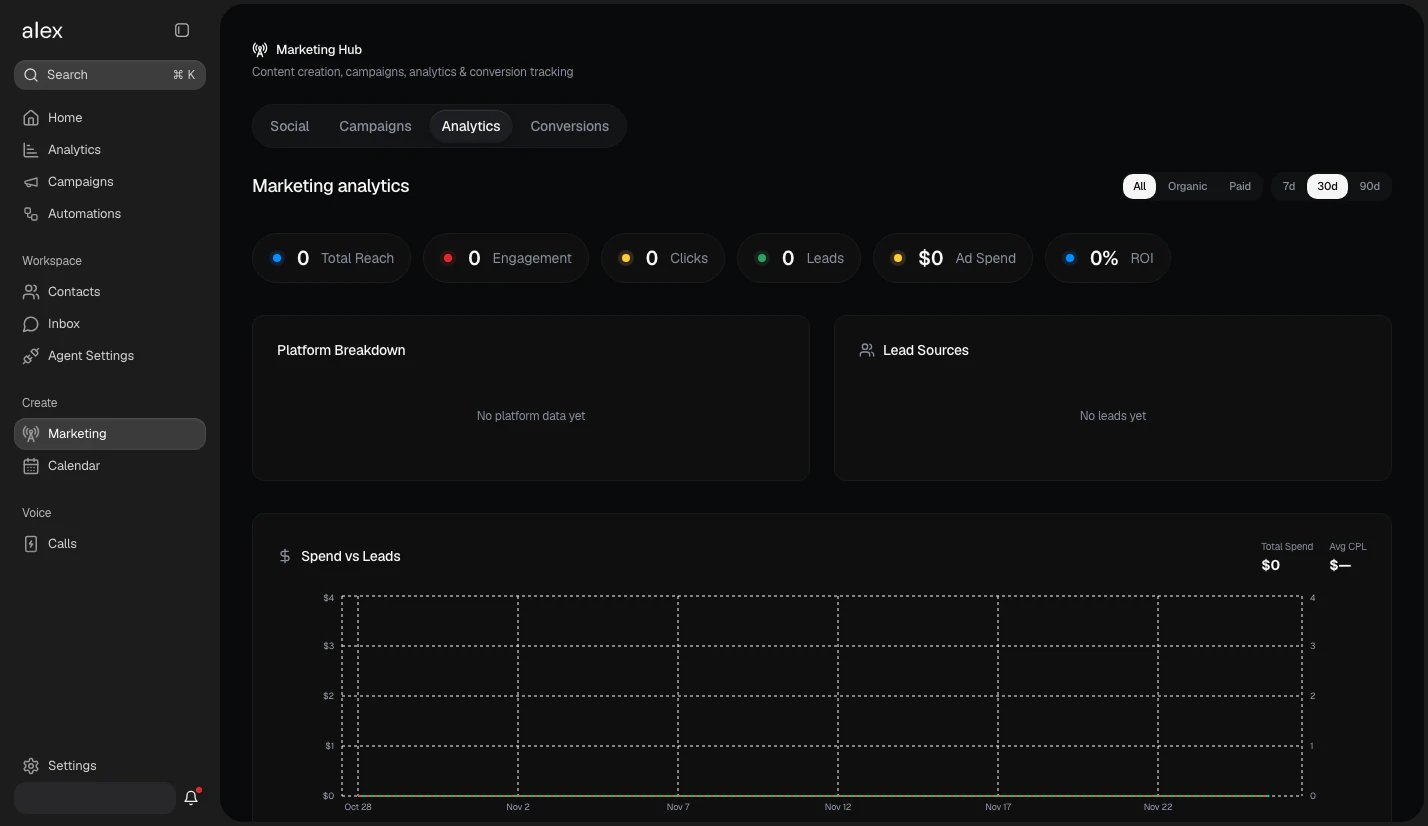
Marketing analytics for the last 7, 30 or 90 days
Conversions
The Conversions tab, Call → Ad Optimization, sends qualified calls back to your Google Ads and Meta ad accounts as conversions. Their bidding then learns which ads bring real callers. The settings apply to your whole workspace.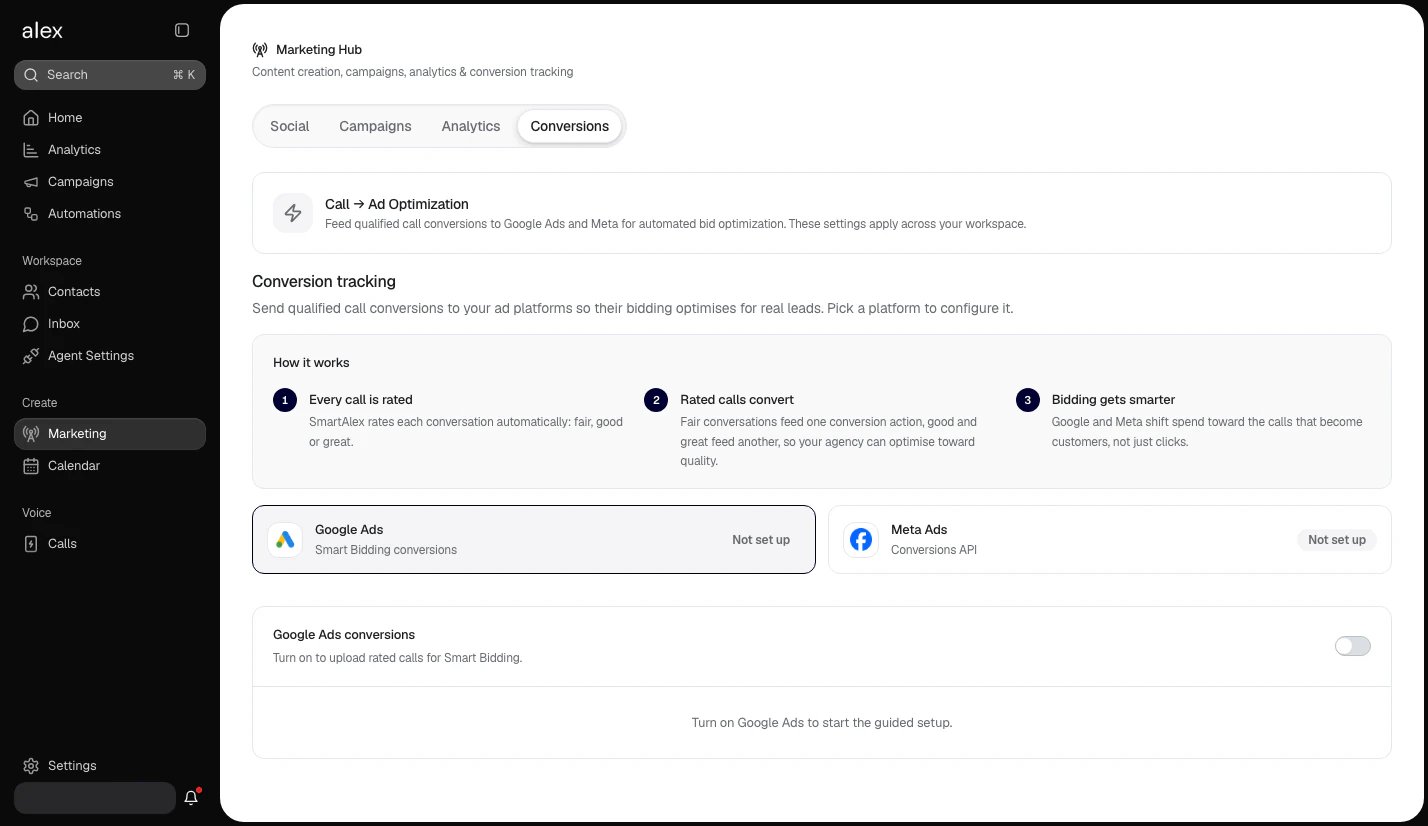
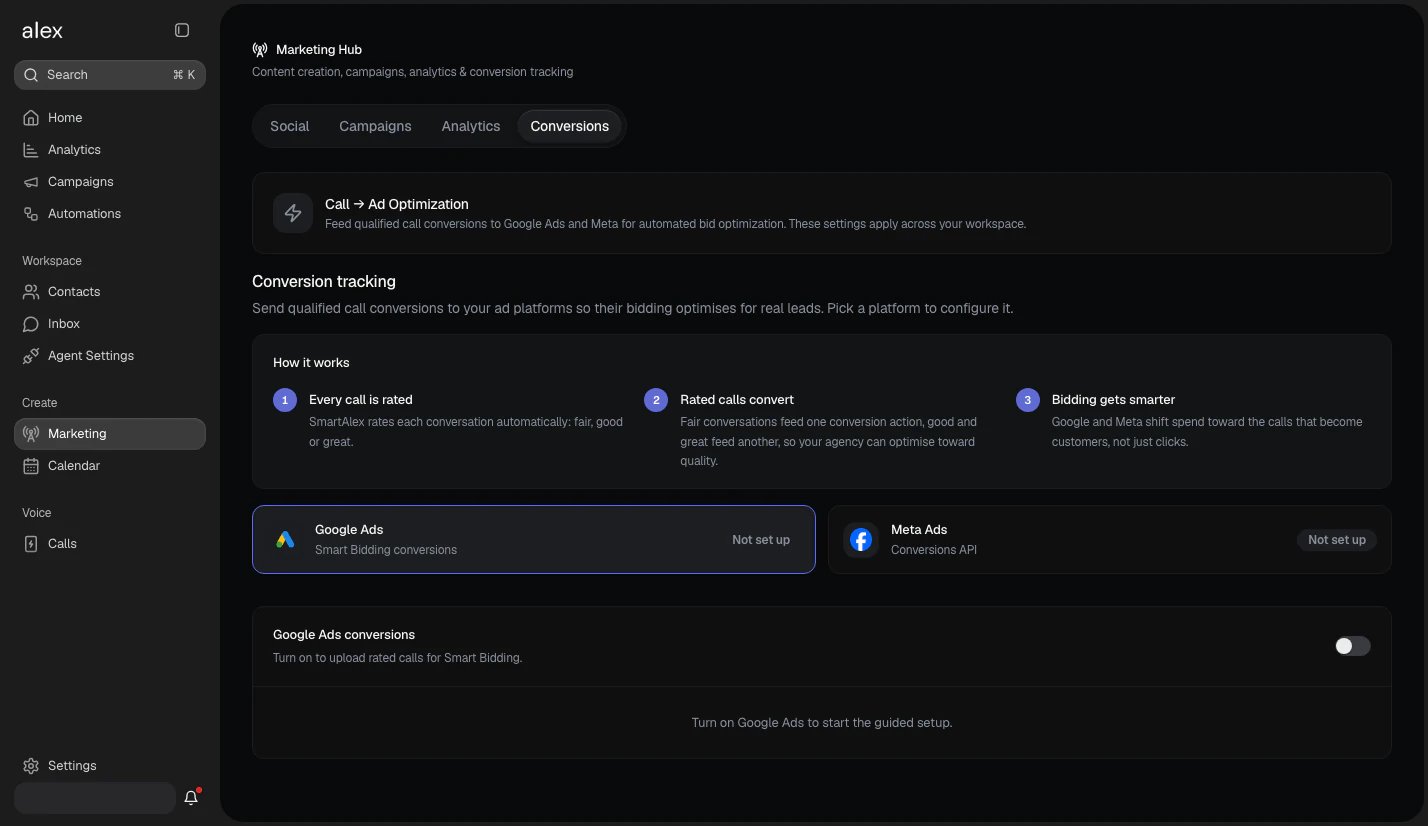
Send qualified calls back to your ad accounts
Questions people ask
Can I post to several platforms at once?
Can I post to several platforms at once?
Yes. Choose every account under Post to and publish once. The Preview shows each one.
Does my agent post for me?
Does my agent post for me?
No. You write and schedule posts here; AI only drafts the words and hashtags when you ask. Your
agent answers the messages and comments your posts bring in.
Which languages can the AI write in?
Which languages can the AI write in?
English, Afrikaans, Arabic, Chinese, Dutch, French, German, Hindi, Italian, Japanese, Korean,
Portuguese, Russian, Spanish, Swahili, Thai, Turkish, Urdu, Vietnamese and Zulu.
What does posting cost?
What does posting cost?
Publishing is included with the Power Tools add-on. Each connected social account has its own
small daily charge. See Pricing.
Why did my post fail on one platform?
Why did my post fail on one platform?
The status shows Partial or Failed. Check the account still shows Connected under
Accounts, reconnect it if needed, then click Retry.
Related
Social accounts
Connect the accounts you post to.
Comments and reviews
Answer what your posts bring in.